
Users, roles and permissions
Each person who uses Ochema in your company is a user with one role. The role is a set of permissions, and each permission opens a screen or an action. Every company starts with three system roles, Owner, Admin and Read only, and can add its own.
Who this is for
Section titled “Who this is for”| What you do | Permission |
|---|---|
| See the Users tab and the pending invitations | View users (platform.users.read) |
| Invite users, resend and revoke invitations | Invite users (platform.users.invite) |
| Change a role, deactivate, reactivate and remove users | Manage users (platform.users.manage) |
| See the Roles tab and the permissions of each role | View roles (platform.roles.read) |
| Create, edit and delete your own roles | Manage roles (platform.roles.manage) |
| Give and take the Owner role | Manage owners (platform.owners.manage), only on Owner |
Owner has every permission. Admin has every permission except Manage owners. Read only sees the two tabs and changes nothing. The full list is in Roles and permissions.
Two rules apply on top of the permissions:
- You cannot give more than you have. You can give only roles whose permissions your own role has, and only an owner can give the Owner role.
- You cannot change your own access, and only owners can change an owner.
When you cannot change a user, the row menu shows the reason at the top and its items are disabled: Only owners can change an owner, You cannot change your own access or Their role has permissions that yours does not.
Before you start
Section titled “Before you start”To add people, follow Invite your team. This page covers what you do with users and roles afterwards.
Change the role of a user
Section titled “Change the role of a user”- Open Platform in the menu on the left, then Users and roles. The Users tab lists each user with the Role, the Status (Active or Disabled) and the Last sign-in. Type in Search users to find someone by name or email.
- Select the … button at the end of the row (Actions for and the name).
- Select Change role. In Change the role of …, choose the new role. The list shows only the roles you are allowed to give.
- Select Change role. The message says the user is now in the new role. The new role applies on their next action in Ochema.
Open the screenshot at full size in a new tab: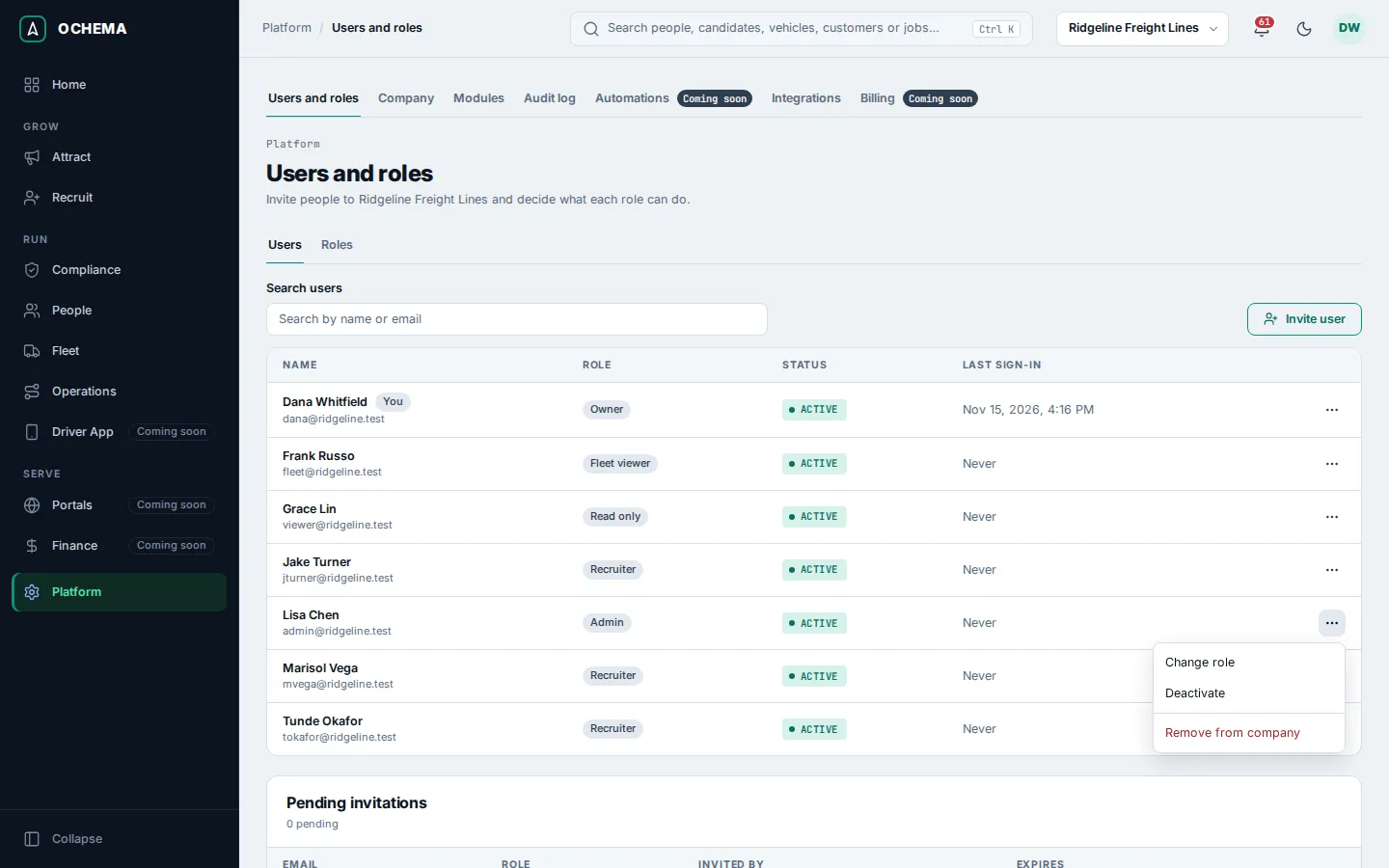
Deactivate, reactivate or remove a user
Section titled “Deactivate, reactivate or remove a user”From the same row menu:
- Deactivate: the user loses access to your company right away. The account and its history stay, and Reactivate gives the access back.
- Remove from company: the user loses access right away. Their Ochema account stays for other companies; to give access again, send a new invitation. If the user has scheduled interviews, the confirmation says how many will be canceled, and each candidate is invited to pick a new time.
Resend or revoke an invitation
Section titled “Resend or revoke an invitation”Under Pending invitations, each invitation shows the Email, the Role, who Invited by and when it Expires (7 days after it was sent). From the … menu of the row:
- Resend sends the email again.
- Revoke stops the link in the email from working. Confirm with Revoke invitation. You can invite the same email again later.
Create a role
Section titled “Create a role”- On Users and roles, open the Roles tab. Each role shows its Description and how many Members it has. System roles carry the System tag.
- Select New role.
- Type the Name and, optionally, a Description that helps others pick the right role.
- Under Permissions, check what members of this role can see and do. The permissions are grouped by module, each with Select all and Clear. The top right says how many are selected.
- Select Create role. The message Role … created. appears.
Open the screenshot at full size in a new tab: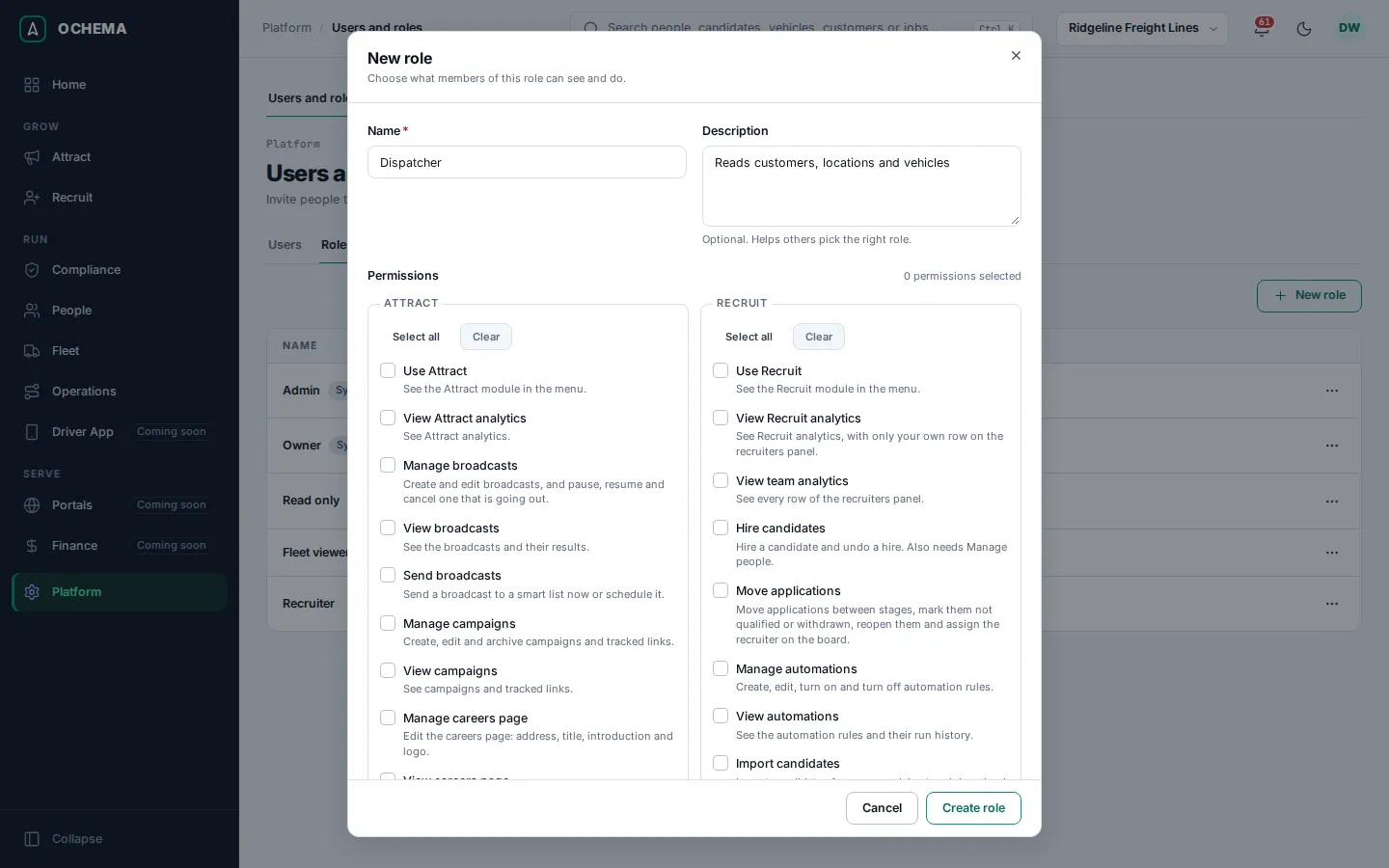
Open the screenshot at full size in a new tab: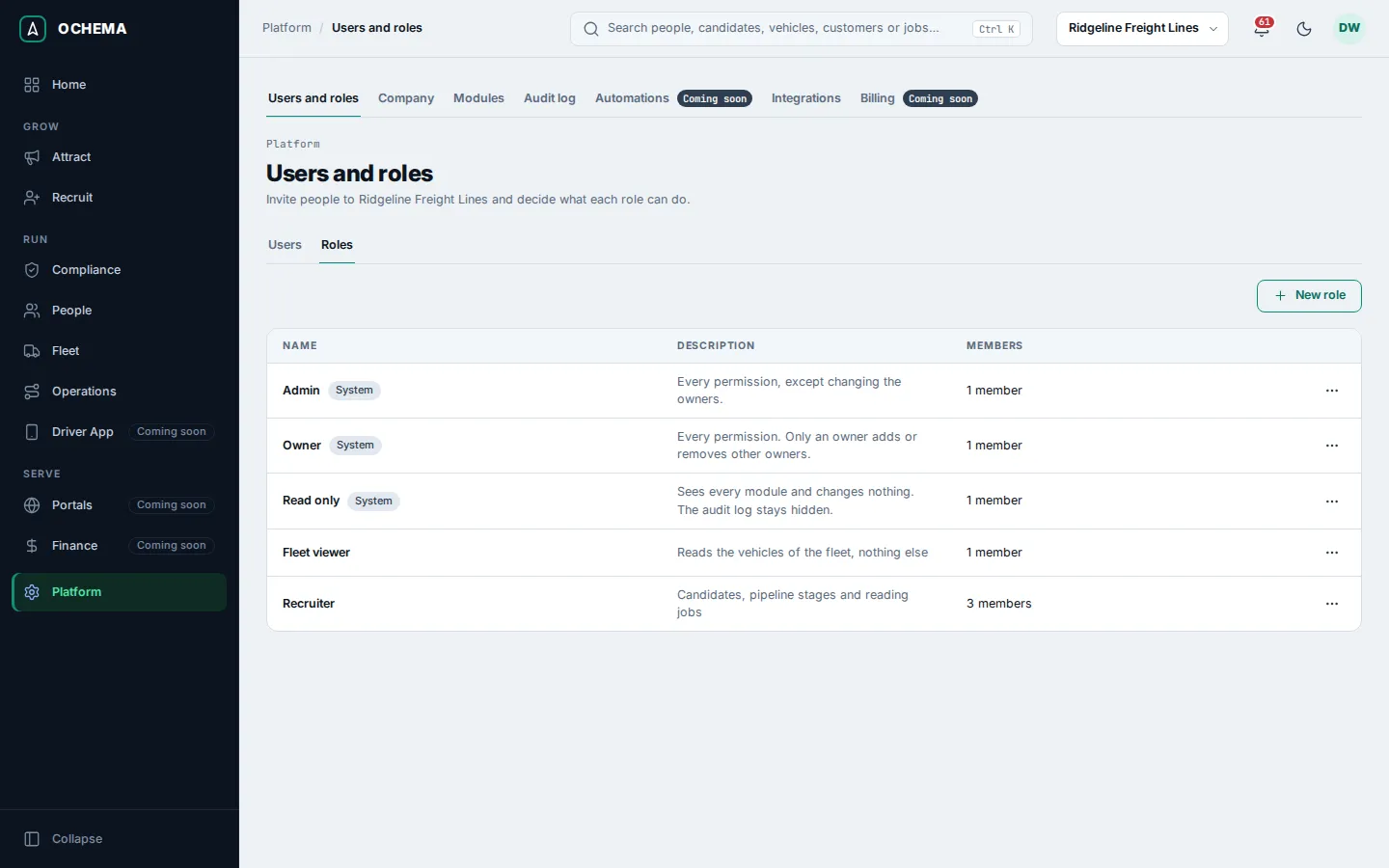
The dialog helps you avoid a role that opens nothing:
- Each module has a Use permission (for example Use Fleet) that puts the module in the menu. Without it, the other permissions of that module do nothing, and the dialog says so.
- Use alone opens no screen: add the View permissions the role needs.
- A permission your own role does not have is disabled: Your own role does not have this permission, so you cannot grant it.
- A module that is turned off for your company shows Module off. See Company and modules.
Edit or delete a role
Section titled “Edit or delete a role”From the … menu of a role on the Roles tab:
- Edit opens the same dialog. Select Save changes: the message Role … saved. appears.
- Delete removes a role that nobody has. If users have it, the dialog says how many: move them to another role first.
- System roles, and any role when your own role cannot manage roles, have only View permissions. System roles come with Ochema and cannot be changed.
- A role with permissions your own role does not have can be viewed, but only someone with all of its permissions can change or delete it.
What happens next
Section titled “What happens next”Every invitation, role change, deactivation, removal and role edit is recorded in the Audit log, with who did it and when.
Related
Section titled “Related”- Invite your team
- Roles and permissions reference
- Company and modules
- Authentication, roles and permissions, in the system documentation