
Document types and rules
Compliance > Document types decides what each driver file asks for. It has four tabs: Document types, Rules, Onboarding templates and Contract templates. This page covers the first two. See Onboarding and Contracts and signing for the others.
Who this is for
Section titled “Who this is for”Compliance managers and owners.
- Document types tab: View document types (
compliance.document_types.read) to see it, Manage document types (compliance.document_types.manage) to turn optional types off and on and to create and archive your own. - Rules tab and the Alerts card: View compliance rules (
compliance.rules.read) to see them, Manage compliance rules (compliance.rules.manage) to turn optional rules off and on and to edit the alerts.
The roles Owner and Admin have all four; Read only has the two that view.
Before you start
Section titled “Before you start”- The Type of operation of your company is set in Platform > Company. The catalog shows the rules for that type of operation. See Company details.
The document types
Section titled “The document types”Open Compliance, then Document types. The list shows the documents your company keeps in each driver file: the FMCSA catalog for your type of operation, then your own types. For each one: Name, Applies to (CDL, Non-CDL, Owner-operator), Required (for example Before hire, Every year, Within days of hire, Only in some cases), Valid for, Regulation, Rule check and In use.
The Rule check is Preview while the Ochema team is still checking the rule against the current FMCSA text, and Validated once it was checked. Under the list, the product says: “Catalog rules marked Preview are still being checked by the Ochema team against the current FMCSA text. Validated rules were checked. Confirm Preview rules with your safety advisor before relying on them.”
Open the screenshot at full size in a new tab: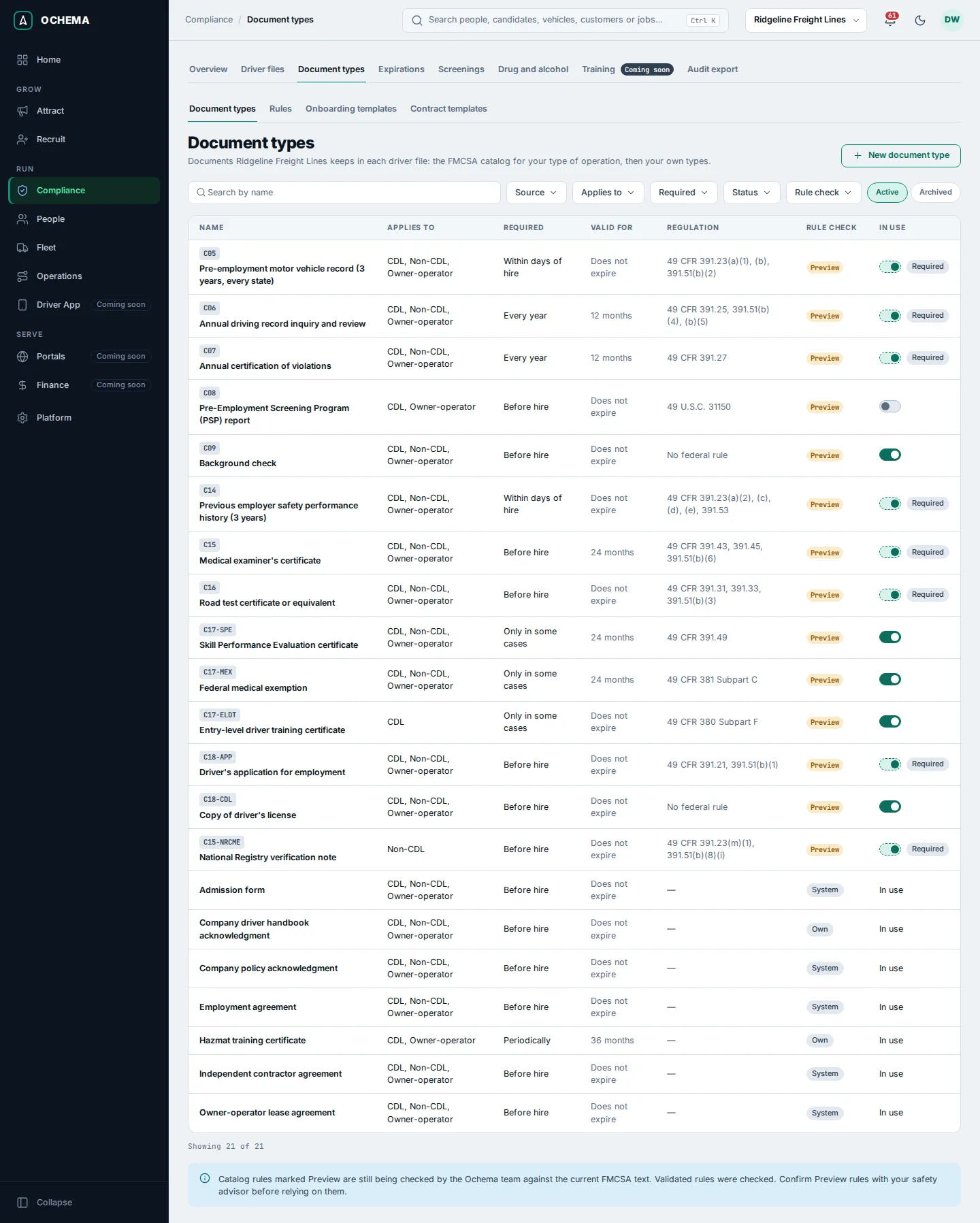
The source of a type is one of three:
- FMCSA catalog: kept by the Ochema team for every company. A row marked Required cannot be turned off. You can only turn optional ones off.
- Ochema system (tag System): types Ochema uses for contracts and forms, such as Admission form, Company policy acknowledgment, Employment agreement, Independent contractor agreement and Owner-operator lease agreement. You can change whom they apply to and their validity, not their name, and they cannot be archived.
- Your own (tag Own): the types your company creates.
Select a name to open its page. A catalog type shows its Catalog code, Rule check, Applies to, Required, Default validity, Regulation, Can be turned off and Description.
Open the screenshot at full size in a new tab: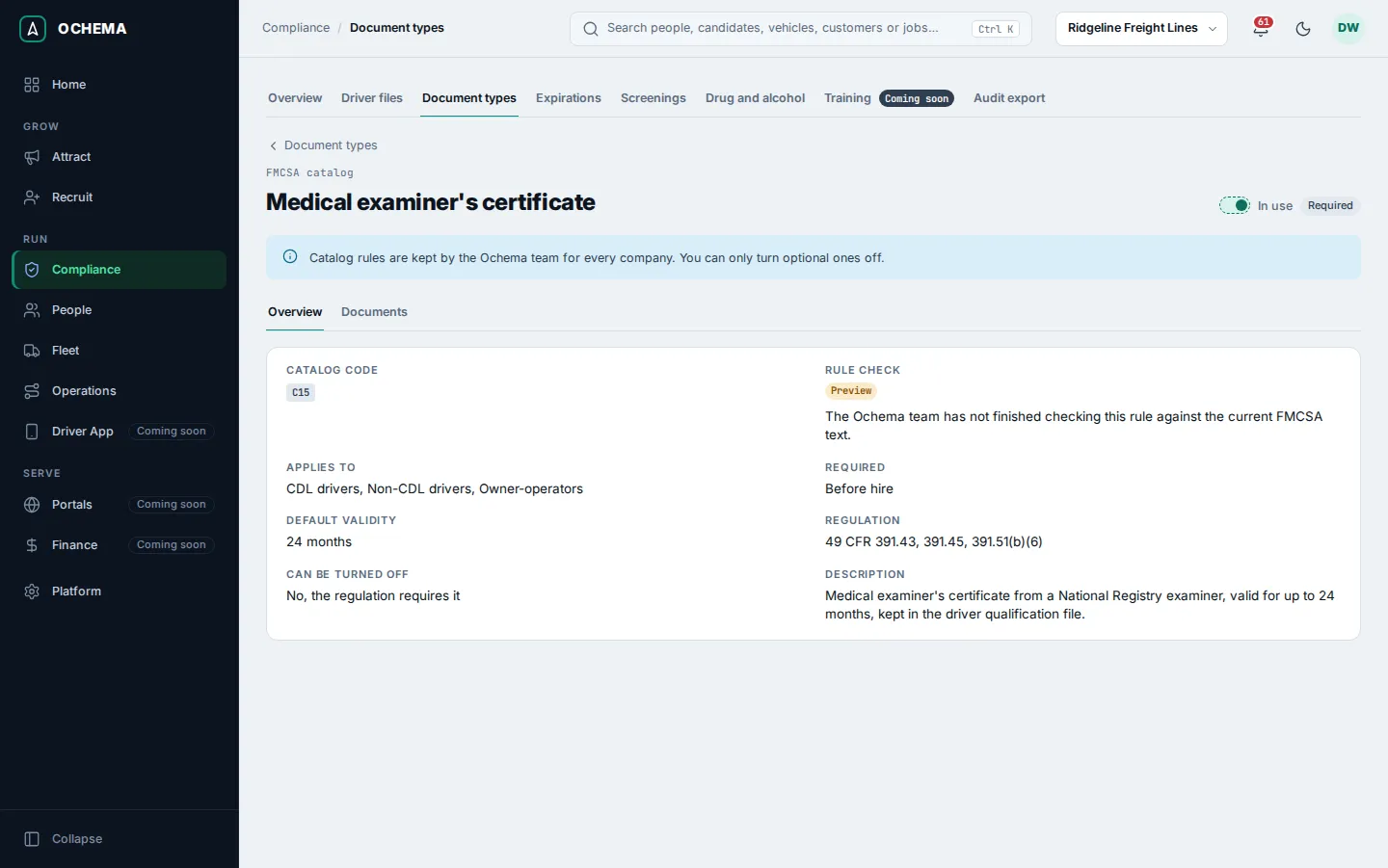
Turn an optional type off or on
Section titled “Turn an optional type off or on”In the list, use the switch in In use of the row. Turned off, the message says the driver files no longer ask for it. You can turn it on again the same way.
Create your own document type
Section titled “Create your own document type”- Select New document type.
- Type the Name (unique among your active document types) and, optional, the Description, up to 2,000 characters.
- Under Applies to, check at least one: CDL drivers, Non-CDL drivers, Owner-operators.
- Choose when it is Required.
- Type the Default validity, from 1 to 120 months, or leave it empty when the document does not expire.
- Select Create document type. The message Document type with the name and created. appears.
Open the screenshot at full size in a new tab: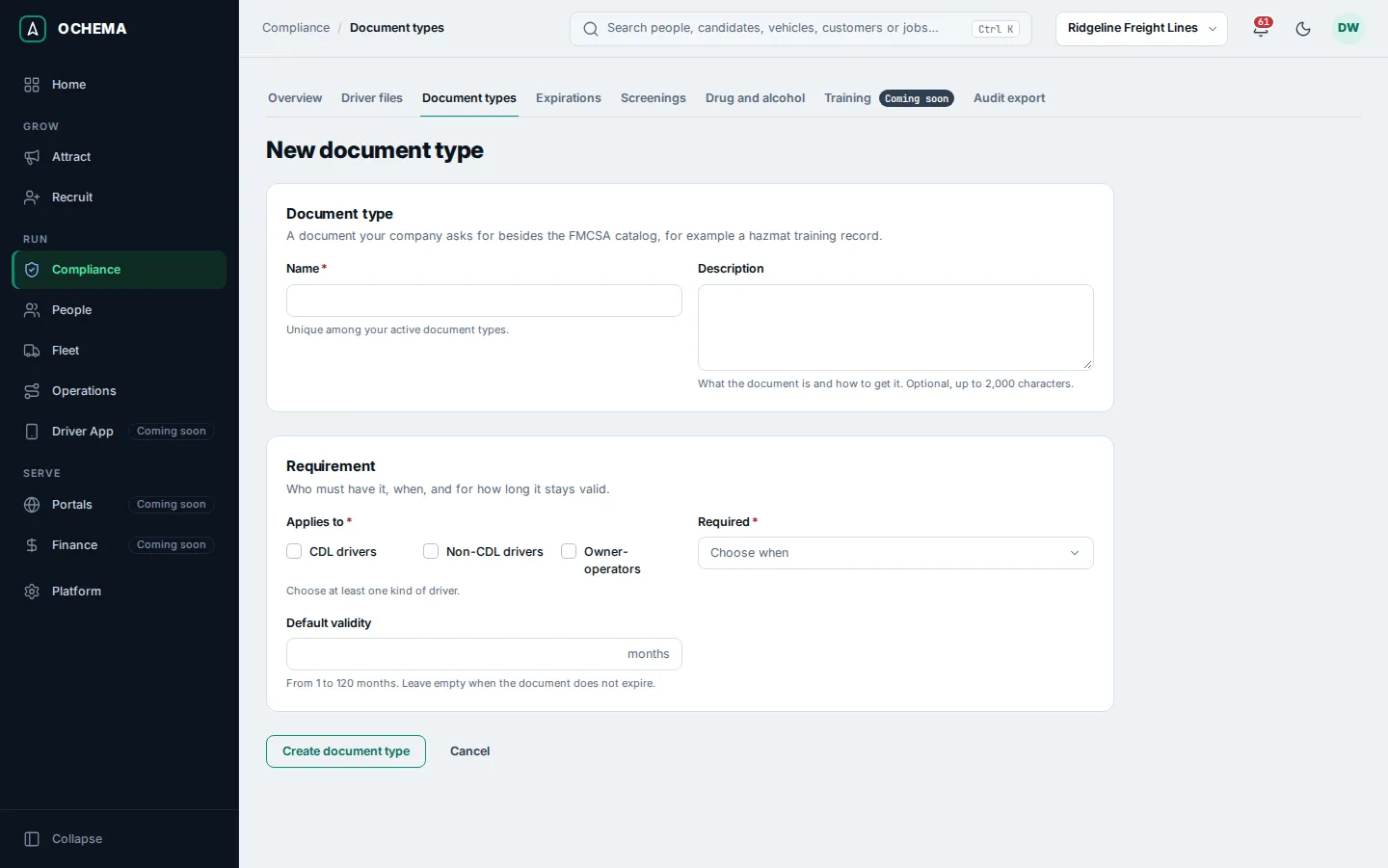
To archive your own type, open it and select Archive. It leaves the lists and pickers and stops applying in every driver file. Nothing is deleted: you can reactivate it from the Archived view of the list.
The rules
Section titled “The rules”Select the Rules tab. The rules are grouped as the driver file is: Application and employment history, License and driving record, Medical, Road test, Other, and Drug and alcohol file, which is kept apart from the driver qualification file, with its own permissions. Each rule shows Applies to, Required (for example Within 30 days of hire or Every 12 months), Valid for, Regulation and Rule check. Rules marked Required by regulation stay on.
Open the screenshot at full size in a new tab: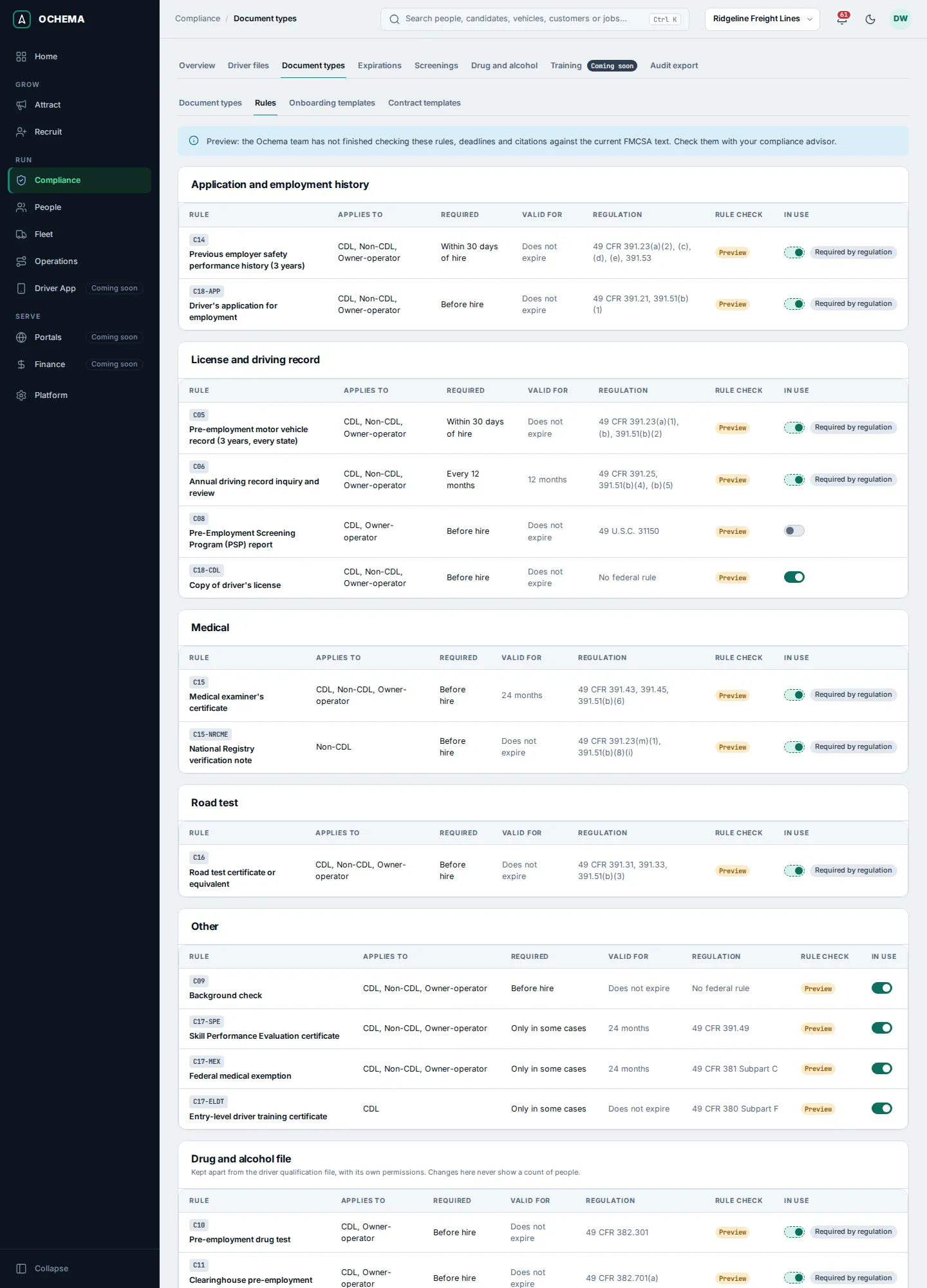
To turn an optional rule off or on, use its switch in In use. The confirmation says how many open driver files have the item now: turned off, the item shows Does not apply there, and its files and history are kept.
The catalog today
Section titled “The catalog today”The table lists the catalog rules the screen shows for an interstate carrier with CDL drivers, as the product shows them. The regulation column is the citation the product shows; Ochema does not give legal advice.
| Code | Rule | Applies to | Required | Valid for | Regulation |
|---|---|---|---|---|---|
| C14 | Previous employer safety performance history (3 years) | CDL, Non-CDL, Owner-operator | Within 30 days of hire | Does not expire | 49 CFR 391.23(a)(2), (c), (d), (e), 391.53 |
| C18-APP | Driver’s application for employment | CDL, Non-CDL, Owner-operator | Before hire | Does not expire | 49 CFR 391.21, 391.51(b)(1) |
| C05 | Pre-employment motor vehicle record (3 years, every state) | CDL, Non-CDL, Owner-operator | Within 30 days of hire | Does not expire | 49 CFR 391.23(a)(1), (b), 391.51(b)(2) |
| C06 | Annual driving record inquiry and review | CDL, Non-CDL, Owner-operator | Every 12 months | 12 months | 49 CFR 391.25, 391.51(b)(4), (b)(5) |
| C08 | Pre-Employment Screening Program (PSP) report | CDL, Owner-operator | Before hire | Does not expire | 49 U.S.C. 31150 |
| C18-CDL | Copy of driver’s license | CDL, Non-CDL, Owner-operator | Before hire | Does not expire | No federal rule |
| C15 | Medical examiner’s certificate | CDL, Non-CDL, Owner-operator | Before hire | 24 months | 49 CFR 391.43, 391.45, 391.51(b)(6) |
| C15-NRCME | National Registry verification note | Non-CDL | Before hire | Does not expire | 49 CFR 391.23(m)(1), 391.51(b)(8)(i) |
| C16 | Road test certificate or equivalent | CDL, Non-CDL, Owner-operator | Before hire | Does not expire | 49 CFR 391.31, 391.33, 391.51(b)(3) |
| C09 | Background check | CDL, Non-CDL, Owner-operator | Before hire | Does not expire | No federal rule |
| C17-SPE | Skill Performance Evaluation certificate | CDL, Non-CDL, Owner-operator | Only in some cases | 24 months | 49 CFR 391.49 |
| C17-MEX | Federal medical exemption | CDL, Non-CDL, Owner-operator | Only in some cases | 24 months | 49 CFR 381 Subpart C |
| C17-ELDT | Entry-level driver training certificate | CDL | Only in some cases | Does not expire | 49 CFR 380 Subpart F |
| C10 | Pre-employment drug test | CDL, Owner-operator | Before hire | Does not expire | 49 CFR 382.301 |
| C11 | Clearinghouse pre-employment full query | CDL, Owner-operator | Before hire | Does not expire | 49 CFR 382.701(a) |
| C11-CONS | Consent for Clearinghouse limited queries | CDL, Owner-operator | Before hire | Does not expire | 49 CFR 382.701(b)(2), 382.703(a) |
| C11-LIM | Clearinghouse annual query | CDL, Owner-operator | Every 12 months | 12 months | 49 CFR 382.701(b) |
| C12 | Drug and alcohol testing records file | CDL, Owner-operator | Kept on file | Does not expire | 49 CFR 382.401 |
| C13 | Random testing pool enrollment | CDL, Owner-operator | Kept on file | Does not expire | 49 CFR 382.305 |
Every rule in this table showed Preview when this page was written. Check the Rule check column of your own screen: it is the current one.
The alerts
Section titled “The alerts”The Alerts card at the bottom of the Rules tab says when expiration alerts go out and who receives them:
- Alert days before expiration: by default 60, 30, 15, 7 days before.
- Show as expiring: by default 30 days before expiration. An item enters Expiring soon this many days before it expires.
- Who receives the alerts: the members chosen; empty means everyone who can manage driver files.
To change them, select Edit alerts, change the fields and select Save alerts. The message Alerts saved. appears.
- Alert days before expiration: from 1 to 6 numbers from 1 to 180, separated by commas.
- Show as expiring: from 1 to 180 days. It takes effect on the next review of each item: lowering it does not move an item already shown as expiring back to valid.
Open the screenshot at full size in a new tab: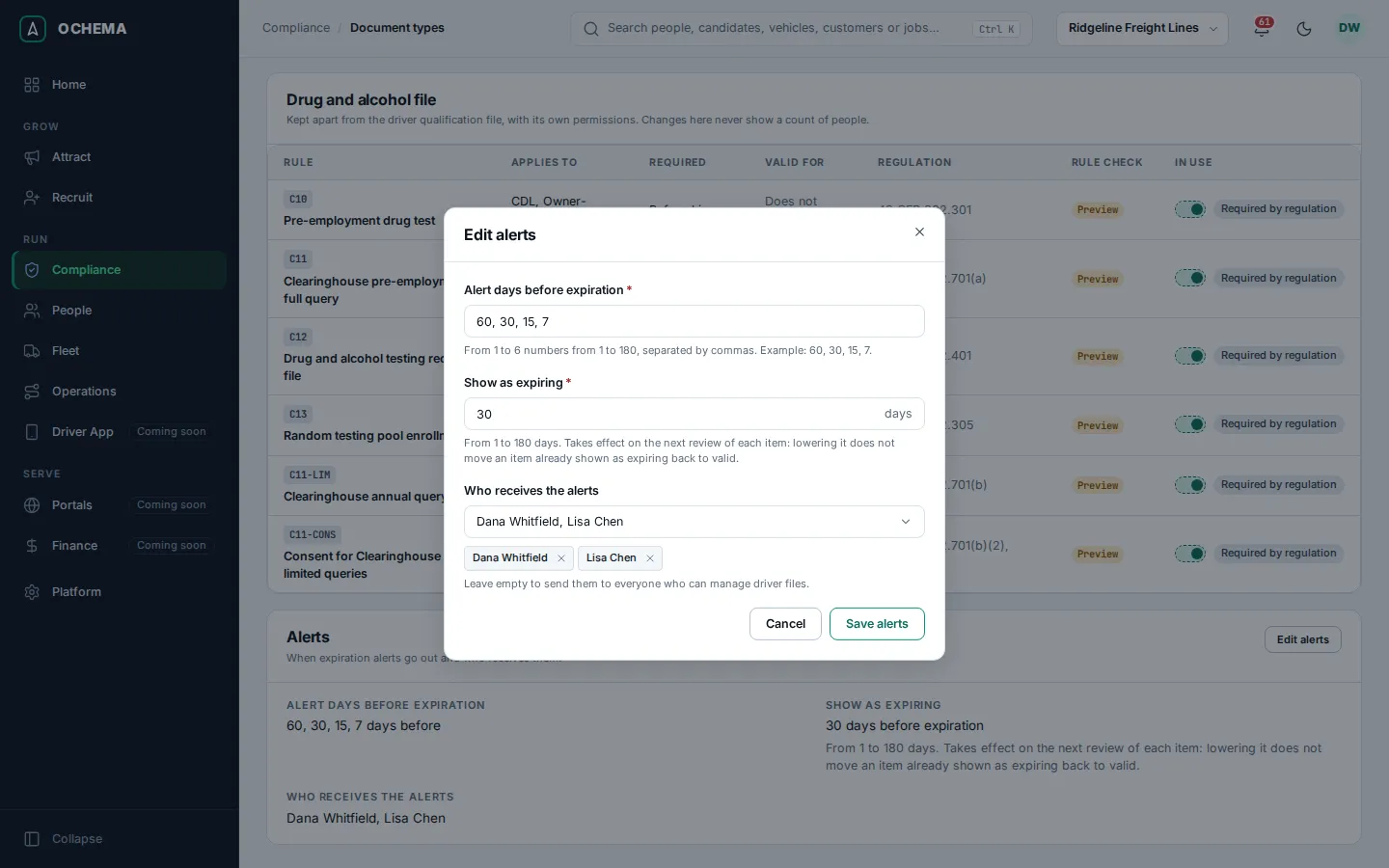
What happens next
Section titled “What happens next”A change of a type or a rule reaches every open driver file it applies to: new items appear, and items turned off show Does not apply. See Driver files and Expirations and alerts.