
Tracked links and sources
Every application records where it came from: its channel (for example Job board, Social media or QR code) and, when the driver came through a tracked link, the link and its campaign. A campaign is a label for one outreach, such as a truck wrap, a flyer or a job fair. It does not buy ads: it tells you which applications each of its links brought.
Who this is for
Section titled “Who this is for”To see campaigns and their links, your role needs View campaigns (attract.campaigns.read). To create, edit and archive them, it needs Manage campaigns (attract.campaigns.manage). Attract > Analytics needs View Attract analytics (attract.analytics.read). See Roles and permissions.
Before you start
Section titled “Before you start”- Your careers page needs its address, because every link opens a page of it. See Your careers page.
- A link can lead to an open or paused job. Without a job, it leads to the careers page.
Create a campaign
Section titled “Create a campaign”-
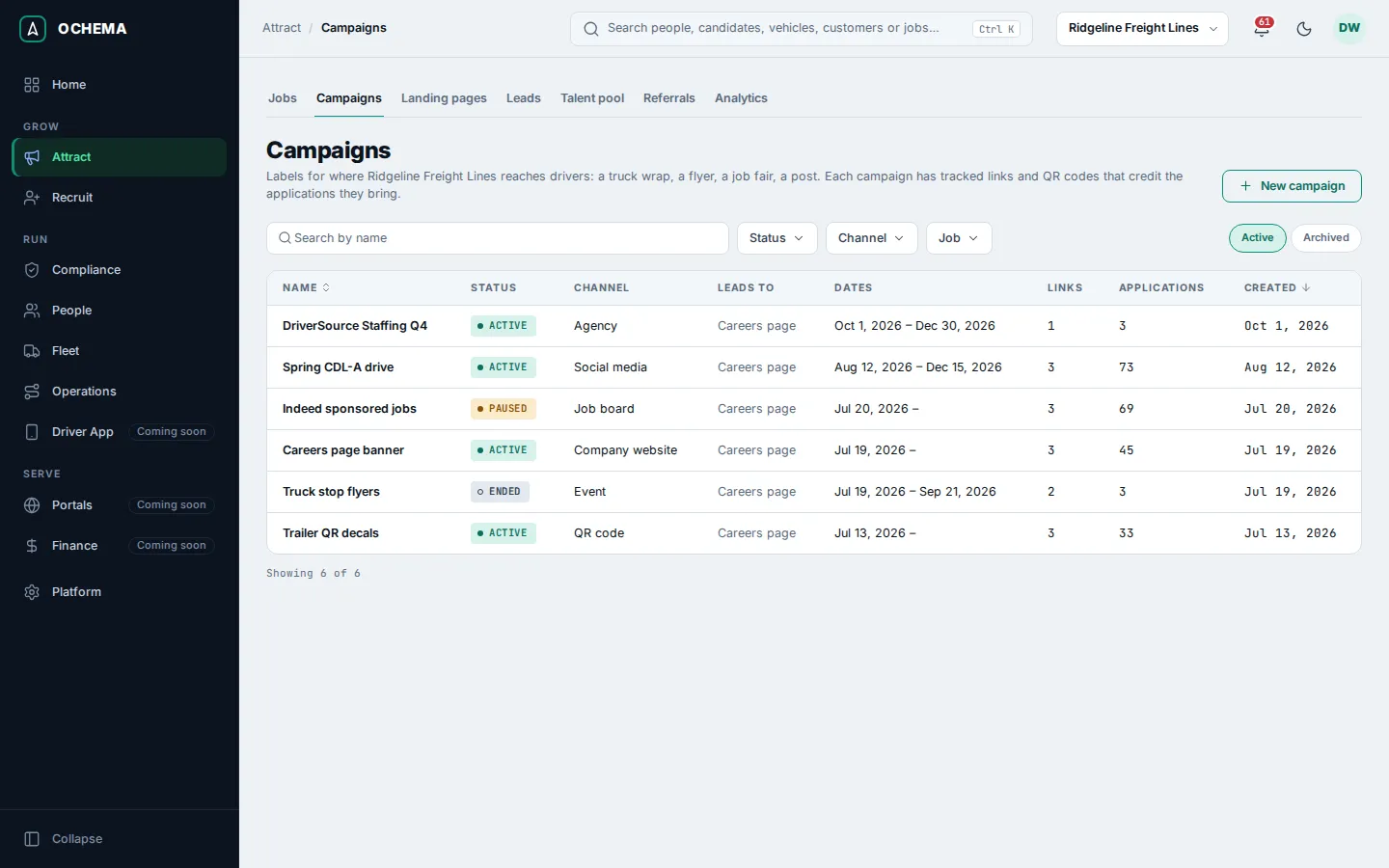
Open Attract in the menu on the left, then Campaigns. The list shows each campaign with its Status, Channel, where it Leads to, its Dates, the number of Links and of Applications. Open the screenshot at full size in a new tab:
-
Select New campaign.
-
Under Campaign, type the Name (up to 120 characters) and choose the Channel: Job board, Social media, Company website, Referral, Walk-in, Event, Agency, QR code or Other. The channel is recorded as the source of the applications. Leave Status on Active.
-
Under Destination, choose a Job, or leave Careers page. New links of the campaign lead there; each link can lead somewhere else.
-
Optional: under Dates, choose the Start date and the End date. The links work through the end of the end date, in the time zone of your company. After it, they lead to the careers page.
-
Select Create campaign. The message Campaign … created. appears and the page of the campaign opens.
Open the screenshot at full size in a new tab: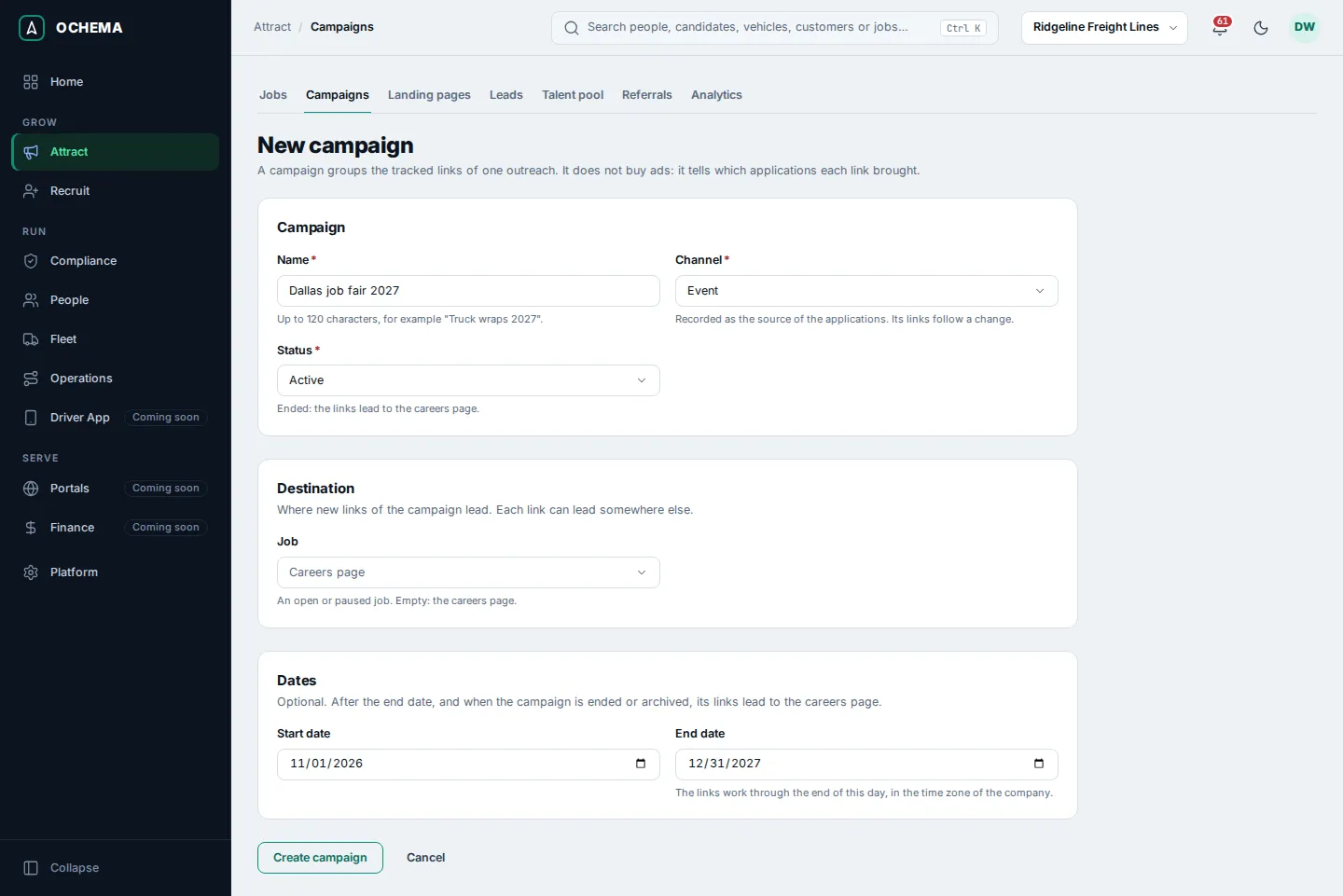
Open the screenshot at full size in a new tab: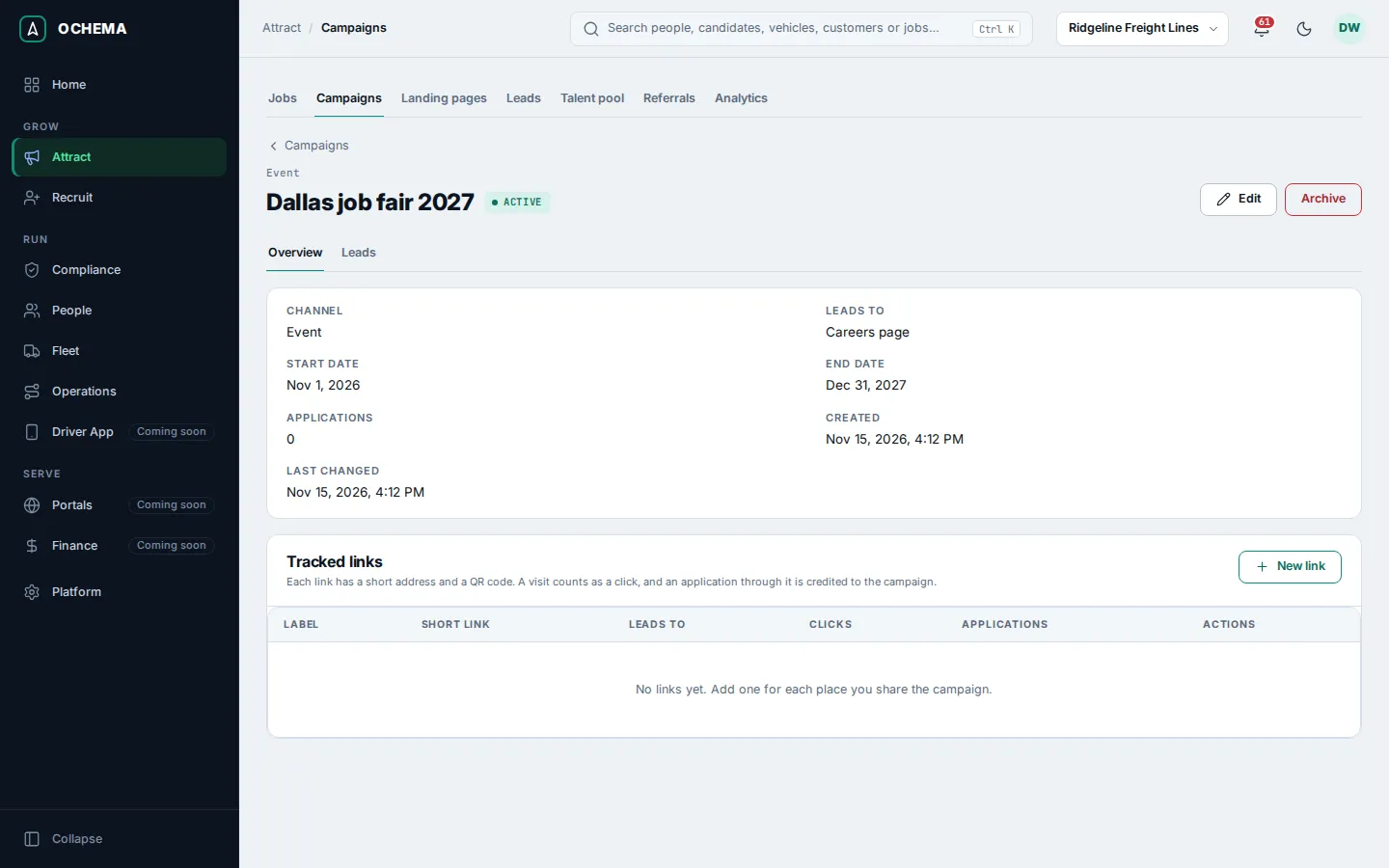
Add a tracked link
Section titled “Add a tracked link”Add one link for each place you share the campaign: a banner, a post, a door of a truck.
- On the page of the campaign, under Tracked links, select New link.
- In New tracked link, type the Label, for example
Booth banner, and choose where the link Leads to. - The UTM parameters are filled from the campaign: Source (utm_source), Medium (utm_medium) and Campaign (utm_campaign). Change them or add a Term (utm_term) and a Content (utm_content) if your other tools read them. They are added to the address of the page and recorded with each application.
- Select Create link. The short address is created when you save and never changes.
Open the screenshot at full size in a new tab: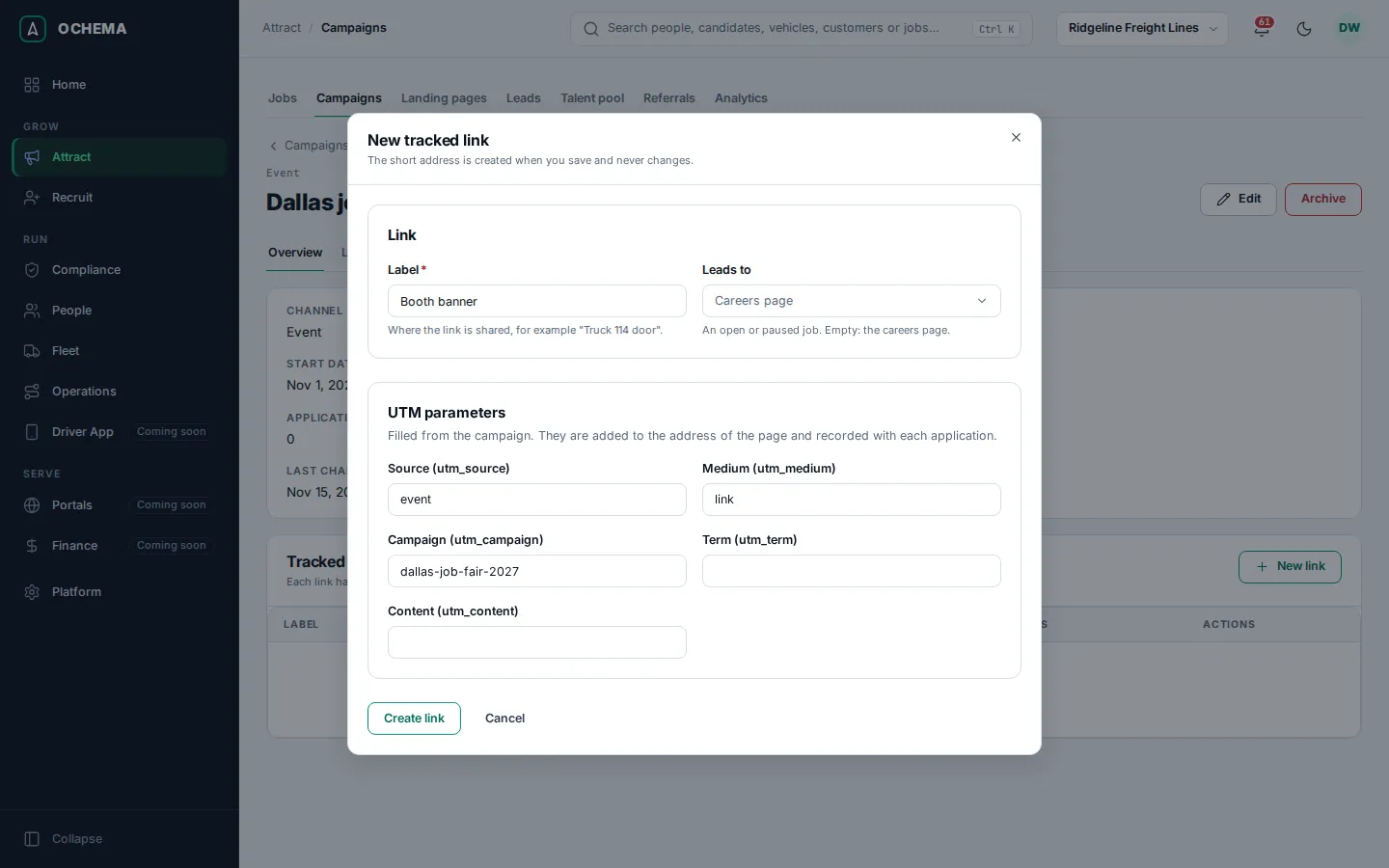
Each row of Tracked links shows the Short link, where it Leads to, its Clicks and its Applications. In the row:
- Copy link copies the short address.
- Download QR gives the QR code as PNG (for print) or SVG (vector).
- Edit changes the label, the destination and the UTM parameters.
- Archive keeps the short link and its QR code working, but they lead to the careers page. Reactivate brings the link back.
Open the screenshot at full size in a new tab: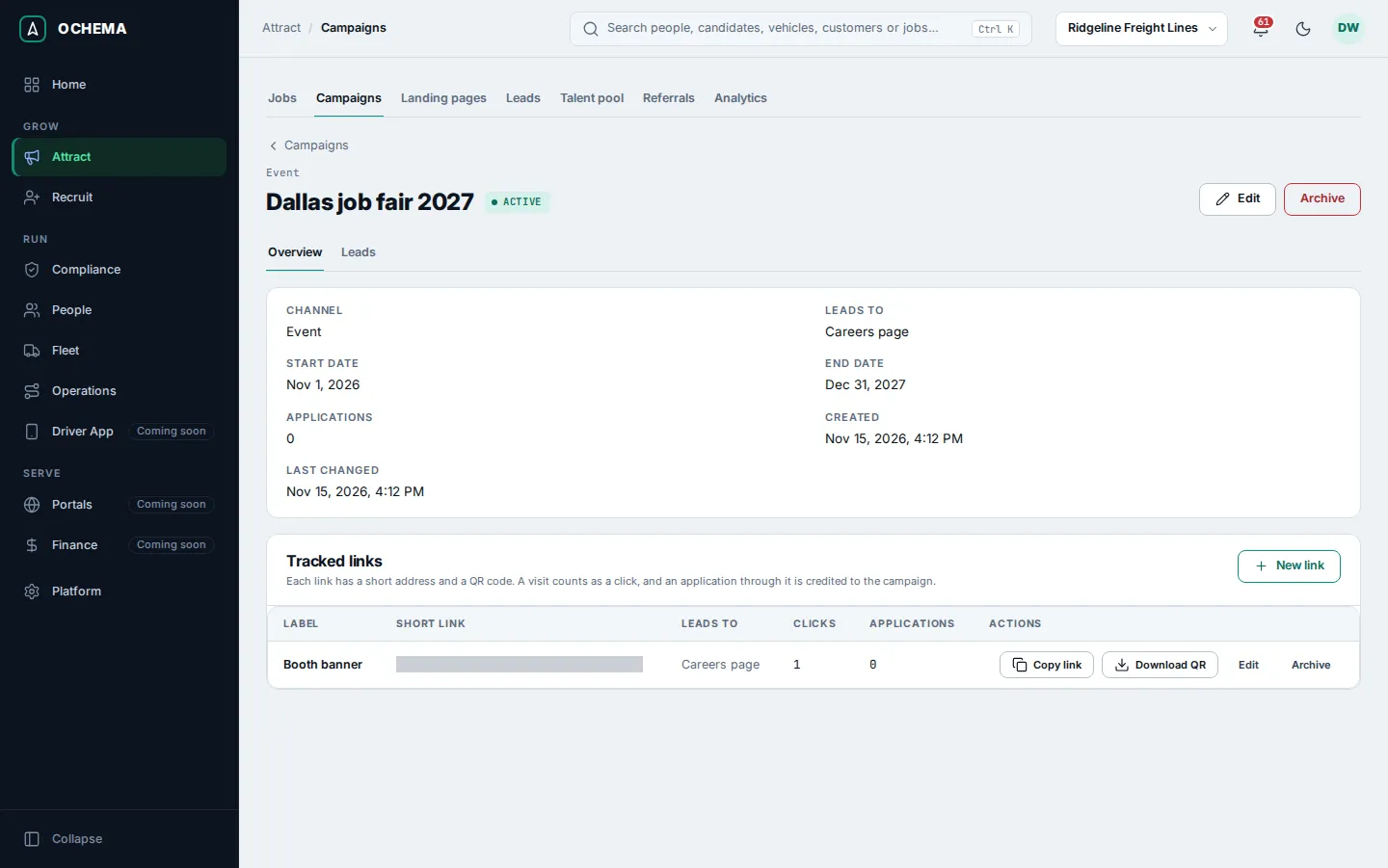
Follow a campaign
Section titled “Follow a campaign”The Overview tab of a campaign shows its links and their numbers. The Leads tab lists the applications that came through it, with the Job (or General application), the Link, the Stage, the Status and when the driver Applied.
Open the screenshot at full size in a new tab: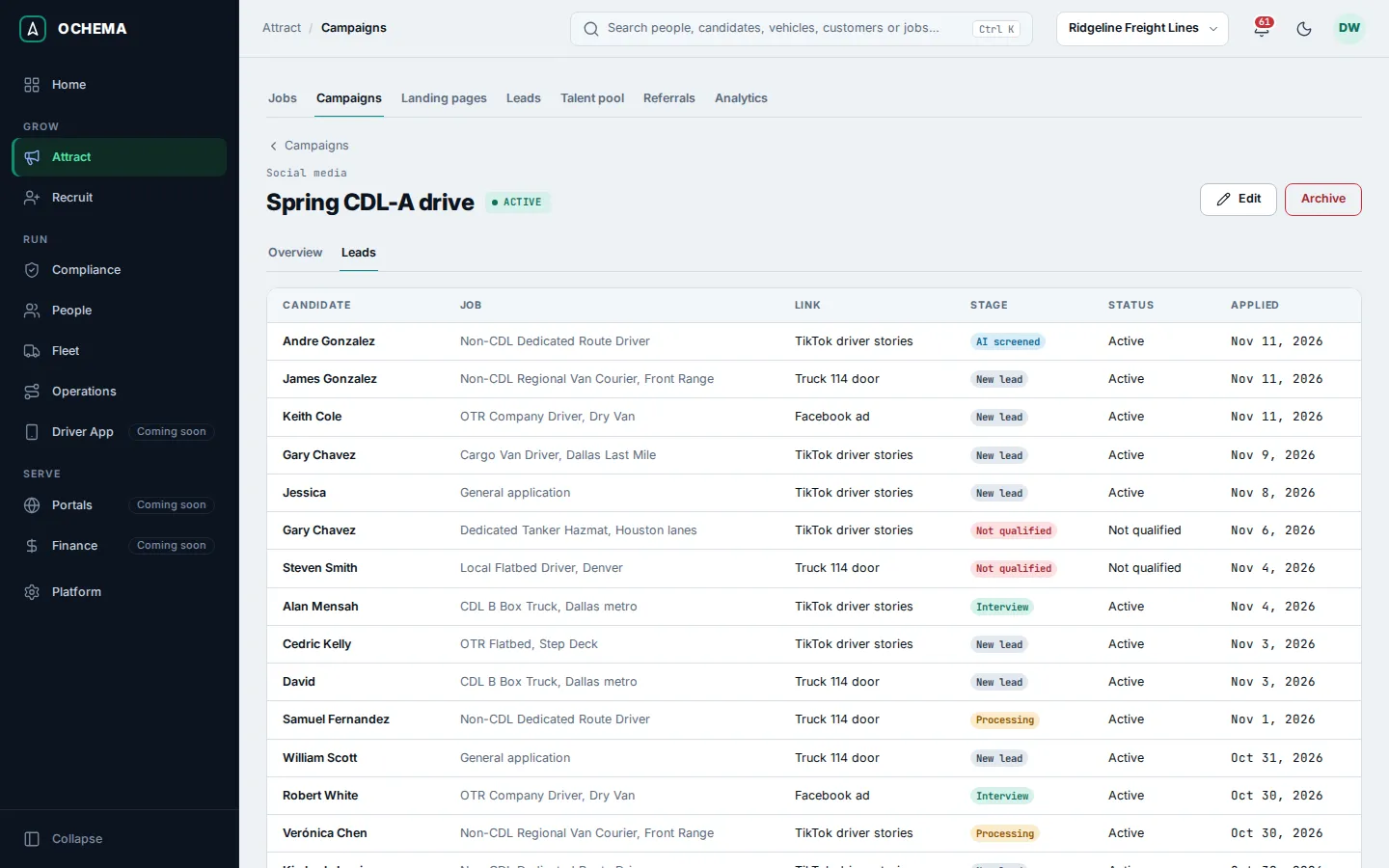
Open the screenshot at full size in a new tab: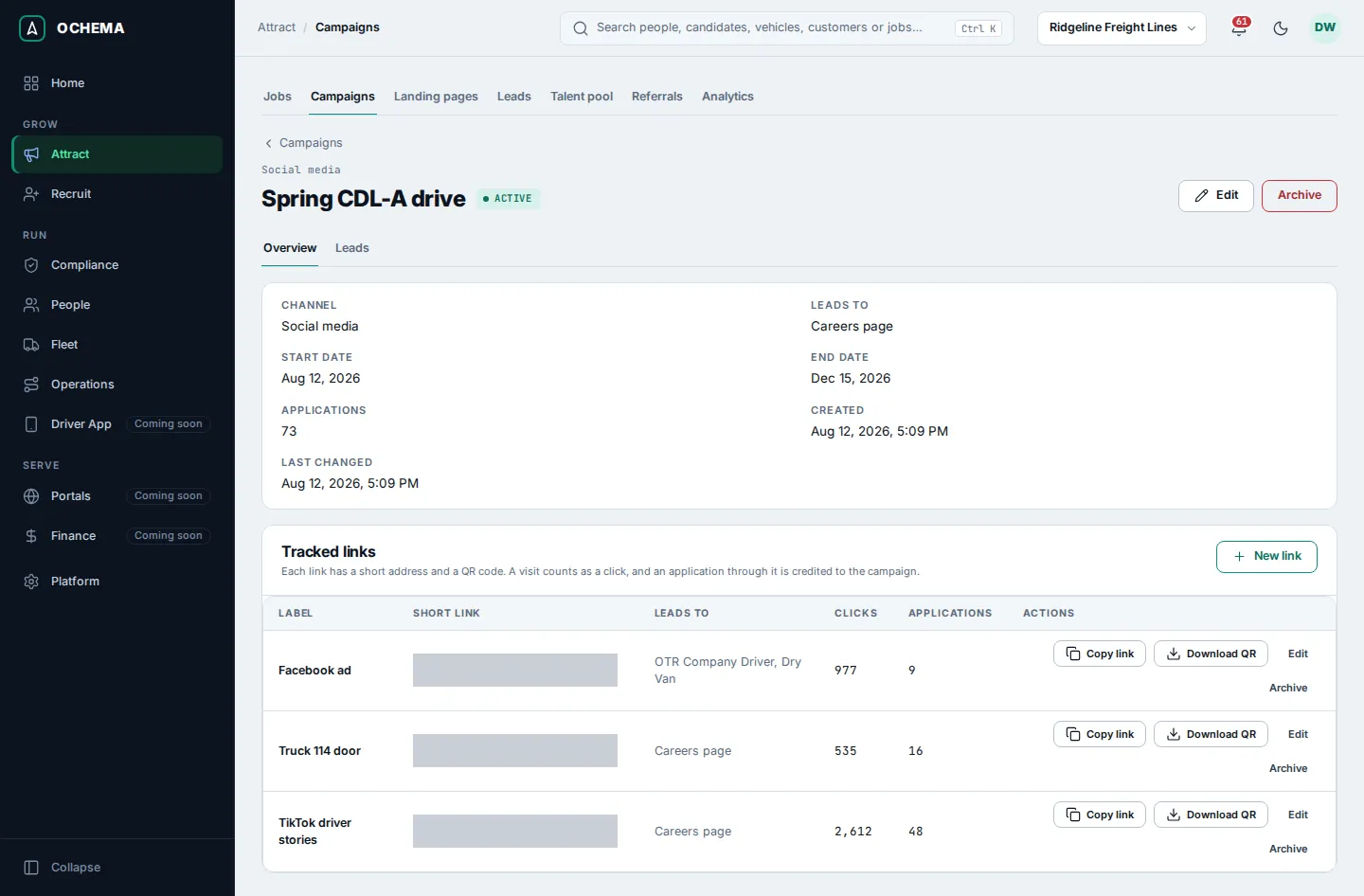
To stop a campaign, select Edit and set Status to Ended, or select Archive. Its links keep counting visits and crediting applications, and they lead to the careers page.
Compare sources in Analytics
Section titled “Compare sources in Analytics”- Open Attract, then Analytics.
- Choose the Period: Last 7 days, Last 30 days, Last 90 days, or Dates for your own range. Narrow it by Job, Recruiter and Channel if you need.
- Choose the Attribution. With Last touch, each application is credited to the channel and campaign of the touch that created it. With First touch, it is credited to the first known touch of the candidate.
- Read the sections:
- Leads by day: the applications created on each day, by channel.
- By channel and By campaign: Leads, Qualified (not in Not qualified now), Hired and Lead to hire for each one.
- Tracked links: the Clicks, Applications started, Applications submitted and Completion of each link, campaign and referral links alike. The recruiter filter and the attribution do not apply here.
- Recovered applications: drivers who stopped filling the application form after typing their email get Finish your application by email after 2 hours, and once more after 48 hours. This section counts the drafts reminded and how many applied after the reminder.
- Select Export CSV on a section to download its table.
Open the screenshot at full size in a new tab: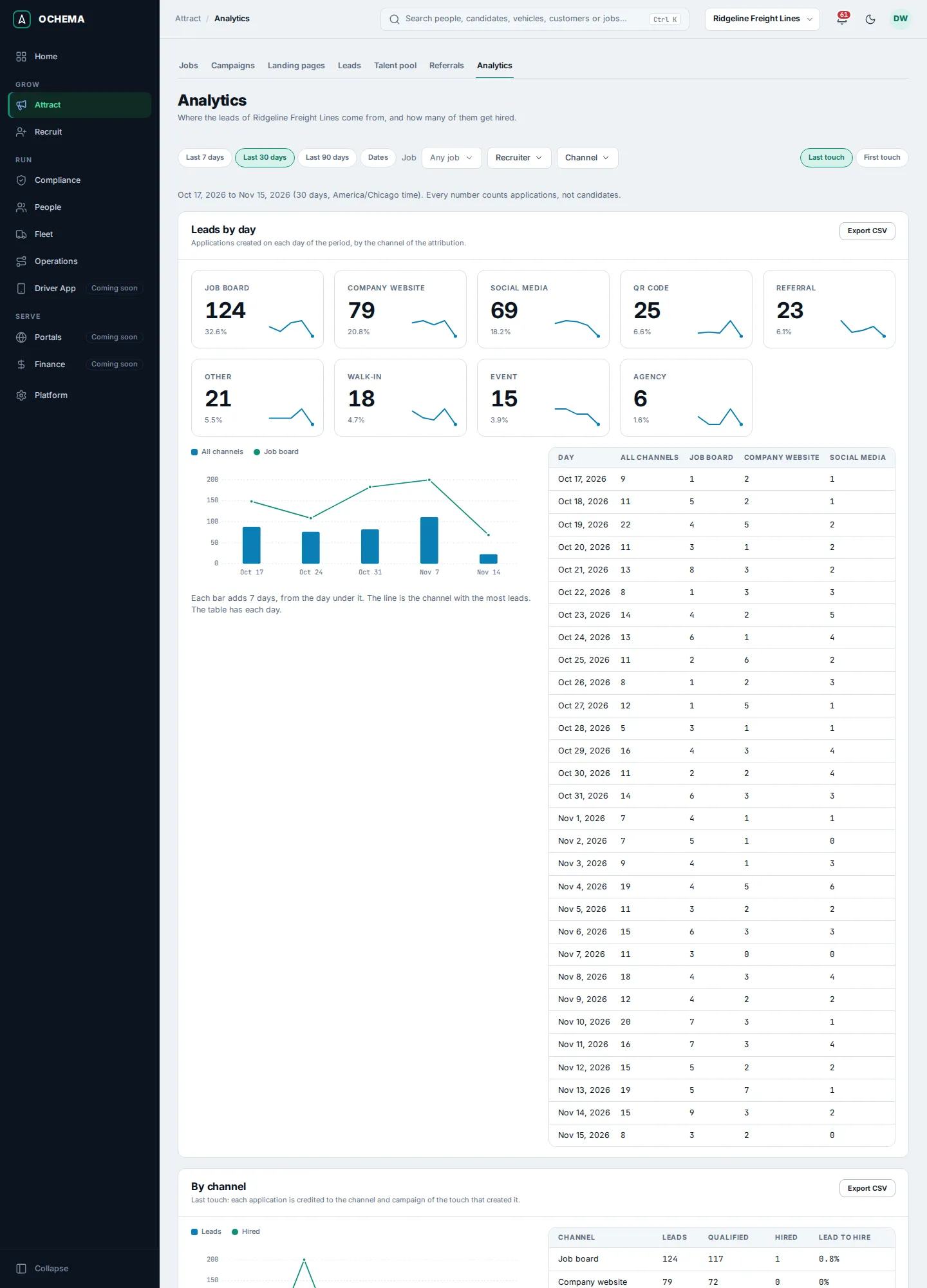
Cost per lead, per qualified lead and per hire is not shown: the screen says it comes with paid campaigns, and for now it shows volumes and conversion only.
What happens next
Section titled “What happens next”Each application through a link shows its channel, campaign and link in Attract > Leads and on the candidate in Recruit. A job also has a QR code of its own, on its Share tab, that marks the source as QR code; see Jobs.