
Invite your team
Who this is for
Section titled “Who this is for”The owner, or a user whose role can manage users.
Before you start
Section titled “Before you start”- The email address of each person you invite.
- The role each one gets. A role decides what the person can see and change. The Roles tab of the same screen lists the roles of your company and lets you create your own.
- On Home, in the Getting started card, select Invite people. You can also open Platform in the menu on the left, then Users and roles. The Users tab lists the people of the company, with their role, status and last sign-in, and Pending invitations lists the invitations not yet accepted.
- Select Invite user.
- In the Invite user dialog, type the Email of the person.
- In Role, choose the role, for example Admin. The list shows only the roles you are allowed to give.
- Select Send invitation. The message Invitation sent to and the email appears.
Open the screenshot at full size in a new tab: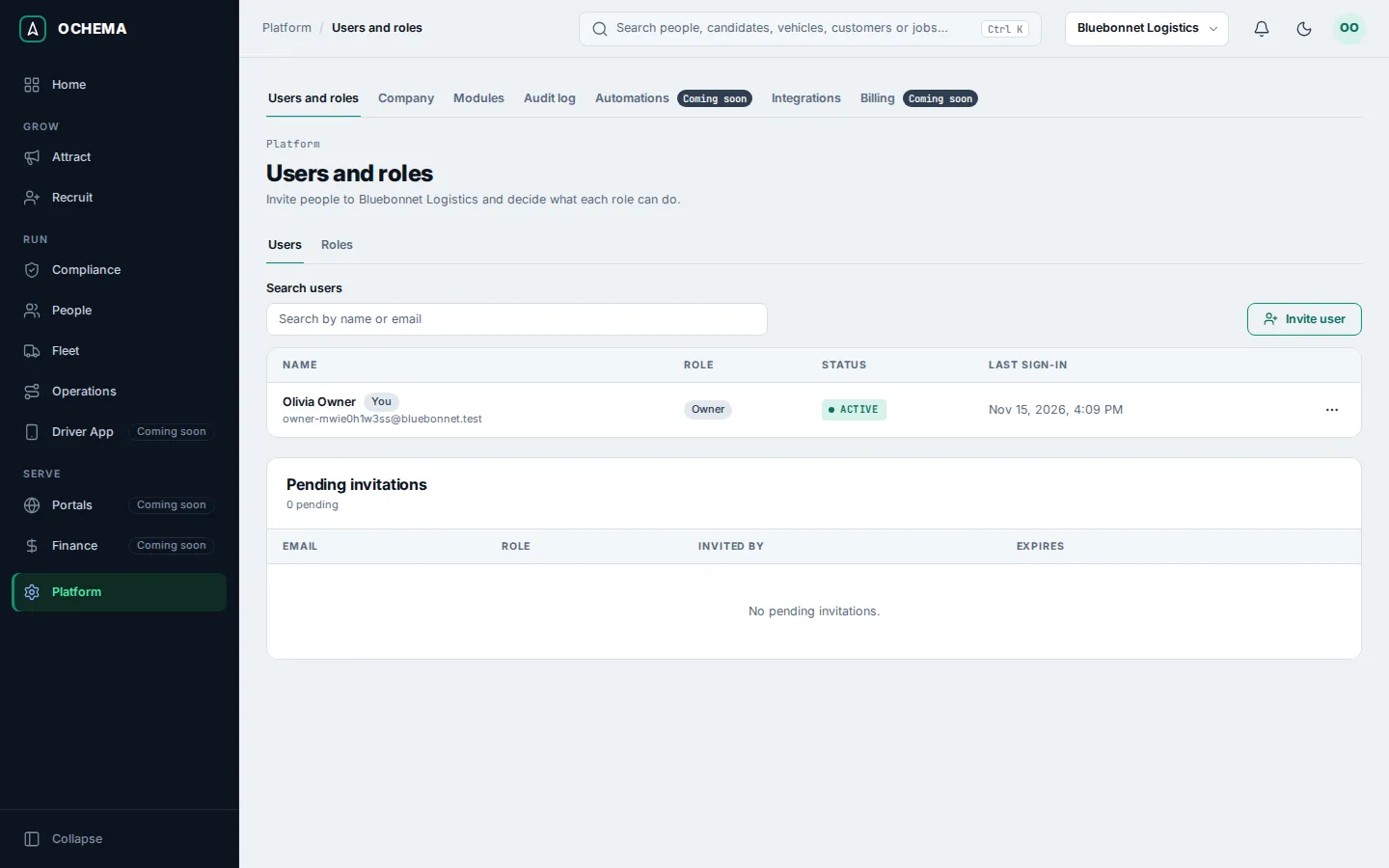
Open the screenshot at full size in a new tab: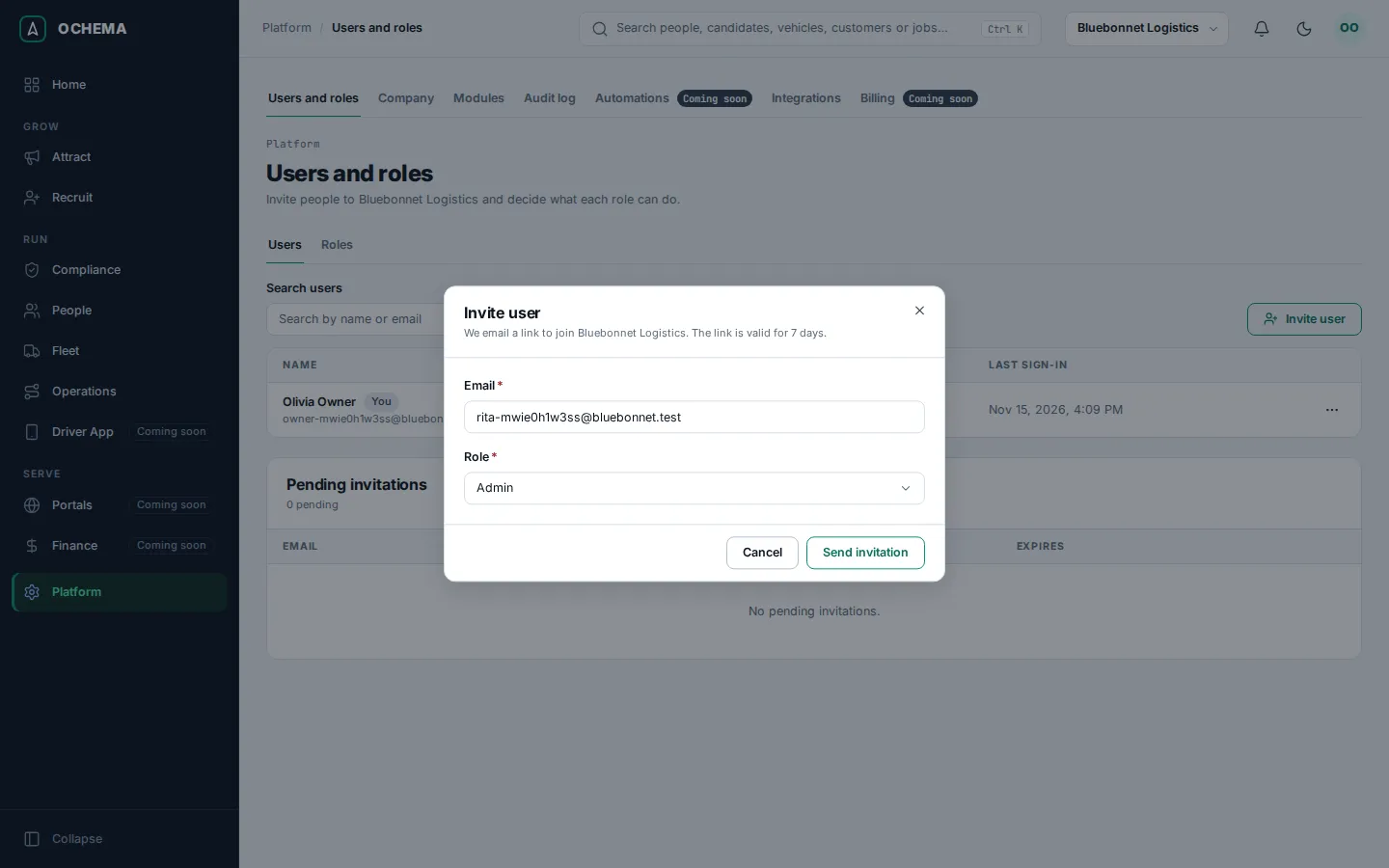
What happens next
Section titled “What happens next”Ochema emails the person a link to join your company. The link is valid for 7 days. Until the person accepts it, the invitation shows under Pending invitations.
The step Invite your team shows Done on Home as soon as the invitation is sent.