
Referrals
A referral links a person of your company who referred a driver to the application of that driver, with the bonus owed. Each person of the Directory can have a referral link: applications through it are credited to that person.
Who this is for
Section titled “Who this is for”- To see referrals and the program settings: View referrals (
attract.referrals.read). - To change the program settings, add referrals by hand and create referral links: Manage referrals (
attract.referrals.manage). - To approve, reject and mark bonuses as paid: Approve referral bonuses (
attract.referrals.approve).
Before you start
Section titled “Before you start”- The people who refer must be in People > Directory. See Directory and person profile.
- Your careers page needs its address, because referral links open it. See Your careers page.
Set up the program
Section titled “Set up the program”- Open Attract in the menu on the left, then Referrals.
- Under Program settings, turn on Referral program enabled. With the program off, referral links still record who referred, but no referral is created.
- Type the Default bonus in dollars, up to $100,000.00. Each new referral gets this amount; existing ones keep theirs.
- Optional: type the Payout rule (up to 200 characters), for example
Paid after 90 days on the job. It is shown to who refers. - Select Save settings. The message Referral program settings saved. appears.
Open the screenshot at full size in a new tab: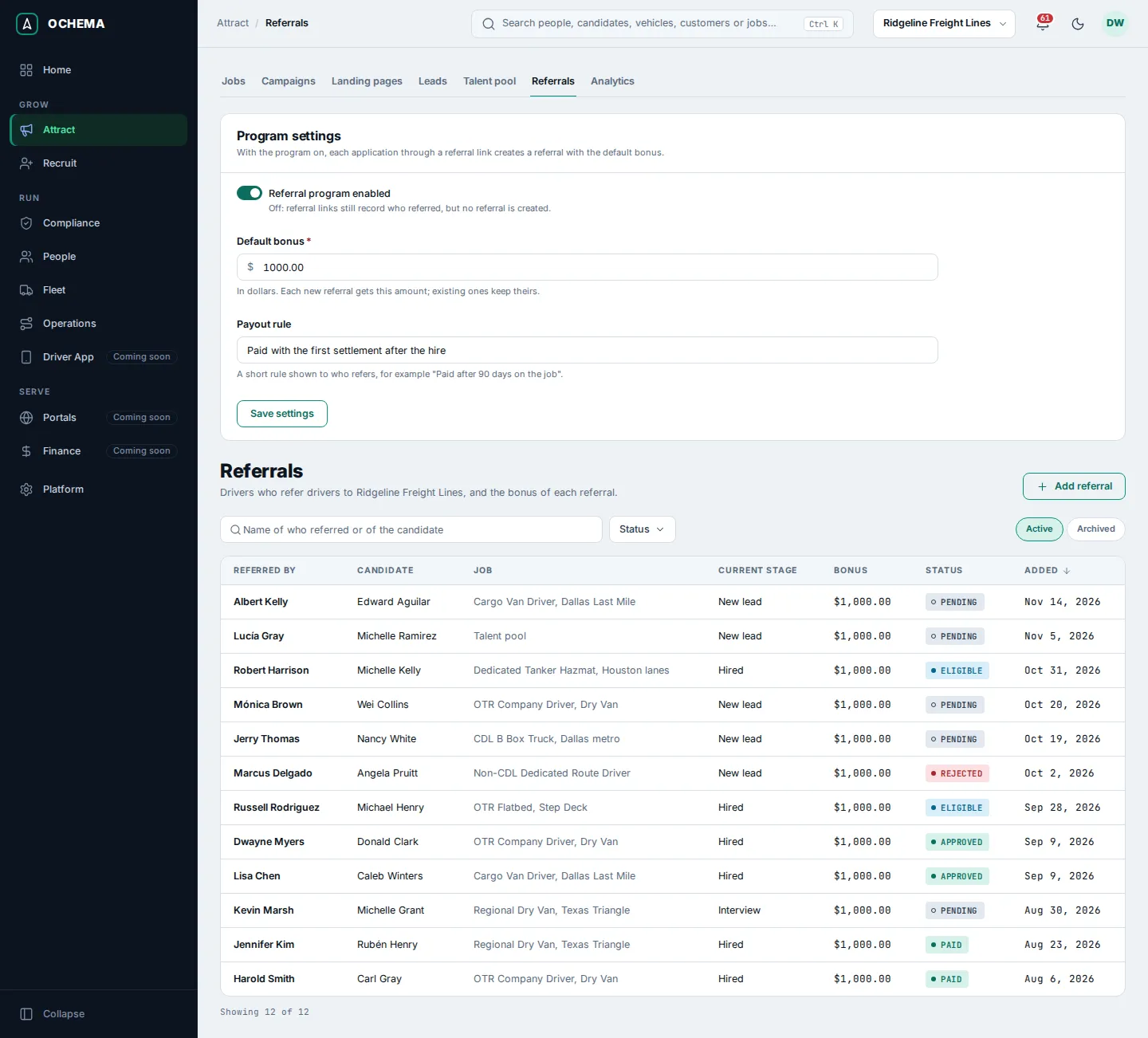
Give a person a referral link
Section titled “Give a person a referral link”- Open People, then Directory, and open the person.
- On the Profile tab, in the Referral link section, select Create referral link. The message Referral link created. appears.
- Select Copy link to send it, or Download QR for a PNG image or an SVG image of its QR code.
The section shows only while the program is on, with the bonus and the payout rule. Archived people get no new referral link. See the section on the profile in Directory and person profile.
Add a referral by hand
Section titled “Add a referral by hand”When someone referred a driver without using a link, record it yourself.
- On Referrals, select Add referral.
- In Referred by, choose a person of the Directory. Type 3 letters or digits in a row to search.
- In Application, choose the application of the driver. Only applications that have no referral yet are listed.
- Select Add referral. The message Referral of … added. appears.
The program must be on: with it off, the page says Turn on the referral program in Attract > Referrals to add referrals.
Open the screenshot at full size in a new tab: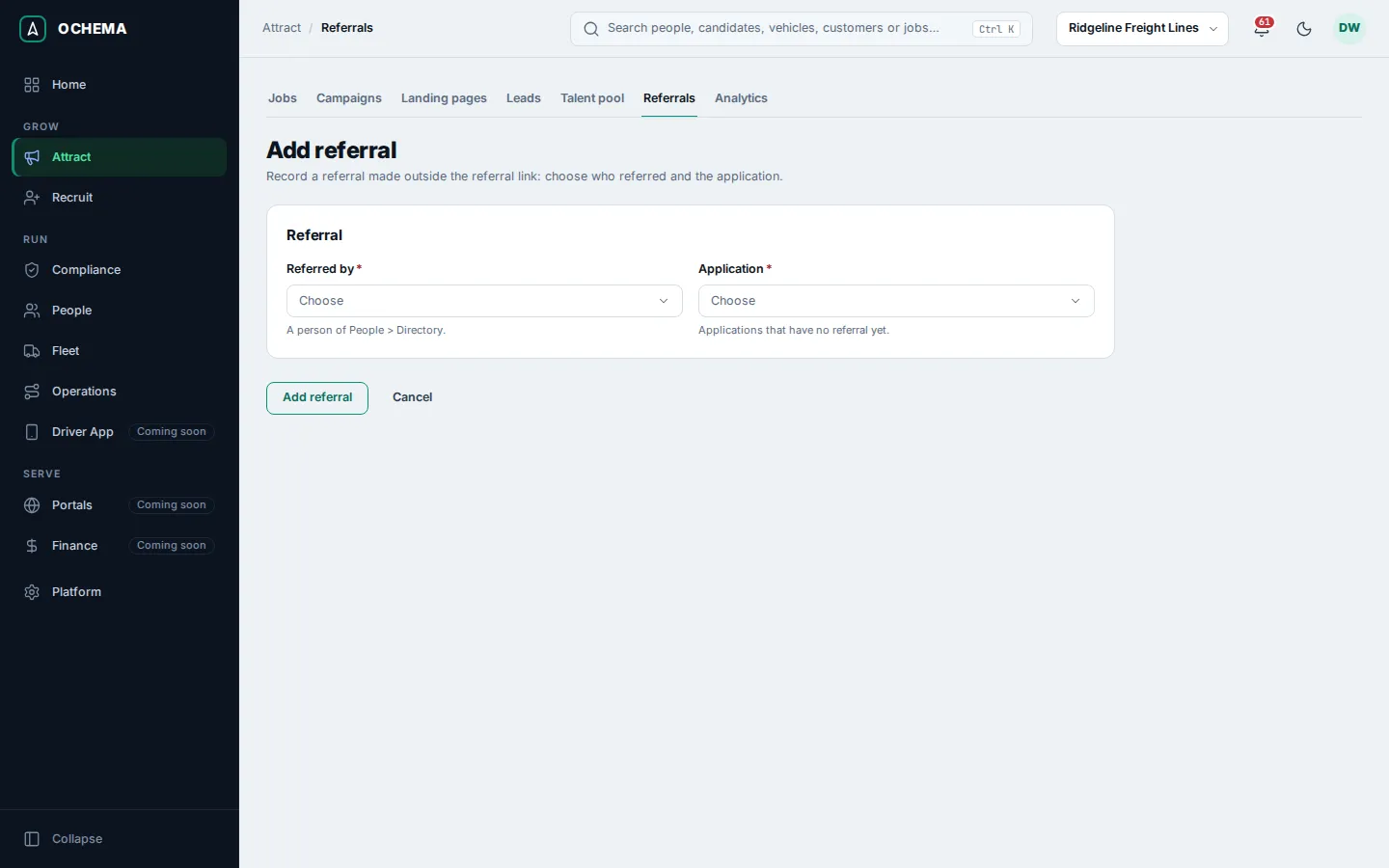
Approve and record the bonus
Section titled “Approve and record the bonus”A referral moves through these statuses:
| Status | When |
|---|---|
| Pending | The referral was created, by a referral link or by hand. |
| Eligible | The referred driver was hired. Undoing the hire takes it back to Pending. |
| Approved | Someone approved the bonus of an eligible referral. |
| Paid | Someone marked an approved bonus as paid. |
| Rejected | Someone rejected a pending, eligible or approved referral. |
- On Referrals, filter by Status or search by the name of who referred or of the candidate, and open the referral.
- On an eligible referral, select Approve, or Reject. On an approved one, select Mark as paid. A pending one can only be rejected.
- In the dialog, optionally type a Note of up to 500 characters. The date and your name are recorded with it.
- Select the same button again in the dialog to confirm. The message Referral approved., Referral rejected. or Referral marked as paid. appears.
Open the screenshot at full size in a new tab: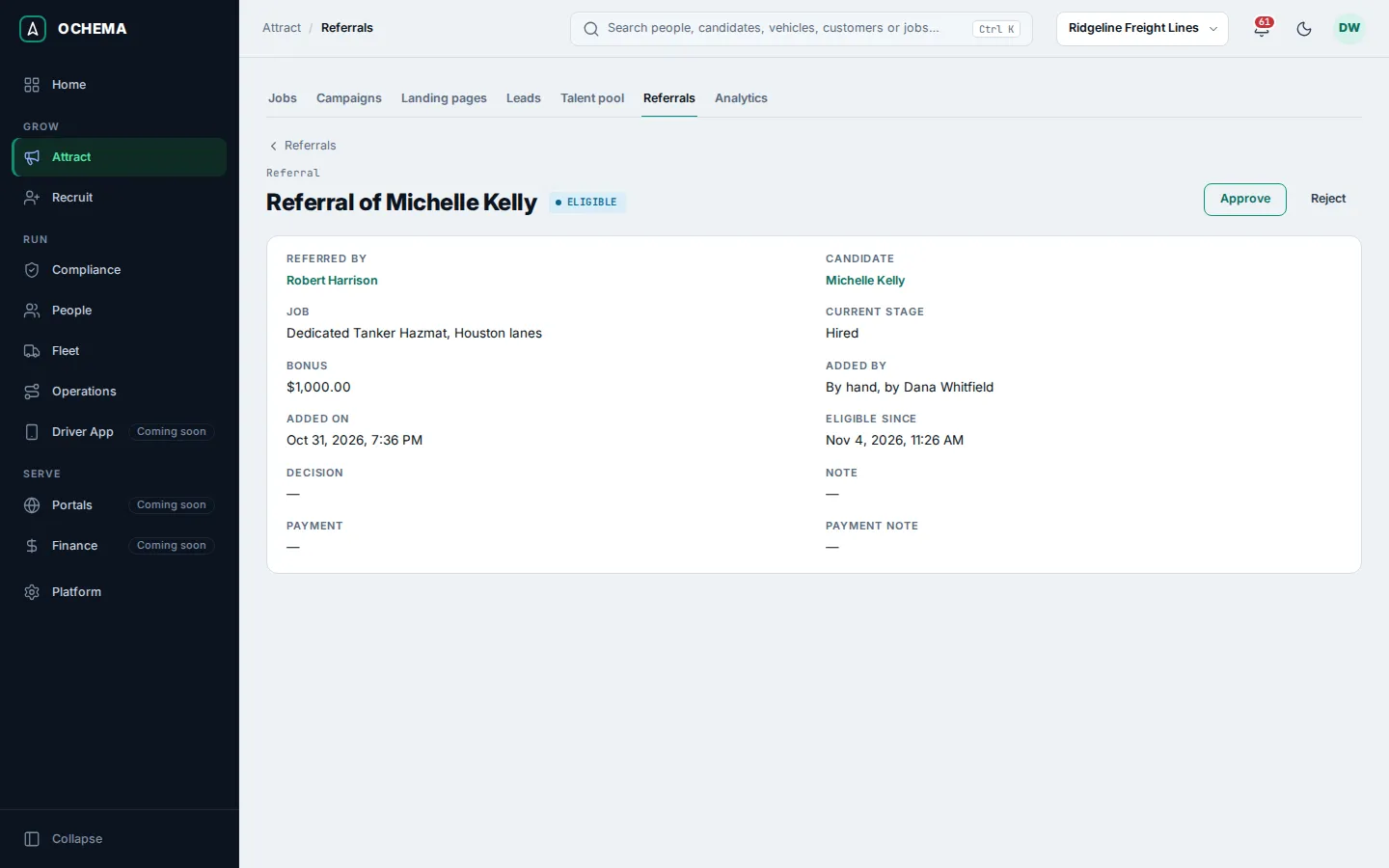
No payment is made in Ochema: Mark as paid only records that the bonus was paid.
What happens next
Section titled “What happens next”The referral shows the Decision and the Payment with their dates, names and notes. Applications through referral links are counted in Attract > Analytics, in the Tracked links section, with the kind Referral.