
Pipeline
The pipeline is the path an application takes from the first contact to the hire. Recruit > Pipeline has two tabs: Board, with one column per stage and one card per application, and Settings, where you set up the stages, the reasons and the lead distribution.
Who this is for
Section titled “Who this is for”- Seeing the board needs View candidates. Moving cards, marking a candidate not qualified or withdrawn, and assigning the recruiter on the board need Move applications.
- The Settings tab needs View pipeline stages to see the stages and Manage pipeline stages to change them. Changing the reasons needs Manage reasons, and changing the lead distribution needs Manage lead distribution.
- The Owner and Admin roles have all of these. Read only sees the board and the stages but cannot change them. See Roles and permissions.
Before you start
Section titled “Before you start”- Candidates reach the board when they apply on your careers page, arrive from the lead API or an import, or are added by hand in Candidates.
- Marking a candidate Not qualified or Withdrawn asks for a reason. Your company starts with a list of reasons; you can change it on the Settings tab.
Work the board
Section titled “Work the board”- Open Recruit in the menu on the left, then Pipeline. The Board tab opens, with one column per stage and the number of active applications in each column header.
- Narrow the board with the bar above it: Search the board (by name, email or phone, at least 3 characters), Job, Recruiter, Mine (only your candidates), Sort by score and Source.
- Read each card: the fit score, the name, the job, the city, the CDL class, the source, the time in the stage and the recruiter. A card also shows Unread message when the candidate wrote and nobody read it, the time of the next interview, and Offer sent or Offer accepted. A card that has been in its stage for more than 48 hours shows Waiting more than 48 hours.
- To move a candidate, drag the card to another column. With the keyboard, focus the card, press Space, choose the stage with the Left and Right arrow keys and press Space again. You can also open the card menu (Actions for the candidate) and choose Move to…, pick the Stage and select Move.
- To close an application, open the card menu and choose Not qualified or Mark as withdrawn. Choose the Reason, add an optional Note (500 characters at most) and confirm. A withdrawn application leaves the board.
- To move many cards at once, check the box on each card. A bar appears with Move selected to; choose a stage and select Move. You can select at most 200 cards at a time.
- To change the recruiter, open the card menu and choose Assign recruiter. The new recruiter applies to all of the candidate’s active applications.
Open the screenshot at full size in a new tab: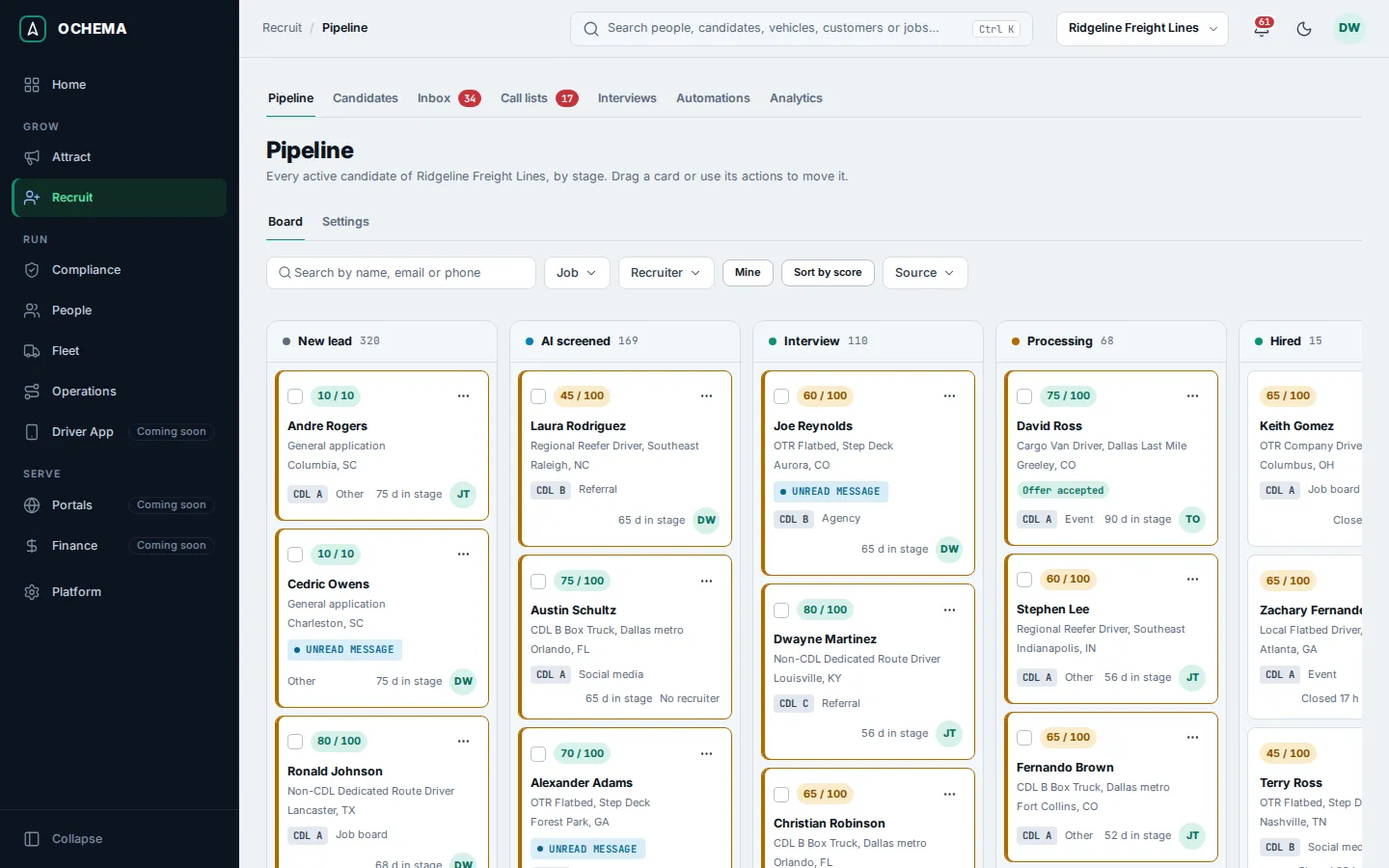
Open the screenshot at full size in a new tab: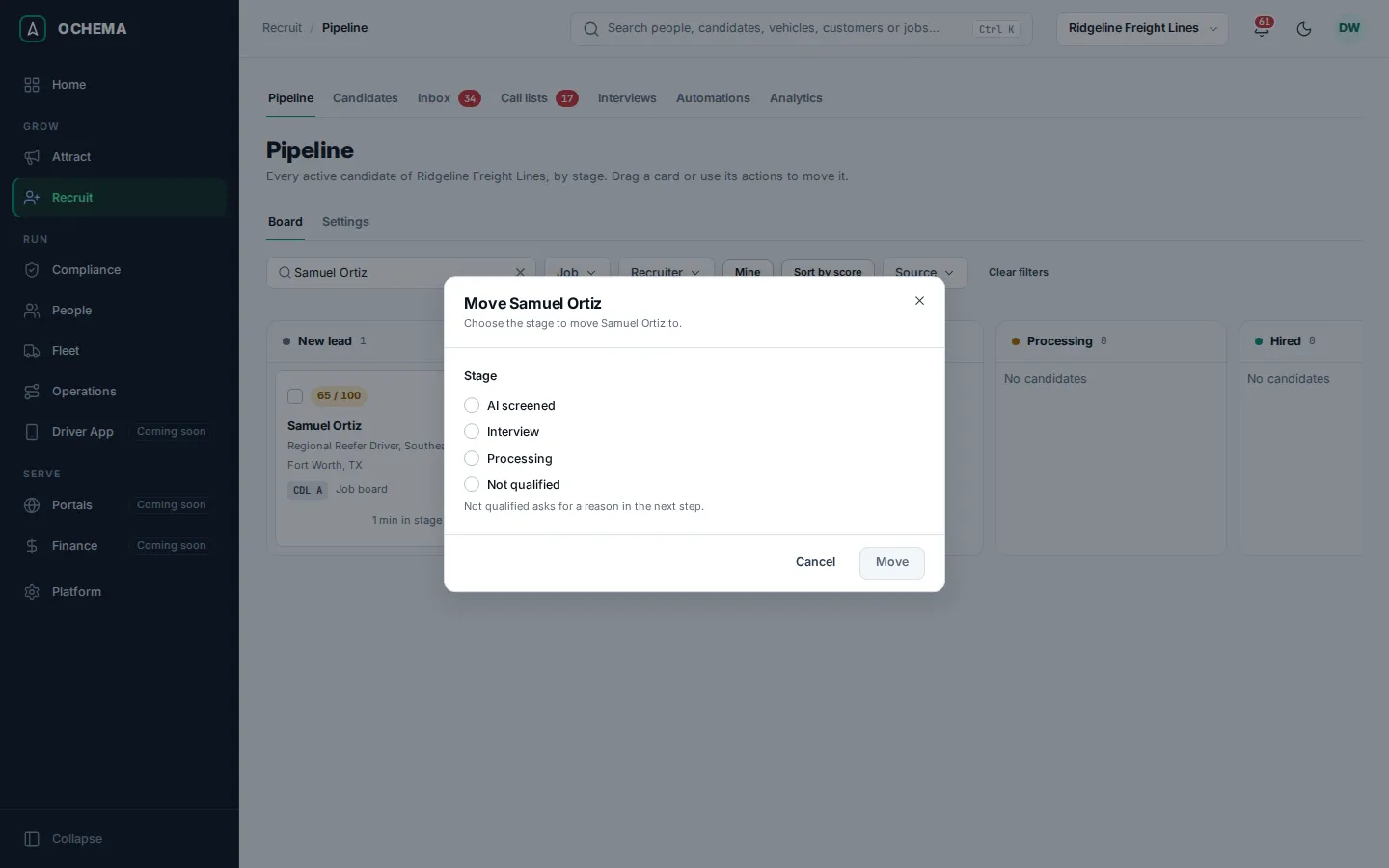
The Hired and Not qualified columns show the applications closed in the last 30 days. Not qualified starts collapsed; its View all link opens the full list in Recruit > Candidates. Dropping a card on Hired opens the Hire window when your role can hire; see Hiring.
If someone else moved the same candidate while you were dragging, the message This candidate was moved by someone else appears and the board reloads with the card where it is now.
Set up the stages
Section titled “Set up the stages”- On Recruit > Pipeline, open the Settings tab. The Stages section lists the active stages in order, with how many active candidates each one holds.
- To add a stage, select Add stage. Type the Name (unique among active stages, 60 characters at most), choose the Status color and select Add stage. New stages are in progress and go at the end.
- To rename or recolor a stage, select Edit on its row and then Save stage.
- To change the order, drag a stage or use its up and down buttons, then select Save order. Discard changes puts the order back.
- To archive a stage, select Archive on its row. A stage that still holds applications, active or closed, cannot be archived: move them first. Archived stages are listed under Archived stages, and a reactivated stage goes back at the end of the pipeline.
A pipeline has at most 20 active stages. It always keeps one Hired stage and one Not qualified stage, and at least one stage in progress, where new applications start.
Open the screenshot at full size in a new tab: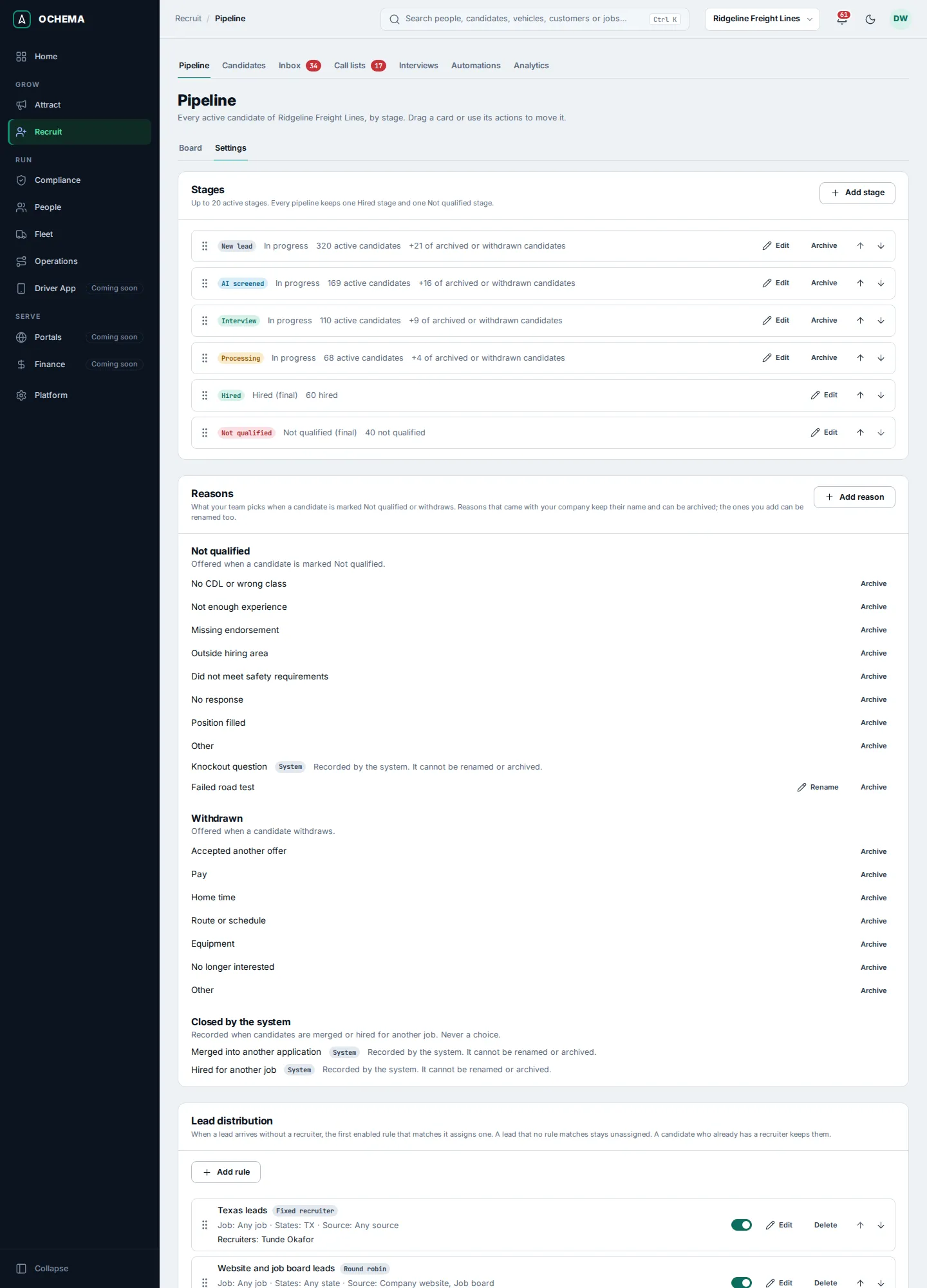
Set up the reasons
Section titled “Set up the reasons”The Reasons section has three lists: Not qualified, offered when a candidate is marked not qualified; Withdrawn, offered when a candidate withdraws; and Closed by the system, recorded when candidates are merged or hired for another job, which is never a choice.
- Select Add reason, choose the List (it cannot be changed later), type the Name (unique in its list, 80 characters at most) and select Add reason.
- To rename a reason you added, select Rename. Reasons that came with your company keep their name.
- To take a reason out of the choices, select Archive. Applications already closed with it keep it. An archived reason does not come back; add it again if you need it. The last reason of a list cannot be archived.
Each list holds at most 50 active reasons.
Set up the lead distribution
Section titled “Set up the lead distribution”When a lead arrives without a recruiter, the first enabled rule that matches it assigns one. A lead that no rule matches stays unassigned, and a candidate who already has a recruiter keeps them.
- In Lead distribution, select Add rule.
- Type the Name and choose the Mode: Round robin gives leads to the chosen recruiters in turn; Fixed recruiter gives every lead to one recruiter.
- Optional: limit the rule to a Job, a Candidate state or a Lead source. Leave a field empty for all.
- Choose the Recruiters, in the order of the turns. Only active members who can manage candidates receive leads.
- Select Add rule. Use the Enable switch on a rule to turn it off without deleting it.
Under Recruiter limits, select Add limit to cap how many candidates in progress a recruiter can have, from 1 to 100,000. A recruiter at the limit is skipped by round robin; Assign recruiter ignores the limit. A company keeps at most 50 rules.
What happens next
Section titled “What happens next”Each move is recorded on the candidate’s timeline, with who moved it, and can start an automation rule with the trigger Moved to another stage, Marked as not qualified or Candidate withdrew. See Automations. The time spent in each stage feeds Analytics.