
Directory and person profile
People > Directory has one record per person who works for your company: drivers, helpers, dispatchers, mechanics, recruiters and office staff. A driver hired in Recruit is added here by the hire; anyone else you add yourself.
Who this is for
Section titled “Who this is for”- To see the Directory and the profile of each person: View people (
people.directory.read). - To add, edit, archive and reactivate people: Manage people (
people.directory.manage). - The Compliance column and tab, and the Endorsements and credentials section, need View driver files (
compliance.driver_files.read). The Onboarding tab needs View onboarding (compliance.onboarding.read).
Before you start
Section titled “Before you start”- Terminals, to place each person at one. They are kept in People > Terminals.
- For a person who signs in to Ochema, the user account must already have access to your company. See Invite your team.
Find a person
Section titled “Find a person”- Open People in the menu on the left. Directory is the first tab.
- Type at least 3 letters or digits of the name, email or phone in Search people.
- Narrow the list with Role, Employment, Terminal, Status, CDL class, Endorsements and Compliance. Select Archived to see archived records.
- Select a row to open the person.
The table shows the Name, Role, Employment, Terminal, CDL class with endorsements, Status (Active, On leave or Terminated), Compliance and Added on. In the Compliance column, a driver who cannot drive shows Not eligible: point at it to read why, or select it to open the Compliance tab of the person. A dash means the person has no open driver file.
Open the screenshot at full size in a new tab: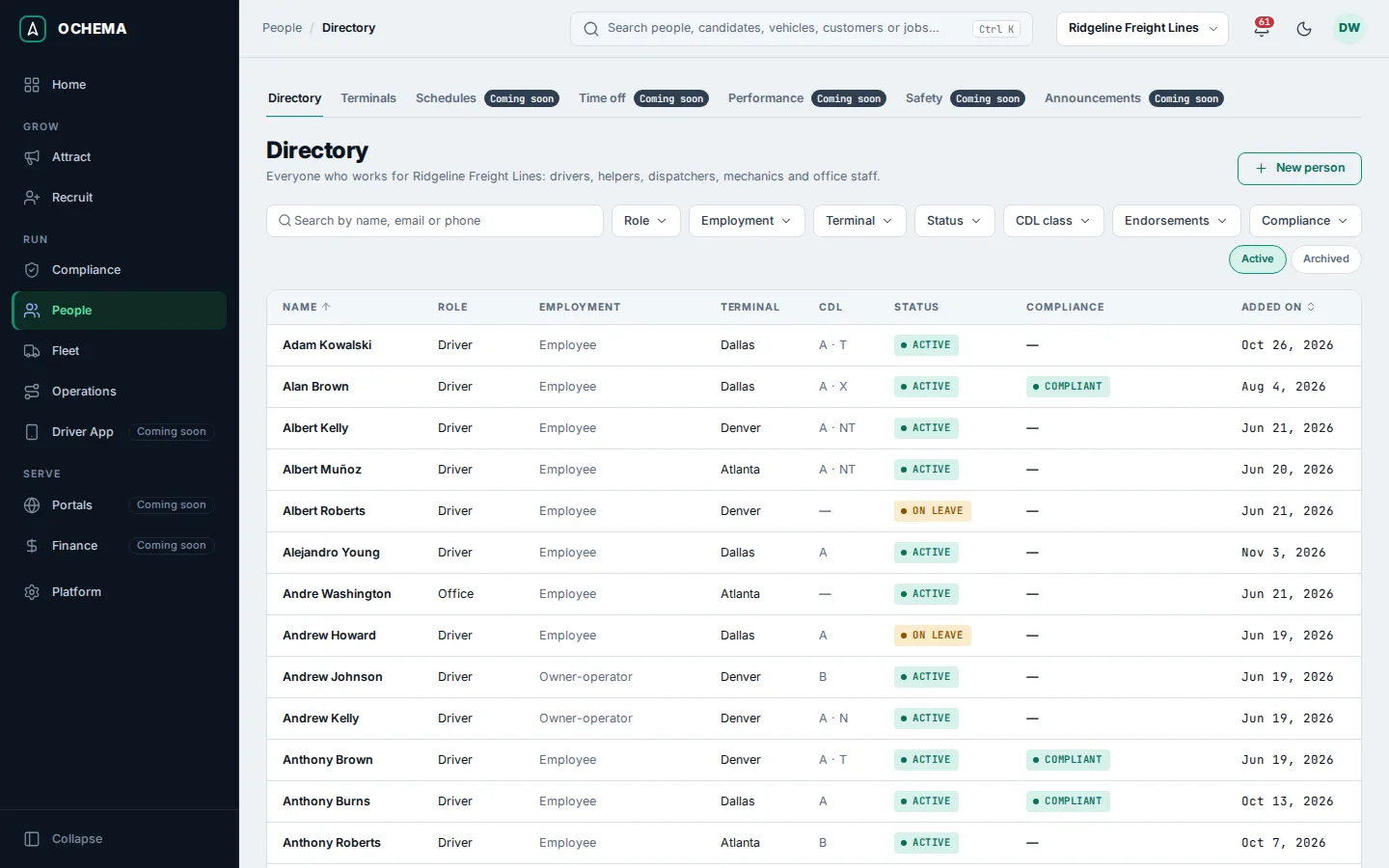
Add a person
Section titled “Add a person”- On Directory, select New person.
- Under Person, type the First name and Last name. Email and Phone are optional; the email is unique in your company, archived people included.
- Under Work, choose the Role and the Employment (Employee, Independent contractor or Owner-operator). Leave Status on Active. Optional: the Start date, the Terminal and the Manager, chosen from the Directory.
- When the role is Driver, the Driver license section appears: choose the CDL class (or No CDL), check the Endorsements and choose the Issuing state. Only drivers have CDL data: changing the role clears it.
- Optional: under User account, link the account this person uses to sign in. Many drivers and mechanics have none.
- Select Create person. The message … added to the directory. appears.
Open the screenshot at full size in a new tab: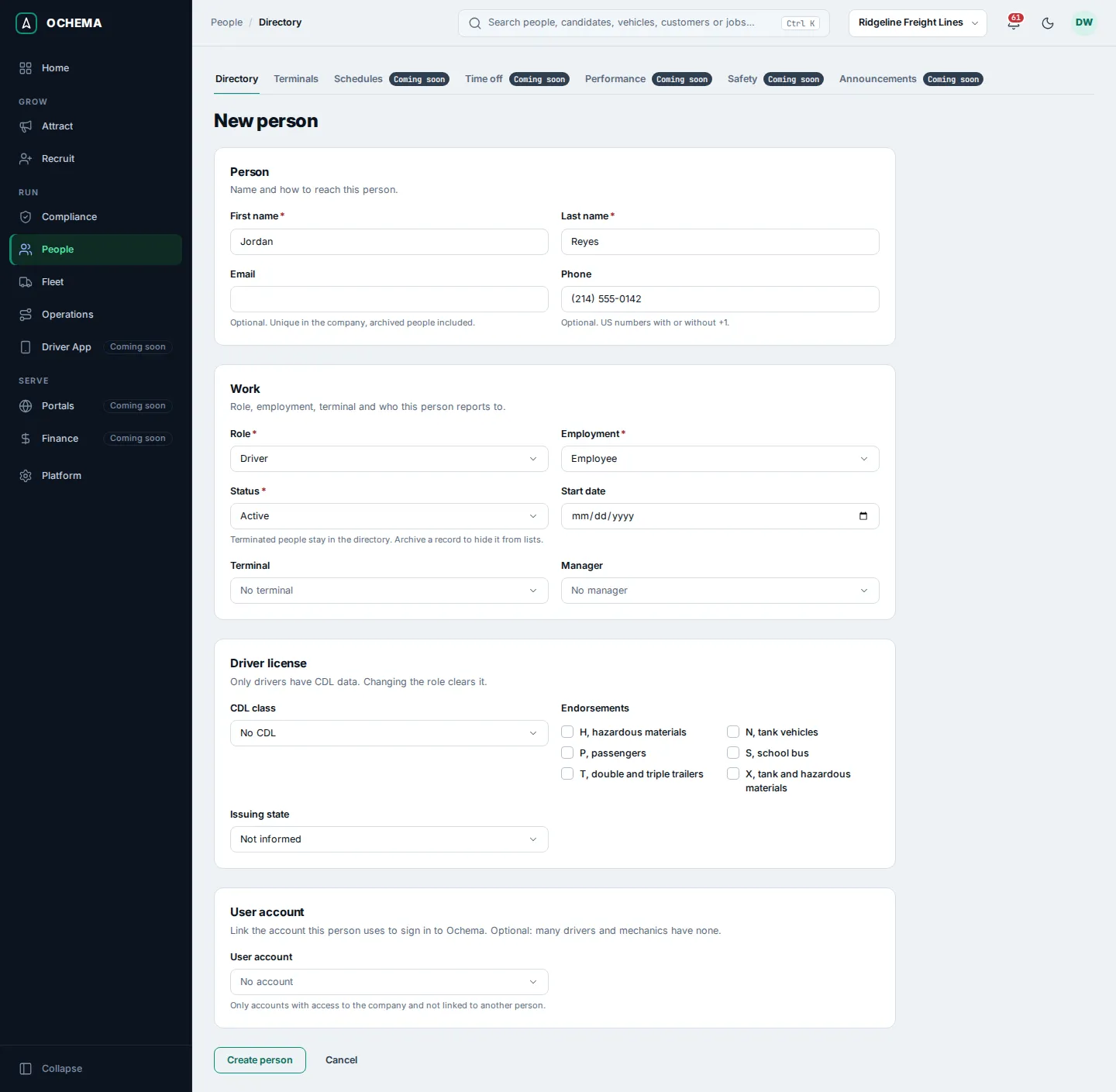
Read the profile of a person
Section titled “Read the profile of a person”The page of a person has the tabs Profile, Compliance, Onboarding, Schedule, Performance and Documents.
Profile shows how to reach the person, the role, employment, status, start date, terminal, manager and user account. A driver also shows the CDL class, the endorsements and the issuing state. A person hired in Recruit shows Hired from, with a link to the application.
Under the details:
- Referral link, while the referral program is on: the link that credits applications to this person, with Create referral link, Copy link and Download QR. See Referrals.
- Endorsements and credentials, for drivers: license endorsements and credentials such as a TWIC card, a hazmat threat assessment, a FAST card, a passport or tanker training, each with its number, expiration date and file. Select Add to record one. With an expiration date, it is tracked in Compliance > Expirations like any other document.
Open the screenshot at full size in a new tab: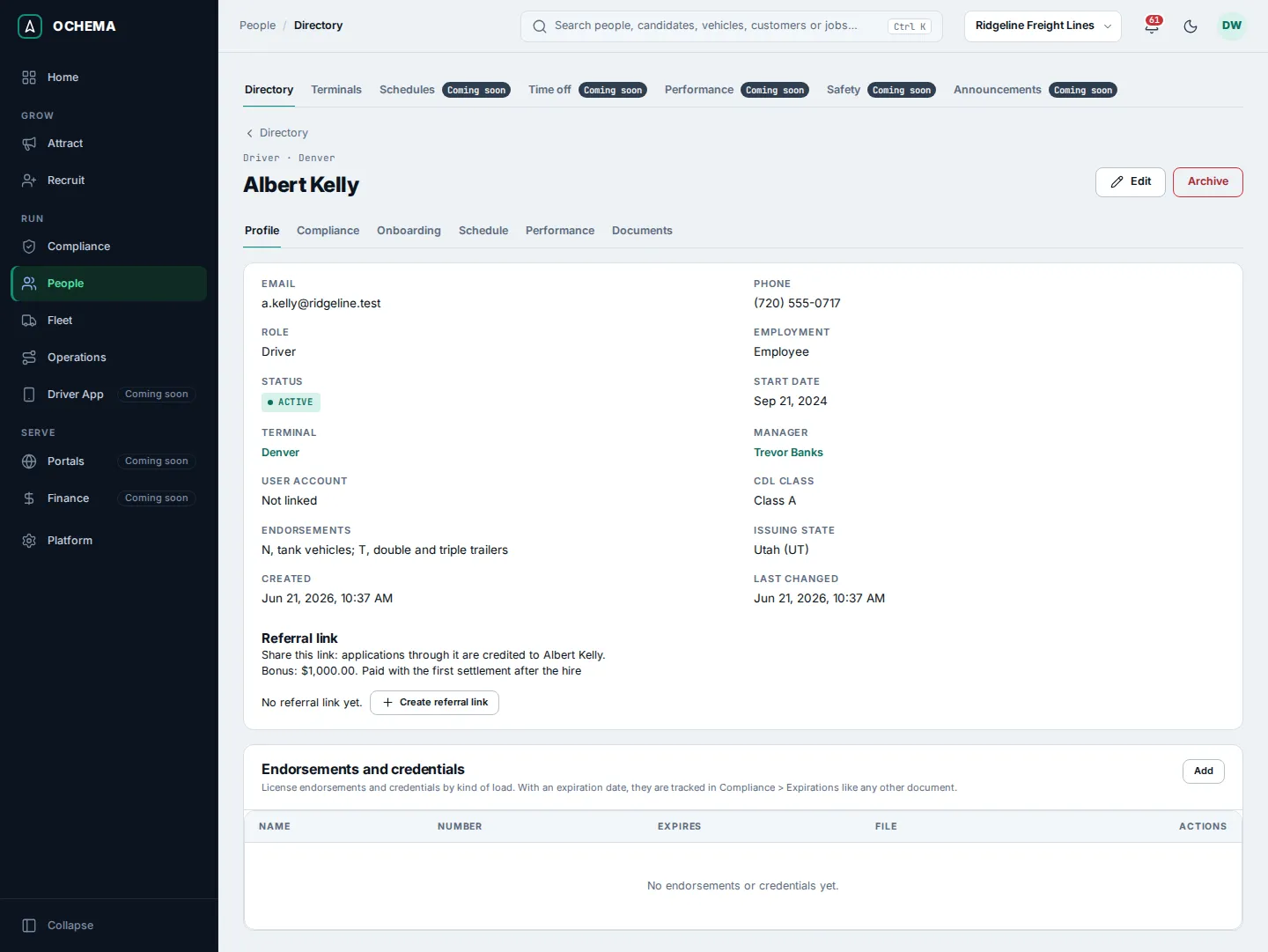
Compliance shows the status of the driver file of the person, whether they are eligible to drive and why not, and what is missing or expiring. Open driver file opens the file in Compliance. A person who is not a driver has no driver file: to open one, select Edit and set Role to Driver.
Open the screenshot at full size in a new tab: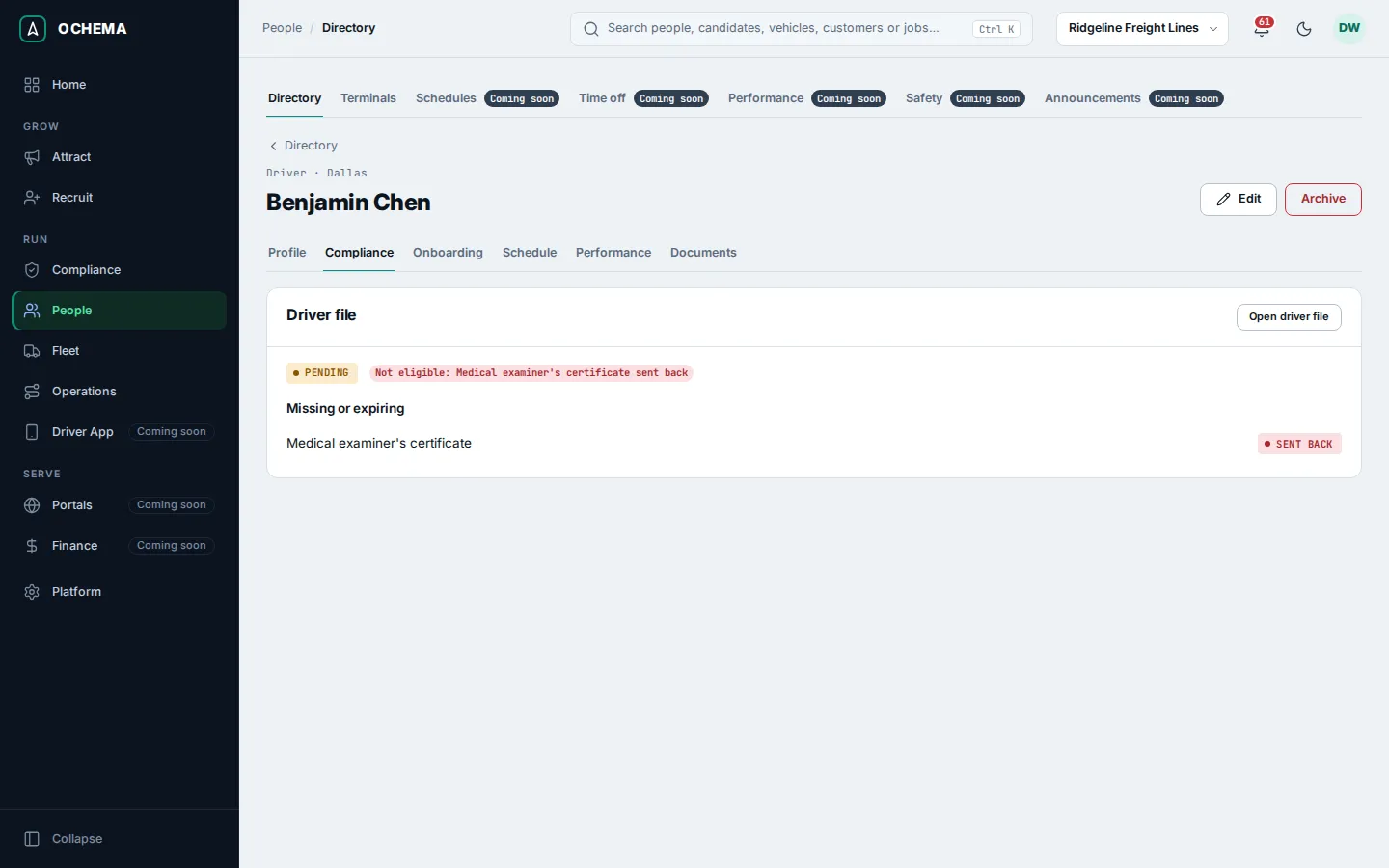
Onboarding shows the onboarding of the person. It starts at the hire; for a person added straight to the Directory, select Start onboarding to start it with the onboarding template. See Onboarding.
Open the screenshot at full size in a new tab: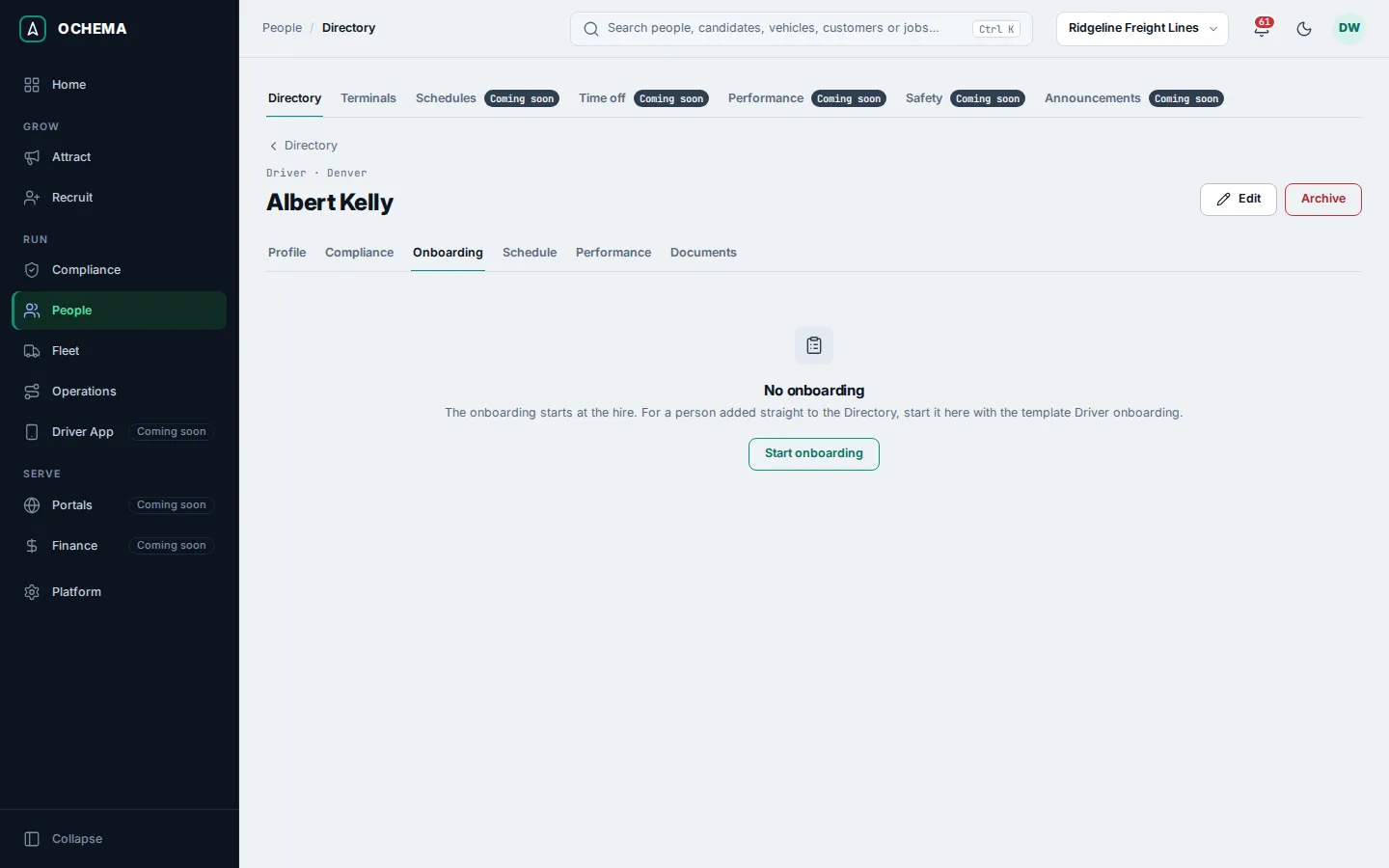
Schedule, Performance and Documents are not available yet: each tab says what will appear there. In the People menu, Schedules, Time off, Performance, Safety and Announcements are marked Coming soon.
Edit, terminate or archive a person
Section titled “Edit, terminate or archive a person”- On the page of the person, select Edit, change what you need and select Save changes. The message … saved. appears.
- When a person leaves, set Status to Terminated. Terminated people stay in the Directory.
- To hide a record from lists and pickers, select Archive and confirm. Nothing is deleted: open the Archived view, open the person and select Reactivate to bring it back.
What happens next
Section titled “What happens next”The driver file of each driver is kept in Compliance, with the documents, expirations and eligibility. The terminal of each person is counted on its page in People > Terminals.