Message templates
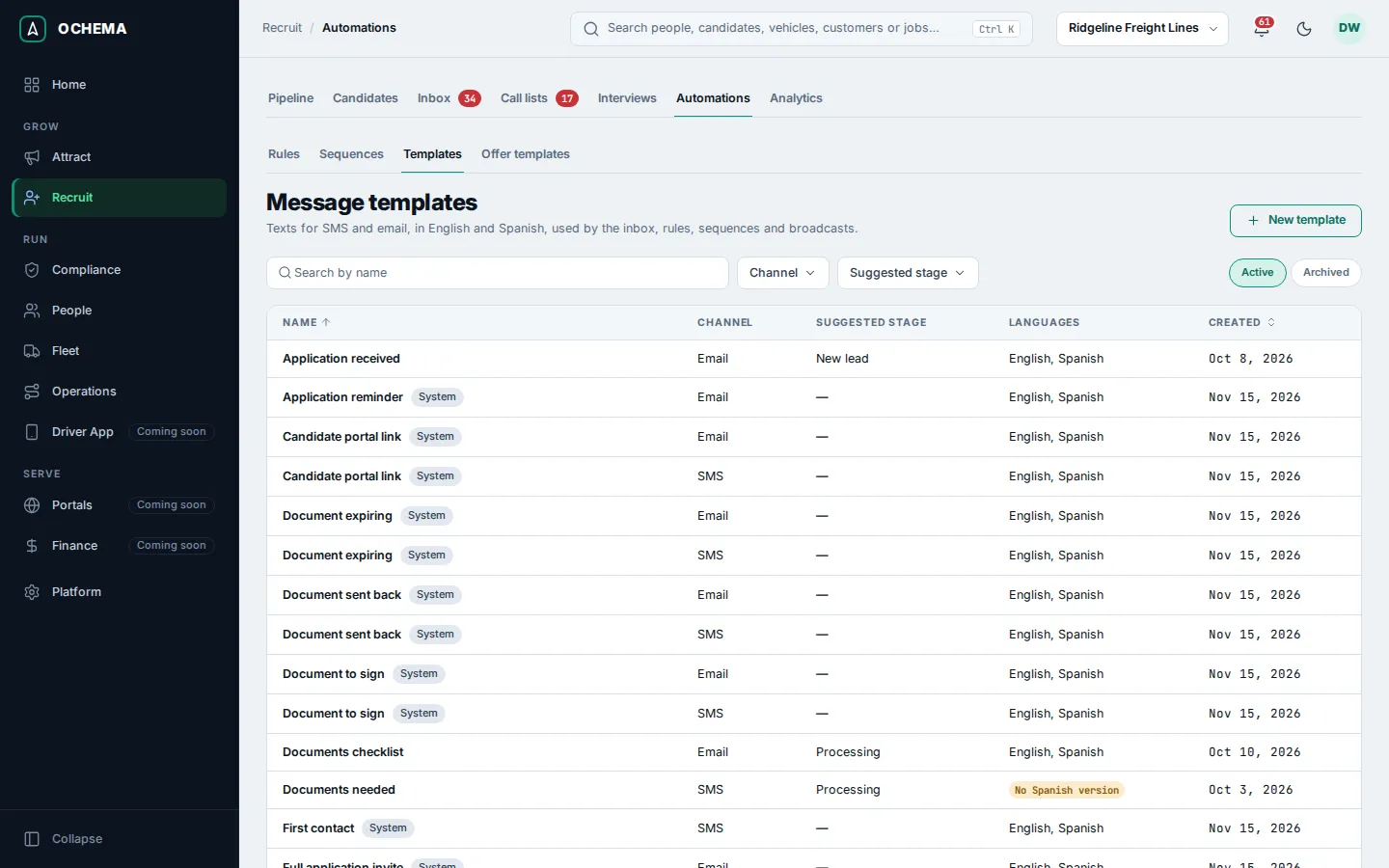
A message template is a text for SMS or email, in English and optionally in Spanish, that the Inbox, automation rules, sequences and broadcasts use. Templates live in Recruit > Automations, tab Templates.
Who this is for
Section titled “Who this is for”- Seeing templates and choosing them when writing needs View message templates. Creating, editing and archiving them needs Manage message templates.
- The Owner and Admin roles have both; Read only can see them. See Roles and permissions.
Before you start
Section titled “Before you start”- Decide the channel: it cannot change after the template is created.
- Candidates who prefer Spanish get the Spanish text. Without a Spanish text they get the English one.
- Templates marked System are the texts the platform sends by itself, such as Application reminder or Candidate portal link. You can change their text, not their name or channel, and they cannot be archived. Restore default on such a template brings back the original text in both languages.
Create a template
Section titled “Create a template”- Open Recruit in the menu on the left, then Automations, then the Templates tab.
- Select New template.
- Under Template, type the Name (120 characters at most), choose the Channel (SMS or Email) and, optionally, the Suggested stage. The template pickers show the templates of the candidate’s stage first.
- Under English, type the text. For an email, also type the Subject; an email template needs one. Select Insert variable to add a value that changes for each candidate, such as
{candidate_name}. - Optional: under Spanish, type the Spanish text.
- Select Create template. The message Template with its name and created appears.
Open the screenshot at full size in a new tab: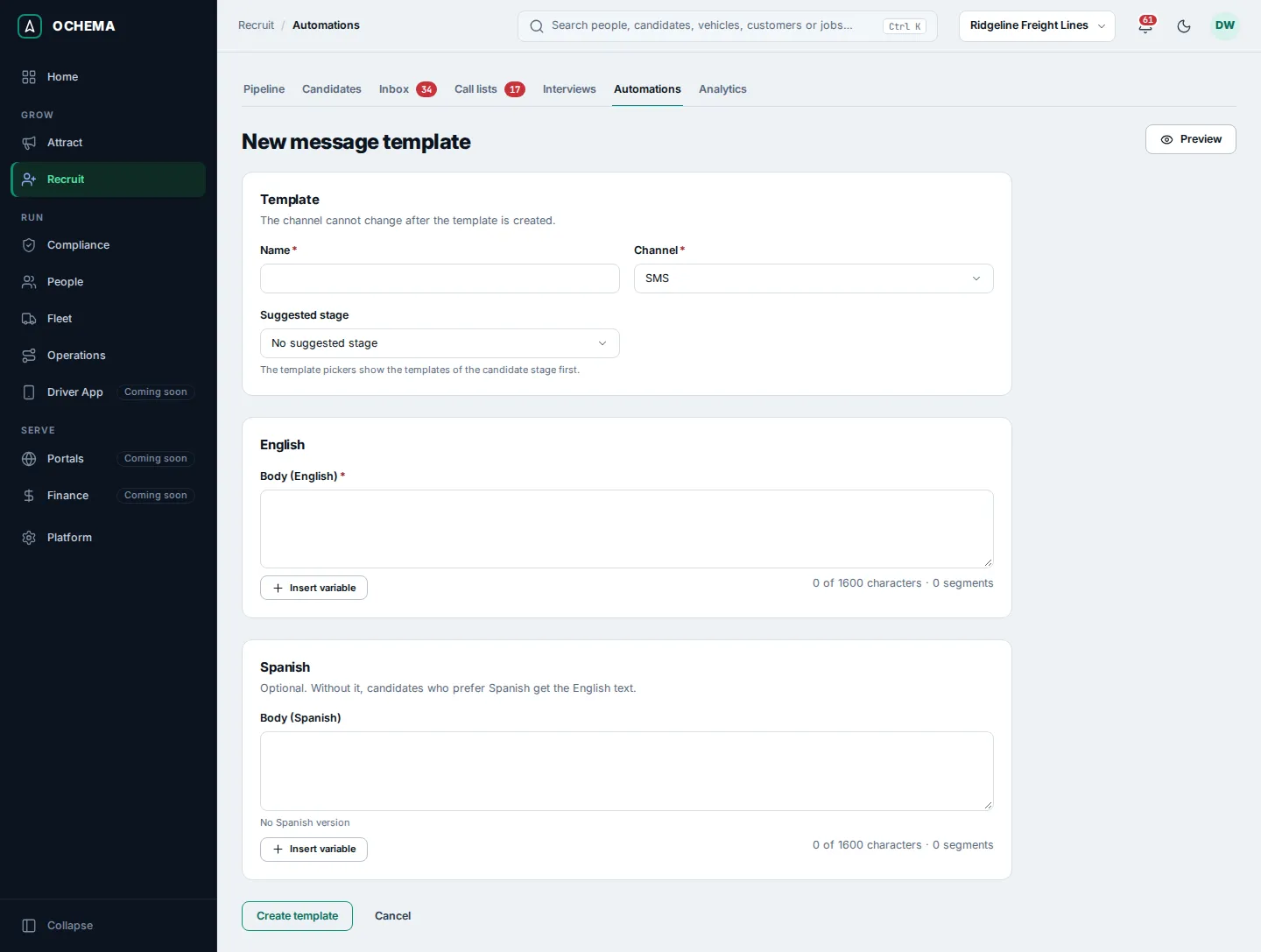
Under an SMS text, the counter shows the characters (1,600 at most) and the segments. A character outside the basic SMS alphabet makes every segment shorter (70 characters). The count uses the variable markers, so the final length changes with the values. An email text takes up to 20,000 characters and its subject up to 300.
Variables
Section titled “Variables”A variable is written in single braces, like {company_name}. The list in Insert variable has: Candidate name (first name only), Recruiter first name, Company name, Job title, Scheduling link, Resume application link, Interview time, Interview details, Full application link, Driver portal link, Signing link, Document name, Expiration date and Days left.
The candidate name, the recruiter first name, the company name and the job title come from the records. The others are filled only by the feature that sends them: for example, the scheduling link by Schedule interview. A message whose template needs a value the candidate does not have is refused with the template needs a value this candidate does not have. A broadcast fills only {candidate_name}, {company_name} and {recruiter_first_name}. See Template variables.
Check a template
Section titled “Check a template”Select a template in the list to open it. It shows the Channel, the Suggested stage, the Variables it uses, and the subject and body in each language. Select Preview, choose a Candidate, and see the text as that candidate would get it, in English and in Spanish. When the candidate lacks a value, the preview says so: sending this template to them would be refused.
Open the screenshot at full size in a new tab: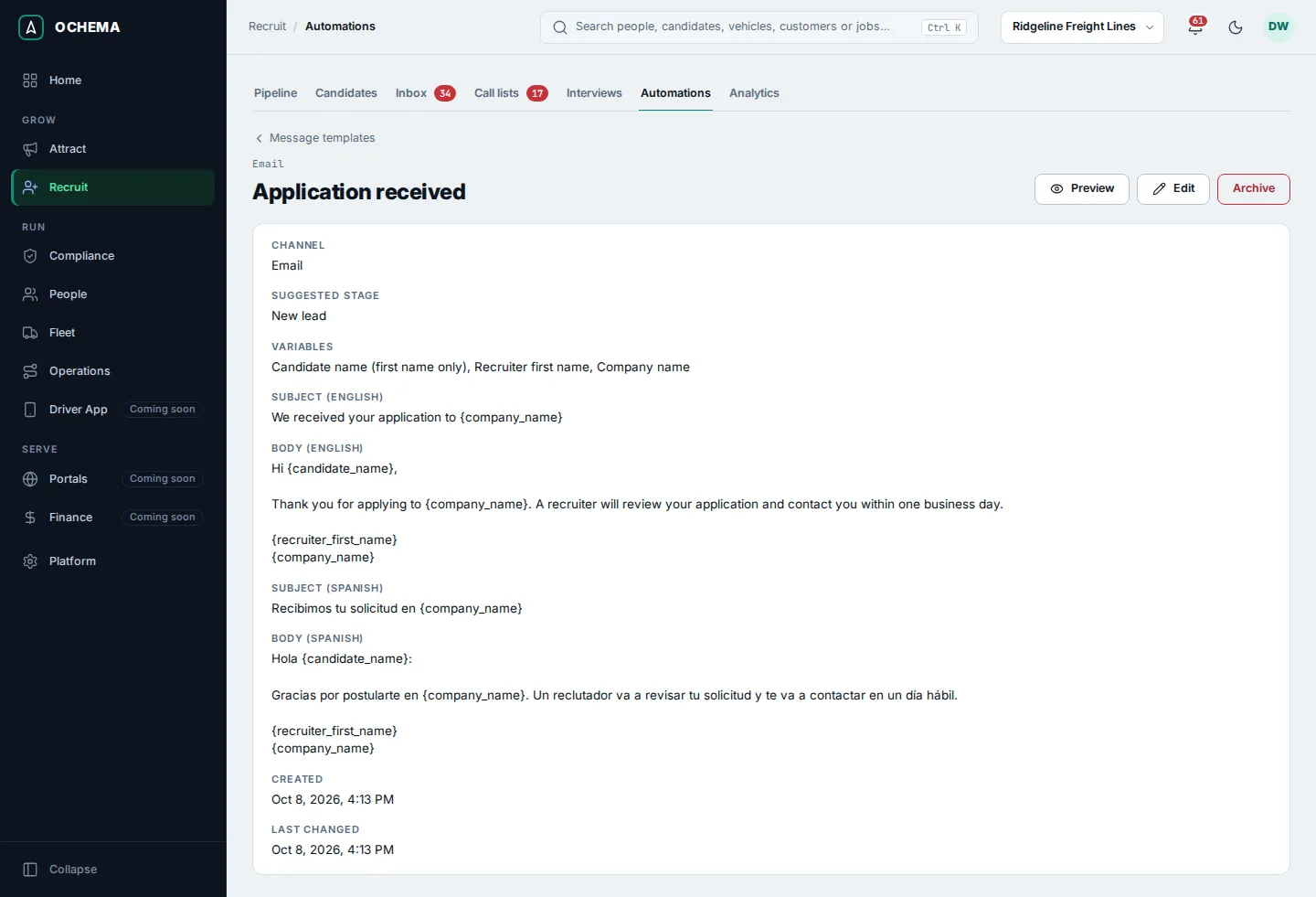
What happens next
Section titled “What happens next”- The template shows in the Template picker of the Inbox reply box, of the sequence steps, of the rule actions Send an SMS with a template and Send an email with a template, and of broadcasts.
- Archive takes the template out of the lists and pickers. If it is a step of a sequence, that step is skipped for the candidates enrolled, with no notice; the archive window tells you how many. You can reactivate it from the Archived view.
- The Templates panel of Analytics, tab Communication, counts the messages of each template, the replies and the stop requests.
Open the screenshot at full size in a new tab: