
Careers and campaign pages
Your company has one public careers page, with every published job, and one public page per published job. A campaign does not have a page of its own: each of its tracked links opens your careers page or the page of one job, and records where the visit came from.
Who this is for
Section titled “Who this is for”To see the settings of the careers page, your role needs View careers page (attract.careers_site.read). To change them, it needs Manage careers page (attract.careers_site.manage). Without it, the screen says Your role can view the careers page settings but not change them. See Roles and permissions.
Before you start
Section titled “Before you start”- If the careers page has no address yet, follow Your careers page first.
- Jobs show on the page only while they are open and published. See Jobs.
Change the careers page
Section titled “Change the careers page”- Open Attract in the menu on the left, then Landing pages.
- Under Public link, select Copy link to copy the address of the page, or Open to open it in a new tab.
- Under Address, change the Address only if you must: links to the old address stop working as soon as you save, and the form says so before you do.
- Under Content, change the Title (up to 120 characters) and the Introduction (up to 4,000 characters). They show at the top of the page, above the list of jobs, exactly as you write them.
- Select Save changes. The message Careers page saved. appears.
- Under Logo, select Upload logo and choose a PNG, JPEG or WebP image of up to 2 MB. With a logo, Replace logo and Remove logo appear.
Open the screenshot at full size in a new tab: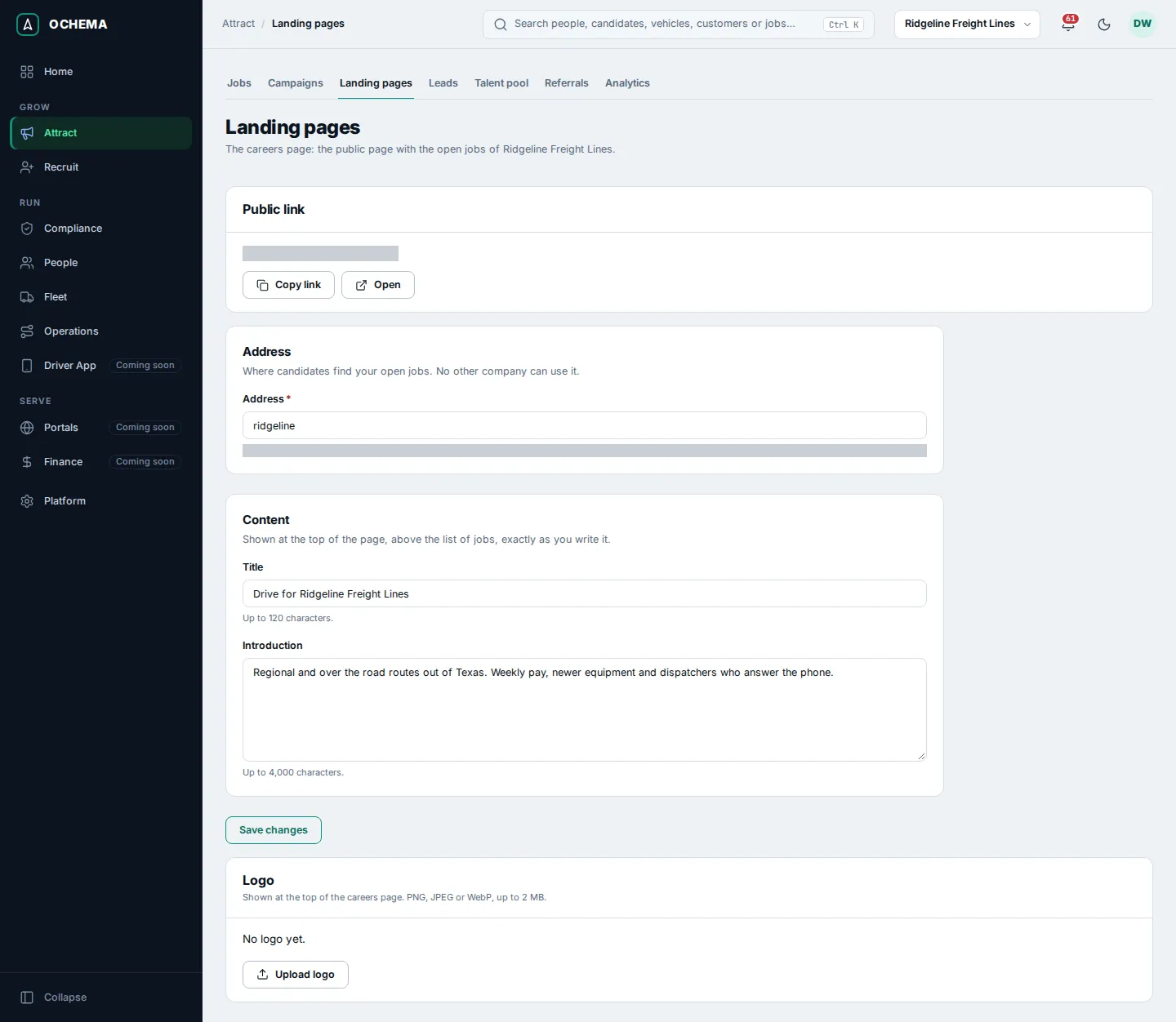
What drivers see
Section titled “What drivers see”The careers page shows your title and introduction, the number of open positions, the State and Driver type filters with Show positions, and one card per job with its place, route type, driver type, equipment and pay. English and Español at the top switch the language of the page.
Open the screenshot at full size in a new tab: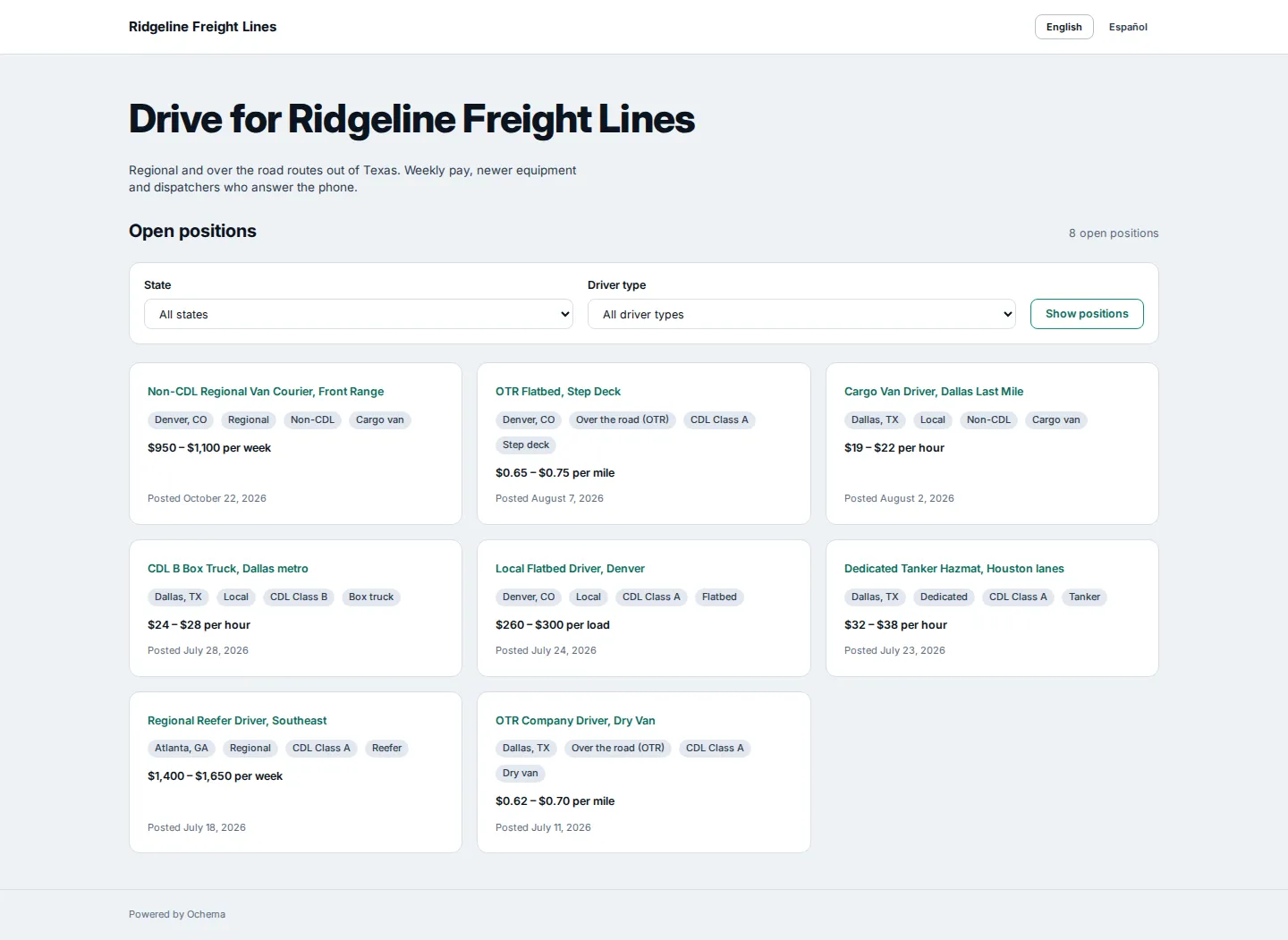
On a phone, the cards stack in one column:
Open the screenshot at full size in a new tab:
Selecting a job opens its page: the place, route type, pay, driver type, equipment and states served, then Requirements, Benefits and About this job, with Apply now at the top and at the bottom. All open positions goes back to the careers page.
Open the screenshot at full size in a new tab: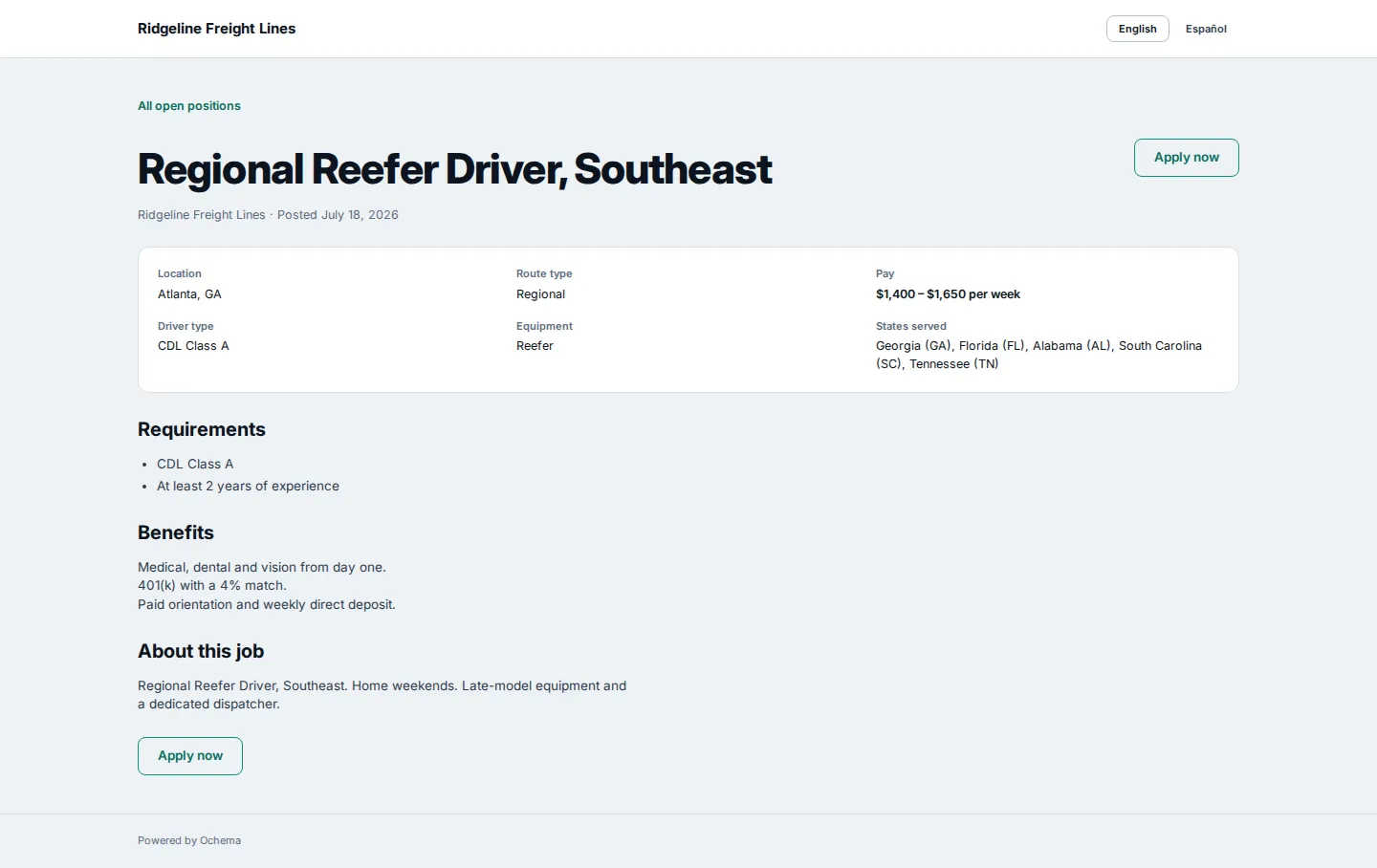
Open the screenshot at full size in a new tab: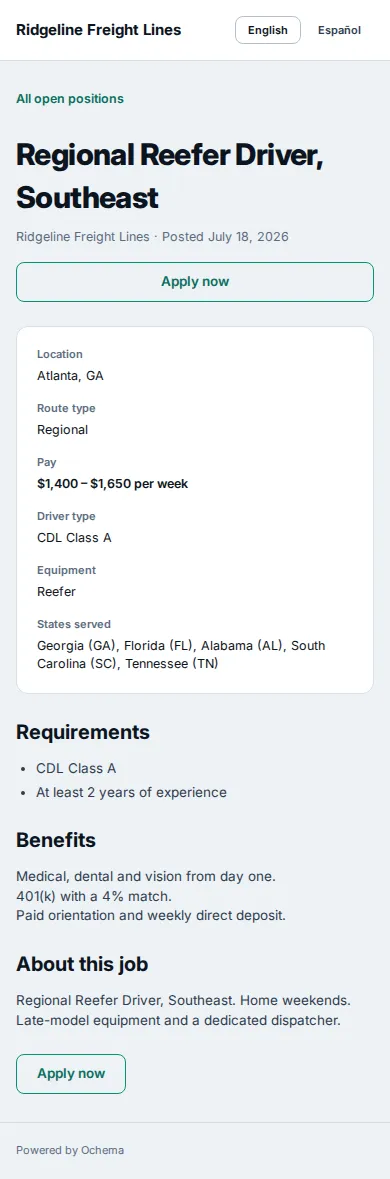
Where campaign links lead
Section titled “Where campaign links lead”Each tracked link of a campaign has a short address. When a driver opens it:
- The visit is counted as a click of the link.
- The driver lands on the page the link Leads to: the page of one job, or your careers page when the link leads to no job.
- If the driver applies in the same visit, the application is credited to the link, its campaign and its channel.
A link whose campaign has ended, or that you archived, still counts visits and credits applications, but it leads to the careers page. A short address that leads nowhere shows This link is no longer available. See Tracked links and sources to create the links.
What happens next
Section titled “What happens next”Drivers who select Apply now fill in the application form of the job. Each application arrives in Attract > Leads with its channel and, when it came through a tracked link, its campaign and link.