Interviews and scheduling
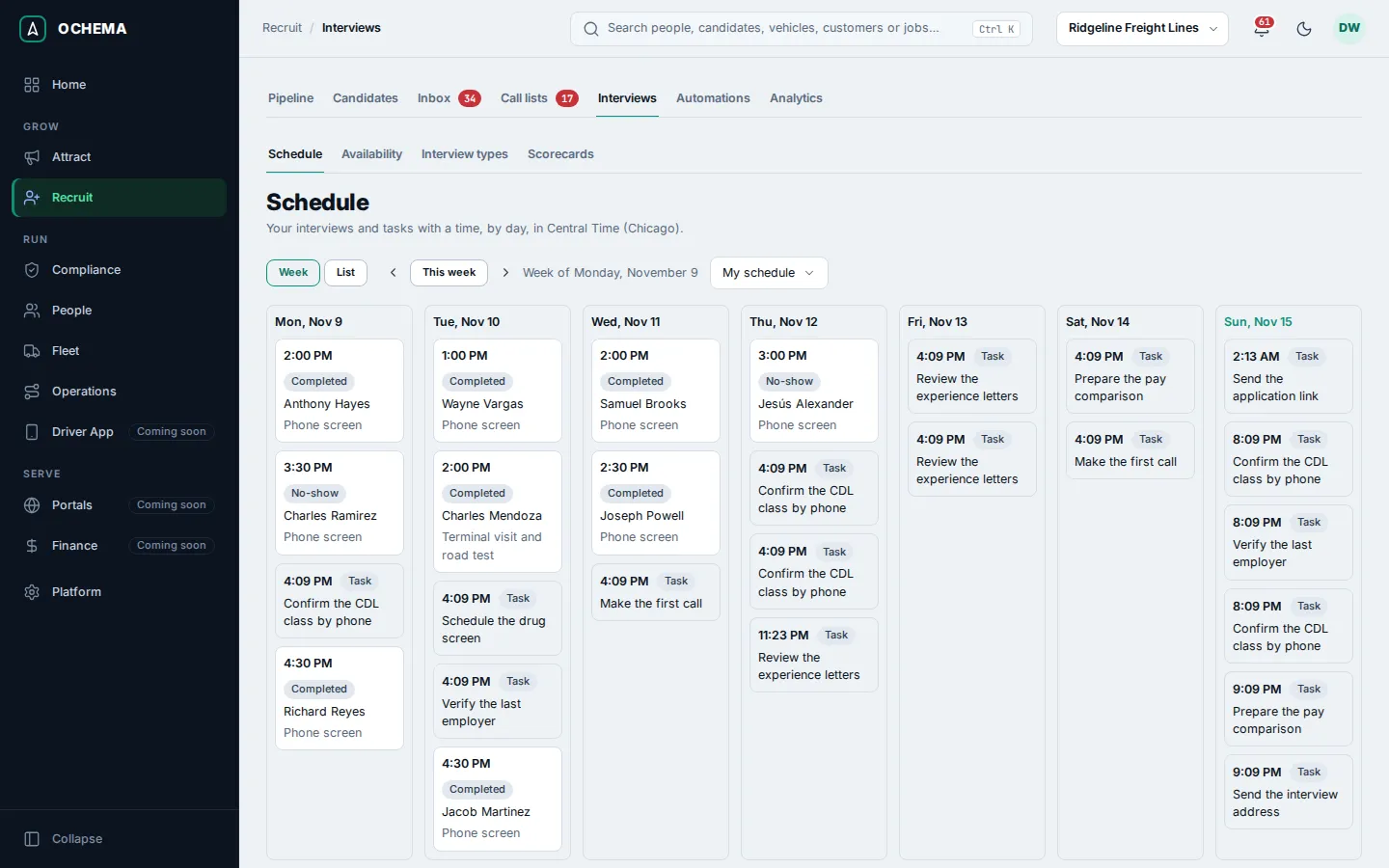
Recruit > Interviews has four tabs: Schedule (your interviews and timed tasks by day), Availability (when candidates can book with you), Interview types (length, place and booking rules) and Scorecards (see Scorecards). From a candidate page, Schedule interview sends a scheduling link or books a time on the spot.
Who this is for
Section titled “Who this is for”- Seeing the schedule and setting your own availability needs View interviews. Scheduling, rescheduling and canceling interviews, marking them completed or no-show, and the waiting list need Manage interviews.
- Seeing the interview types and the reminder settings needs View interview settings; changing them needs Manage interview settings.
- The Owner and Admin roles have all of these. See Roles and permissions.
Before you start
Section titled “Before you start”- Your company needs a careers page address: the scheduling page opens under it. See Your careers page.
- The scheduling link goes by text message or email, so it follows the consent and messaging rules. See Inbox. Until your messaging is set up, the link stays in the simulator and the candidate does not receive it; see Messaging settings.
Set your availability
Section titled “Set your availability”- Open Recruit in the menu on the left, then Interviews, then the Availability tab.
- In Recruiter, keep yourself or choose another recruiter of the company.
- Under Weekly hours, choose the Time zone. For each day, select Add hours and type the Start and End. A day without hours offers no interview. Select Save hours. Until hours are saved, candidates cannot book with this recruiter.
- Under Time off, select Add time off, choose the Date, check All day or type the hours, add an optional Note and select Add time off. Interviews already scheduled in that time are not canceled.
- Optional: under Calendar feed, select Create link and subscribe to the address in Google Calendar, Outlook or your phone to see your interviews there. The address is shown only once; Reset link makes a new one and stops the old one.
Open the screenshot at full size in a new tab: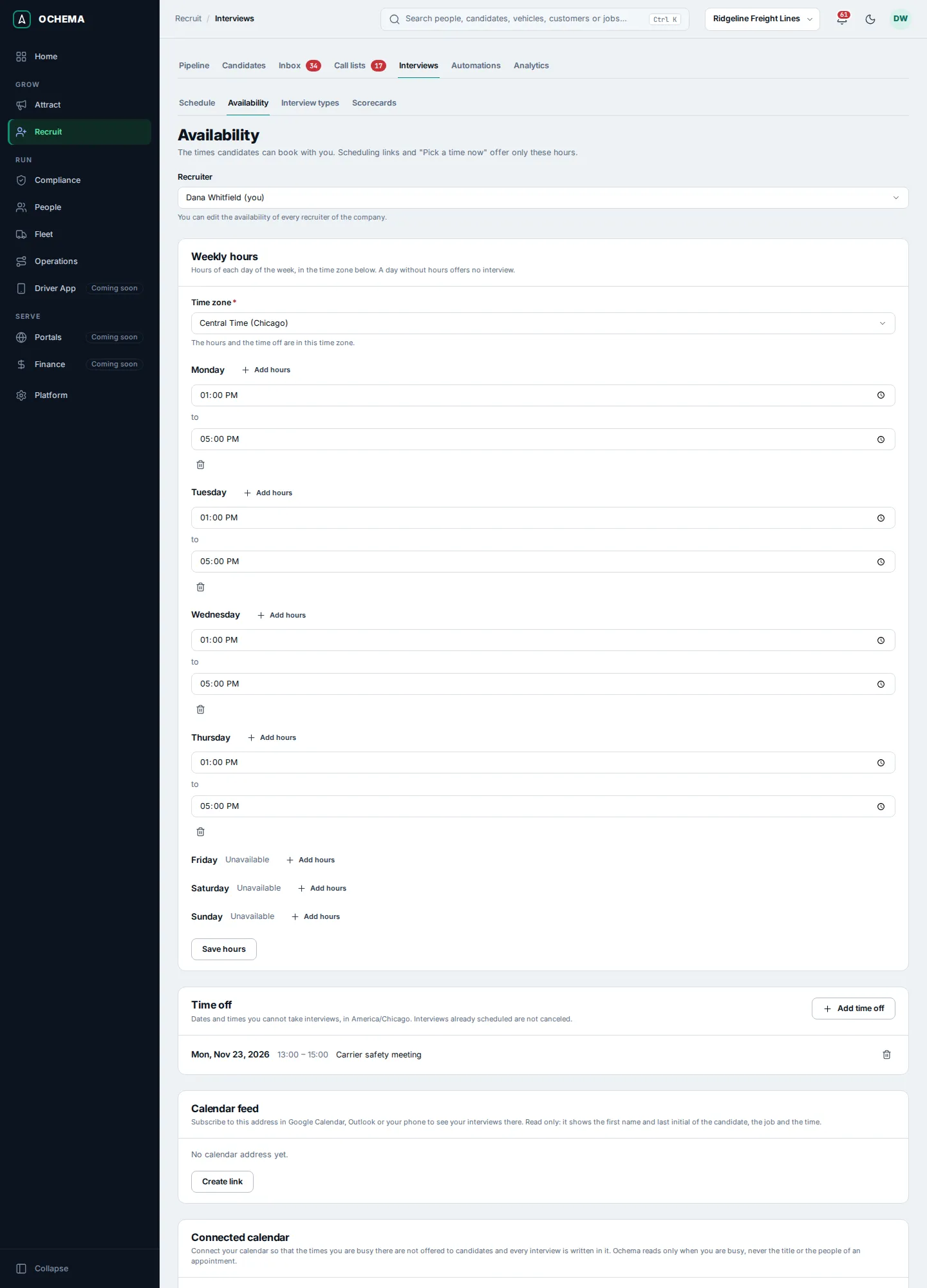
Connected calendar reads your busy times from Google Calendar or Microsoft and writes each interview there. It is available only after Ochema support turns it on for your company; until then the card says so, and you keep the weekly hours and time off up to date by hand. See Calendars.
Create an interview type
Section titled “Create an interview type”- On the Interview types tab, select New interview type.
- Type the Name, for example
Phone screen, and the Length (5 to 480 minutes, in steps of 5). - Choose How it happens: Video (type the Video link, starting with https://), Phone or In person (type the Address).
- Under Booking rules, type the Minimum notice in minutes, the Break between interviews (up to 240 minutes) and the Maximum per day per recruiter (1 to 50, empty for no limit).
- Choose the Recruiters who take this type. A link for the group offers the free times of all of them.
- Select Create interview type.
Open the screenshot at full size in a new tab: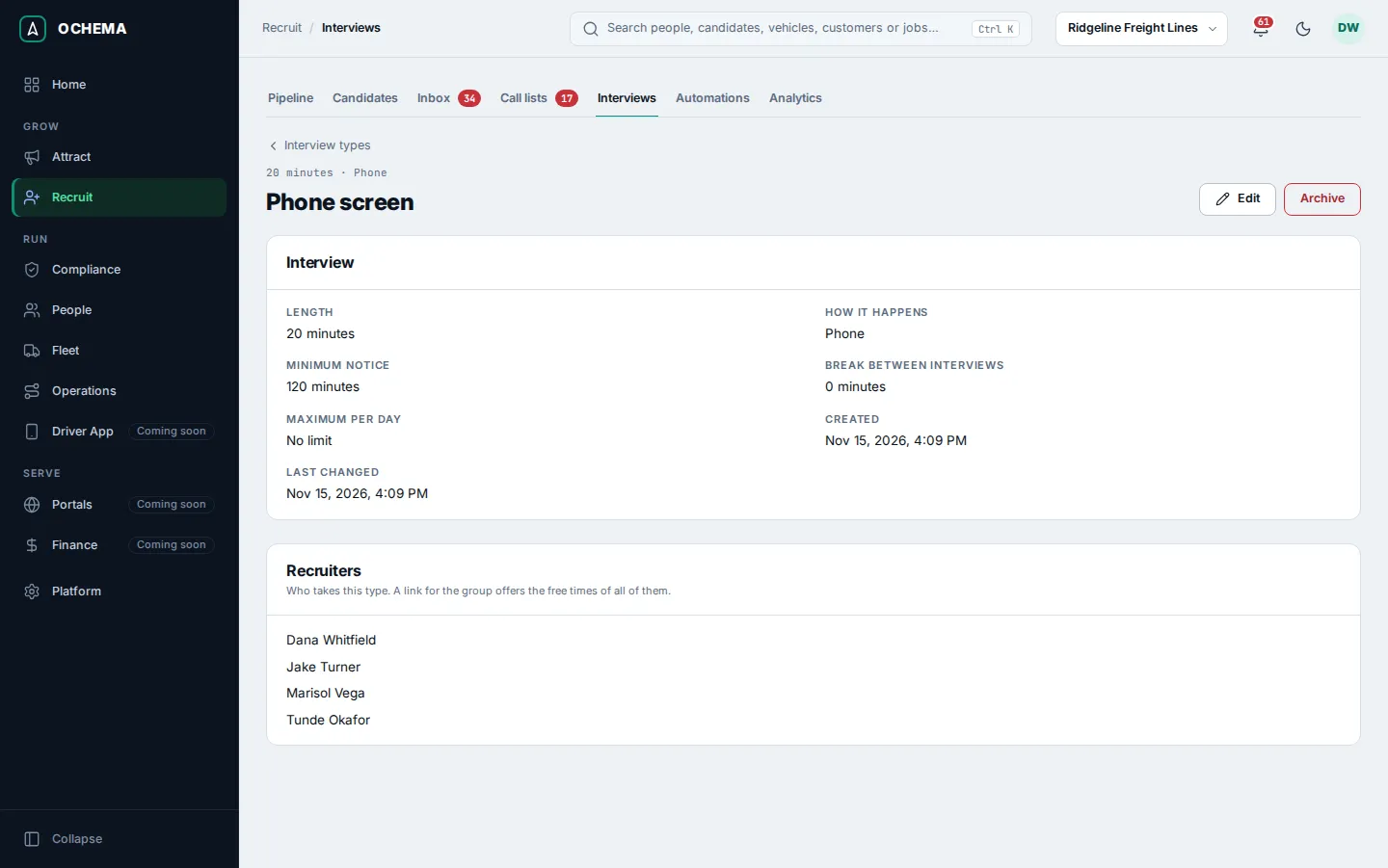
The Reminders card on the same tab sets when the candidate is reminded: First reminder (120 to 4,320 minutes before, 1,440 by default) and Second reminder (15 to 720 minutes before, 60 by default), and the Waiting list offer (how long the first candidate on the waiting list has to take a freed time, 15 to 1,440 minutes, 120 by default). Reminders go by email and, to candidates with SMS consent, by text message inside the allowed hours. The first reminder asks the candidate to reply C to confirm or R to reschedule; a reply of only that letter confirms the interview or sends a new link. An interview booked with less notice than a reminder does not get it.
Open the screenshot at full size in a new tab: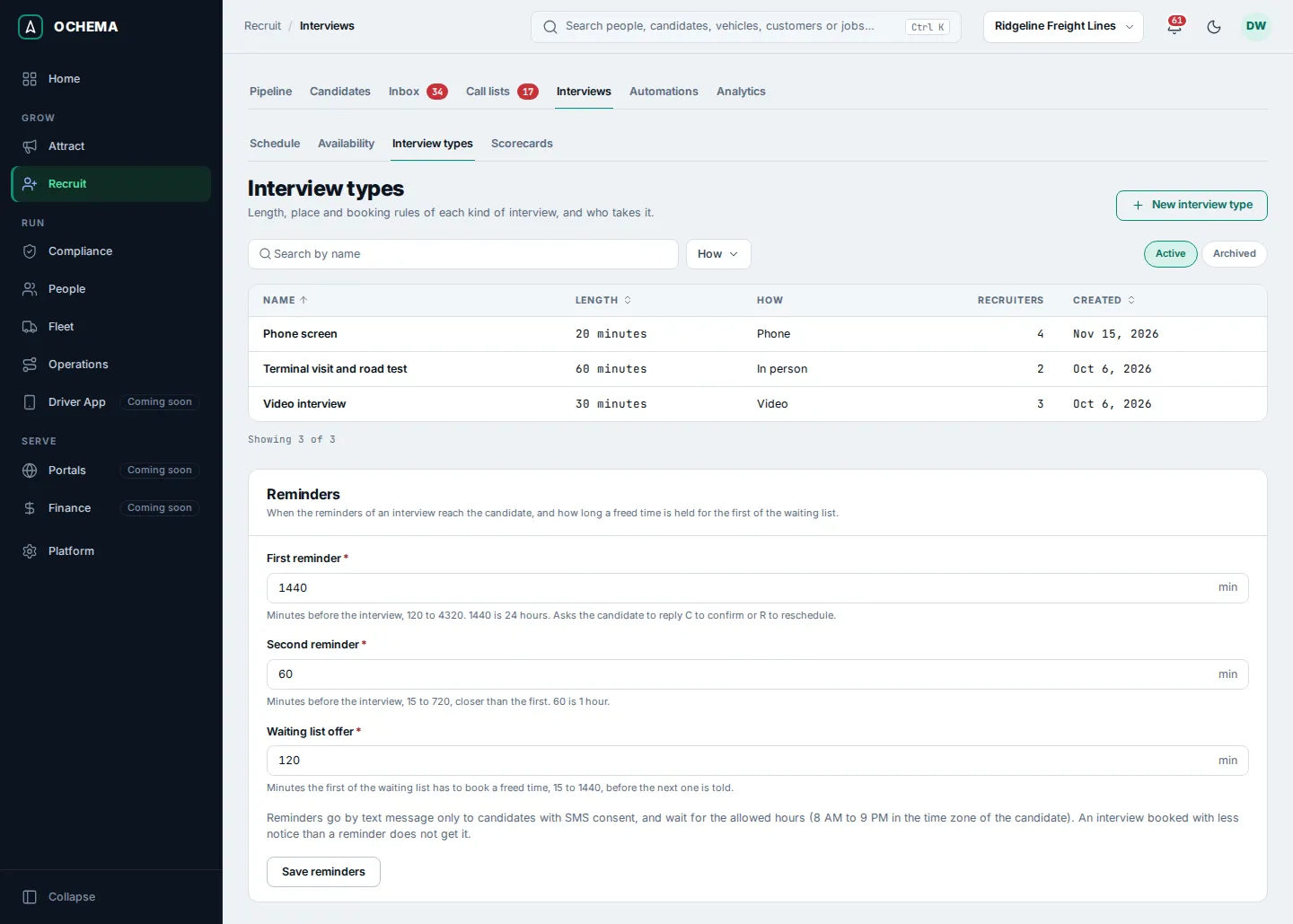
Schedule an interview
Section titled “Schedule an interview”- Open the candidate page and select Schedule interview.
- Choose how:
- Send scheduling link: the candidate picks a time on the careers page. The link works for 14 days. Choose the Interview type, the recruiter in With (or Any recruiter of the type) and Send by (Text message or Email), then select Send link.
- Pick a time now: choose the Interview type, the recruiter and one of the free times of the next 14 days, then select Book interview.
- The message Scheduling link sent to the candidate, or Interview booked for the time, appears.
Open the screenshot at full size in a new tab: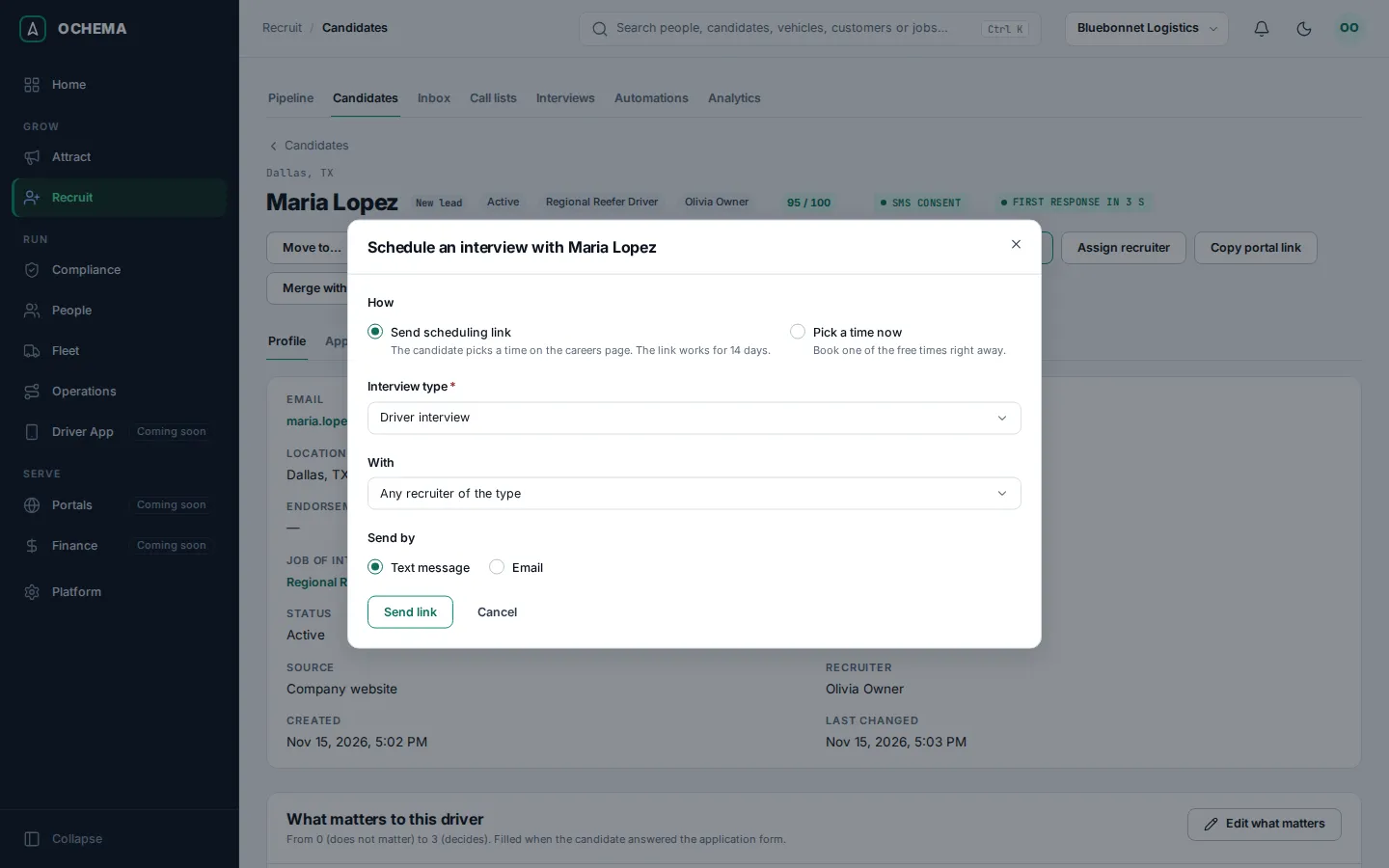
If the link was made but the message was refused (for example, no SMS consent), The link was made but the message was not sent appears with the reason. When no time works, Add to waiting list puts the candidate in line for a time that someone else cancels.
What the candidate sees
Section titled “What the candidate sees”The scheduling link opens a page of your careers site, in English or Spanish, with no sign in. The candidate sees Pick a time for your interview, a strip of days and the free times of each day, in the time zone of their phone or computer. They choose a time and select Book this time, and the page says Your interview is booked. From the same link they can Add to calendar, Reschedule (Move my interview to this time) or Cancel.
Open the screenshot at full size in a new tab: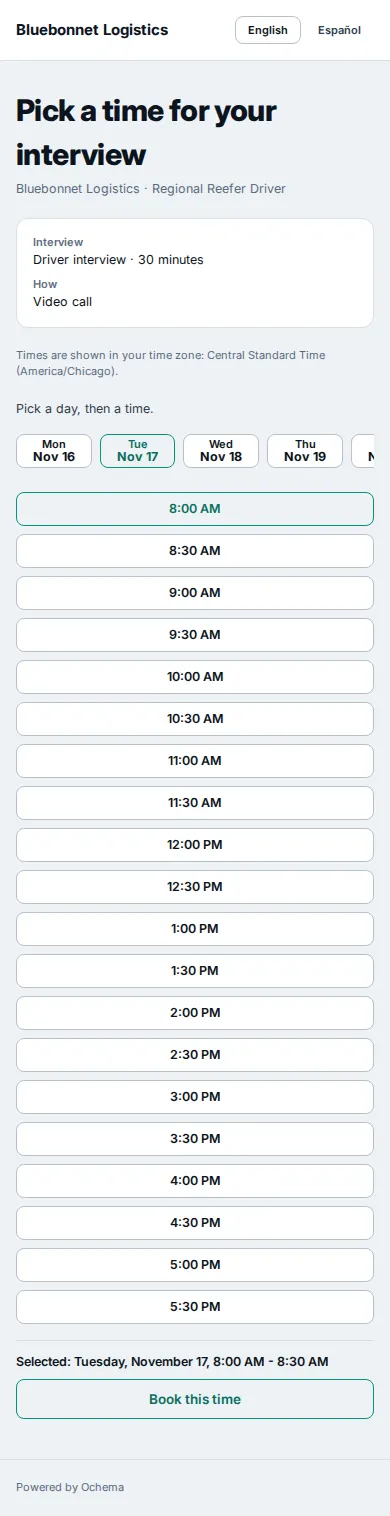
Open the screenshot at full size in a new tab: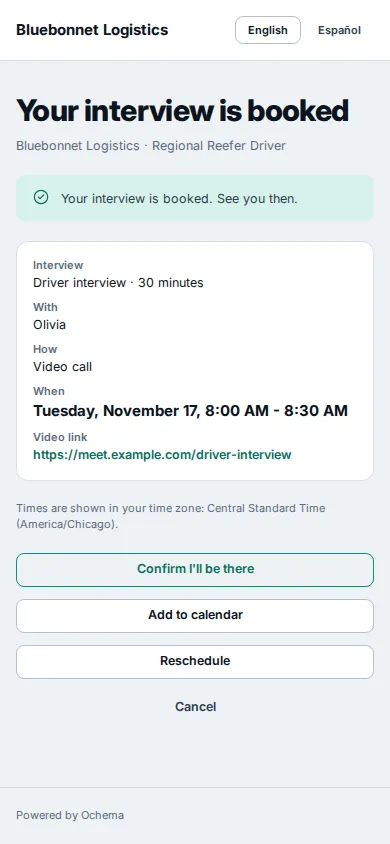
Work the schedule
Section titled “Work the schedule”- On the Schedule tab, choose Week or List (the next 30 days), move between weeks, and in Recruiter choose My schedule or All recruiters.
- Select an interview to open its panel: the candidate, the job, the type, when, how, the recruiter, the status and the Candidate confirmation.
- Use Reschedule, Cancel interview, Mark completed or Mark no-show. After the interview, Fill scorecard opens the scorecard.
Open the screenshot at full size in a new tab: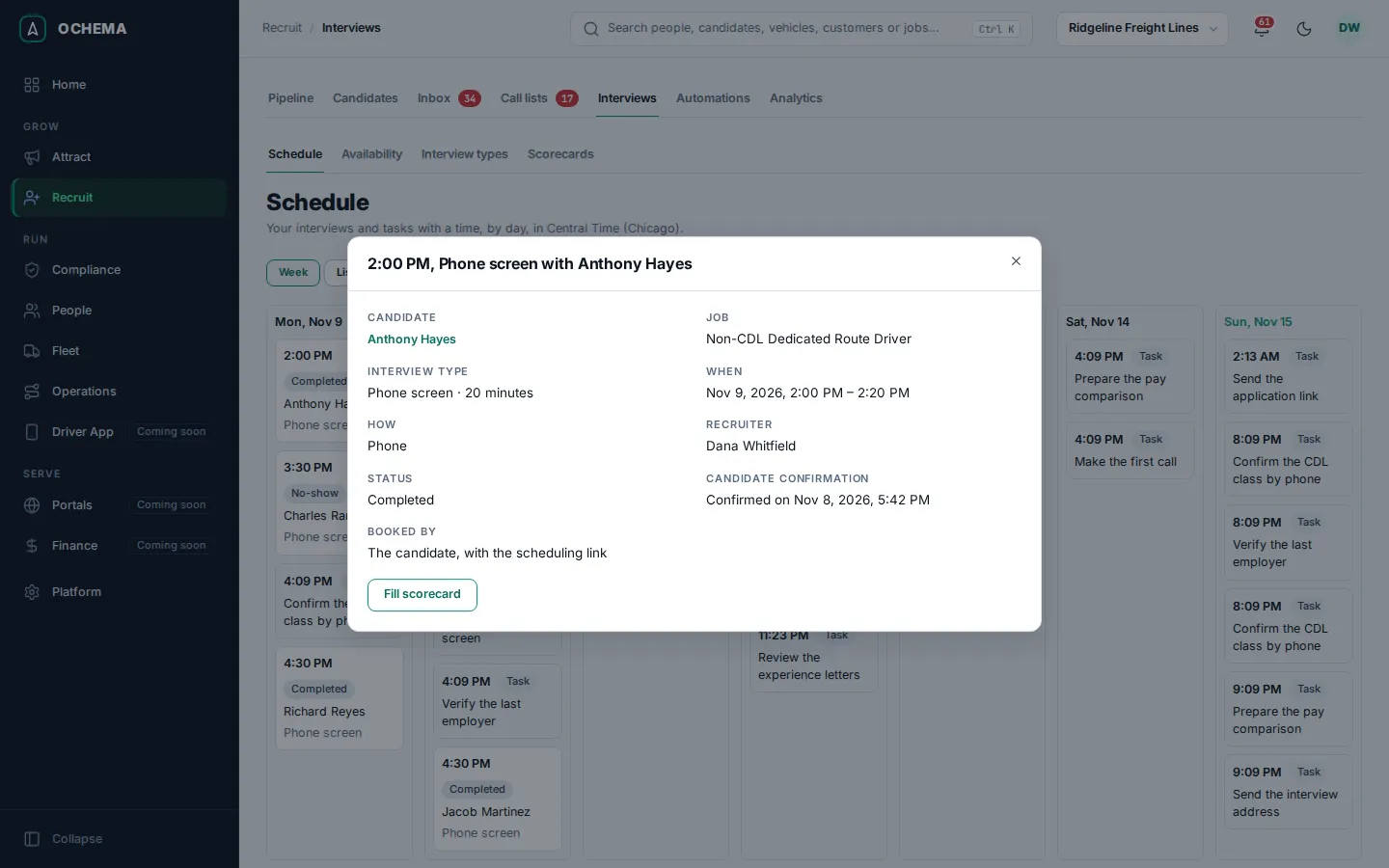
What happens next
Section titled “What happens next”- Canceling frees the time and offers it to the first candidate on the waiting list. The candidate gets a cancellation notice by email, and by SMS when there is SMS consent; you do not need to send one.
- Scheduling, canceling, completing and no-show go on the candidate timeline and can start automation rules (Interview scheduled, Interview canceled, Interview completed, Interview no-show).
- The Interviews panel of Analytics counts bookings, show rate and self-booked interviews.
Open the screenshot at full size in a new tab: