
Driver files
A driver file is the driver qualification file of one driver: every document the driver type requires, its status, its expiration and its history. Ochema opens it when a driver is added in People > Directory, when a candidate is hired, or when the full application is sent to a candidate.
Who this is for
Section titled “Who this is for”Compliance managers and owners.
- To see driver files: View driver files (
compliance.driver_files.read). The roles Owner, Admin and Read only have it. - To upload, approve, send back, waive and reopen items and to change the driver type: Manage driver files (
compliance.driver_files.manage). The roles Owner and Admin have it.
Before you start
Section titled “Before you start”- The driver is in People > Directory, or the candidate has been sent the full application.
- The document types your company asks for are set in Compliance > Document types. See Document types and rules.
Find a driver file
Section titled “Find a driver file”- Open Compliance, then Driver files.
- Under Whose files, choose Drivers or Candidates in hiring.
- Type at least 3 letters of the name in Search driver files, or filter by Status, Terminal, Driver type and Needs attention (Not eligible or Waiting for review).
The list shows each Name with its Driver type, Terminal, Status (Compliant, Pending or Expired), Items missing and Next expiration.
Open the screenshot at full size in a new tab: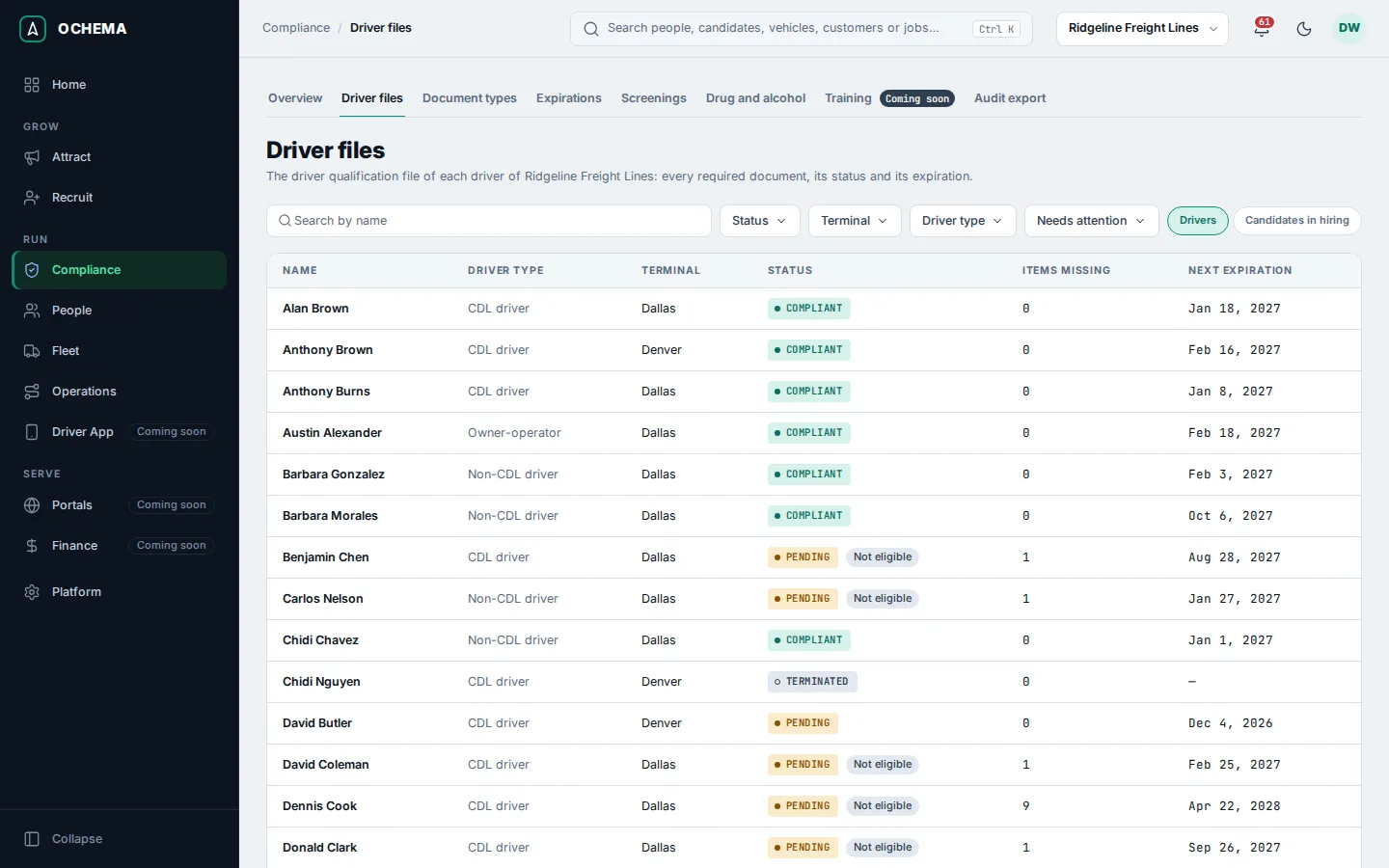
Read a driver file
Section titled “Read a driver file”Select a name. The page of the driver file shows:
- the driver type and the phase (In hiring, Active or Terminated), with Change type;
- the status of the file and the eligibility: Eligible to drive, or Not eligible followed by the reasons, for example
Medical examiner's certificate expired; - how many items are missing, how many wait for review, and the next expiration;
- the items, grouped by Application and history, License and driving record, Medical, Road test, Company documents and Other. Each item shows its name, Required to drive when the driver cannot be eligible without it, the regulation it comes from with the mark Regulatory preview, its files, its expiration and its status;
- Contracts and forms, the documents the driver signs electronically. See Contracts and signing.
The status of an item is one of Missing, Waiting for review, Valid, Expiring soon, Expired, Sent back, Does not apply or Waived. Items that do not apply to this driver are hidden under a button such as 1 item does not apply.
Open the screenshot at full size in a new tab: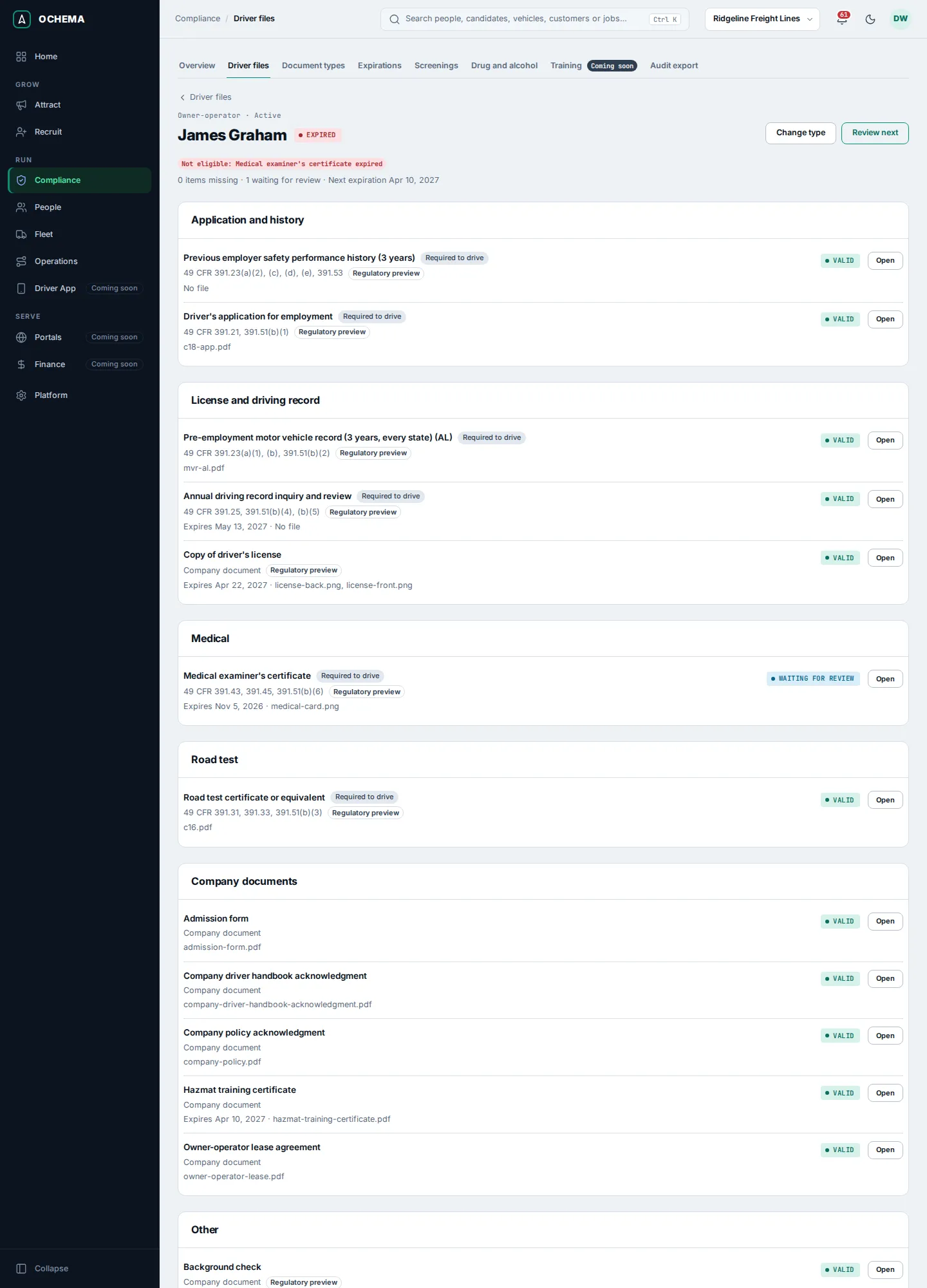
The drug and alcohol records are not part of the driver file. When one that is required is not on file, the driver file says Record missing, and only people who can open the drug and alcohol file see which. See Drug and alcohol file.
Review an item
Section titled “Review an item”-
On the driver file, select Open next to the item. To go through every item waiting for review, select Review next instead.
-
The panel shows the Status, Expires, the Rule, who it is Provided by (Driver, Company or Previous employer), the Current file, the Previous files and the History, with who did each step and when. Select View to see an image in the panel or Download to save the file.
-
Choose what to do. The buttons depend on the status of the item:
Status Buttons Missing Upload, Waive Waiting for review Approve, Send back, Upload, Waive Valid or Expiring soon Upload, Reopen Expired Upload, Waive Sent back Upload, Waive, Reopen Waived Upload, Reopen Waive is never offered for an item a federal rule requires to drive.
Open the screenshot at full size in a new tab: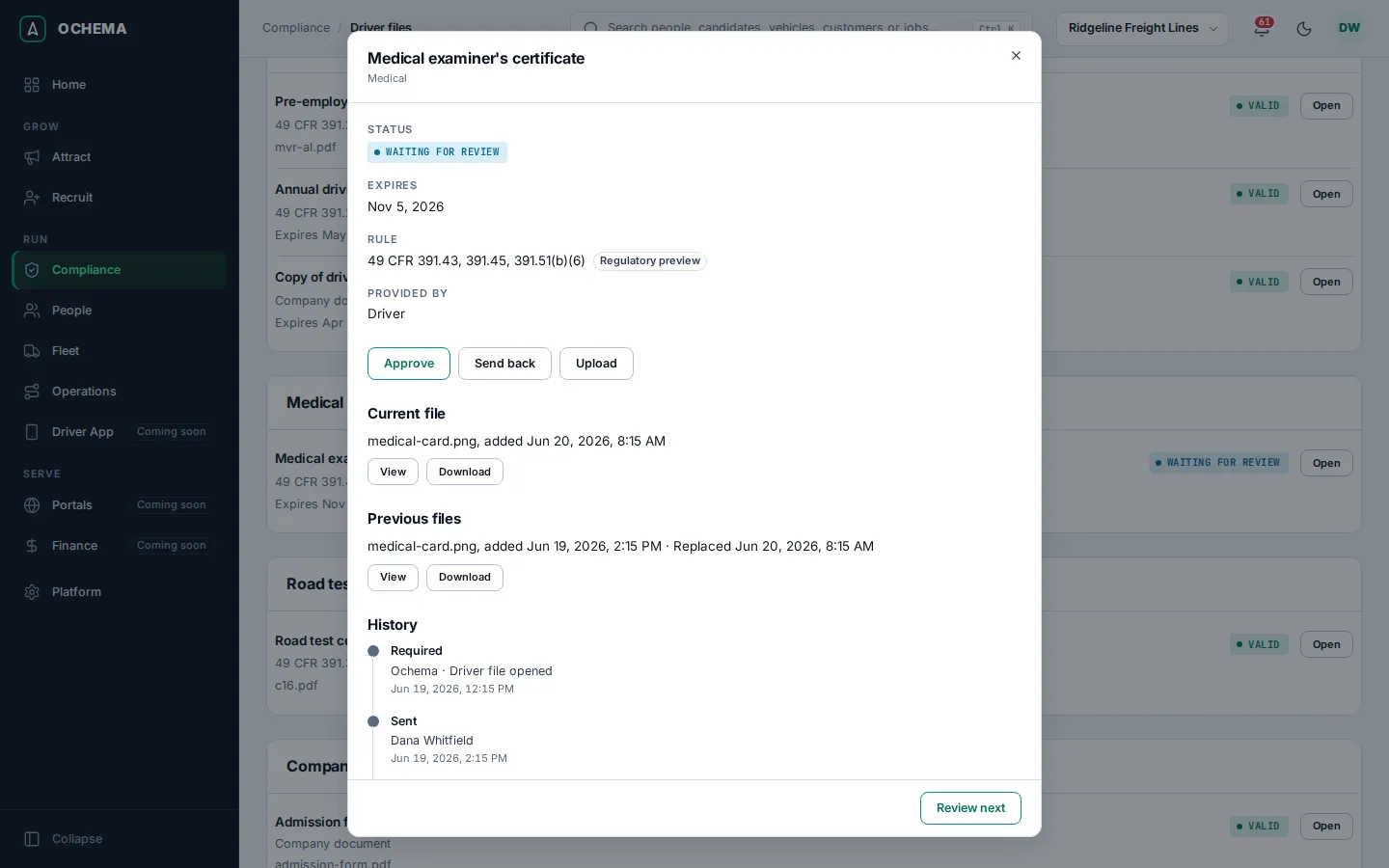
Approve
Section titled “Approve”- Select Approve.
- Check the Expiration date. It comes suggested by the rule; change it if the document says otherwise. It cannot be in the past, and for some rules it cannot be later than a maximum the panel shows. For a document without an expiration, check This document does not expire when the panel offers it.
- Optional: type a Note. Select Approve. The message Item approved appears and the status changes to Valid.
The tutorial shows this step with a copy of a driver’s license: see Approve the license on the driver file.
Send back
Section titled “Send back”- Select Send back.
- Type the Reason. The driver reads this reason with the link to send the document again.
- Select Send back. The message Item sent back appears and the status changes to Sent back.
Open the screenshot at full size in a new tab: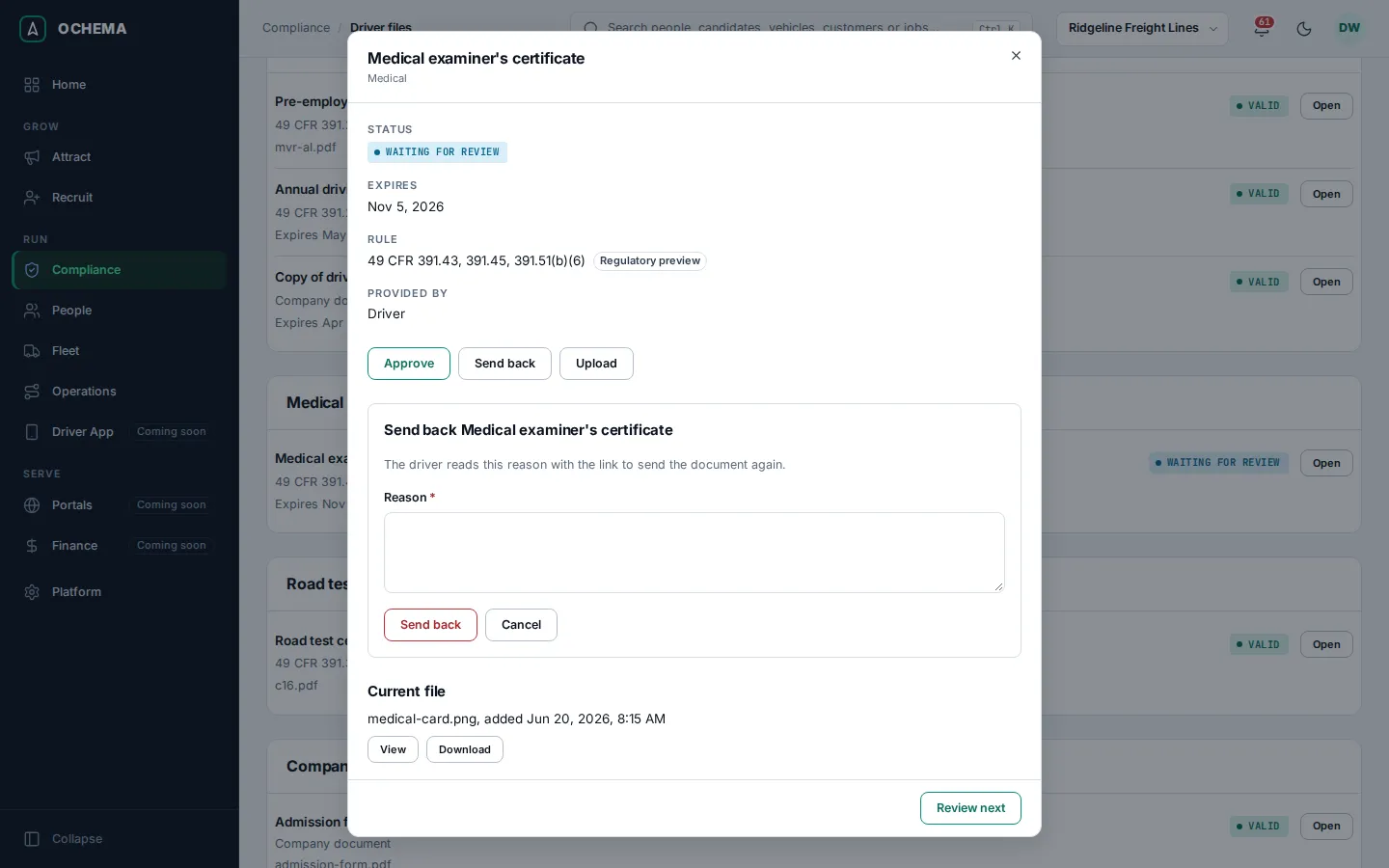
Waive, reopen and upload
Section titled “Waive, reopen and upload”- Waive: type the reason and confirm. The item stops counting as missing and the reason stays in its history. If the item is required to drive, the panel says that, once waived, it no longer keeps the driver from being eligible.
- Reopen: the item is missing again, and its history keeps the step.
- Upload: choose the File (JPEG, PNG, WebP, PDF or Word, up to 25 MB) and, for a document with two sides, the Side. A file sent before stays in Previous files.
Change the driver type
Section titled “Change the driver type”- On the driver file, select Change type.
- Choose the Driver type (CDL driver, Non-CDL driver or Owner-operator) and select Change type.
The items of the new type are added. The items it does not need stop applying and keep their history.
What happens next
Section titled “What happens next”- When you send an item back, Ochema tells the driver: by text message when the driver has a phone with SMS consent, otherwise by email. The message has a link to the candidate area, where the driver sends the document again. See What applicants see.
- When a driver sends a document from the candidate area, the item changes to Waiting for review and counts in Waiting for review on Compliance overview.
- Every day Ochema checks the expirations and moves items to Expiring soon and Expired. See Expirations and alerts.
- The driver file of a terminated driver is read only and kept until the end of its retention. See Audit export.