
Expirations and alerts
Who this is for
Section titled “Who this is for”Compliance managers and owners. The screen needs View driver files (compliance.driver_files.read; roles Owner, Admin and Read only). Remind driver needs Manage driver files (compliance.driver_files.manage; roles Owner and Admin).
Before you start
Section titled “Before you start”- Items with an expiration date, approved on the driver files. See Driver files.
- To reach a driver, Ochema needs a phone with text message consent or an email address, and the address of your careers page, where the candidate area lives. See Your careers page.
- Open Compliance, then Expirations. The list opens on Next 60 days.
- Under Show, choose Next 30 days, Next 60 days, Expired or All. Filter by Item or Terminal if you need.
- Each row shows the Person, the Item, Expires on, Days left and the Status, for example Expiring soon. A row that says New document in review; the previous one expired already has a new document waiting for review.
- To remind one driver, select Remind driver on the row. To remind several, check their rows and select Remind selected, with the count.
- The result says how many drivers will get the link to send the new document, how many were already reminded today, and how many could not be notified.
- To work on the item, select Open file. The driver file opens.
Open the screenshot at full size in a new tab: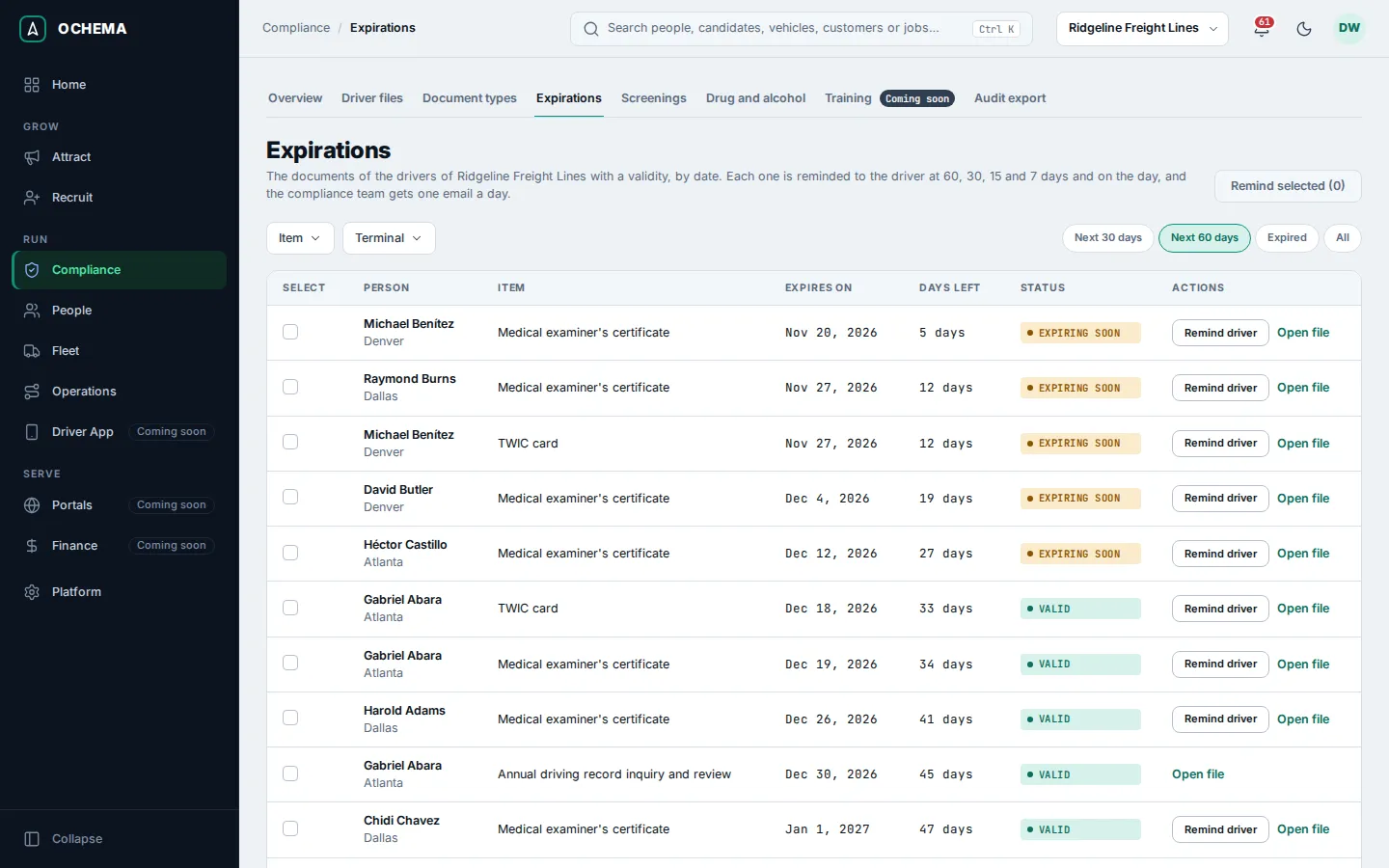
What happens next
Section titled “What happens next”Ochema reminds drivers and tells your team without anyone opening the screen:
- The driver gets a reminder at each alert day before the expiration (by default 60, 30, 15 and 7 days) and on the day. It goes by text message when the driver has a phone with SMS consent, otherwise by email, with a link to the candidate area to send the new document. Reminders wait for the sending hours of your company. Each reminder is written in the history of the item, for example Reminder sent with Driver told by SMS.
- Your team gets one email a day with the items of the day, and a weekly email while an item stays expired, for up to 8 weeks. It goes to the members chosen in Who receives the alerts, or, with none chosen, to everyone who can manage driver files.
- Home shows two counts: Documents expiring in 30 days and Expired documents.
To change the alert days, the days an item shows as expiring, or who receives the alerts, see The alerts.
When the driver sends the new document, the item shows Waiting for review until you approve it.