
Offers
An offer is a letter the candidate reads and signs electronically, by a link sent to their email, which you can also copy and hand over yourself. Offer letters are written once as offer templates, in Recruit > Automations, tab Offer templates, and sent from the Offer tab of the candidate page.
Who this is for
Section titled “Who this is for”- Seeing the offer templates and the offers of a candidate needs View offers. Creating and editing offer templates, sending and withdrawing offers need Manage offers.
- The Owner and Admin roles have both; Read only can see them. See Roles and permissions.
Before you start
Section titled “Before you start”- The candidate signs the offer on your careers page, so your company needs a careers page address. See Your careers page.
- The candidate needs an email address: the signing link goes by email. Until your messaging is set up, the email stays in the simulator and the candidate does not receive it: use Copy link on the Offer tab to hand the link over yourself. See Messaging settings.
- Your company starts with Sample offer letter, marked Sample text. It is not legal advice: replace it with your own offer letter before sending it.
Write an offer template
Section titled “Write an offer template”- Open Recruit in the menu on the left, then Automations, then the Offer templates tab.
- Select New offer template.
- Under Template, type the Name (only your company sees it) and choose the Employment type: Any employment type, Employee, Independent contractor or Owner-operator.
- Under English, write the text of the offer. Separate paragraphs with a blank line. Use the variables
{candidate_name},{job_title},{terminal_name},{start_date},{pay},{benefits},{expires_on}and{company_name}. A variable without a value stops the sending. - Optional: under Spanish, write the Spanish text. Without it, every candidate gets the English text.
- Select Create template.
Open the screenshot at full size in a new tab: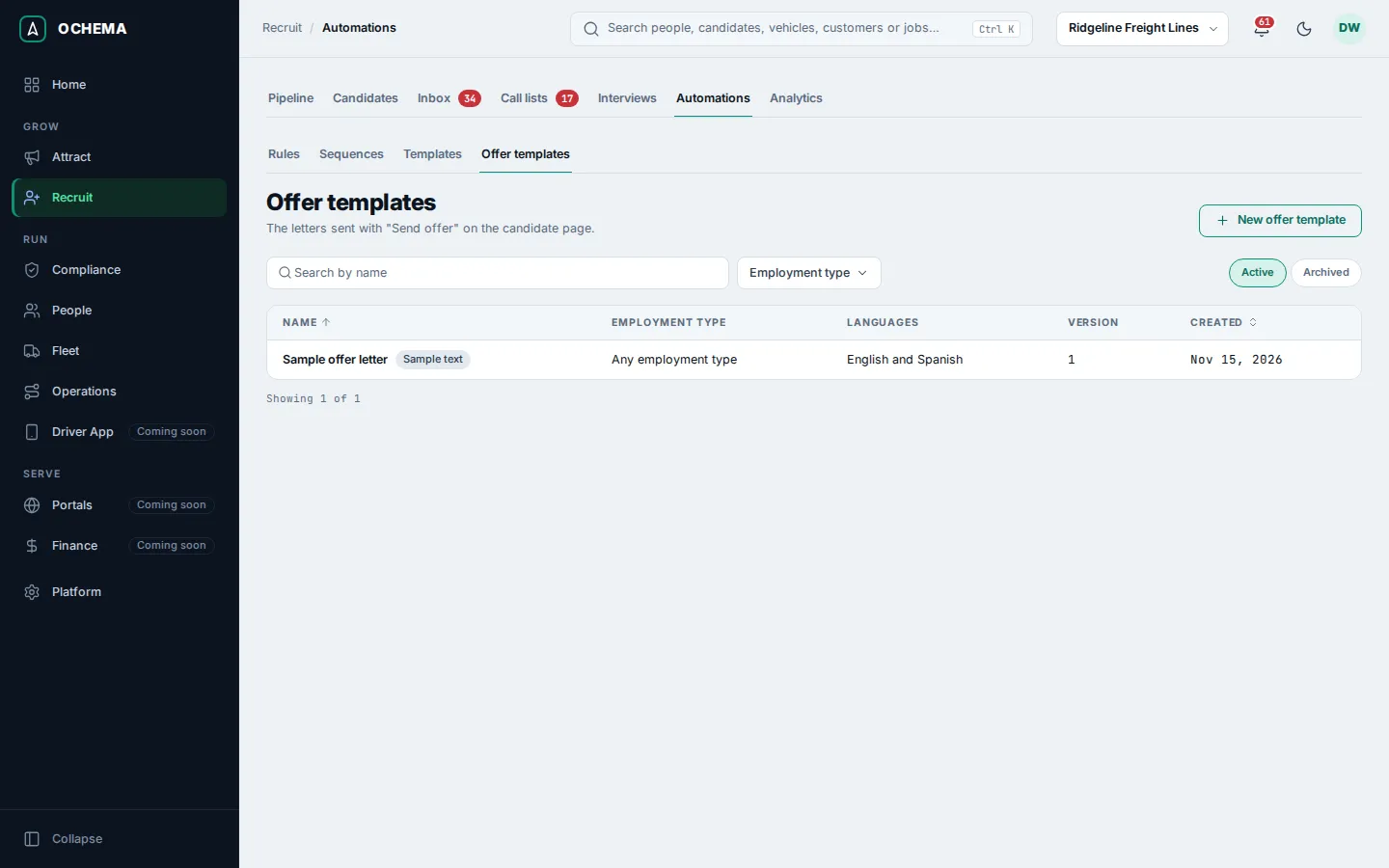
The tutorial writes one in Send the offer.
Send an offer
Section titled “Send an offer”- Open the candidate page, then the Offer tab, and select Send offer.
- Choose the Offer template and the Language.
- Fill in what the template uses: Start date, Pay (in words, as the candidate reads it, for example $0.62 per mile), Benefits and Terminal (by default, the terminal of the job). When the application has no job, type the Job title.
- Type how many days the offer is Valid for (days), from 1 to 60; the default is 7. The line under it says until when the candidate can accept.
- Read the offer as the candidate will under Preview, then select Send offer. The message Offer sent to the candidate appears.
Open the screenshot at full size in a new tab: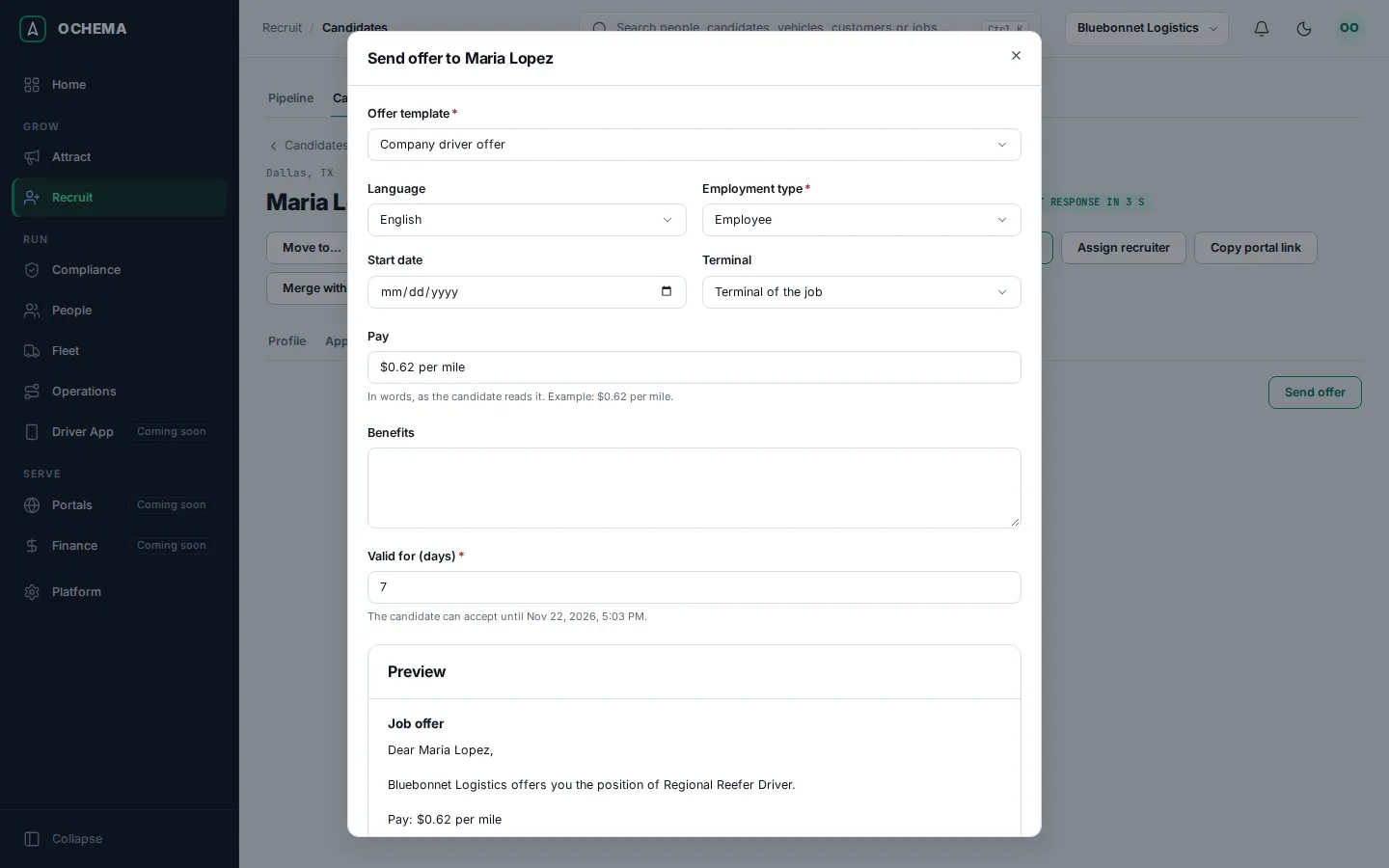
An application has one open offer at a time: to send a new one, withdraw the open offer first. If the candidate already accepted and signed an offer for this application, a new offer does not cancel the signed one.
What the candidate sees
Section titled “What the candidate sees”The email has a link to a page of your careers site; the link you copy opens the same page. The candidate reads the offer, downloads it as a PDF if they want, agrees to use electronic records and signatures, types their full name and signs, or declines. See What applicants see.
Open the screenshot at full size in a new tab: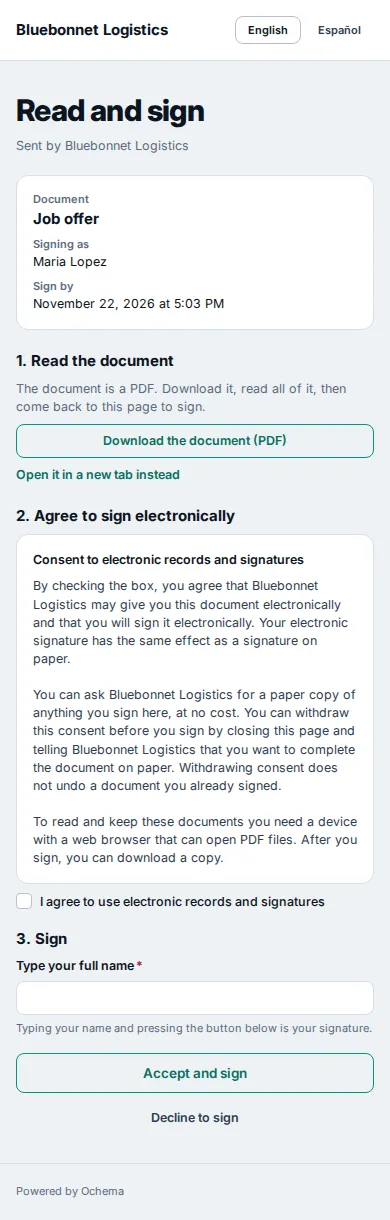
While the offer is open, it also shows in the candidate area, under Answer your job offer, with the date it is due and Open offer, which opens the same page. See The candidate area.
Copy the link of an open offer
Section titled “Copy the link of an open offer”While the offer is Sent or Viewed, you can hand its link to the candidate by a way of your own, for example in a chat or in person. It needs Manage offers.
- On the Offer tab, select Copy link.
- Read the warning: this creates a new link, and the link the candidate received by email, or one copied here before, stops working.
- Select Create and copy link. The link is copied, and it shows in Offer link only now: Ochema does not keep it, so it cannot be read again later.
The link works until the offer is answered, withdrawn or expired, or until a newer link replaces it. Whoever has the link answers as the candidate. In the seconds after Send offer, while the document is prepared, the dialog says The offer document is still being prepared. Try again in a few seconds. Every copy is written in the audit log, without the link.
Follow the offer
Section titled “Follow the offer”The Offer tab shows the current offer with its status (Sent, Viewed, Accepted, Declined, Expired or Withdrawn), the terms, and when it was sent, viewed, answered and until when it is valid. Earlier offers are under Previous offers. The board card and the candidate header show Offer sent or Offer accepted.
Open the screenshot at full size in a new tab: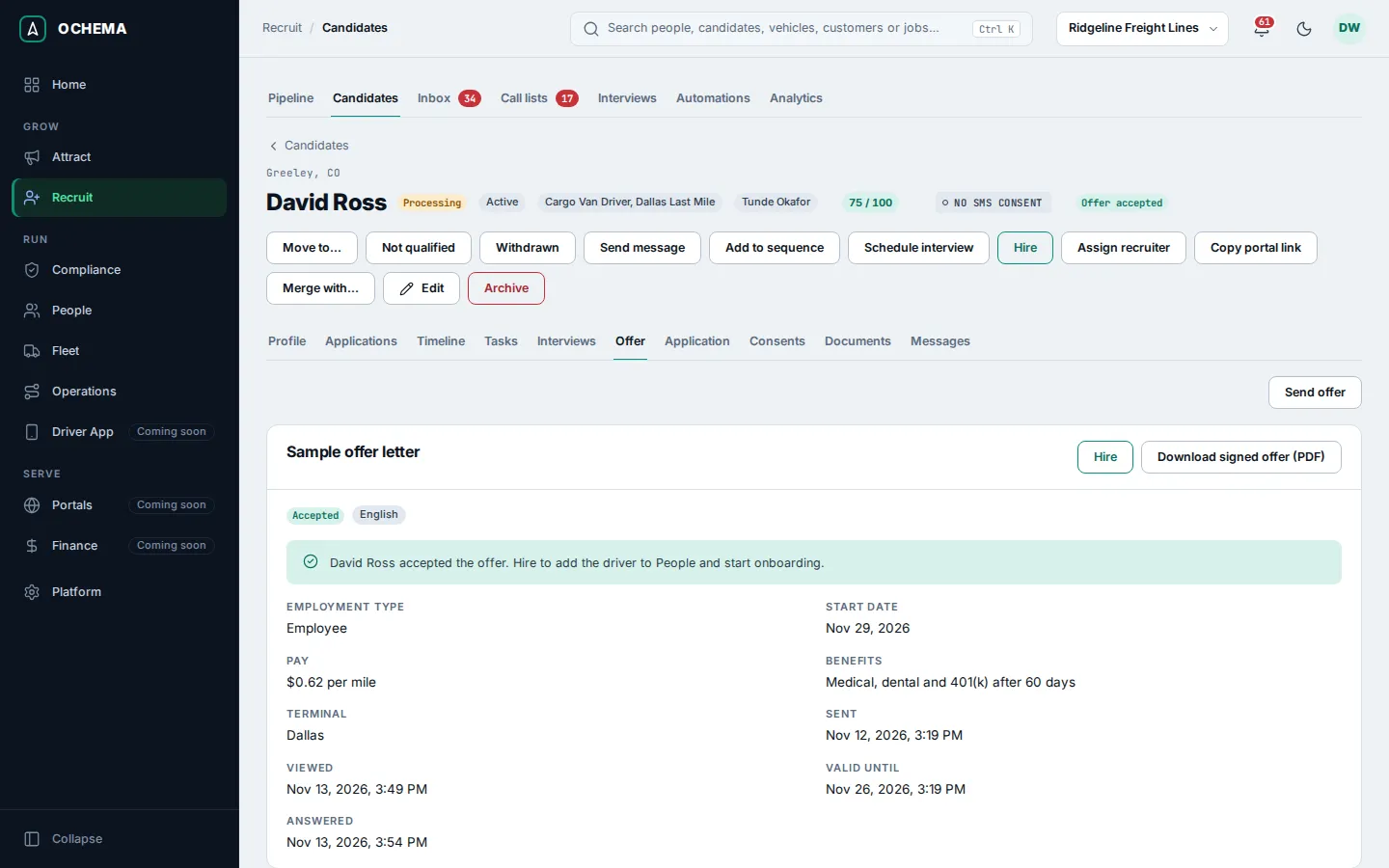
- Copy link makes a new link to the offer; see Copy the link of an open offer.
- Withdraw cancels an offer before the candidate signs it. The link stops working. The candidate is not messaged: tell them from the Messages tab.
- Download signed offer (PDF) gives the signed offer with its signature certificate.
- An offer not answered by its date expires.
What happens next
Section titled “What happens next”When the candidate accepts, the offer tab says so and offers Hire. See Hiring. Accepting, declining and expiring go on the candidate timeline and can start automation rules (Offer accepted, Offer declined, Offer expired). A rule can also send an offer, with the action Send an offer from a template; see Automations.