
Candidates
Recruit > Candidates lists every candidate of your company, with the job they want and the stage they are in. Nobody is deleted: archived candidates come back when they apply again. Each candidate has a page with their profile, applications, timeline, messages, interviews, offer and consents.
Who this is for
Section titled “Who this is for”- Seeing the list and the candidate page needs View candidates.
- Adding, editing, archiving and reactivating candidates, writing notes and recording consents need Manage candidates. Importing needs Import candidates, and merging duplicates needs Merge candidates.
- Changing the stage needs Move applications. Hiring needs Hire candidates and Manage people.
- The Owner and Admin roles have all of these; Read only can see but not change. See Roles and permissions.
Before you start
Section titled “Before you start”- A candidate needs an email or a phone number. Both must be unique in your company: a second record with the same email or phone is offered as the existing candidate instead.
- To place a new candidate on a job, the job must be open or paused. See Jobs.
Find candidates
Section titled “Find candidates”- Open Recruit in the menu on the left, then Candidates.
- Type at least 3 letters or digits in Search candidates to search by name, email or phone.
- Narrow the list with the filters: Stage, Job, Application status, Campaign, Score, CDL class, Endorsements, State, Source, Recruiter, Created, No activity and Consent. Active and Archived switch between active and archived records.
- Sort by Name, Fit score or Added on with the column headers.
- To keep this search, select Save as smart list, type the Name, choose Who sees it (Only me or Everyone in the company) and select Save list. The list keeps the search, sort and filters, not the candidates: every time you open it, it shows who matches now. Smart lists appear as buttons above the table, with how many candidates match.
Open the screenshot at full size in a new tab: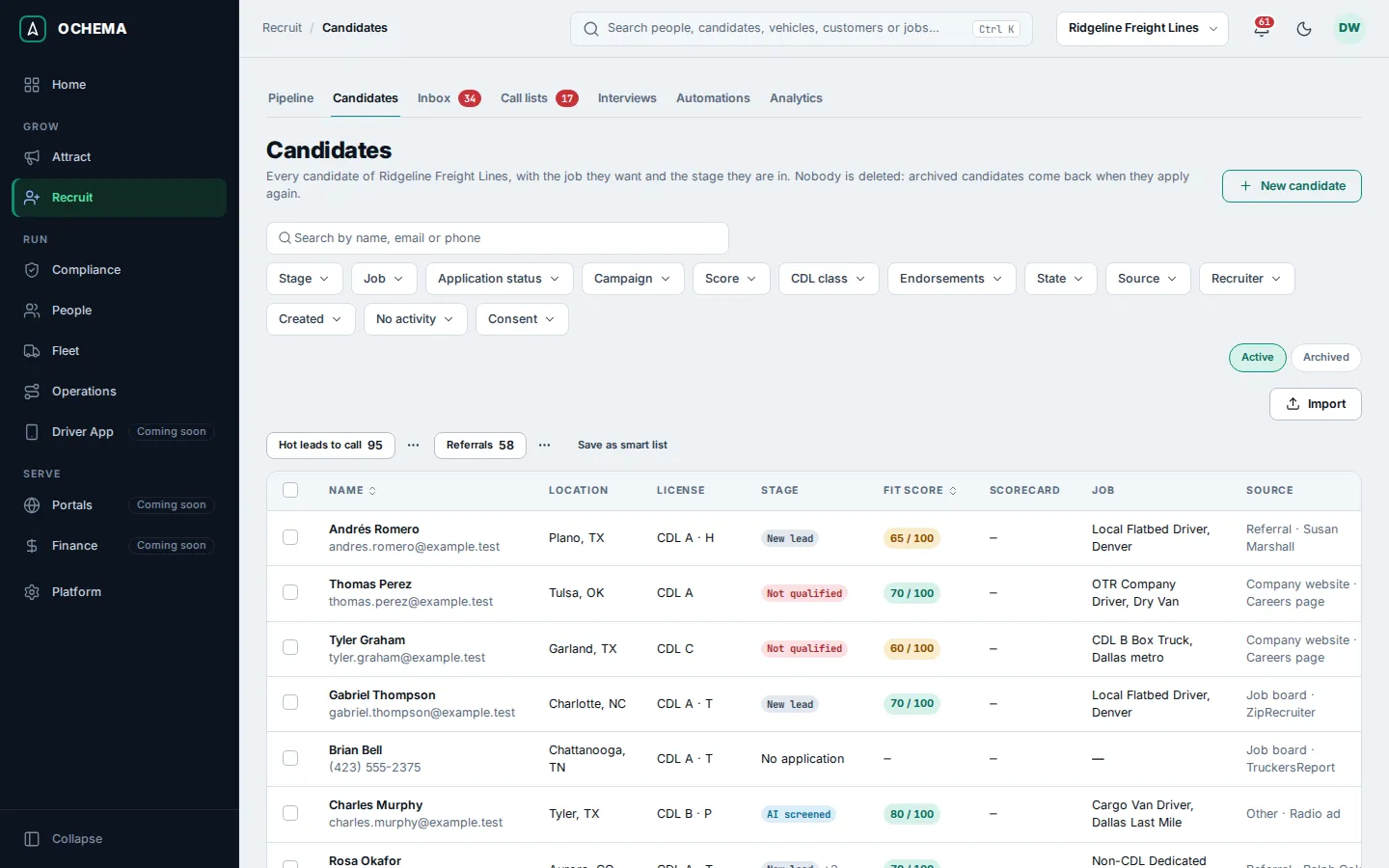
To change the recruiter of many candidates, check their rows and select Assign recruiter (at most 200 at a time). Smart lists also feed the call list and broadcasts.
Add a candidate
Section titled “Add a candidate”- On Recruit > Candidates, select New candidate.
- Under Candidate, type the First name and the Email or the Phone. US numbers without +1 are fine, like (214) 555-0147. Add the Last name, City and State if you have them.
- Under License and experience, choose the CDL class, type the Driving experience in whole years (0 to 60) and check the Endorsements.
- Under Application, choose the Job of interest (leave it as General application for no specific job) and the Pipeline stage. A new application starts in a stage in progress.
- Under Source and owner, choose the Source, type a Source detail such as Indeed or the name of who referred them, and choose the Recruiter.
- Select Create candidate. The message Candidate Samuel Ortiz created. appears, with the name you typed, and the candidate page opens.
Open the screenshot at full size in a new tab: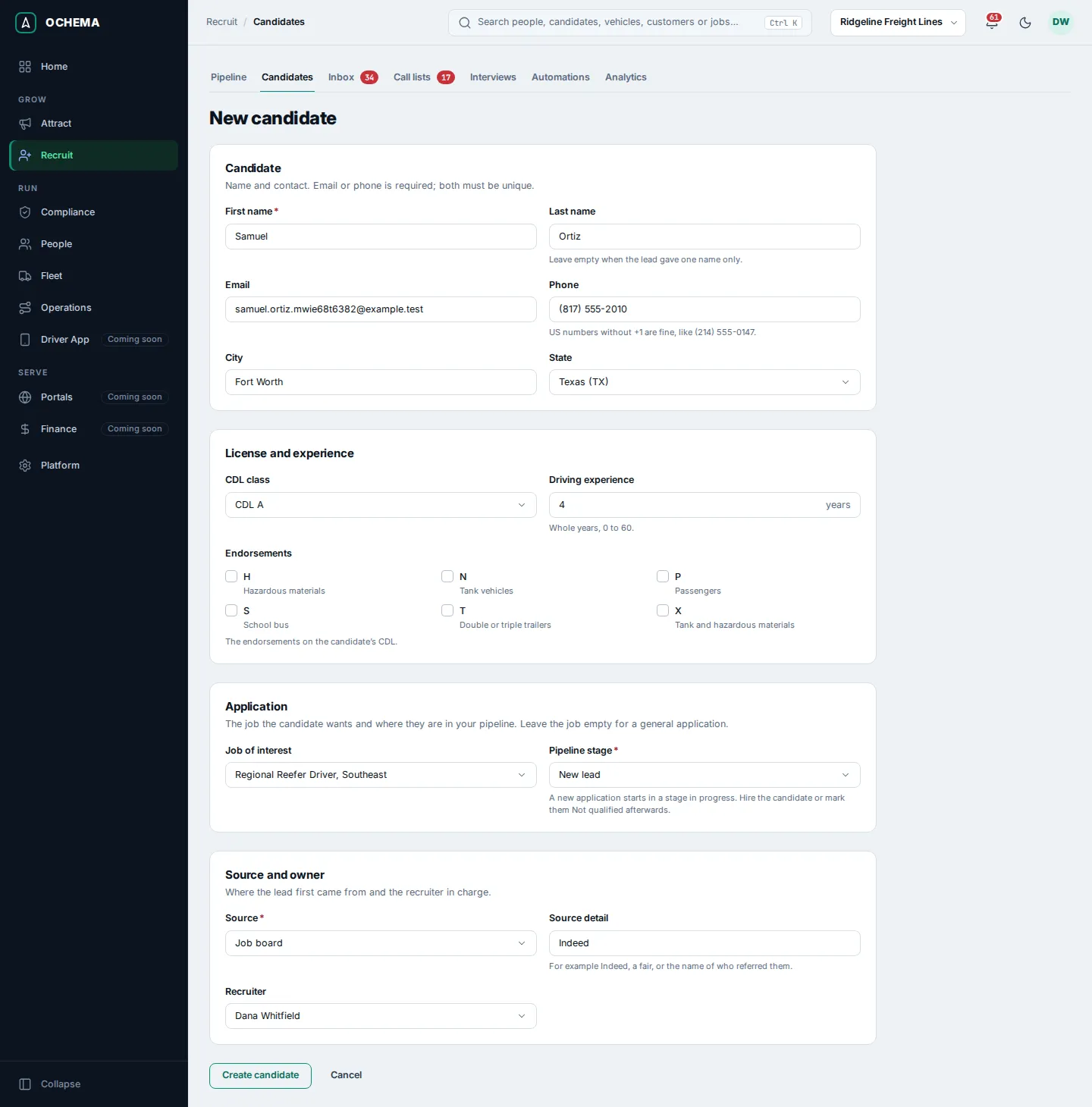
If the email or the phone already belongs to a candidate, This candidate may already exist appears with a link to that record, or Reactivate when the record is archived.
Import candidates
Section titled “Import candidates”- On Recruit > Candidates, select Import.
- File: choose a CSV or XLSX file whose first row has the column names, and select Upload file. Download template gives a file with one column for each field the import reads. The limits are 10 MB and 50,000 rows.
- Mapping: check the field suggested for each column. A column linked to Do not import is ignored.
- Review: see how many rows create New candidates, fall on Existing candidates (same email or phone: the candidate gets the application and the data that is missing) and are Rows with errors. Select Import with the number of rows.
- Import: you can close the page; the import continues and its result shows in the import history, where you can download the error file.
Imported candidates come in without consent to be contacted, unless the file has consent columns. Marking a consent in the file is a declaration by your company that the candidate gave it on that date.
Work a candidate from their page
Section titled “Work a candidate from their page”Select a name in the list to open the candidate page. The header shows the stage, the status, the job, the recruiter, the fit score and the consent labels (for example No SMS consent or Email marked as spam). Select a label to see when and how it was recorded, and the score to see where the points came from.
Open the screenshot at full size in a new tab: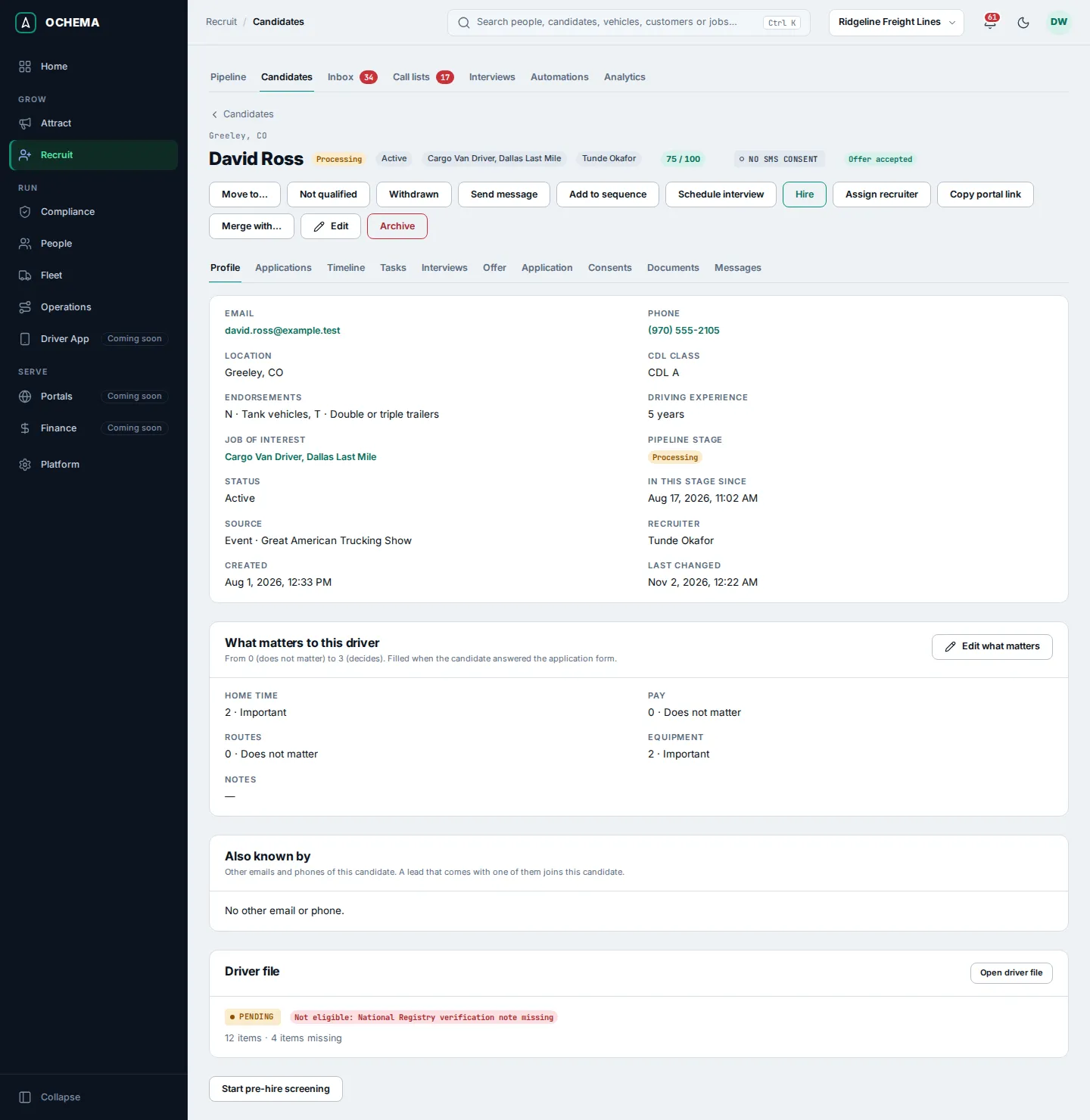
The buttons of the header:
- Move to…, Not qualified and Withdrawn change the current application, as on the board.
- Send message opens the Messages tab with the reply box. See Inbox.
- Add to sequence enrolls the candidate in a sequence.
- Schedule interview sends a scheduling link or books a time. See Interviews and scheduling.
- Hire adds the candidate to People. See Hiring.
- Assign recruiter, Copy portal link, Merge with…, Edit and Archive.
The tabs:
- Profile: contact, license, application, source, recruiter, What matters to this driver (home time, pay, routes and equipment, from 0 to 3), Also known by (other emails and phones that join a lead to this candidate) and the Driver file card once compliance work starts.
- Applications: every application, active and closed. Select one to see its stage history, screening answers and origin. Add application adds one for another job or a general one.
- Timeline: every event of the candidate, newest first, with a filter by event. Add note writes a note of up to 5,000 characters; you can change or delete your note for 24 hours.
- Tasks: the tasks linked to the candidate. See Call lists.
- Interviews: the interviews of each application with their scorecards. See Scorecards.
- Offer: the offer of the current application. See Offers.
- Application: the full application. See Hiring.
- Consents: the current state of each channel (SMS, Calls, Email, AI contact, Call recording) and the history. Record consent and Record opt-out add a new record with the words the candidate agreed to; a new record never changes the one before.
- Documents: Recruit does not collect documents. They go to the driver file in Compliance. See Driver files.
- Messages: the SMS and email conversation and the reply box.
Open the screenshot at full size in a new tab: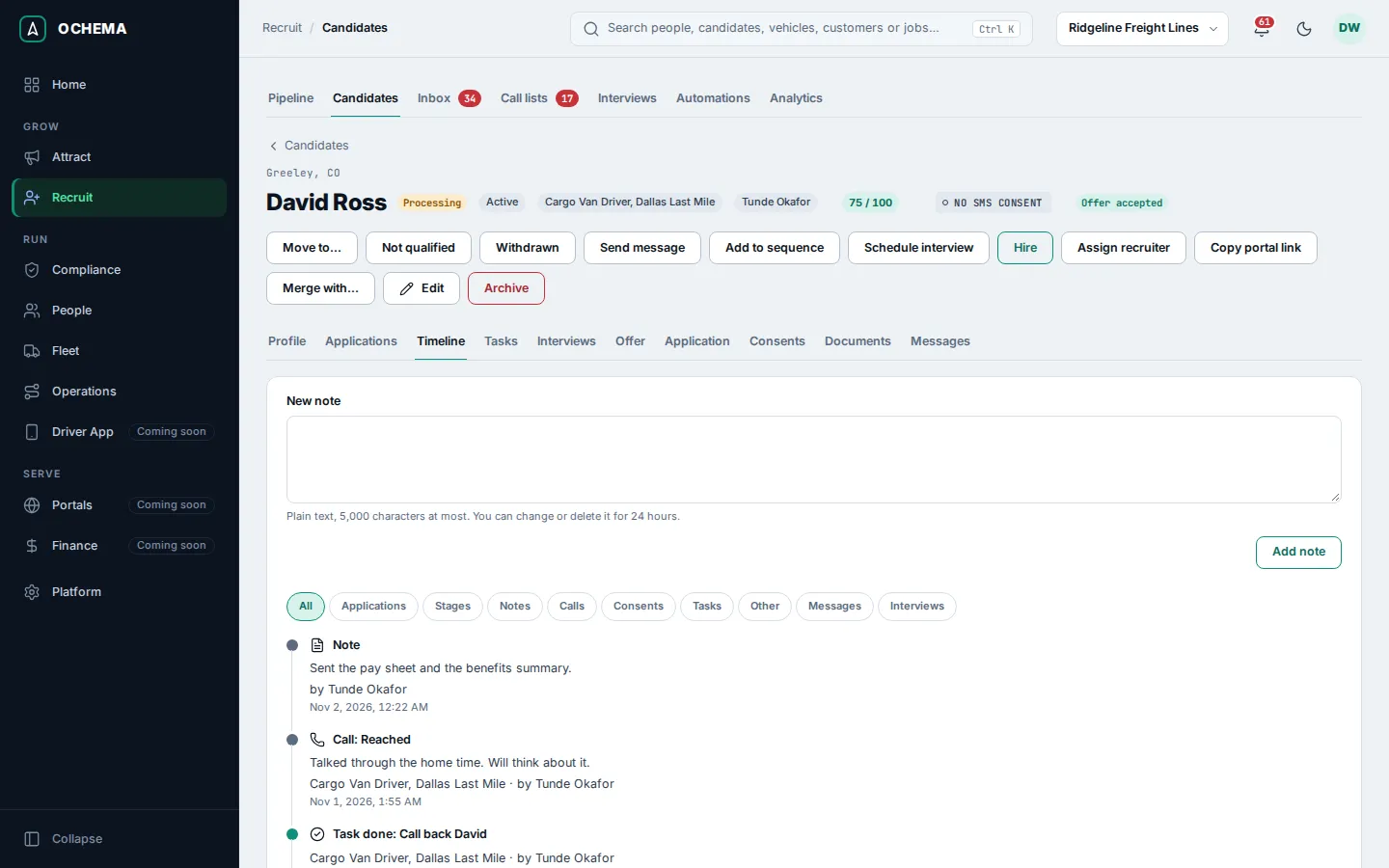
What happens next
Section titled “What happens next”An archived candidate leaves the lists and the board, and nothing is deleted; when the same person applies again, the record comes back. Merge with… shows two records side by side before anything is merged: one stays, and the other is archived pointing at it.