
Leads
A lead is an application that arrived at your company: from your careers page, a tracked link, a referral link, the lead intake API, an import, or added by hand in Recruit. Attract > Leads lists them newest first, and gathers the candidates that may be the same person.
Who this is for
Section titled “Who this is for”Your role needs View leads (attract.leads.read). Without it, the screen says Your role cannot see leads. Ask an owner for the permission View leads. Merging two candidates and keeping them separate also need Merge candidates (recruit.candidates.merge) of Recruit. See Roles and permissions.
Before you start
Section titled “Before you start”Nothing to set up: leads arrive on their own once a job is published or the lead intake API is in use.
See new leads
Section titled “See new leads”- Open Attract in the menu on the left, then Leads. The New leads tab opens.
- At the top, Today, Last 7 days and Last 30 days count the leads that arrived.
- Choose the Period: Last 30 days, Last 7 days or Last 90 days.
- Narrow the list with Channel, Campaign, Job, Screening (Passed, Knockout or No knockout question) and Captured by (Web form, API, Import, Added by hand or Referral).
- Select a row to open the candidate in Recruit.
Each row shows the Candidate, the Job, the Channel, the Campaign and the Link it came through, the Score, the Screening result, the Recruiter and when it Arrived.
Open the screenshot at full size in a new tab: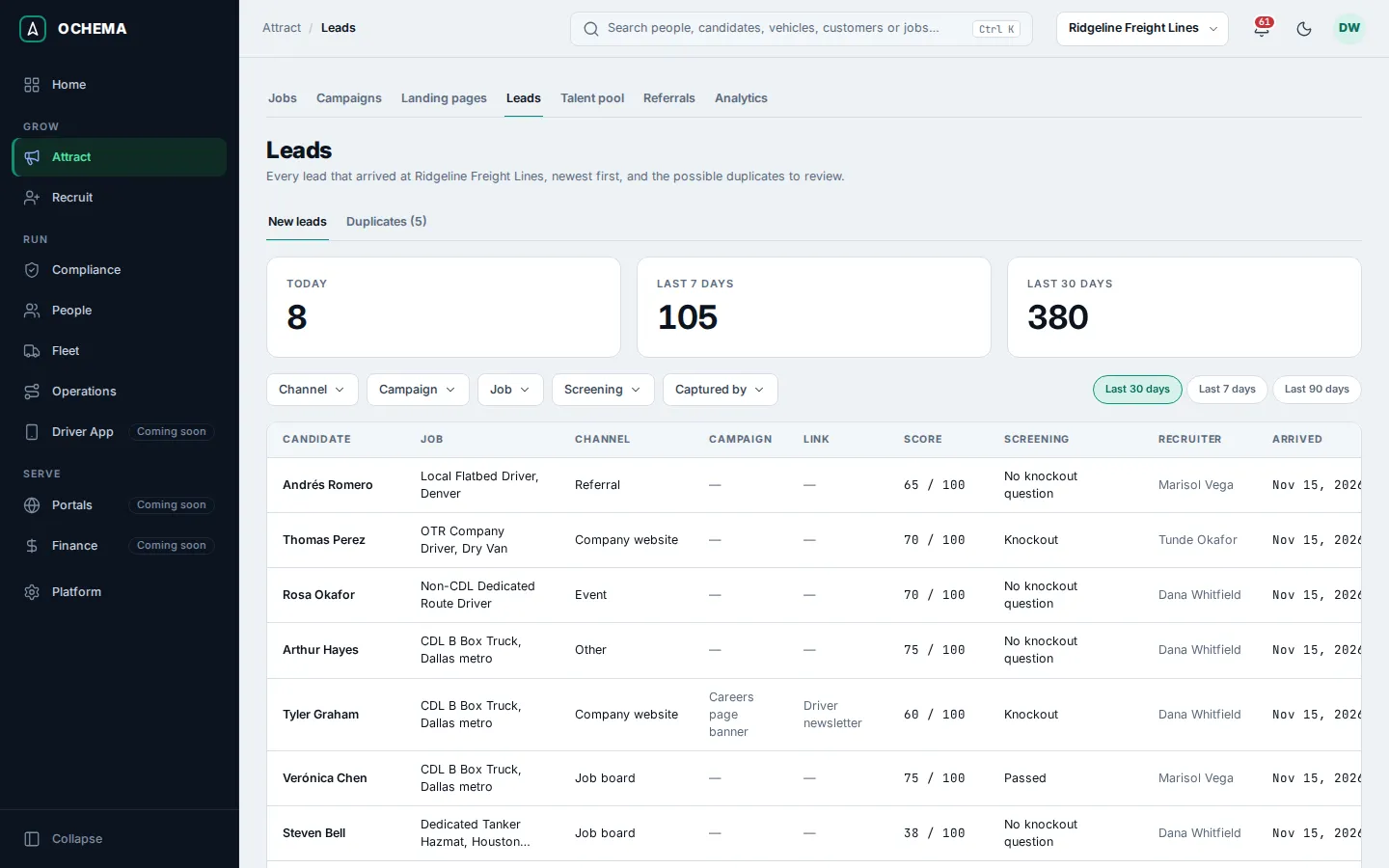
Review possible duplicates
Section titled “Review possible duplicates”When a lead arrives with the email of one candidate and the phone of another, the pair shows on the Duplicates tab, with the number of pairs in its name.
- Open the Duplicates tab. Each pair says which lead pointed at it, and shows both candidates side by side: Email, Phone, Location, CDL class, Experience, Origin, Recruiter, Last activity, Created and their applications.
- When they are different people, select Keep separate and confirm. The pair leaves the list and does not come back. Both candidates stay as they are.
- When they are the same person, select Merge.
- In Merge candidates, choose Which candidate stays?. Where both have a value, the one of the candidate that stays is kept.
- Read the two notes of the dialog, then select Merge into …. The message … was merged into … appears.
Open the screenshot at full size in a new tab: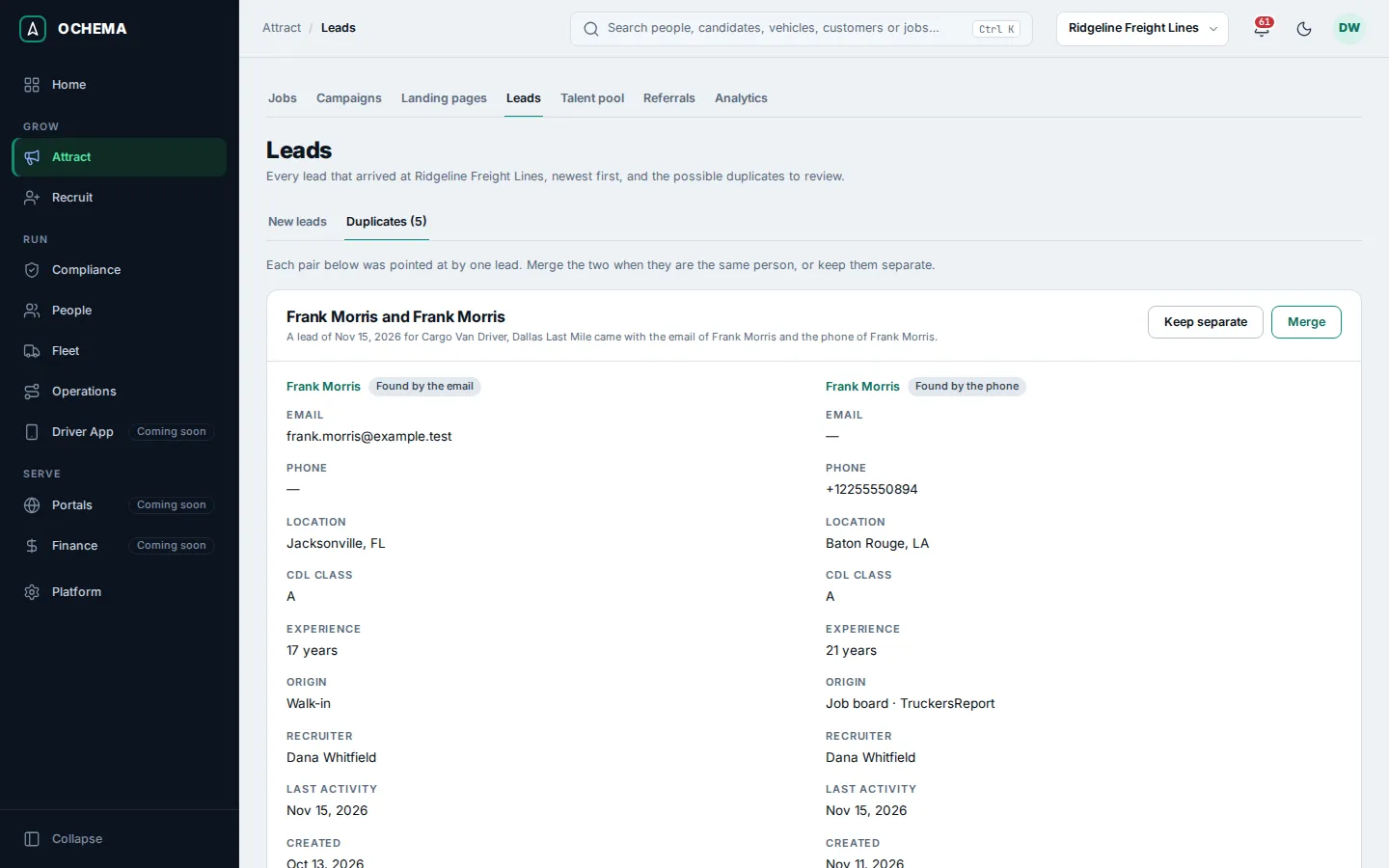
Open the screenshot at full size in a new tab: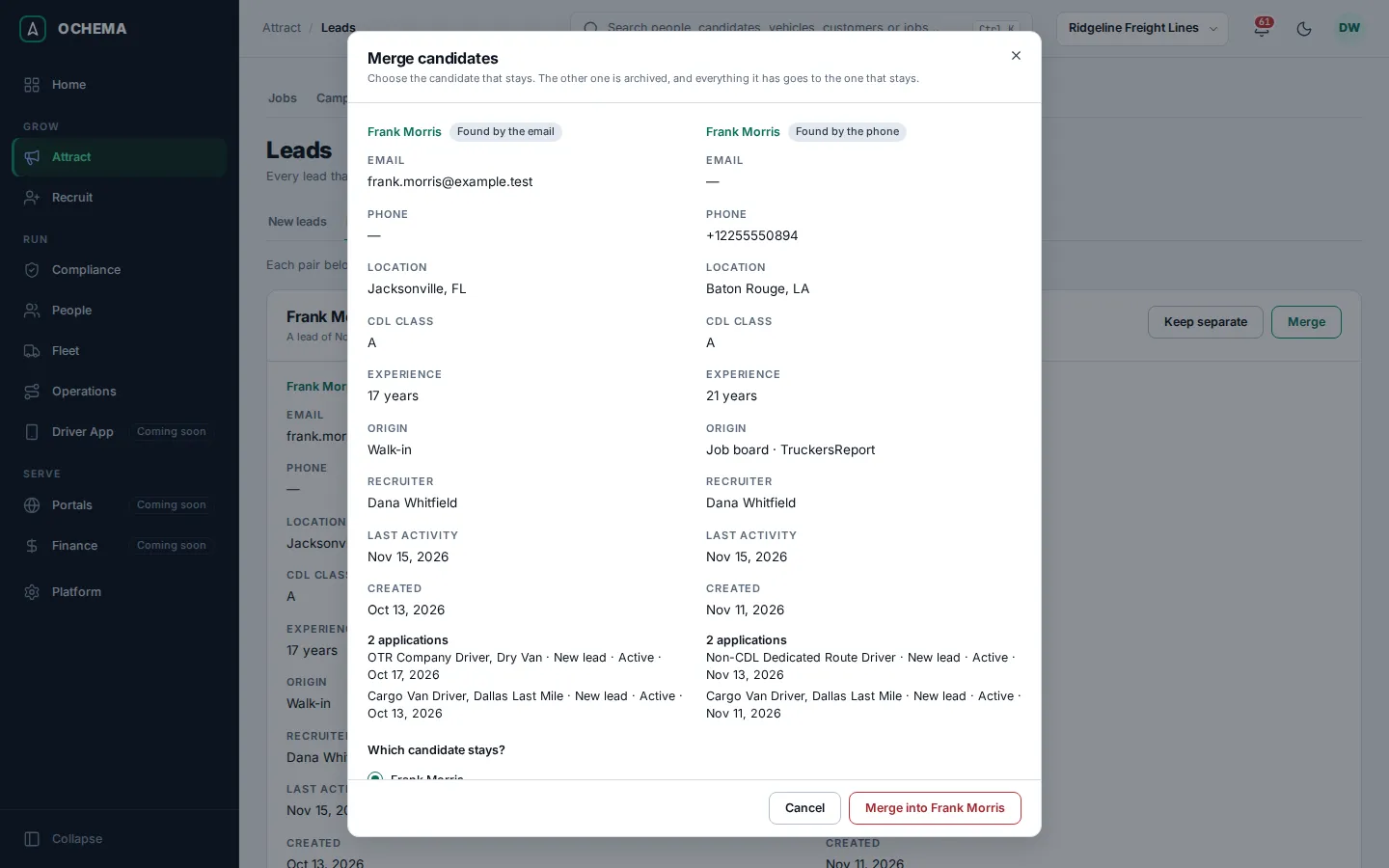
A merge cannot be undone. The other candidate is archived, and its applications, notes, calls, tasks, consents and history go to the candidate that stays. With two active applications for the same job, the older one stays and the other is closed as merged. When the phone numbers differ, the SMS and call consent stays only if the owner of the phone that stays gave it. Email consent is not changed.
What happens next
Section titled “What happens next”Each lead is also a candidate in Recruit, with its application in the pipeline. An applicant who failed a knockout question goes to Not qualified, unless the job sends knockouts to review (see Jobs). Its channel and campaign count in Attract > Analytics.