
Talent pool
The talent pool is everyone already in your Recruit candidates. In Attract > Talent pool you send one SMS or email, a broadcast, to everyone a smart list of Recruit > Candidates finds, and follow who received it and who replied.
Who this is for
Section titled “Who this is for”- To see the broadcasts and their results: View broadcasts (
attract.broadcasts.read). - To create and edit drafts, and to pause, resume and cancel a broadcast: Manage broadcasts (
attract.broadcasts.manage). - To send or schedule: Send broadcasts (
attract.broadcasts.send). Without it, the draft is saved and the screen asks you to have someone with that permission send it. - To choose the audience: View candidates of Recruit. To see the texts of the template: View message templates.
Before you start
Section titled “Before you start”- A smart list saved in Recruit > Candidates. Everyone the list finds is in the audience, rejected, withdrawn and hired candidates included, as the filters of the list say. See Candidates.
- A message template for the channel. A broadcast fills only
{candidate_name},{company_name}and{recruiter_first_name}; a template with other variables cannot be used. See Templates. - For email: your careers page needs its address, because each email carries an unsubscribe link under it. When your email goes out through your own SMTP server, your company also needs a reply address in Platform > Integrations, Messaging tab. Until both are set, the review says why and Send now and Schedule refuse. See Messaging settings.
Create and send a broadcast
Section titled “Create and send a broadcast”- Open Attract in the menu on the left, then Talent pool, and select New broadcast.
- Step 1. Audience: type the Name and choose the Smart list. Select Next: Message.
- Step 2. Message: choose the Channel, SMS or Email, and the Template. The texts of the template show below it. A template with no Spanish version sends the English text to candidates who prefer Spanish. Select Save and review. The message Draft … saved. appears.
- Step 3. Review: read the numbers, counted now.
- Recipients: how many candidates of the list receive it.
- Segments and cost: for SMS, the number of segments and the estimated cost, or a note that the cost is unavailable. Email has no segments and no cost per message.
- Left out: who does not receive it and why: No SMS consent, Opted out, No phone or No email address, Email unsubscribed or bounced, Already messaged today.
- Messages outside the allowed hours are sent when the hours open, in the candidate’s time zone.
- Select Send now, or Schedule and choose the Date and time, in your time zone and at most 90 days ahead.
- Type the number of recipients to confirm and select Send now or Schedule again. A message that left cannot be taken back.
At the send the list is copied: candidates who join the list later do not receive this broadcast. A scheduled broadcast copies the list when its time comes. If the list changed between the review and the send, nothing is sent and the screen asks you to confirm the new number. Keep as draft leaves the review without sending.
Limits: a smart list of more than 50,000 candidates cannot be sent; split it. Only one SMS broadcast of your company goes out at a time: while one is sending or paused, another cannot start, and a scheduled one waits.
Open the screenshot at full size in a new tab: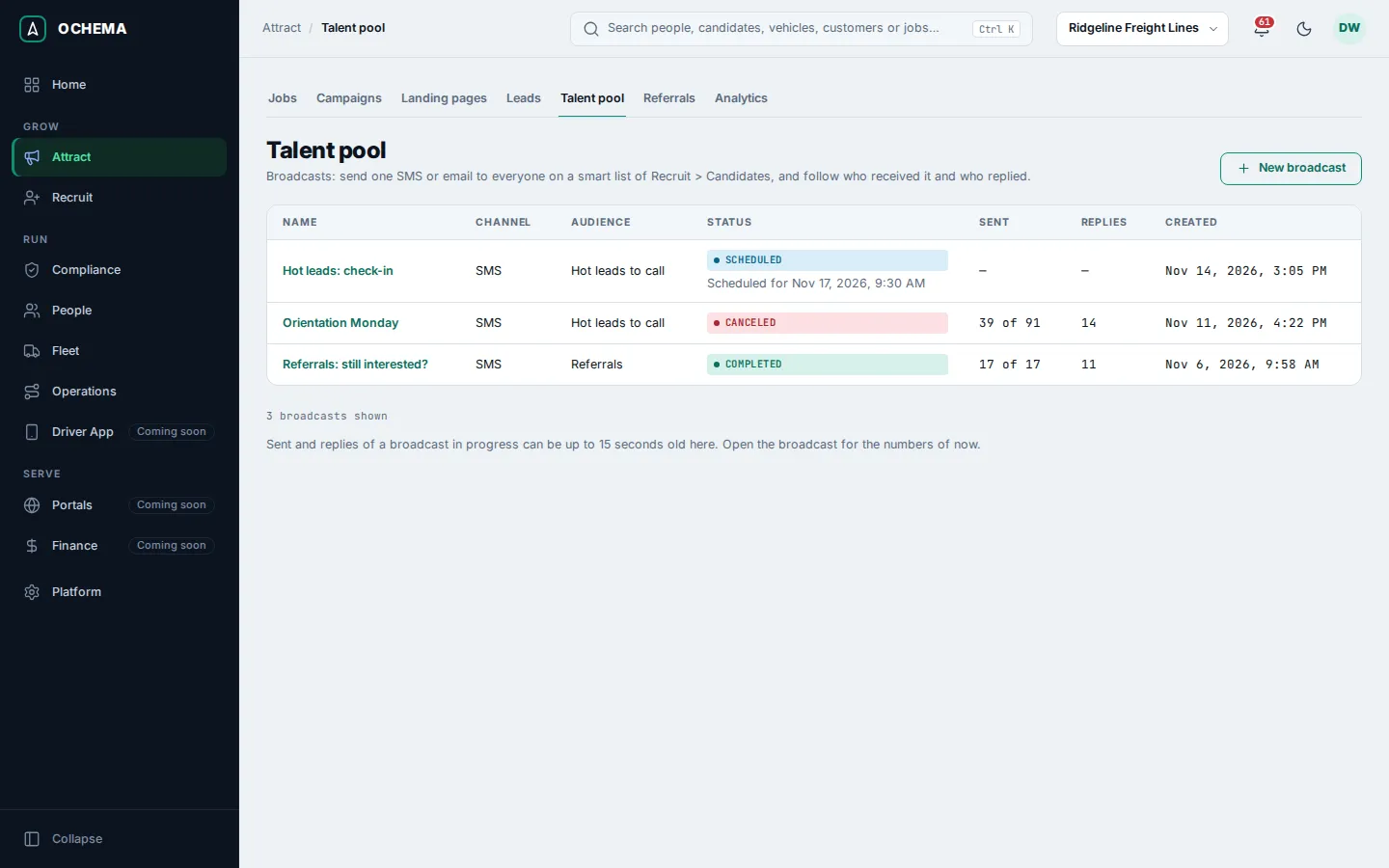
Open the screenshot at full size in a new tab: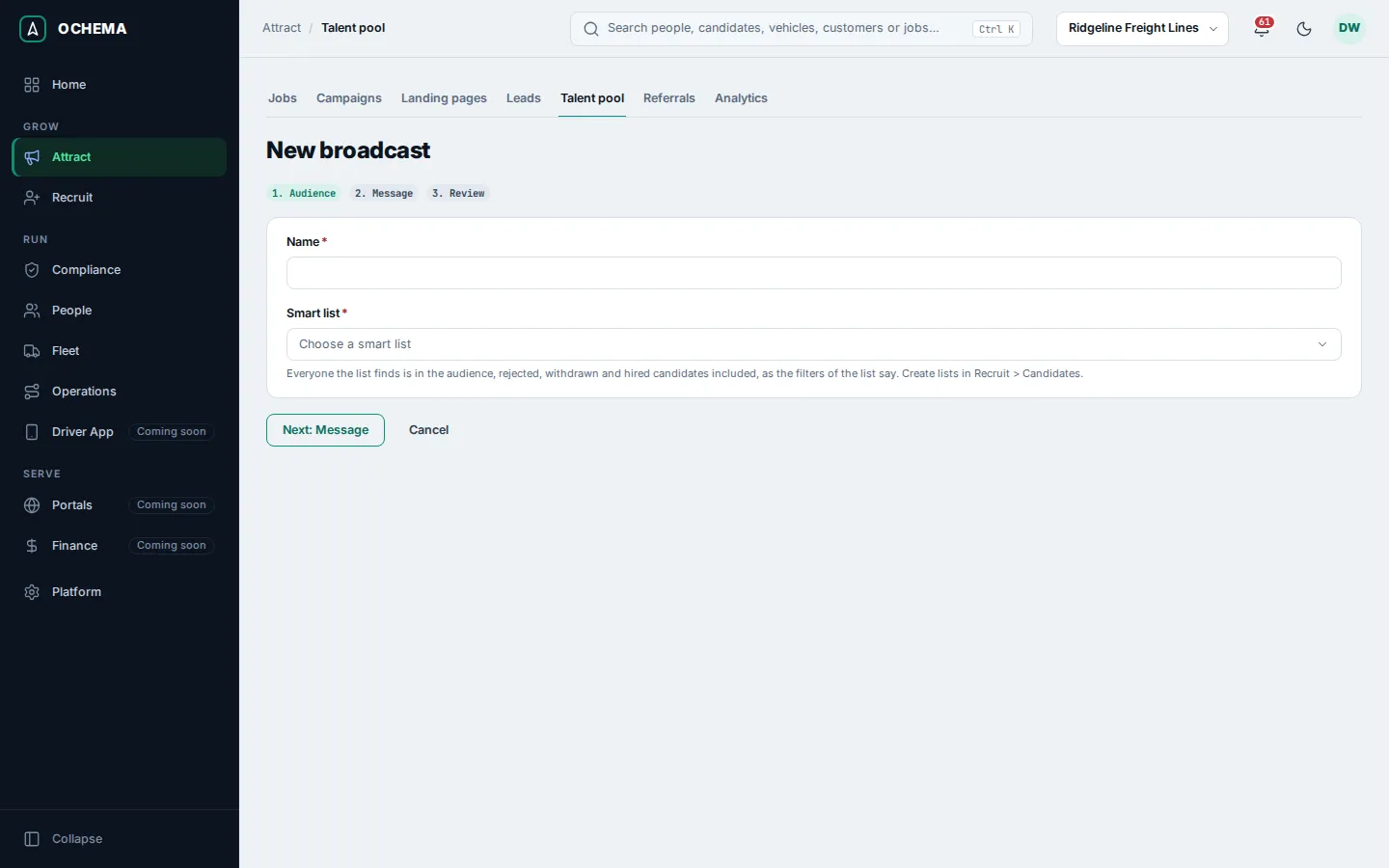
Follow a broadcast
Section titled “Follow a broadcast”- On Talent pool, select the name of a broadcast. The list shows the Status (Draft, Scheduled, Sending, Paused, Completed or Canceled), how many were Sent and the Replies. These numbers can be up to 15 seconds old in the list; the page of the broadcast has the numbers of now.
- Audience at the send shows who received it and who was left out, by reason.
- Result shows Sent, Replies and Asked to stop, and, under Where each recipient is, how many were Delivered, Failed, still Waiting in the queue or Refused at the send.
- Under Recipients, filter by Status of the recipient to see each candidate and what happened to the message. Select a name to open the candidate.
- While it is going out, select Pause to stop it, Resume to continue, or Cancel broadcast. Messages that already left are not taken back.
Open the screenshot at full size in a new tab: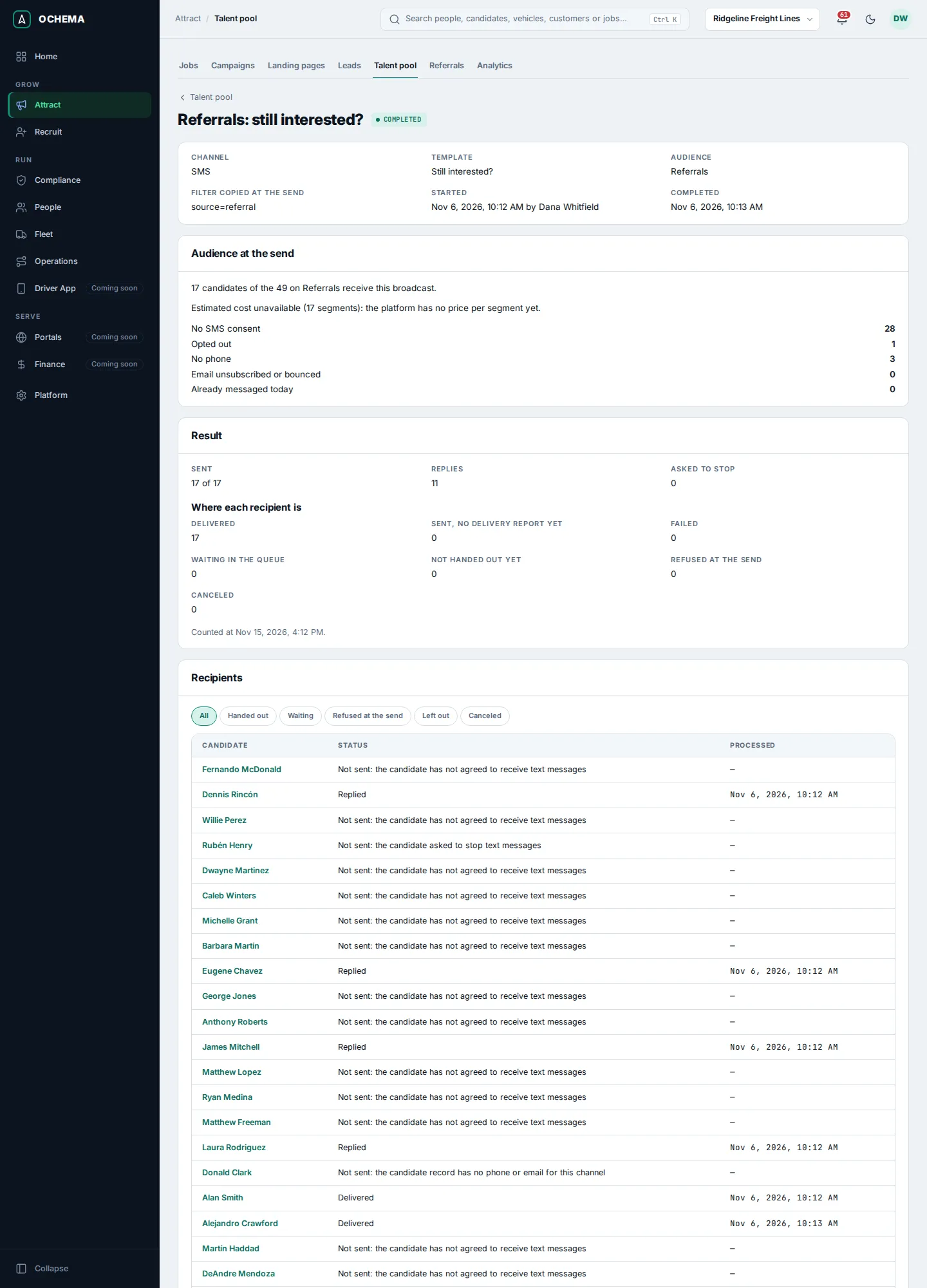
What happens next
Section titled “What happens next”Replies are received like any other message of the candidate; see Inbox. A candidate who asks to stop is counted under Asked to stop, and the next broadcasts leave them out as Opted out.