
Contracts and signing
Contracts, policies and admission forms are signed electronically in Ochema. You write each one once as a contract template, send the admission packet from the driver file, and the driver signs by a link. When the company signs too, the signed PDF is kept in the driver file and approves its item.
Who this is for
Section titled “Who this is for”Compliance managers and owners. To see the templates and the contracts of a driver file: View contracts (compliance.contracts.read; roles Owner, Admin and Read only). To create and edit templates, send the admission packet and sign for the company: Manage contracts (compliance.contracts.manage; roles Owner and Admin).
Before you start
Section titled “Before you start”- Your careers page is set up: the driver signs through a link of the careers page. See Your careers page.
- The record of the driver has what the template uses, for example the Start date for
{start_date}. For a hired driver it is in People > Directory; for a candidate, it is the start date of the accepted offer.
The contract templates
Section titled “The contract templates”Open Compliance, then Document types, and select the Contract templates tab. The list shows each Name, Type, Employment type, who it is Signed by, whether it is in the Admission packet, and when it was Created. A new company starts with three templates tagged Sample text: Sample employment agreement, Sample independent contractor agreement and Sample owner-operator lease agreement. The product says of them: “Sample text. Have your attorney review it before use.”
Open the screenshot at full size in a new tab: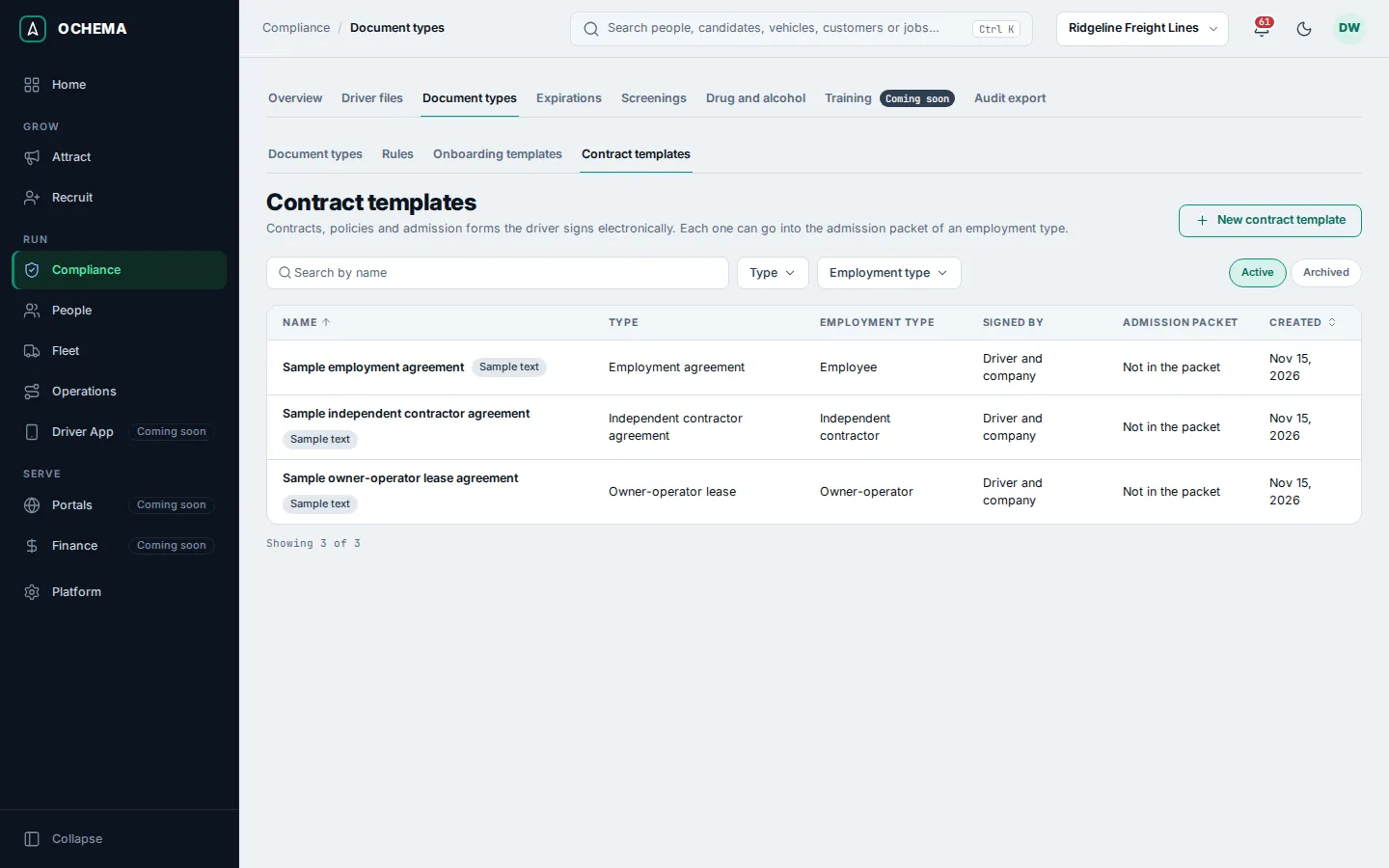
Select a name to see the template: the Employment type, Signed by, Admission packet, the item it Approves, the Variables it uses, the Version, and the English text and Spanish text. Documents already sent keep the text they were sent with.
Open the screenshot at full size in a new tab: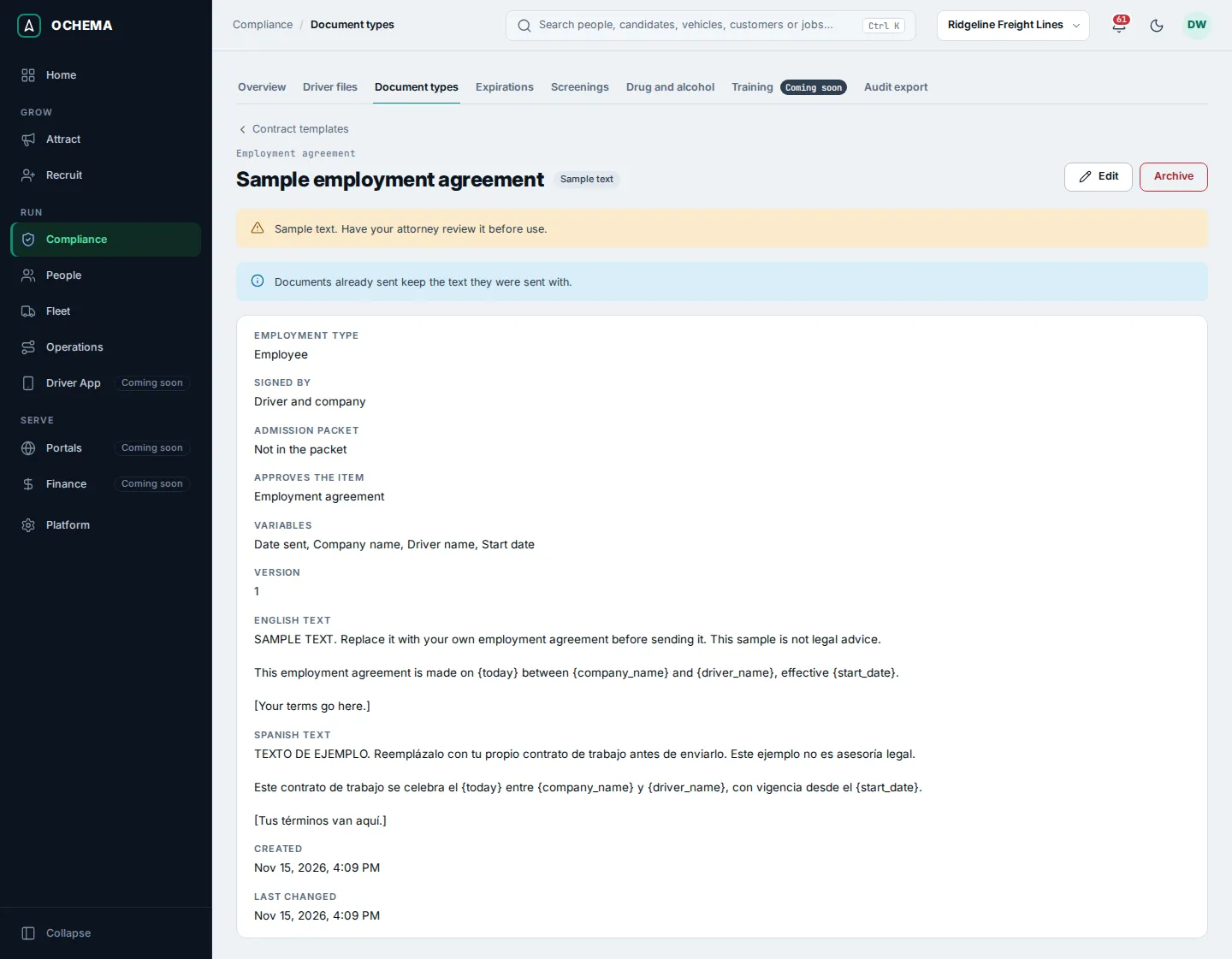
Create a contract template
Section titled “Create a contract template”- On Contract templates, select New contract template.
- Type the Name, choose the Type (Employment agreement, Independent contractor agreement, Owner-operator lease, Policy or Form), the Employment type and who it is Signed by (Driver only or Driver and company).
- To send it with Send admission packet to the drivers of this employment type, turn on Add to the admission packet.
- In Approves the item, choose the item of the driver file the document approves when it is completed, or No item.
- Write the English text. Separate paragraphs with a blank line. The variables are
{driver_name},{company_name},{start_date},{terminal_name}and{today}(the date sent). The Spanish text is optional: left empty, Spanish speakers get the English text. - Optional: under Fields to fill in, select Add field for each thing the driver fills in when signing, such as an emergency contact. Give it a Key (lowercase letters, digits and
_), the Label in English, the Label in Spanish, the Type (Text, Date or Choice, with the Choices, one per line) and whether it is Required. - Select Create template.
Send the admission packet
Section titled “Send the admission packet”- Open the driver file (Compliance > Driver files, then the name). At the bottom, under Contracts and forms, select Send admission packet.
- The dialog lists one document per template marked for the admission packet of the employment type of the driver. Remove a document with Remove, or add one in Add a document.
- Choose the Language: English or Spanish.
- If the dialog says to fill in a variable first, for example the Start date, select Open the record of the driver, fill it in, and come back.
- Select Send 1 document (the button says how many). The message Documents sent to the driver appears.
Open the screenshot at full size in a new tab: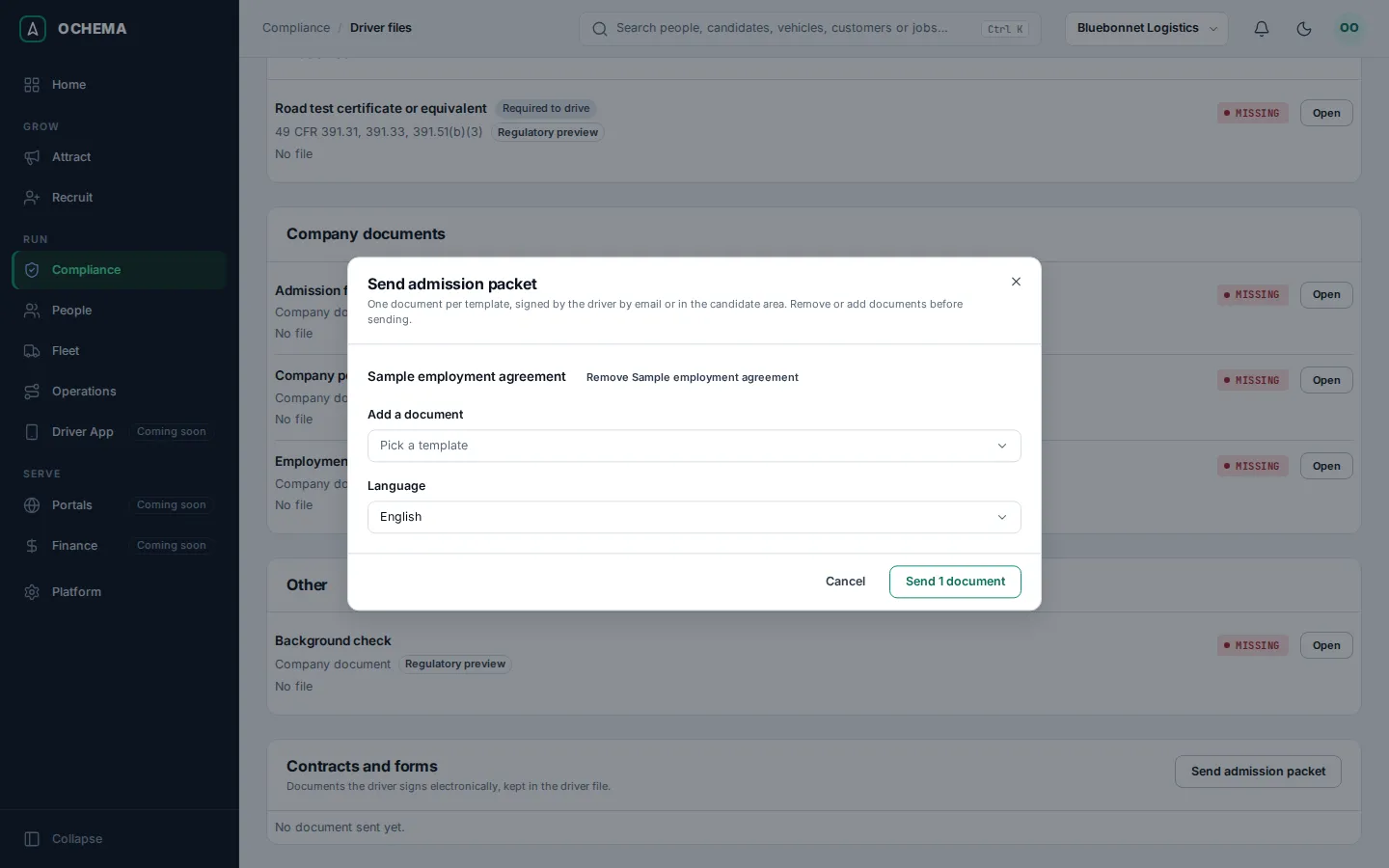
The driver gets one email per document, with the link to read and sign it, and sees it in the candidate area. A driver without an email address sees the documents only in the candidate area. See What applicants see.
Sign for the company
Section titled “Sign for the company”A template signed by Driver and company waits for the company after the driver signs: its status is Waiting for company signature.
- On the driver file, under Contracts and forms, select Sign for the company on the document.
- The dialog shows the signers and who has signed. Select Open the document and read it: you have to open it before you sign.
- Read the consent and check I agree to use electronic records and signatures.
- Type your full name in Type your full name and select Sign document.
Open the screenshot at full size in a new tab: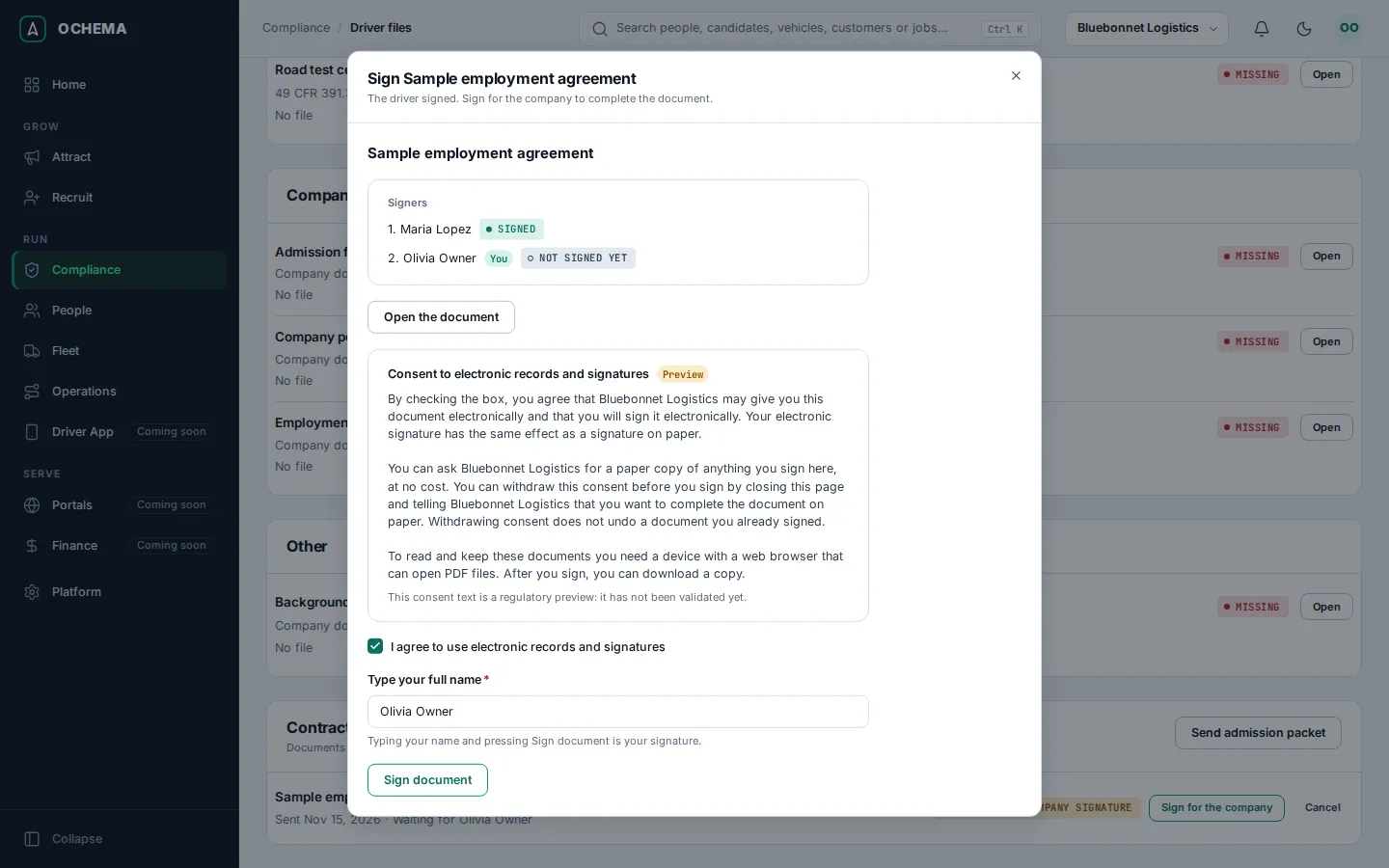
The dialog says Signed. The document is completed.
Follow the documents
Section titled “Follow the documents”Contracts and forms lists each document with the dates it was Sent and Completed and its status: Sent, Waiting for company signature, Completed, Declined or Canceled. A completed document has Download signed PDF, with the signature certificate. A document not yet completed can be canceled with Cancel.
Open the screenshot at full size in a new tab: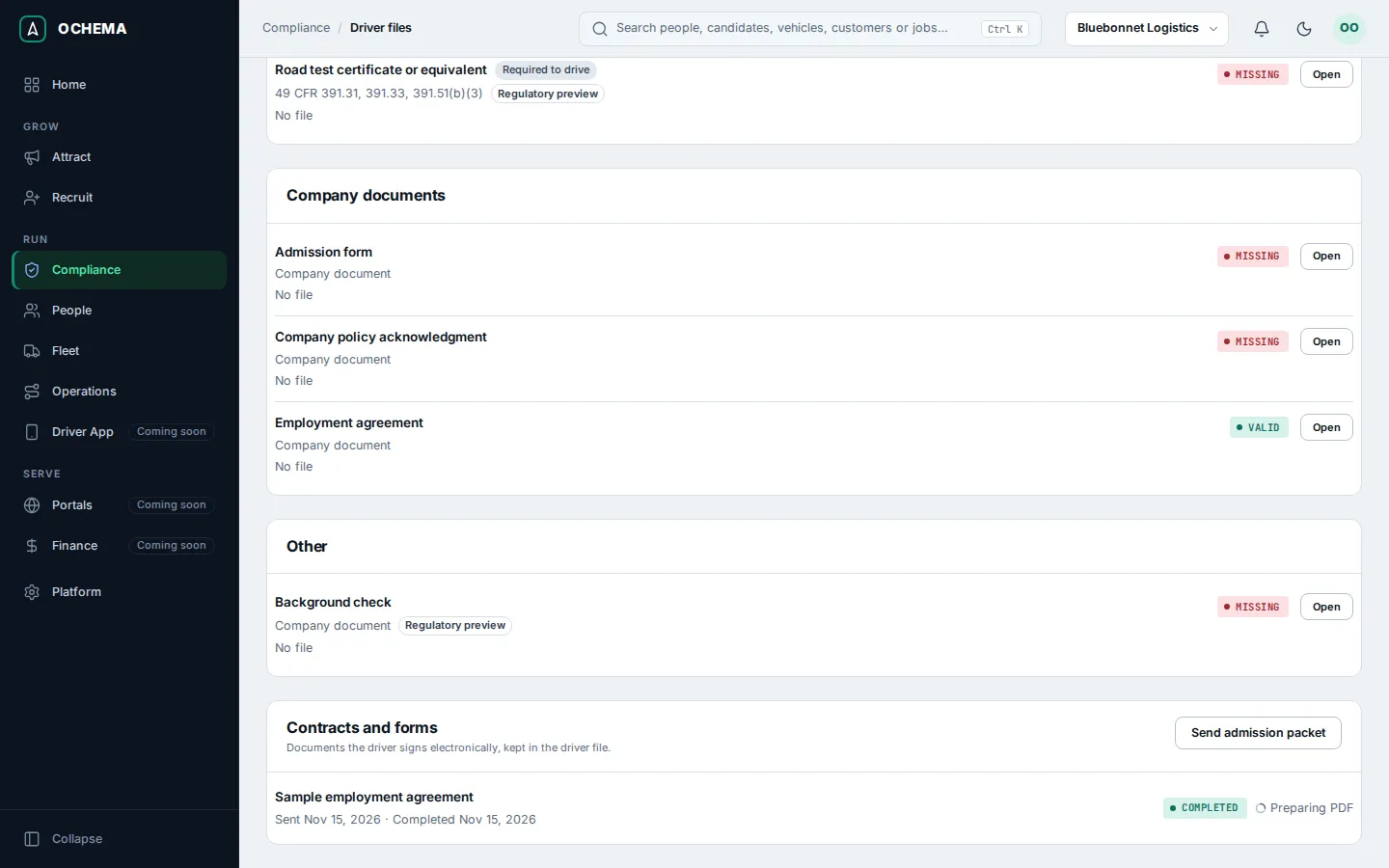
What happens next
Section titled “What happens next”- A completed document approves the item of the driver file chosen in Approves the item, and an onboarding task linked to the template completes by itself. See Onboarding.
- The signed contracts are part of the audit export. See Audit export.
- When the employment type of a driver changes, Contracts and forms says which employment type the contract on file is for and offers to send the contract for the new one.