
Vehicles
Fleet > Vehicles is the register of your units. The other sections of Fleet (Maintenance, Inspections, Fuel, Tires, Documents and Costs) show Coming soon in the product and are Planned.
Who this is for
Section titled “Who this is for”- View vehicles (
fleet.vehicles.read) opens the list and the page of each unit. - Manage vehicles (
fleet.vehicles.manage) creates, edits, archives and reactivates them. Without it, New vehicle, Edit and Archive do not show. - Owner and Admin have both; Read only has only the first. See Roles and permissions.
Before you start
Section titled “Before you start”- For each unit: its unit number, type, VIN, plate and state, and who owns it.
- The terminals where units are based are kept in People > Terminals. Create them first if you want to place each unit at one.
Find a vehicle
Section titled “Find a vehicle”- Open Fleet in the menu on the left. Vehicles is the first section.
- Type in Search vehicles. With 3 letters or digits in a row, it searches anywhere in the unit number, the VIN and the plate. A shorter term, such as
7orTR, finds only the unit with exactly that number. - Narrow the list with Type, Status, Ownership and Terminal. Select Archived to see the units you archived; Active brings the list back.
- Select a row to open the unit.
The table shows the Unit, Type, Year, make and model, Plate (with its state), Terminal, Status and Added on of each unit. Sort by Unit or Added on from the column header. Load more at the bottom brings the next 50.
Open the screenshot at full size in a new tab: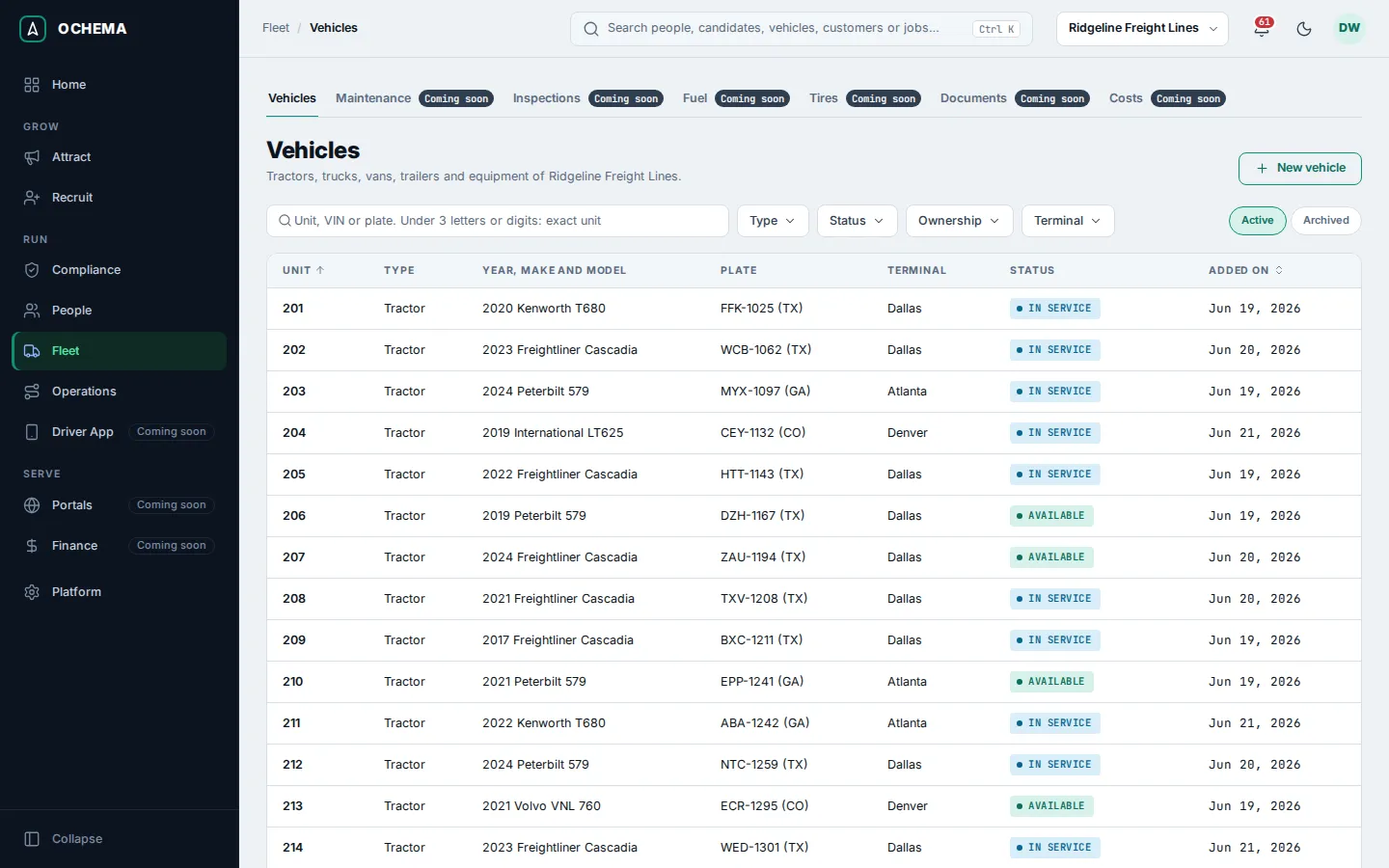
Add a vehicle
Section titled “Add a vehicle”- In Fleet > Vehicles, select New vehicle.
- Under Unit, fill in:
- Unit number: how the unit is called in dispatch, for example
318orTR-12. Up to 20 letters, digits, spaces or hyphens. It must be unique among your active vehicles. - Type: Tractor, Straight truck, Van, Trailer or Equipment.
- Model year (from 1950 to next year), Make, Model and Capacity (the payload, in pounds, up to 200,000). All optional.
- Unit number: how the unit is called in dispatch, for example
- Under Identification, fill in the VIN, 17 characters with the North American check digit, and the Plate number with its Plate state. The VIN is not decoded automatically. Leave VIN empty for equipment without a North American VIN, and choose No plate for a unit without a plate.
- Under Operation, choose the Ownership (Owned, Leased or Owner-operator), the Status and the Terminal, and type the last Odometer reading in whole miles.
- Select Create vehicle. The message Unit … created. appears and the page of the unit opens.
Open the screenshot at full size in a new tab: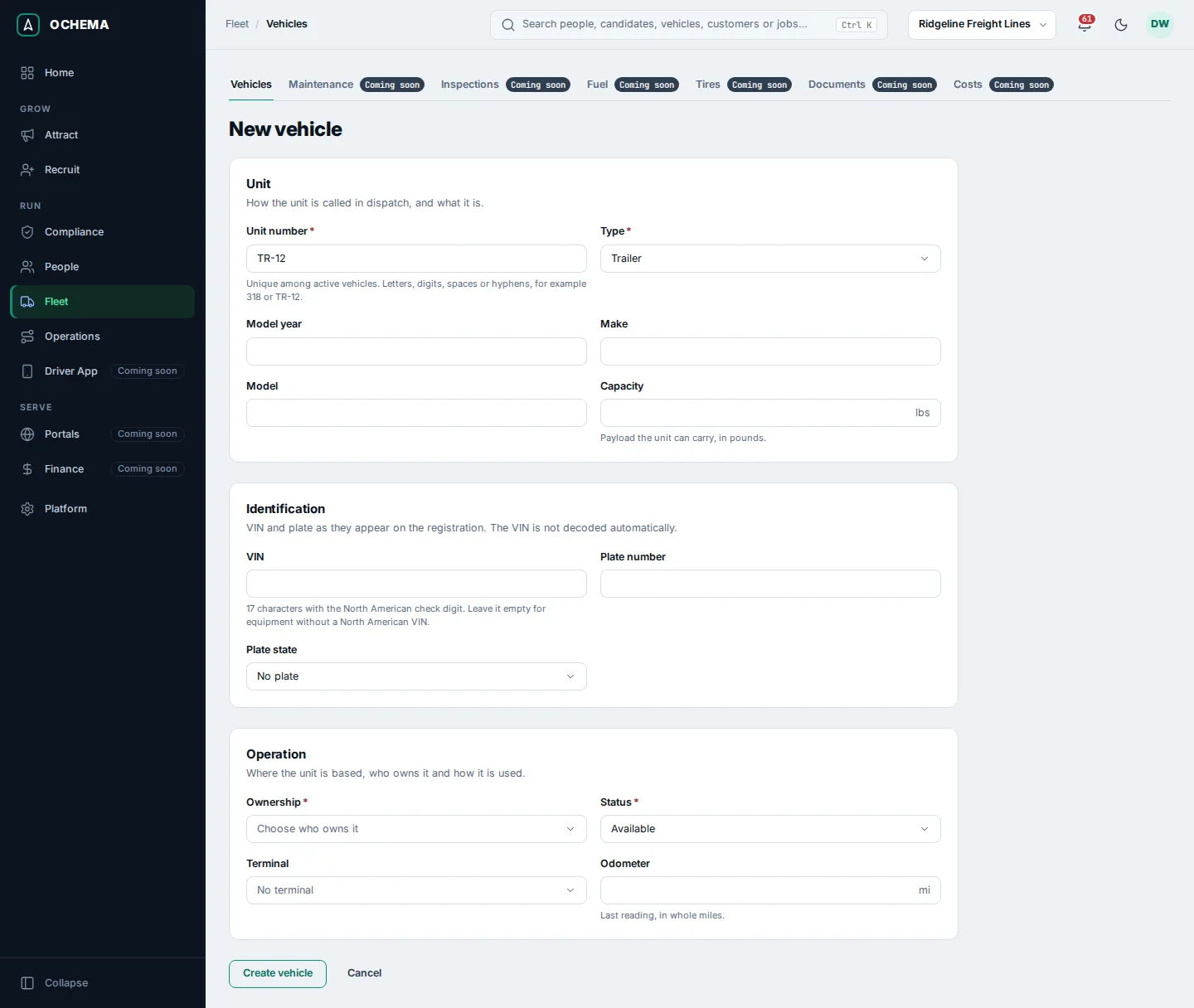
Keep the status up to date
Section titled “Keep the status up to date”The Status of a unit says whether it can be dispatched:
| Status | Meaning |
|---|---|
| Available | Ready for a load. |
| In service | On the road. |
| In shop | Waiting for or under repair. |
| Out of service | Down. |
To change it, open the unit, select Edit, choose the new Status and select Save changes. The message Unit … saved. appears.
See a vehicle
Section titled “See a vehicle”The page of a unit shows its details on Overview: type, status, VIN, model year, make, model, plate, ownership, terminal (a link to the terminal), odometer, capacity, and when it was created and last changed.
The tabs Maintenance, Inspections, Documents and Costs are placeholders: they say what will appear there once those sections of Fleet are available.
Open the screenshot at full size in a new tab: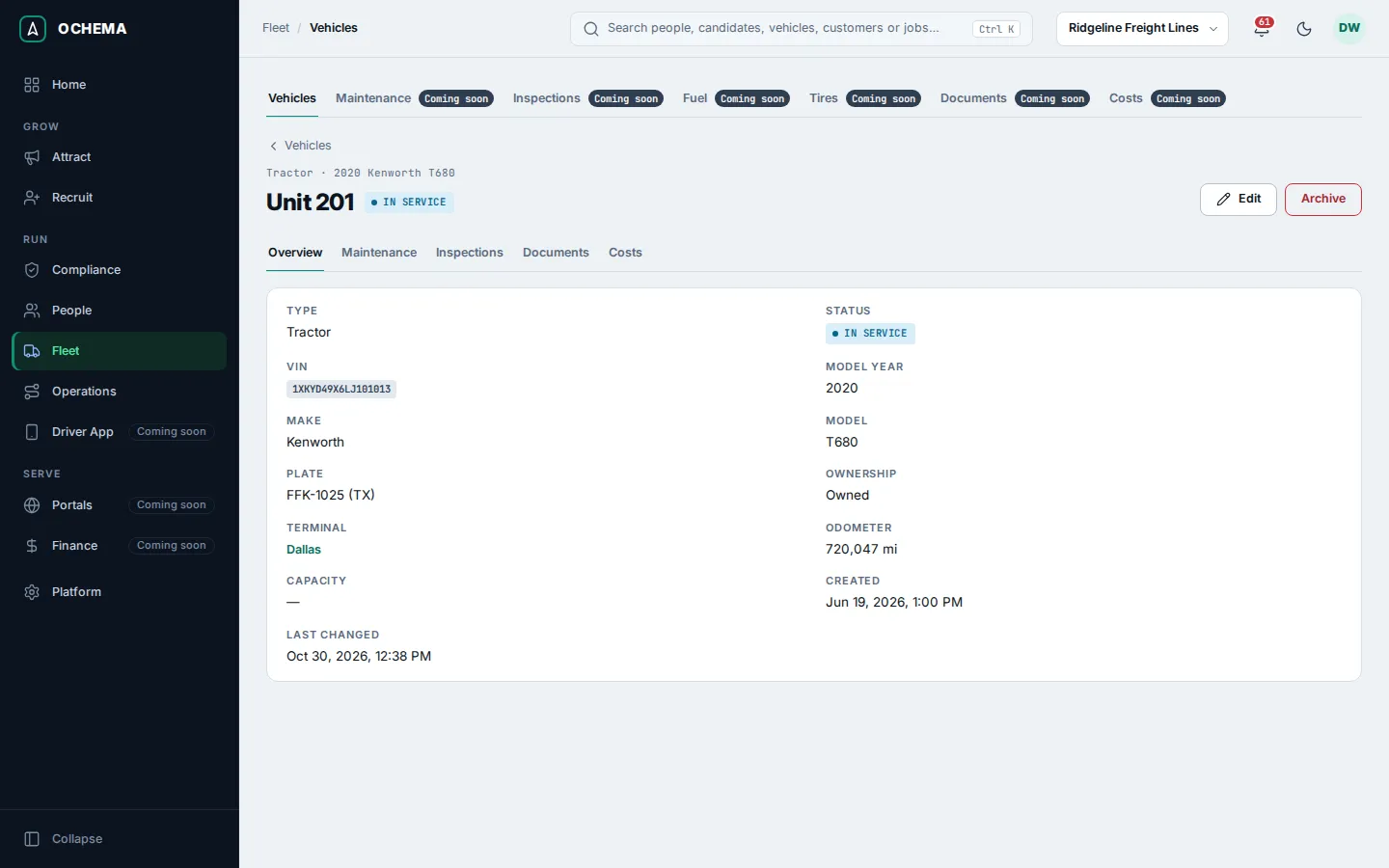
Archive a vehicle
Section titled “Archive a vehicle”- On the page of the unit, select Archive and confirm.
- The unit leaves the lists and pickers. Nothing is deleted: open the Archived view of Vehicles, open the unit and select Reactivate to bring it back. An archived unit cannot be changed until it is reactivated.
Its unit number can be used again by an active vehicle while it is archived.
What happens next
Section titled “What happens next”- Vehicles are found by the search at the top of every screen. See Search and notifications.
- Each creation, change, archive and reactivation is recorded in the Audit log, with the fields before and after.