Your careers page
Who this is for
Section titled “Who this is for”The owner, or a user whose role can manage the careers page.
Before you start
Section titled “Before you start”- The address you want for the page: lowercase letters, digits and hyphens, 3 to 40 characters, for example
bluebonnet-logistics. No other company can use the same address. - Optional: a title and an introduction for the top of the page, and a logo (PNG, JPEG or WebP, up to 2 MB).
- On Home, in the Getting started card, select Open careers page. You can also open Attract in the menu on the left, then Landing pages. Until the first save, the page says The careers page is not set up yet.
- Under Address, type the Address of the page. The help text under the field shows the full web address the page will have.
- Optional: under Content, type a Title (up to 120 characters) and an Introduction (up to 4,000 characters). They show at the top of the page, above the list of jobs, exactly as you write them.
- Select Save changes. The message Careers page saved. appears.
- Optional: under Logo, add your logo. The logo can be added only after the address is saved.
Open the screenshot at full size in a new tab: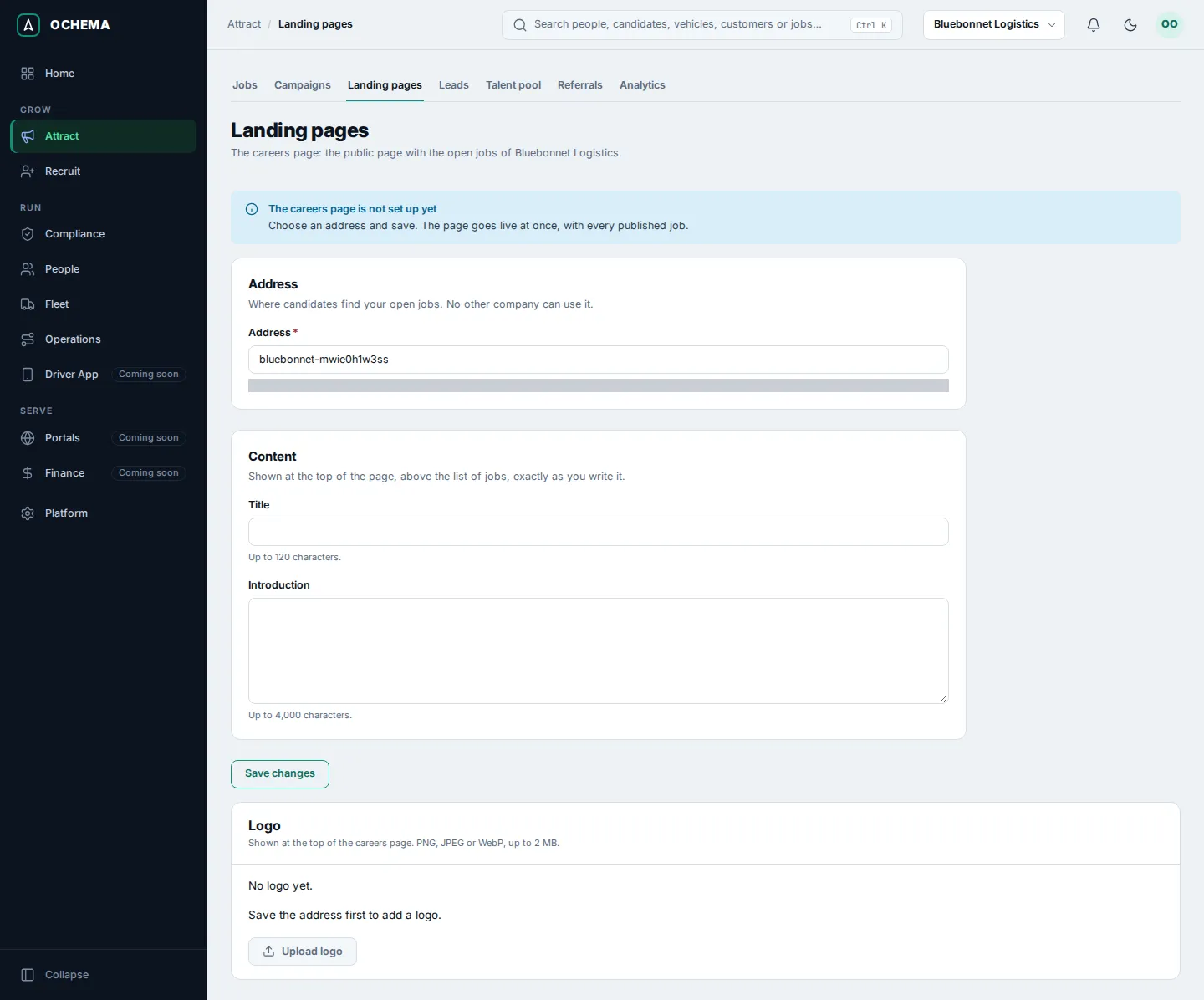
What happens next
Section titled “What happens next”The page goes live at once, with every job you publish. The step Set up your careers page shows Done on Home.
Drivers see Careers at and your company name, the list Open positions with a filter by State and Driver type, and one card per job with its route type, driver type, equipment and pay.
Open the screenshot at full size in a new tab: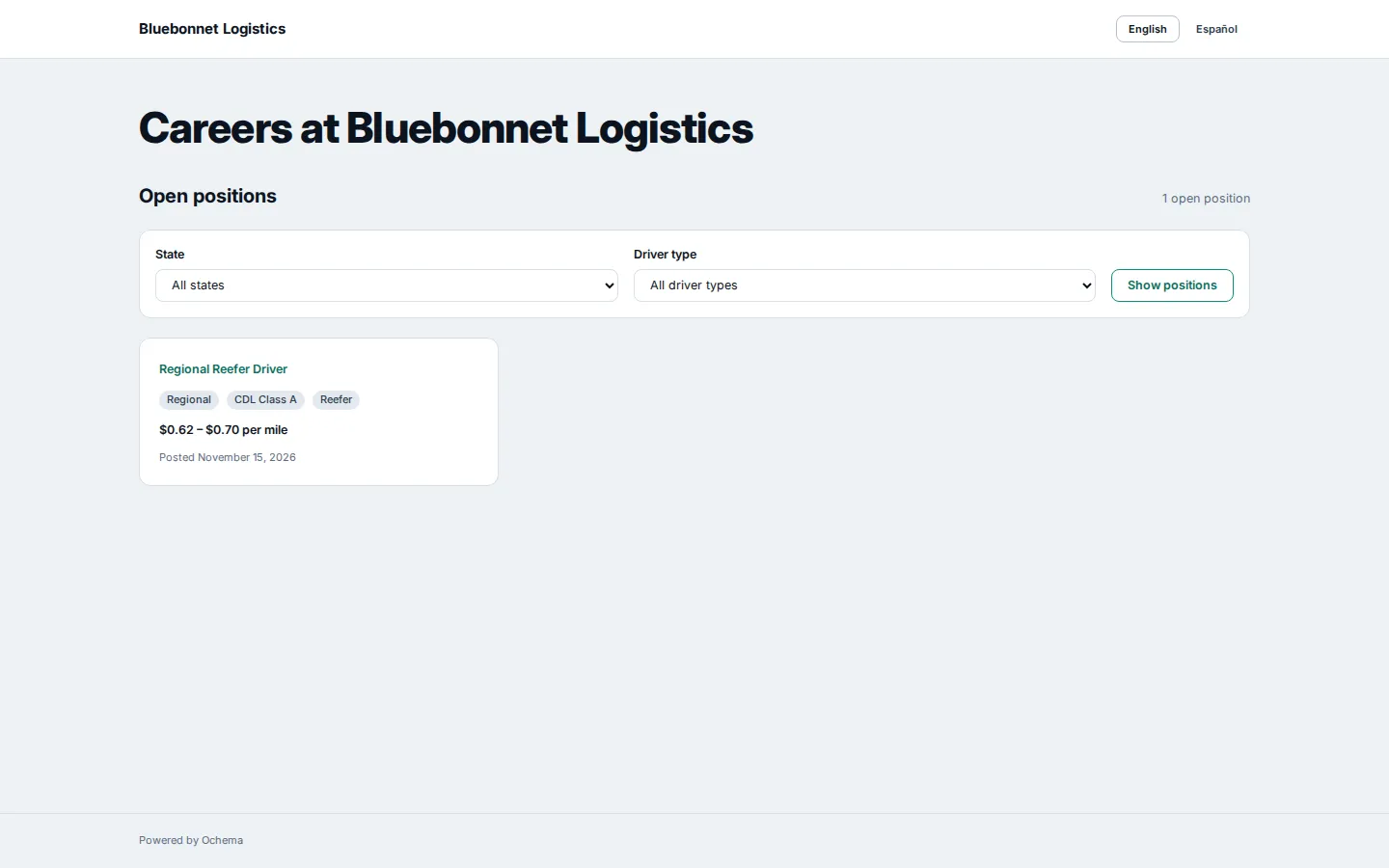
On a phone:
Open the screenshot at full size in a new tab: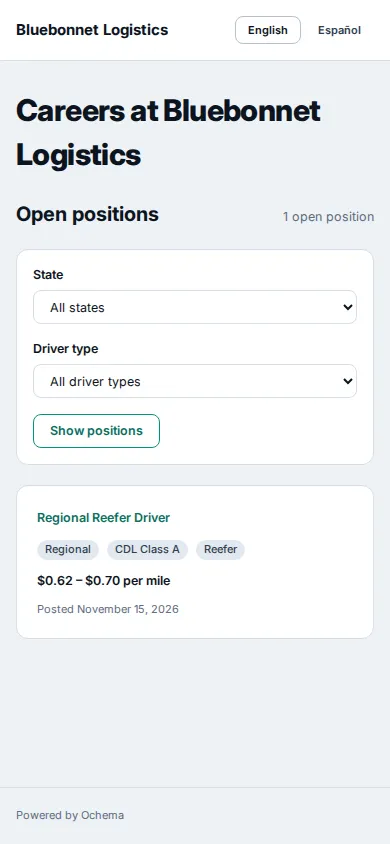
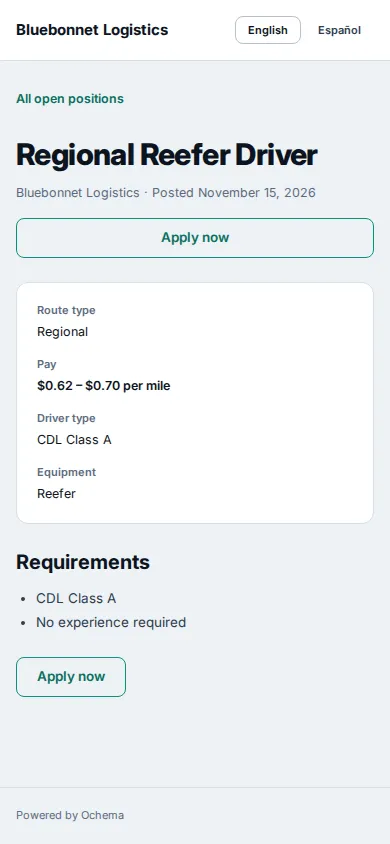
Selecting a job opens its page, with Apply now:
Open the screenshot at full size in a new tab: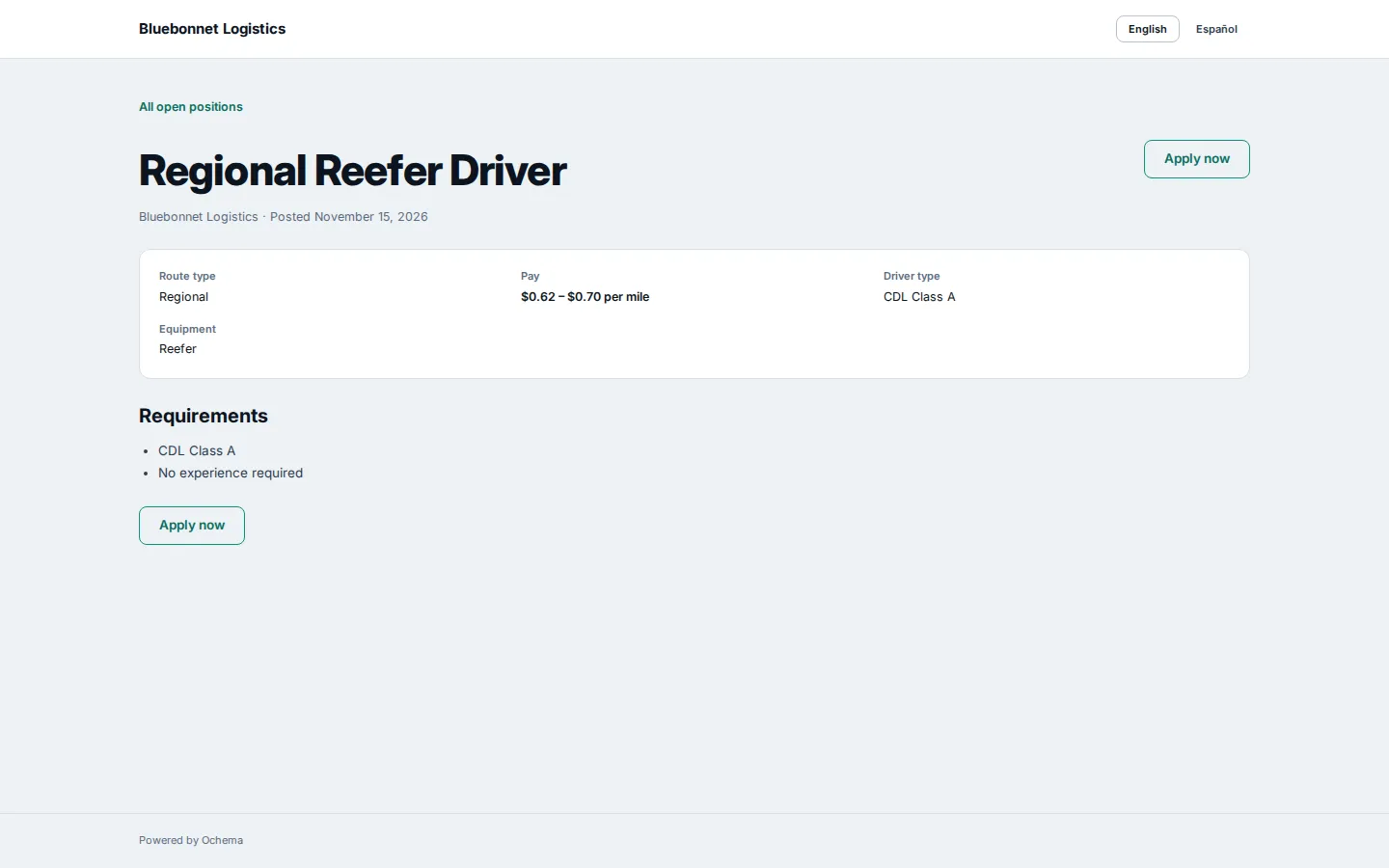
Open the screenshot at full size in a new tab: