
Automations
An automation rule says: when something happens to an application (the trigger), and only if some conditions are true, do these actions, in order and with a wait before each one. Rules live in Recruit > Automations, tab Rules. The same area has the tabs Sequences, Templates and Offer templates.
Who this is for
Section titled “Who this is for”- Seeing the rules and their run history needs View automations. Creating, editing, turning on and off, and archiving rules needs Manage automations.
- The Owner and Admin roles have both; Read only can see them. See Roles and permissions.
Before you start
Section titled “Before you start”- A rule that sends a message uses a message template; one that enrolls in a sequence uses a sequence; one that sends an offer uses an offer template.
- Messages sent by a rule follow the rules of every automatic message: consent, the daily limit of automatic SMS and the allowed sending hours of the candidate. See Inbox. Until your messaging is set up, they stay in the simulator; see Messaging settings.
Create a rule
Section titled “Create a rule”- Open Recruit in the menu on the left, then Automations. The Rules tab opens.
- Select New rule and type the Name.
- Under When, choose the Trigger. Some triggers ask for more: Moved to another stage has From stage and To stage; Call logged has the Call outcome; Application stalled in a stage for N days has the Days in the same stage (1 to 365, checked every hour).
- Optional: under Only if, select Add condition, choose the Field and the values. Every condition must be true when the rule starts, and again before each action.
- Under Do this, select Add action, choose the Action, its details and the Wait before with its Wait unit. Add more actions in the order they run; each waits after the one before it, the first after the trigger. A wait is at most 90 days.
- Select Create rule. The message says the rule was created and stays off until you turn it on.
- On the page of the rule, select Turn on.
Open the screenshot at full size in a new tab: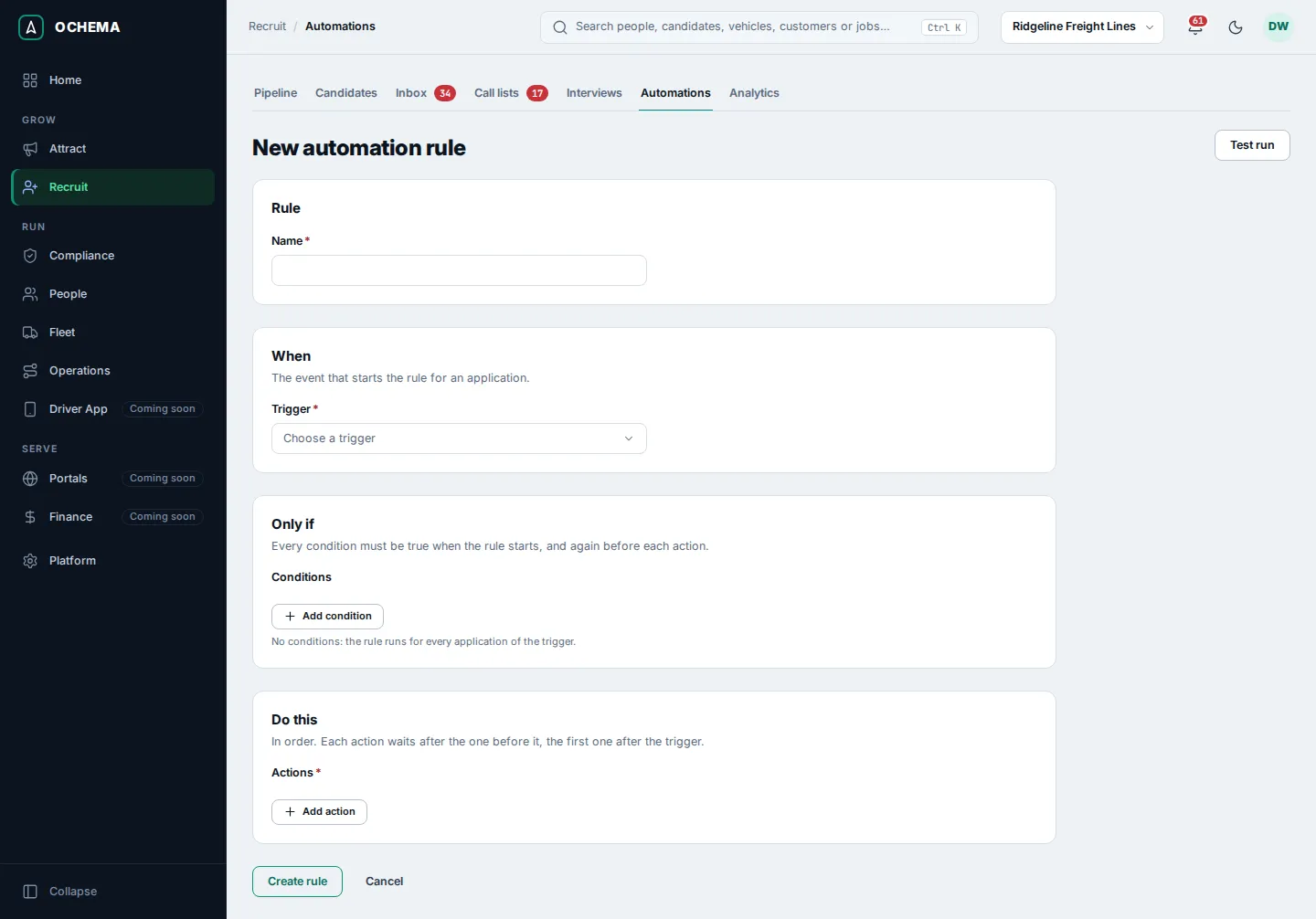
Before turning a rule on, Test run checks the rule as it is in the editor against the current application of one candidate: which conditions are met and what each action would do. Nothing is sent or changed.
Triggers
Section titled “Triggers”Application created; Moved to another stage; Marked as not qualified; Candidate withdrew; Hired; Call logged; Message received; Message failed; Interview scheduled; Interview canceled; Interview completed; Interview no-show; Task overdue; Application stalled in a stage for N days; Full application sent to the candidate; Full application signed; Offer accepted; Offer declined; Offer expired. The list also has the triggers of driver files: A document was sent by the driver; A document was approved; A document was rejected; A document is expiring in N days; A document expired; Eligibility for dispatch changed; Onboarding completed.
Conditions
Section titled “Conditions”Job; Current stage; Source channel; Campaign; Lead score range; Recruiter; Language; Has SMS consent; Has an email; Driver type; Employment type; Overall compliance status.
Actions
Section titled “Actions”Send an SMS with a template; Send an email with a template; Send the scheduling link of an interview type; Send the link of the candidate area; Send an offer from a template; Create a task; Move to a stage; Assign a recruiter; Enroll in a sequence; Remove from every sequence; Notify a user by email; Send the full application; Start pre-hire screening.
An offer sent by a rule cannot fill in the start date, the pay or the benefits: write them in the text of the offer template. See Automation triggers and actions for what each one does.
Follow and change a rule
Section titled “Follow and change a rule”Select a rule in the list. The list shows the Trigger, the Status (On or Off), and the Runs, last 7 days and Failures, last 7 days. The page of the rule shows When, Only if and Do this, and the Run history: each run with its candidate and the result of each action (Done, Skipped, Failed, Scheduled for, Canceled).
Open the screenshot at full size in a new tab: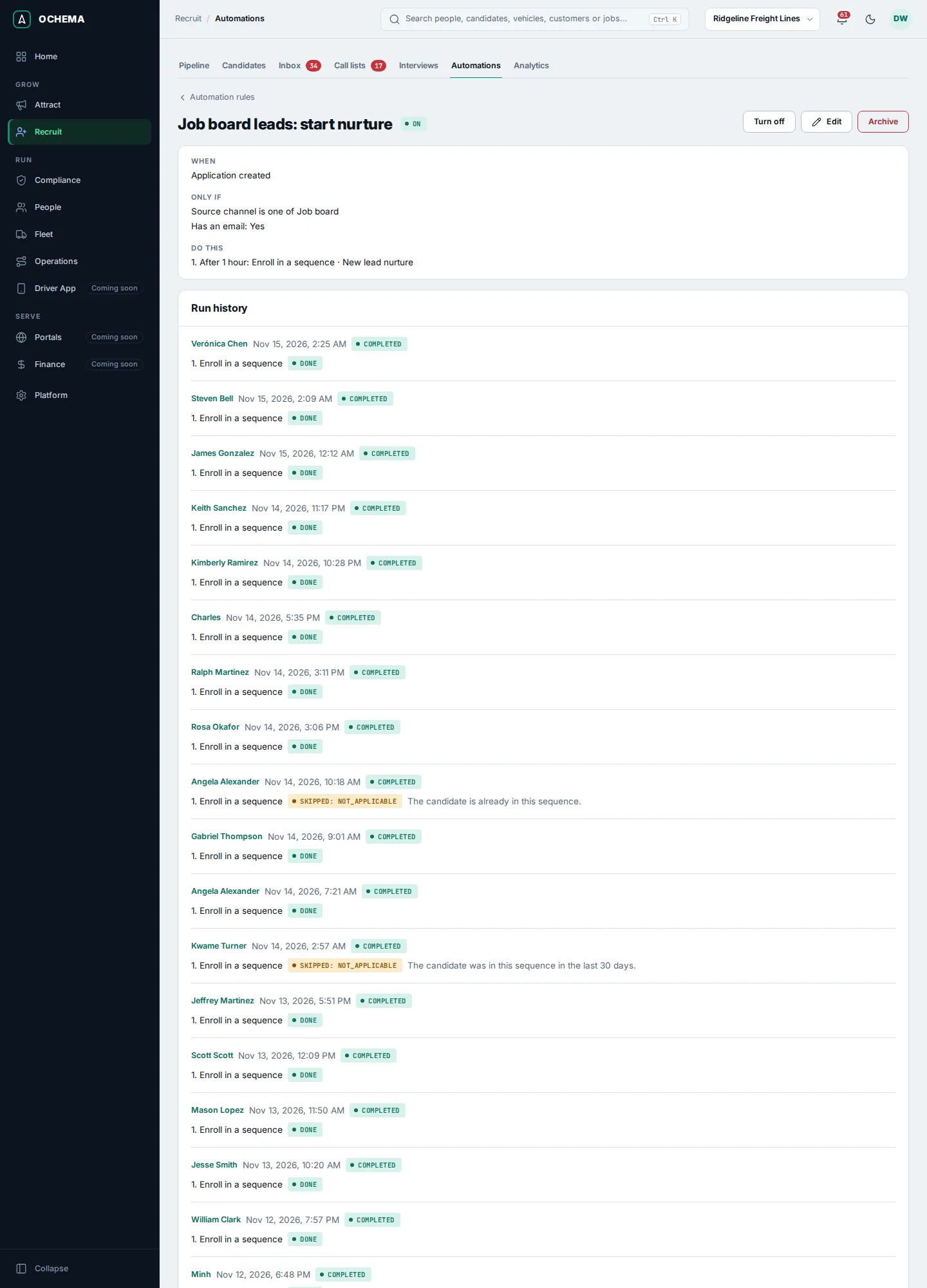
- Turn off stops the rule and cancels its actions waiting to run. Turning it on again does not bring them back.
- Edit changes the rule. Archive turns it off and cancels its pending actions; an archived rule comes back turned off.
The First response rule
Section titled “The First response rule”Every company has the system rule First response, with the trigger Application created. It sends the first text message to each new applicant. You can turn it on and off and change the wait of its action; its text is the message template it sends, and Edit the message text opens it. The first text counts toward the speed to first contact in Analytics, and the candidate page shows First response in and the seconds it took. With Send the first message at any hour on in Messaging settings, it leaves even outside the allowed hours. The tutorial turns it on in Turn on the first text message.
Open the screenshot at full size in a new tab: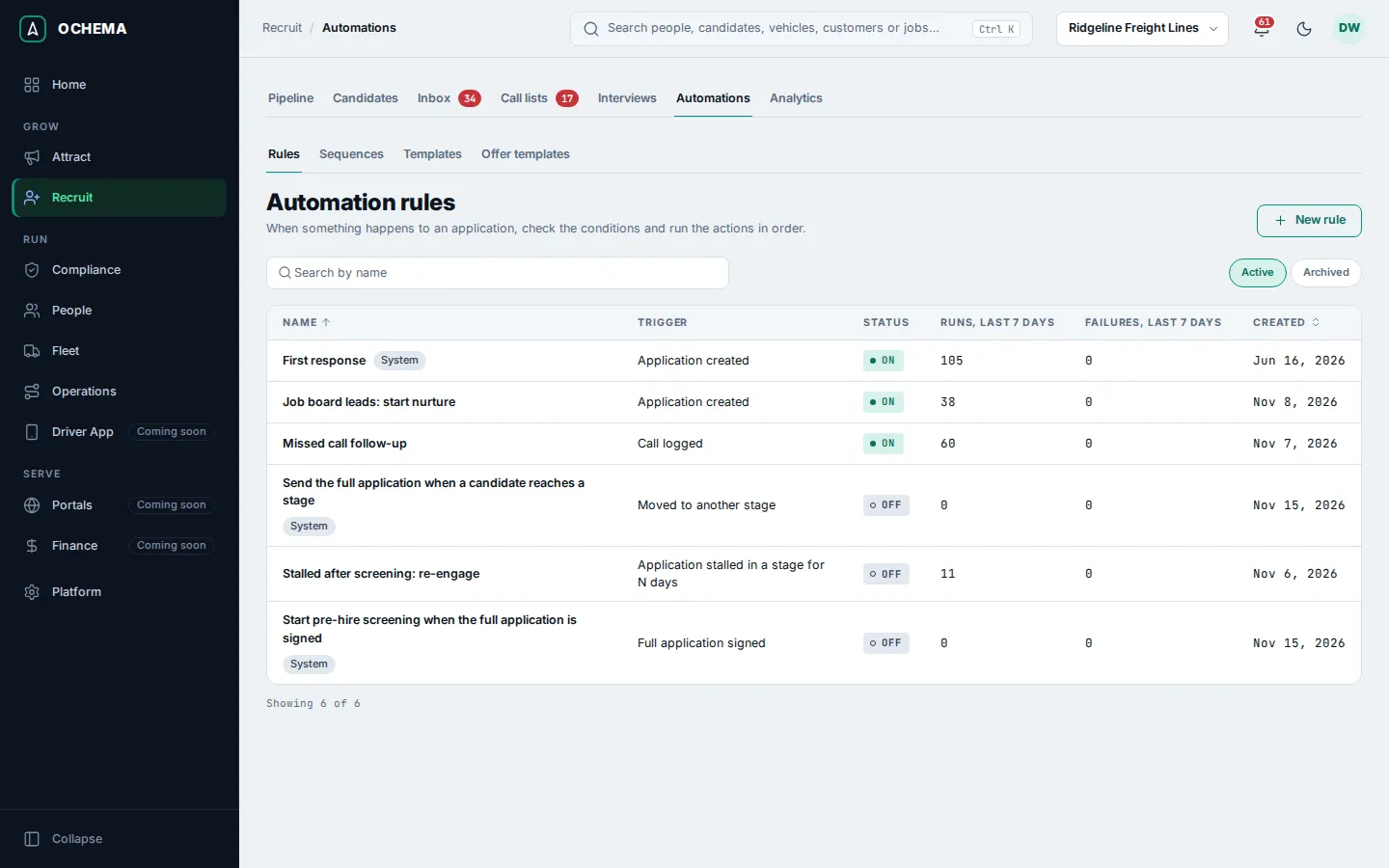
What happens next
Section titled “What happens next”Each action is recorded in the run history and its effect shows where it belongs: a message in the candidate’s conversation with the origin Automation, a task in Tasks, a move on the board. An action of a rule can start another rule; the run history marks it as Started by another rule.