
What applicants see
Applicants and drivers never sign in to Ochema. Everything they do happens on public pages of your careers site, opened from your careers page or from a link Ochema sends them by text message or email. Each link is personal. This page shows what they see, so you can guide them.
Who this is for
Section titled “Who this is for”Recruiters and compliance managers who talk to applicants and drivers. The applicant needs no account: only the link. Every page is made for a phone and has English and Español at the top.
On your side, sending the links needs the permissions of each area: see Candidates, Offers and Contracts and signing.
Before you start
Section titled “Before you start”- Your careers page is set up: every public page lives under its address. See Your careers page.
- For text messages, the applicant gave SMS consent on the application. Without it, Ochema sends no text message.
1. The application
Section titled “1. The application”The applicant opens a job on your careers page and selects Apply now. The form Apply for with the job title has the steps Contact, the qualification (for a CDL job, the CDL class and the years of experience), Questions about this job, What matters to you, How we may contact you and Review and send. At the end, the page says Thank you. We received your application.
The tutorial walks through each step on a phone: see The applicant applies on a phone.
Open the screenshot at full size in a new tab: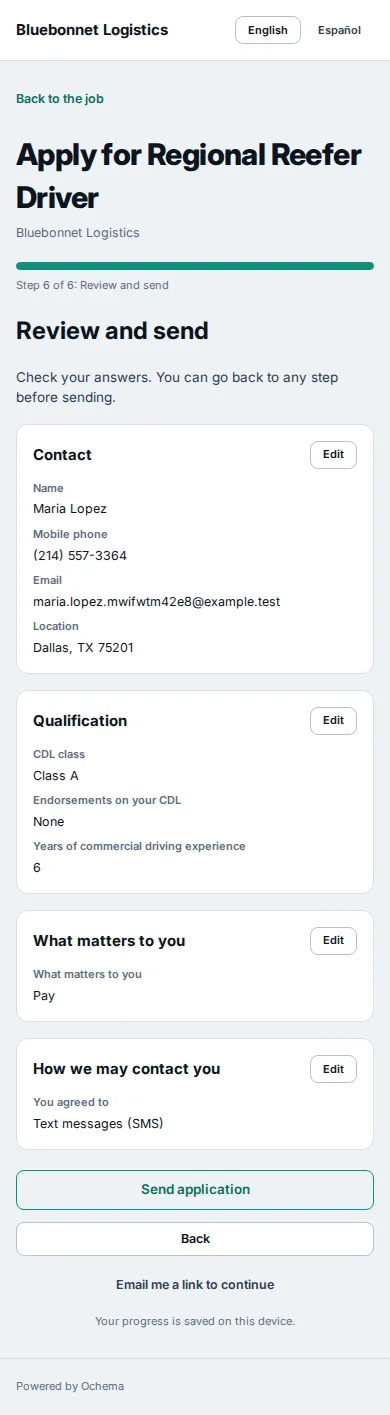
2. The scheduling page
Section titled “2. The scheduling page”When a recruiter sends a scheduling link, the applicant opens Pick a time for your interview: the company, the position, the interview, its length and how it happens, and the open times in the time zone of the phone. The applicant picks a day, then a time, and selects Book this time.
The page then says Your interview is booked, with Confirm I’ll be there, Add to calendar, Reschedule and Cancel. An applicant can change the time twice on the page; after that, the page says to write to the recruiter. When every time is taken, the page offers Join the waitlist. The link works for 14 days.
Open the screenshot at full size in a new tab: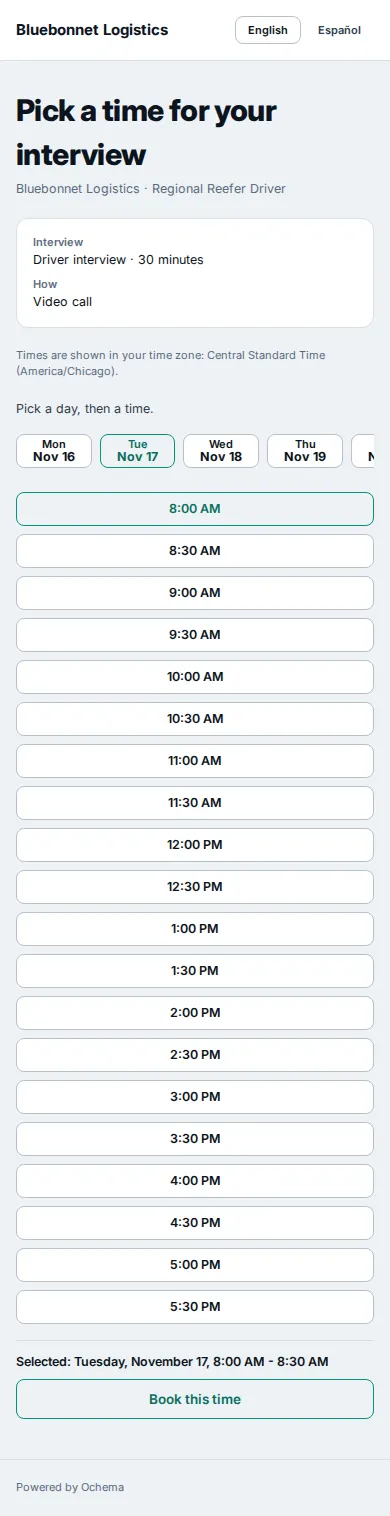
See Interviews and scheduling.
3. The full application
Section titled “3. The full application”The full application is the driver’s application for employment. The recruiter sends it from the Application tab of the candidate, by email or text message, or hands over the link with Copy link on the same tab. The link is valid for 30 days while the application is active.
The page has 8 steps: Personal details, Addresses, Licenses, Employment history, Experience and record, Questions, Photos of documents and Authorizations and signature. What the applicant already gave comes filled in. Each step is saved with Save and continue, so the applicant can close the page and open the link again later to continue where they stopped.
Open the screenshot at full size in a new tab: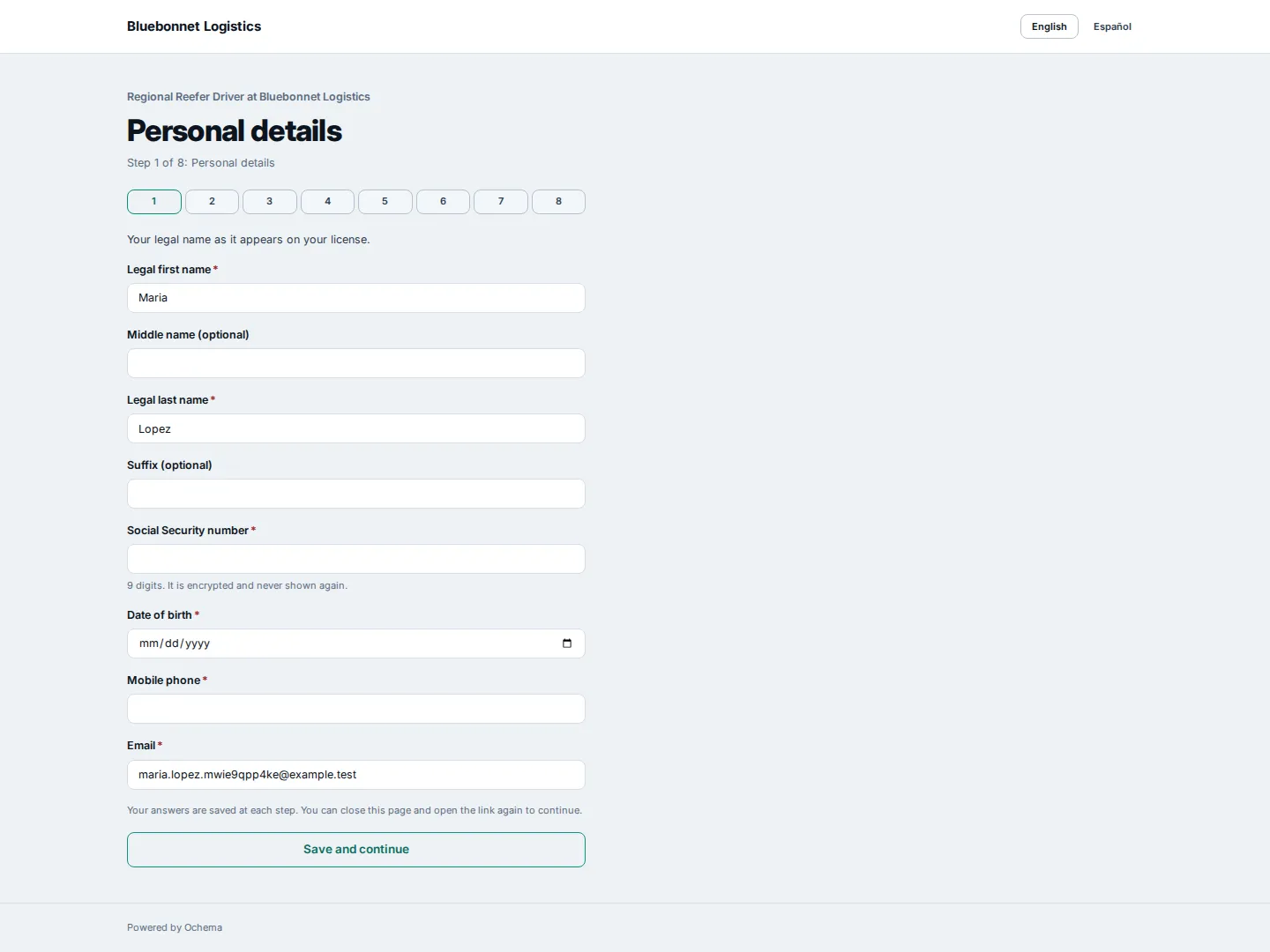
Open the screenshot at full size in a new tab: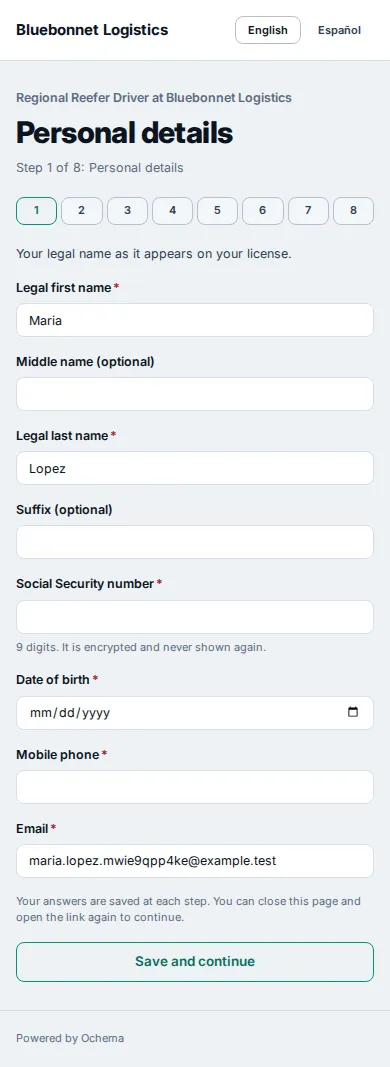
- The Social Security number is encrypted when it is saved and never shown again in full: opened again, step 1 shows only the last 4 digits.
- The last step lists each authorization to accept: the applicant certification, the authorization to investigate previous employment and driving record, one consent to release drug and alcohol testing information for each previous employer subject to the FMCSRs, and the consent to limited queries of the FMCSA Drug and Alcohol Clearinghouse. Then Review and sign prepares the document.
- To sign, the applicant selects Download the application (PDF) and reads it, checks I agree to use electronic records and signatures, types the name in Type your full legal name and selects Sign application.
Open the screenshot at full size in a new tab: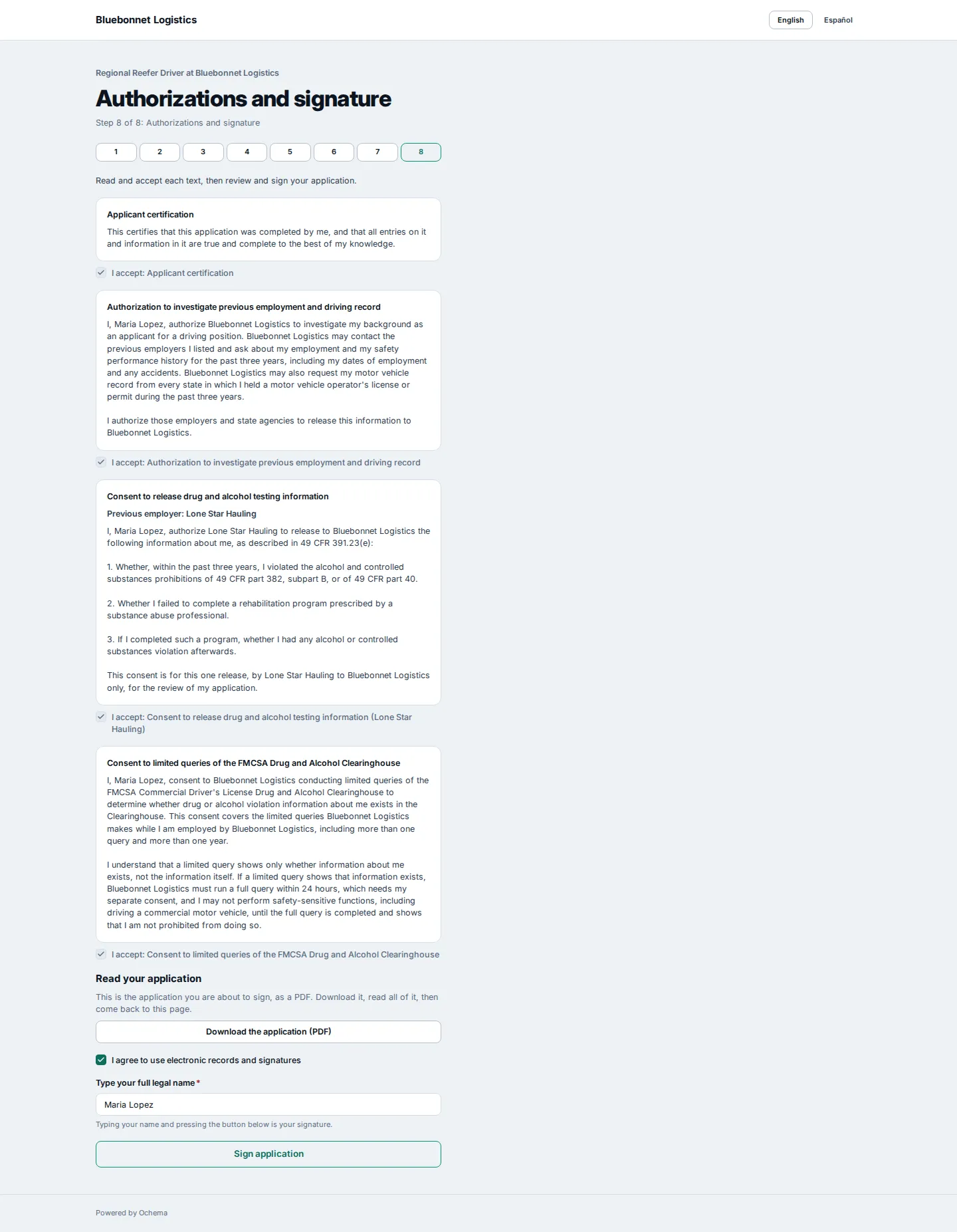
Open the screenshot at full size in a new tab:
The page then says Your application is signed, with Download for the copy of the applicant. Ochema also emails the copy, with the signature certificate.
Open the screenshot at full size in a new tab: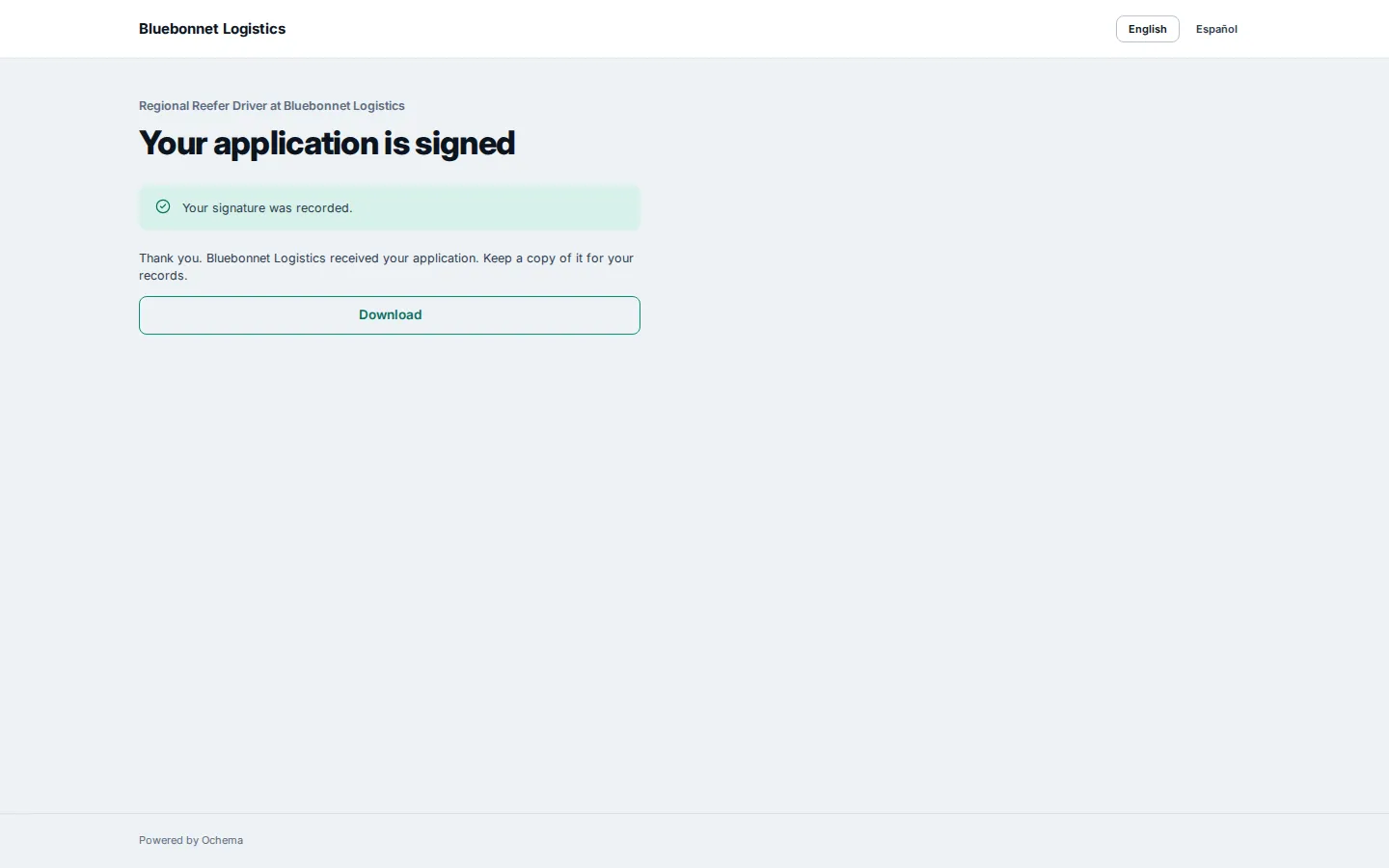
Open the screenshot at full size in a new tab: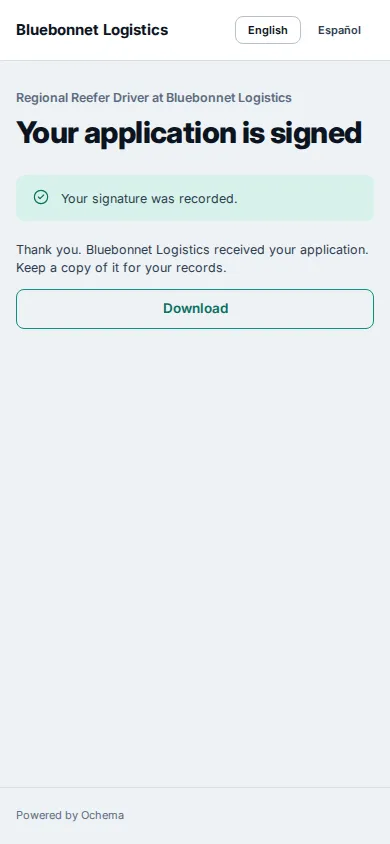
The tutorial shows every step on a phone: see The applicant fills and signs the full application.
4. The signing page
Section titled “4. The signing page”An offer, a contract or a form of the admission packet arrives by email with a link to Read and sign. For an offer, the recruiter can also hand over the link with Copy link on the Offer tab, and the applicant can open it from the candidate area. The page shows the Document, who is Signing as, the Other signers when the company signs too, and three parts:
- Read the document: Download the document (PDF), or Open it in a new tab instead.
- Agree to sign electronically: the consent, and I agree to use electronic records and signatures.
- Sign: Type your full name, then Accept and sign for an offer, or Sign document for a contract or form. Decline to sign is next to it.
Open the screenshot at full size in a new tab: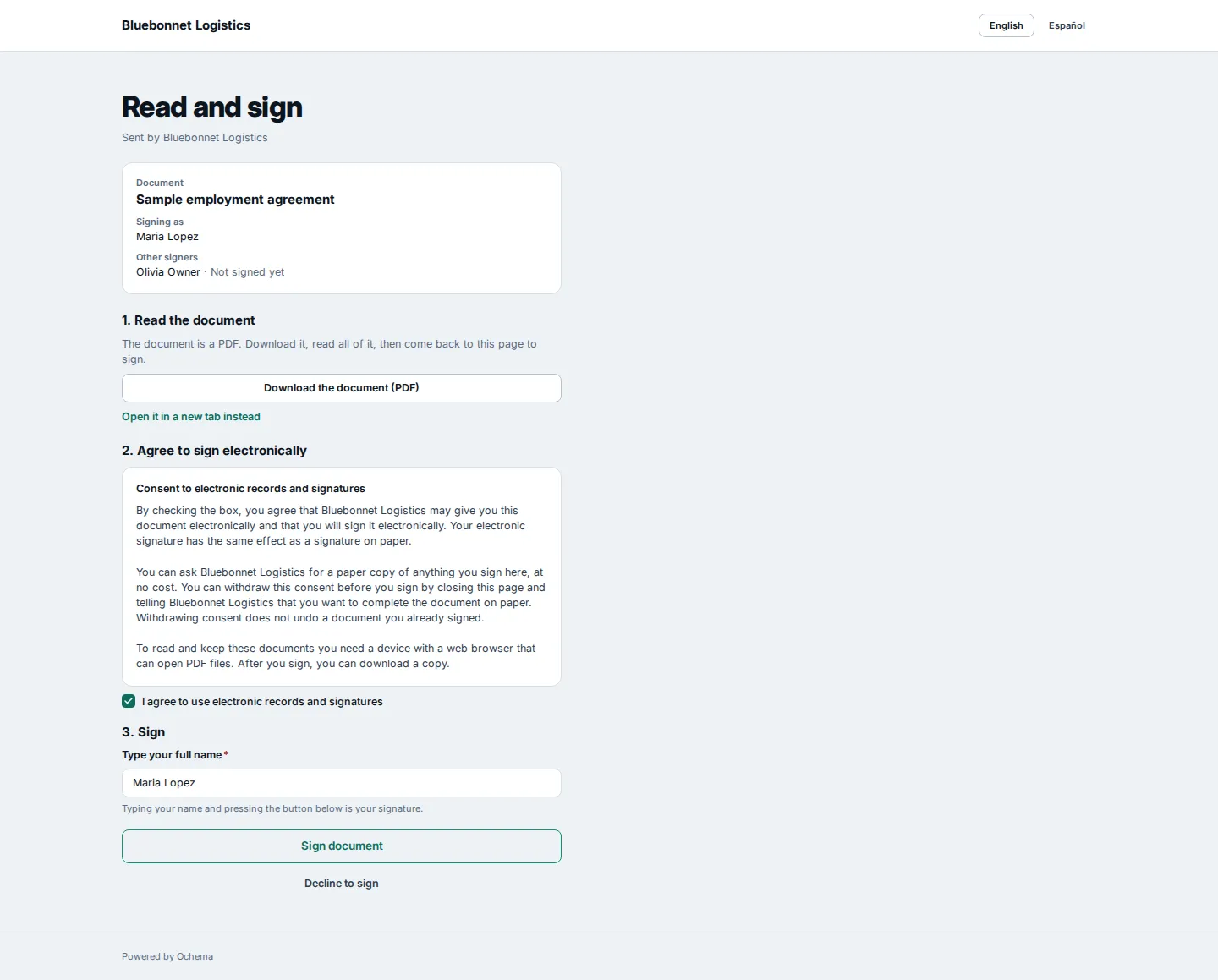
Open the screenshot at full size in a new tab: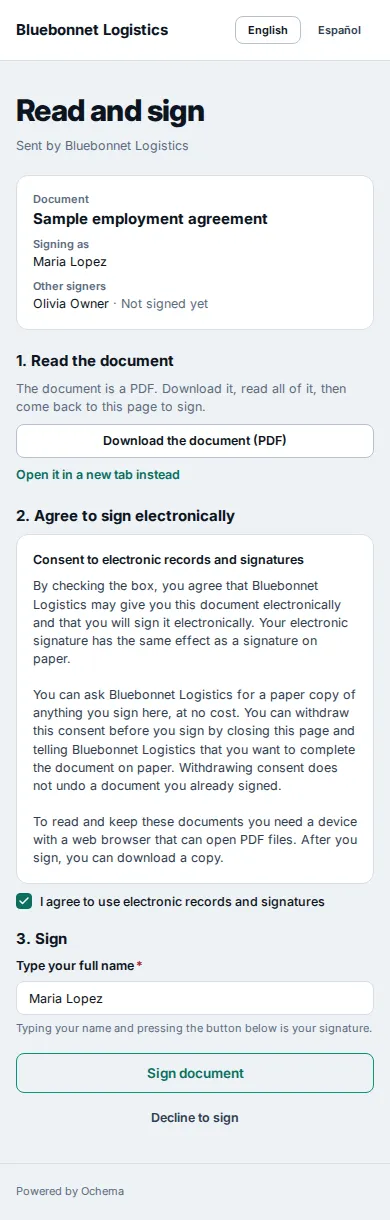
After the signature, a contract signed by the company too says You signed this document, and the copy arrives by email when everyone has signed. An offer says This document is signed, with the copy of the applicant on the same page.
Open the screenshot at full size in a new tab: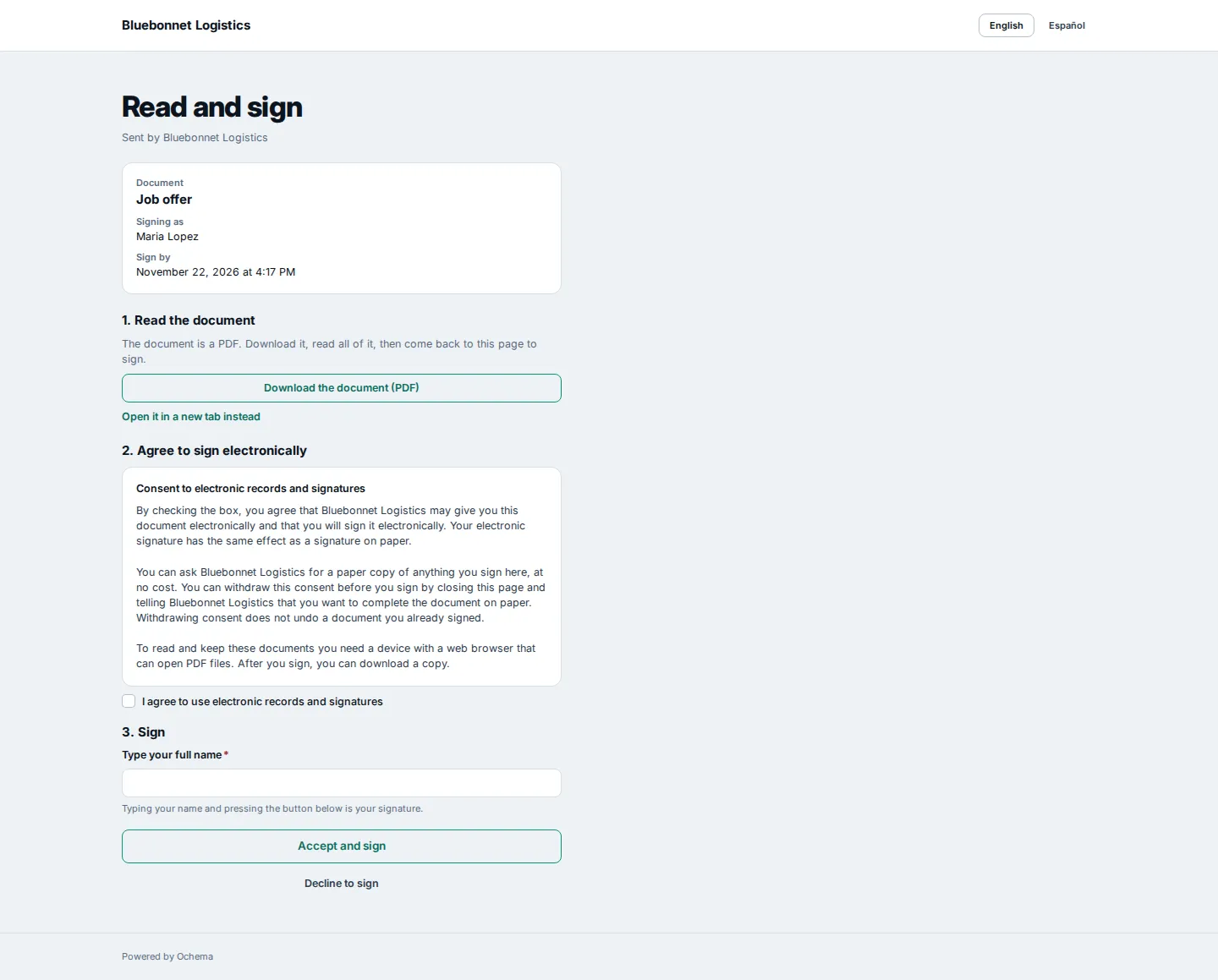
Open the screenshot at full size in a new tab: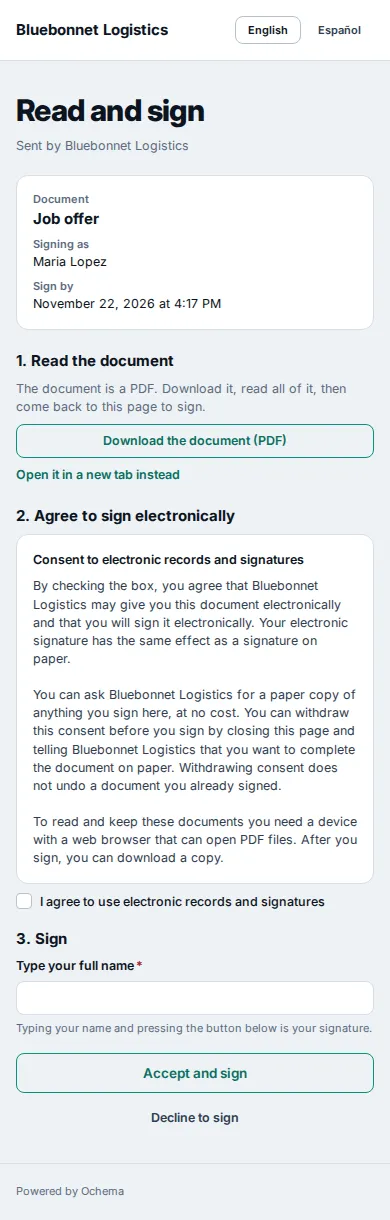
Open the screenshot at full size in a new tab: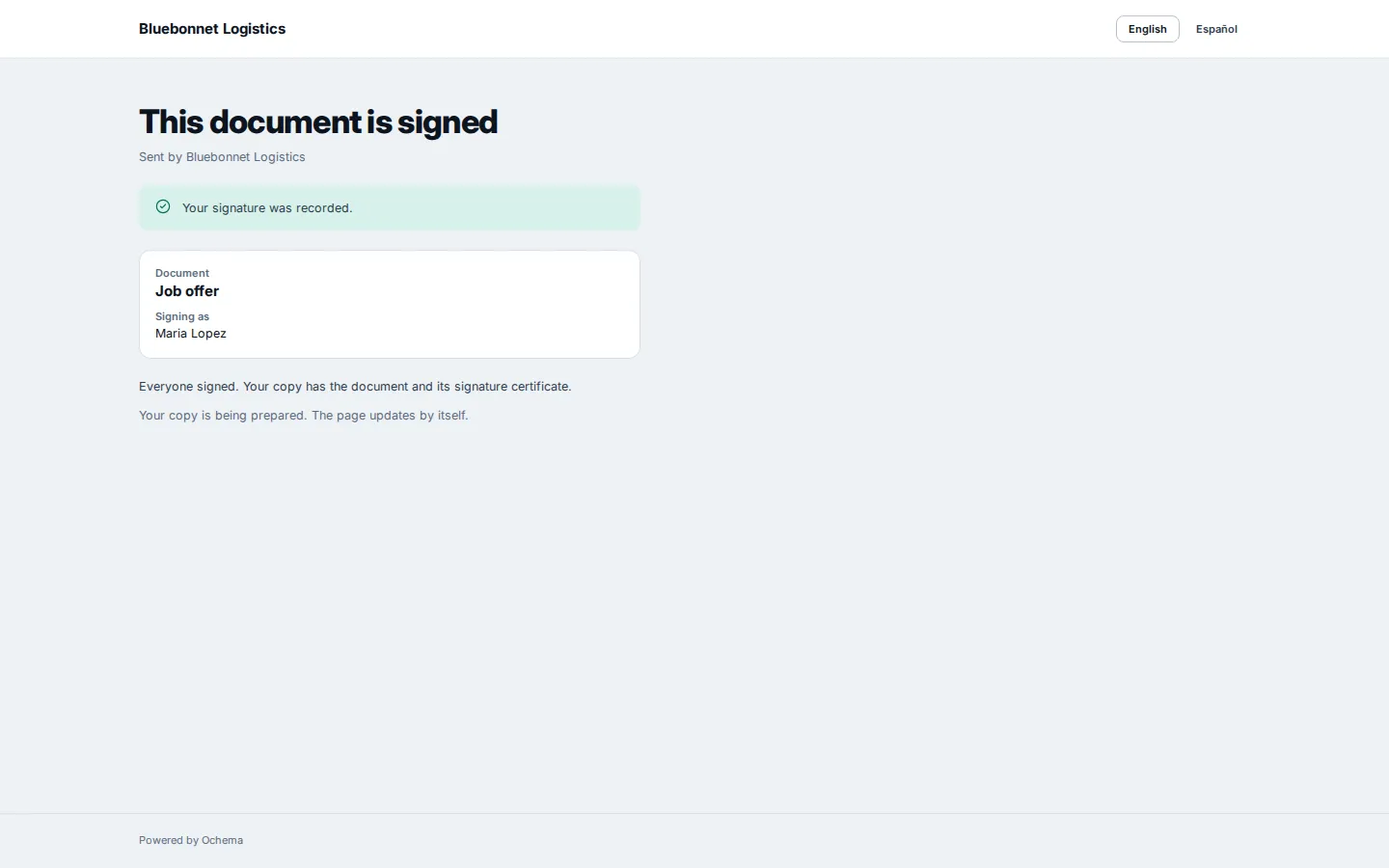
Open the screenshot at full size in a new tab: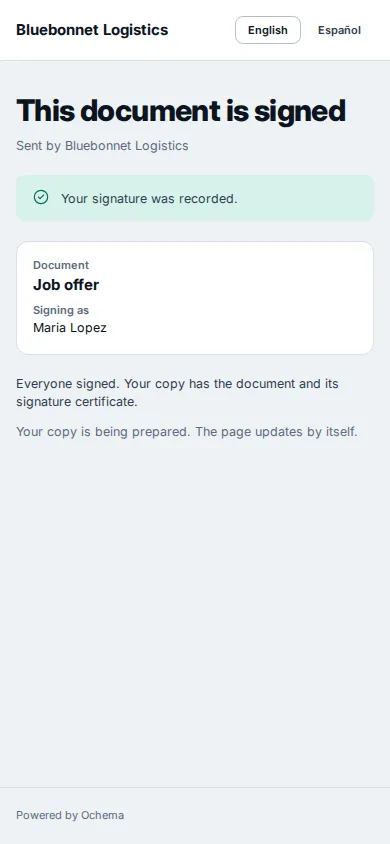
5. The candidate area
Section titled “5. The candidate area”The candidate area is where an applicant or a driver follows the application, sends documents and signs what is waiting. It opens from the link of a reminder or of a document sent back, or from a link the recruiter gives with Copy portal link on the candidate page.
The page shows:
- Hi and the first name, the company and the Position;
- Where you are: Application received, Documents in review, Offer sent or Hired;
- What we need from you: each thing to do, with its due date when it has one, such as Send this document, Sign this document (with Open to sign), Answer your job offer (with Open offer, while an offer is waiting for the answer), Finish your application or Choose an interview time. Choose an interview time shows while a scheduling link is valid and no interview is booked; it leaves when the interview is booked and stays away after the interview is marked completed, and it comes back when the interview is canceled or marked as a no-show. A document sent back shows Sent back with the reason and Send it again. With nothing to do, it says Nothing right now. We will message you if we need anything else.;
- Sent: what the applicant already sent, with the date and In review, Approved or Sent back.
Open the screenshot at full size in a new tab: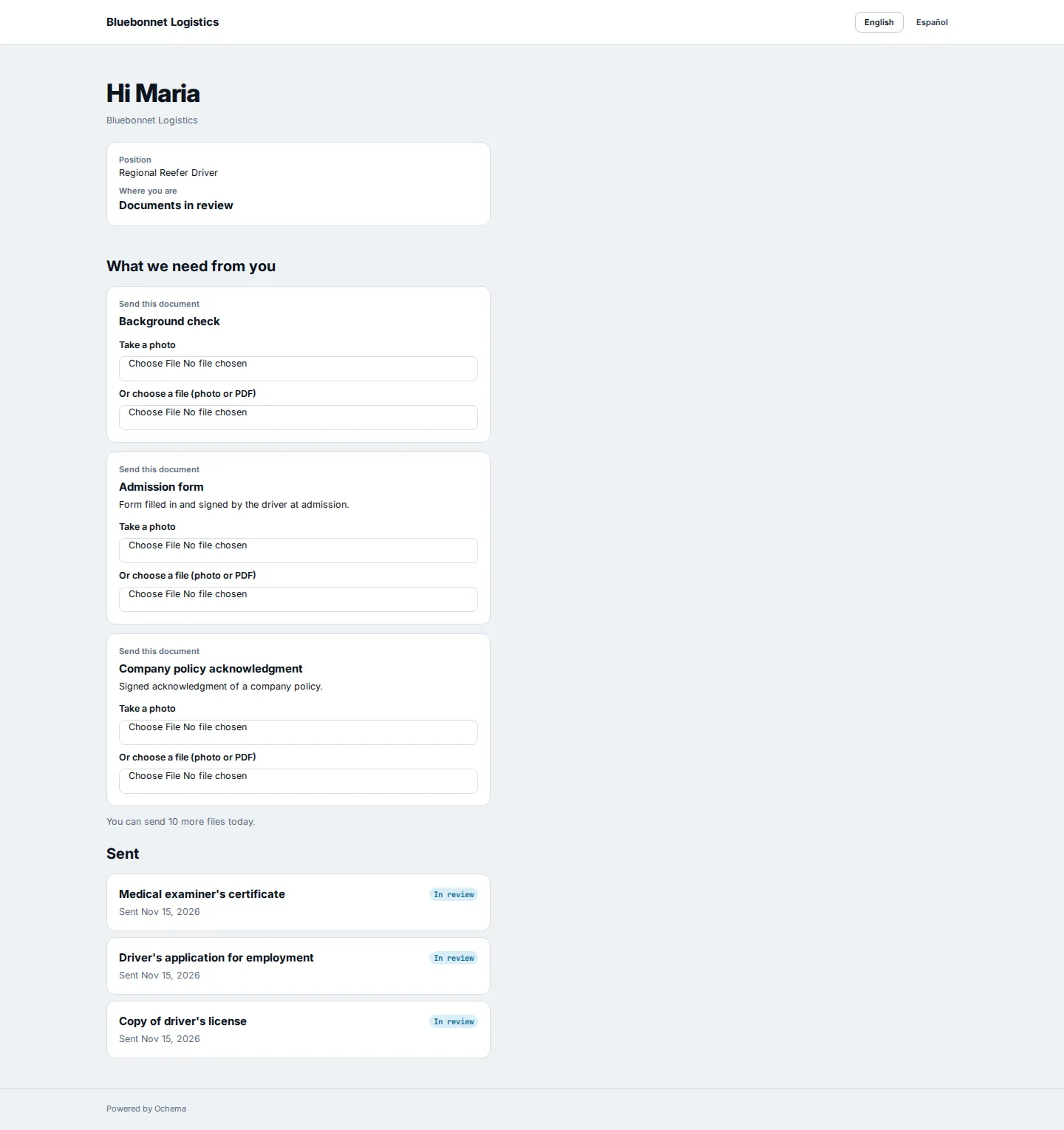
Open the screenshot at full size in a new tab: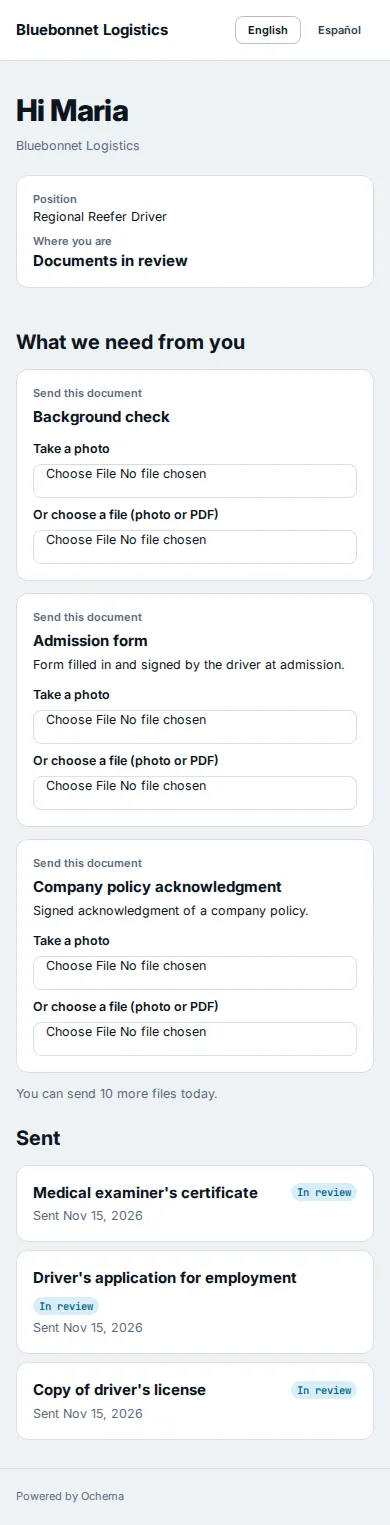
To send a document, the applicant selects Take a photo or Or choose a file (photo or PDF): a JPEG, PNG or WebP photo or a PDF of up to 10 MB, at most 10 files a day by the same link. A document with two sides asks for the Front and the Back.
The link has no expiry date. It opens while the applicant has an active application or is an active driver, until a newer link replaces it. The link an applicant had before being hired goes on opening after the hire, and Copy portal link on the page of a hired candidate opens the area of the driver, with Hired. A newer link replaces the one before: each reminder and each Copy portal link makes a new link, and the one before stops opening. An old link shows This link is no longer valid.
What happens next
Section titled “What happens next”What the applicant sends arrives in the driver file as Waiting for review. What the applicant signs is kept in the candidate record or in the driver file. See Driver files.