
Calendars
Ochema works with your own calendar in two ways, both on Recruit > Interviews, tab Availability:
- Calendar feed: a private address you subscribe to in Google Calendar, Outlook or your phone, to see your interviews there. Read only.
- Connected calendar: Ochema reads when you are busy in Google Calendar or Microsoft, so those times are not offered to candidates, and writes each interview in the calendar you choose.
Who this is for
Section titled “Who this is for”Recruiters and anyone who takes interviews. Both cards need View interviews (recruit.interviews.read), which covers your own availability and your own calendar. See Roles and permissions.
Each person connects their own calendar: the Connected calendar card shows only on your own availability, never when you look at another recruiter’s.
Before you start
Section titled “Before you start”- Connected calendar is available only after Ochema support turns on Google Calendar or Microsoft for the service. Until then, the card says Calendar connection is not turned on for your company yet and Ochema does not read your busy times, so keep your Weekly hours and Time off up to date by hand.
- Have the Google or Microsoft account of your work calendar at hand.
Subscribe to the calendar feed
Section titled “Subscribe to the calendar feed”- Open Recruit, then Interviews, and select the Availability tab.
- Under Calendar feed, select Create link.
- Copy the Calendar address with Copy link. It is shown only once, for your security: anyone with it can see your interview times.
- In Google Calendar, Outlook or the calendar of your phone, add a calendar by its address and paste it.
The feed shows the first name and last initial of the candidate, the job and the time of each interview. Once the link exists, the card says Calendar feed active since and the date. Reset link makes a new address and stops the old one at once: calendars subscribed to it stop updating until you subscribe to the new one.
Open the screenshot at full size in a new tab: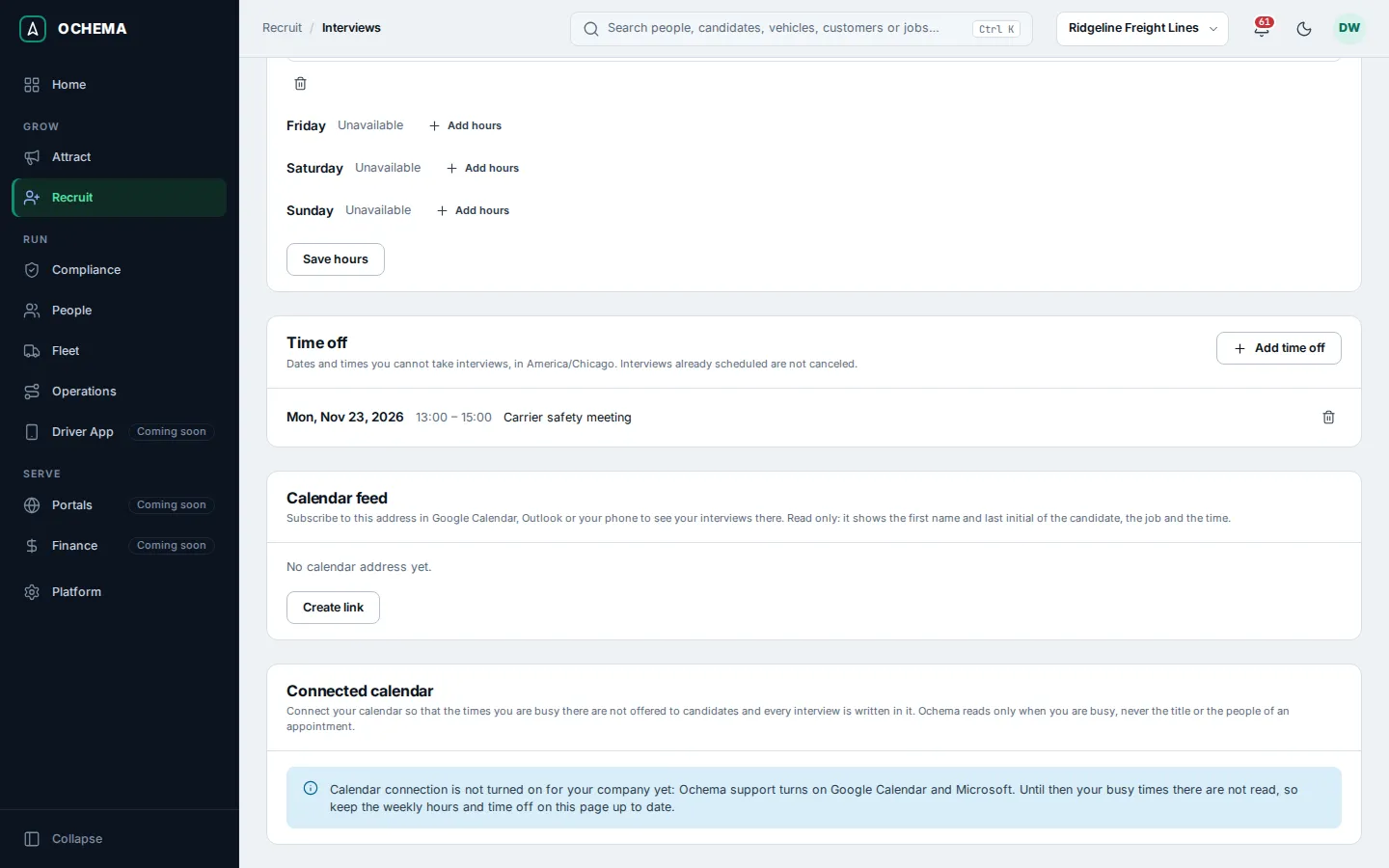
Connect your calendar
Section titled “Connect your calendar”When the connection is turned on:
- On the Availability tab, under Connected calendar, select Connect Google Calendar or Connect Microsoft calendar.
- Sign in to your account on the page of the provider and allow the access. The provider sends you back to Ochema, and the message Calendar connected. appears. Finish within 10 minutes of selecting the button; after that, start again.
- In Calendar that receives the interviews, choose which calendar of the account gets them. The default one is marked (default).
The card then shows the account, Last synced and when, and two buttons:
- Sync now asks for a new read at once. The card updates in a moment.
- Disconnect, confirmed in Disconnect this calendar?, stops reading your busy times and writing interviews. The interviews already written stay in your calendar. To remove the access on the provider side too, open the security settings of your Google or Microsoft account.
How the connection works
Section titled “How the connection works”- What is read: only when you are busy, never the title or the people of an appointment. Ochema reads the next 15 days.
- When: about every 10 minutes, and also when a candidate opens a scheduling link of yours, if the last read is more than 2 minutes old. Sync now reads at once.
- What is written: each interview you take, in the calendar you chose.
- When it fails: the card shows The last sync failed with the error, and Ochema tries again. If the provider refused the access, the card says so and offers Reconnect. Until it works again, the busy times of the last read keep being discounted from the times offered to candidates.
What happens next
Section titled “What happens next”Scheduling links and Pick a time now offer candidates only the times inside your weekly hours that are free in Ochema and, with a connected calendar, free in your calendar. See Interviews and scheduling.
Connecting, disconnecting, changing the calendar and resetting the feed are recorded in the Audit log.