
Onboarding
An onboarding template is the list of tasks each new hire goes through. At the hire, Ochema starts the onboarding of the person with the template that matches the role and employment type of the person. Tasks linked to the driver file complete by themselves when the item is approved or the contract is signed.
Who this is for
Section titled “Who this is for”Compliance managers, owners and the managers of new hires. To see the templates and the onboarding of a person: View onboarding (compliance.onboarding.read; roles Owner, Admin and Read only). To create and edit templates, add and skip tasks and complete an onboarding: Manage onboarding (compliance.onboarding.manage; roles Owner and Admin).
Before you start
Section titled “Before you start”- The document types and contract templates you want to link to tasks exist. See Document types and rules and Contracts and signing.
The onboarding templates
Section titled “The onboarding templates”Open Compliance, then Document types, and select the Onboarding templates tab. The list shows each Name, whom it Applies to, the number of Tasks and when it was Created. A new company starts with Driver onboarding, for drivers, with 3 tasks.
Open the screenshot at full size in a new tab: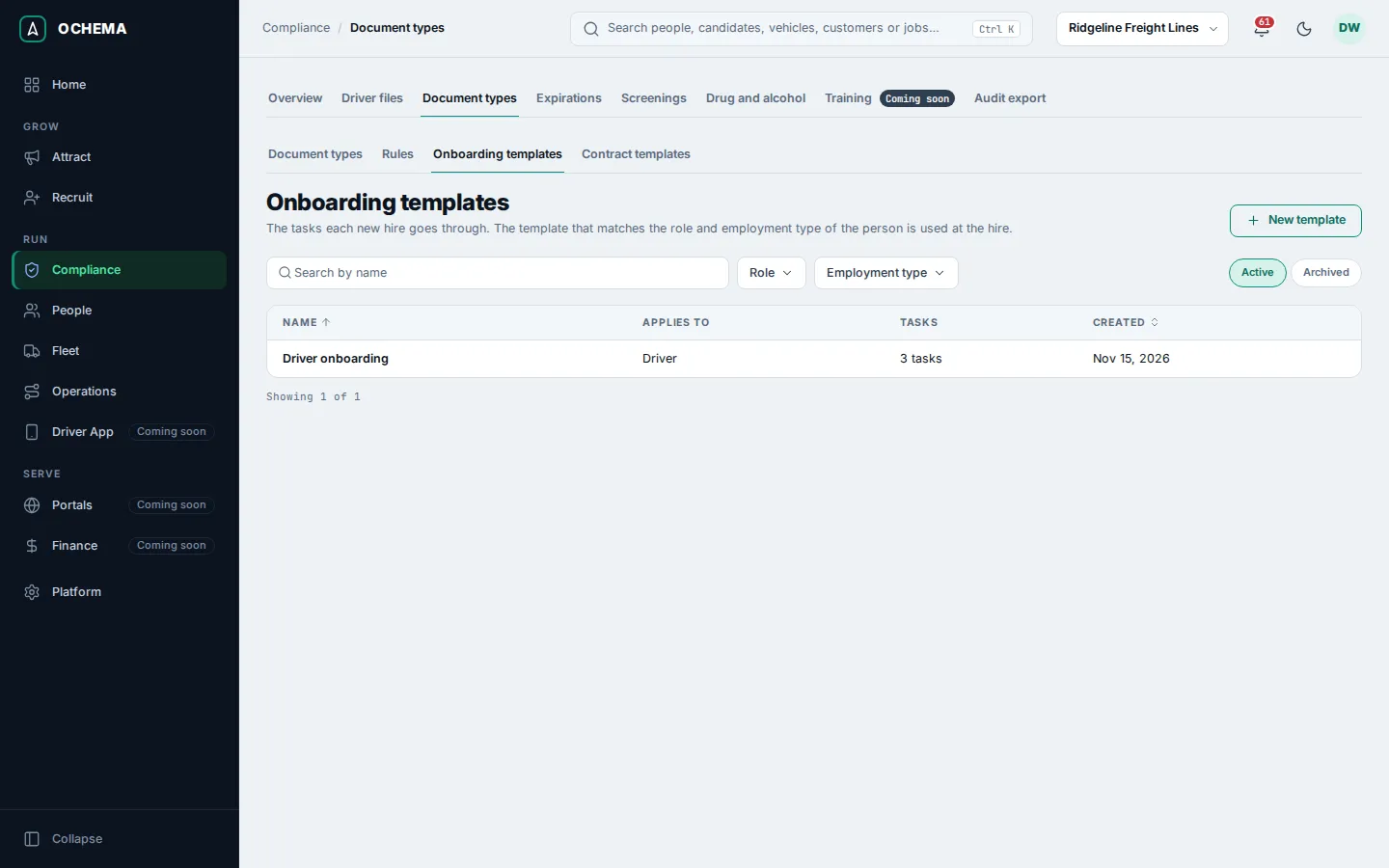
Select a name to see the Tasks in order, each with its Assignee, its Due and what it Completes by itself when.
Open the screenshot at full size in a new tab: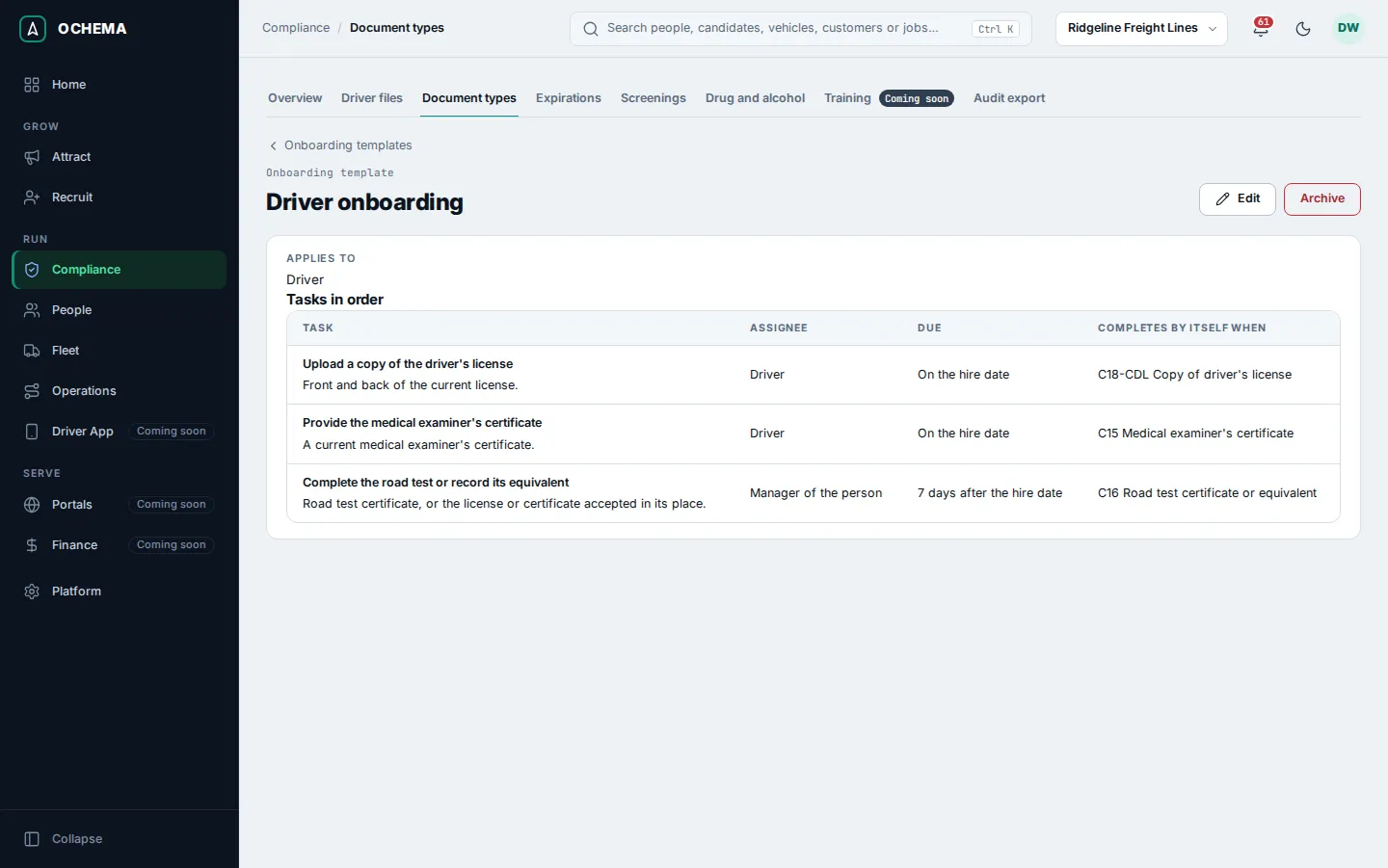
Create or edit a template
Section titled “Create or edit a template”- Select New template, or open a template and select Edit.
- Type the Name. Under Applies to, choose the Role and the Employment type. When more than one template fits a person, the one with the most matches wins; on a tie, the oldest one.
- Under Tasks, fill in each task, in the order the new hire goes through them:
- Task: the title, and the Description. For a task of the driver, this is the text the driver sees.
- Assignee: Manager of the person, Recruiter of the application, A specific user (then the User) or Driver.
- Due after: from 0 to 365 days, Counted from the Hire date or the Start date (the hire date when there is none).
- Completes by itself when: a Compliance item, a Document type or a Contract, or Not linked. Linked to a compliance item, the task completes when the item is approved and opens again if it is rejected. Linked to a contract, when it is signed.
- Required to complete the onboarding.
- Select Add task for each new task.
- Select Create template or Save changes.
Changes apply to the next hires; onboardings already started keep their tasks. A template can be archived with Archive.
Follow the onboarding of a person
Section titled “Follow the onboarding of a person”- Open People, then Directory, and select the person.
- Select the Onboarding tab. It shows the template, the progress (for example 0 of 3 tasks done) and the Onboarding tasks: each Task, its Assignee, the date it is Due, its Status (Open, Done, Skipped or Canceled) and the Actions. A task linked to the driver file says Completes by itself. A late task shows Overdue with its date.
- On a task, select Mark done, or Skip and type the Reason.
- To add a task for this person only, select Add task.
- When no required task is open, select Mark onboarding complete. The message Onboarding marked complete. appears. Until then, the tab says how many required tasks are still open.
Open the screenshot at full size in a new tab: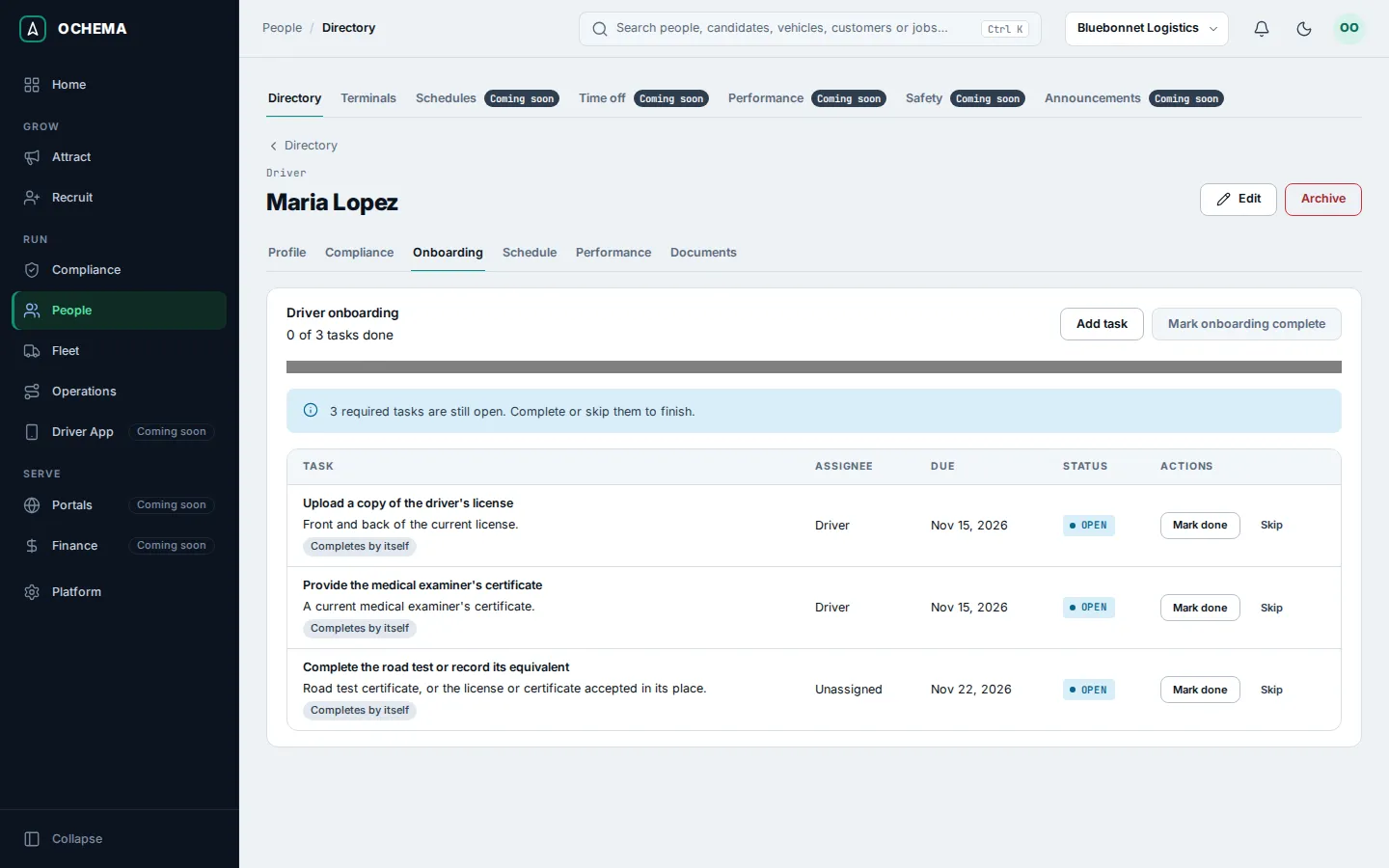
For a person added straight to the Directory, without a hire, the tab offers Start onboarding with the template that applies. When no active template applies, the tab says No onboarding.
What happens next
Section titled “What happens next”Tasks linked to an item complete when you approve the item on the driver file, and tasks linked to a contract when it is signed. On Compliance > Overview, the Hiring tab of What is missing has an Onboarding column with the progress of each person, for example 1 of 3.