
Jobs
Who this is for
Section titled “Who this is for”Anyone whose role has the permission View jobs (attract.jobs.read) can open the list and the page of each job. Creating, editing, publishing, archiving and changing the screening questions need Manage jobs (attract.jobs.manage). The Candidates tab also needs View candidates of Recruit. See Roles and permissions.
Before you start
Section titled “Before you start”- To create your first job, follow Publish your first job. This page covers what you do with jobs after that.
- A job can be published only when its status is Open, and its public page needs the address of your careers page. See Careers and campaign pages.
Find a job
Section titled “Find a job”- Open Attract in the menu on the left. Jobs is the first tab.
- Type at least 3 letters or digits of the title in Search jobs, or narrow the list with Status, Driver type, Route type, Terminal and State served.
- Select Archived to see the jobs you archived. Active brings the list back.
- Select a row to open the job.
The table shows the Title, Status (Draft, Open, Paused or Closed), Driver type, Route, Terminal, Pay and Added on of each job.
Open the screenshot at full size in a new tab: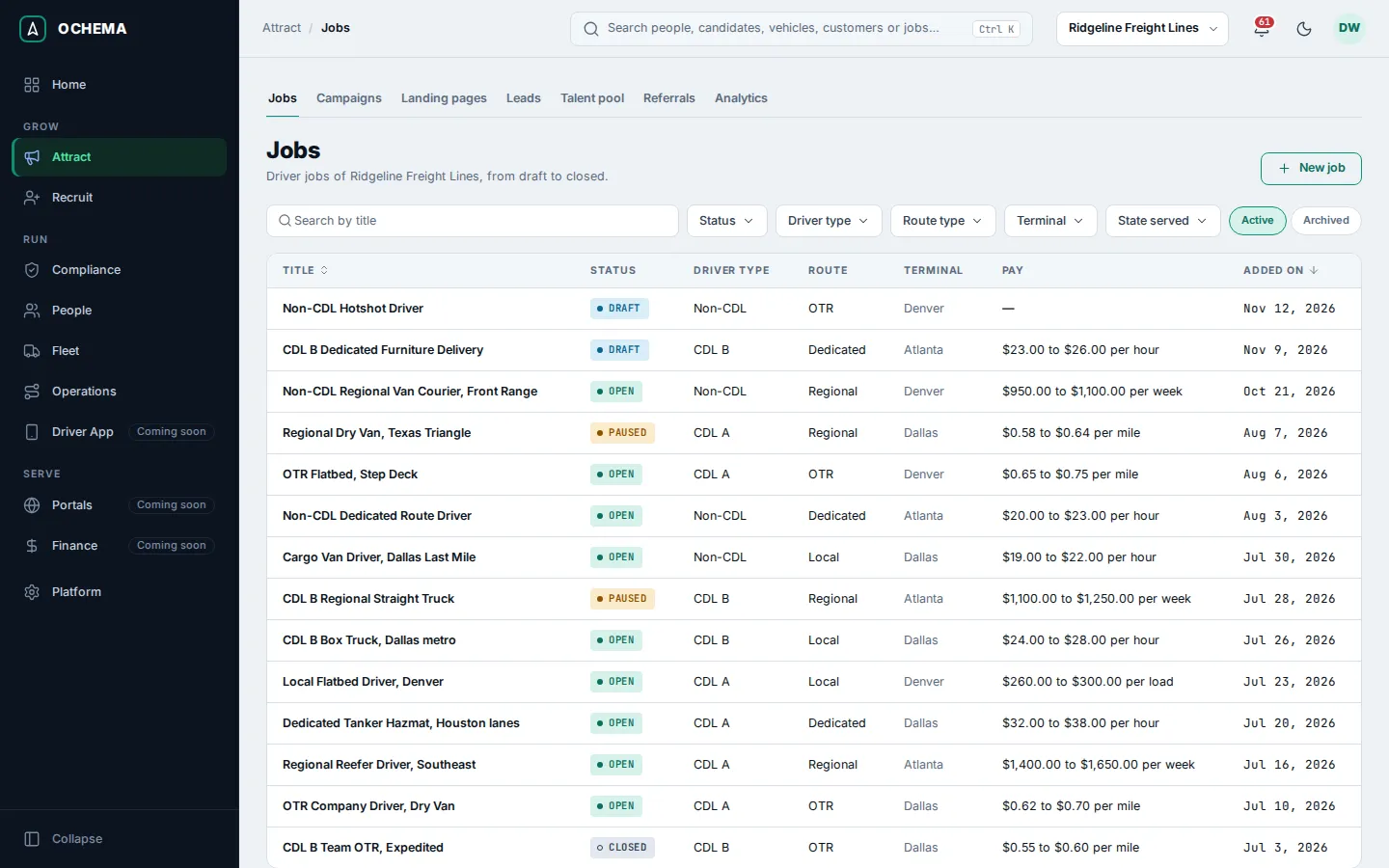
Publish a job or take it off the careers site
Section titled “Publish a job or take it off the careers site”- Open the job. The Overview tab shows its details and, under them, the Public listing section.
- Turn on Published. The message Job … published. appears and the section shows On the careers site since with the date. Only an open job can be published: with another status, the section says Set the status to Open to publish this job.
- To take the job down, turn Published off and confirm with Take off. The public page stops opening and drivers can no longer apply through it. Links and QR codes already shared lead to the careers page.
Open the screenshot at full size in a new tab: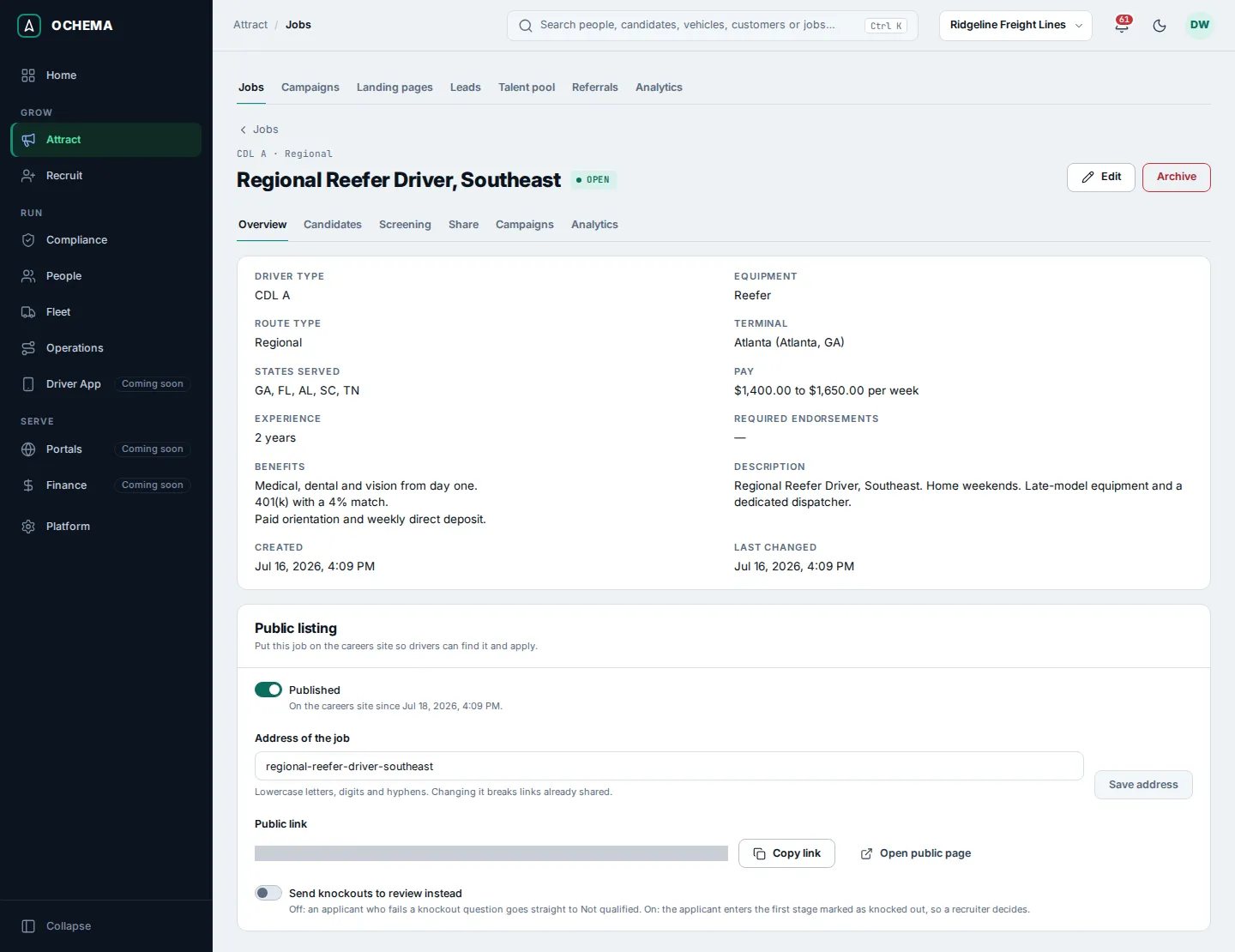
In the same section:
- Address of the job is the last part of its public link. Change it and select Save address. Changing it breaks the links already shared.
- Copy link copies the public link, and Open public page opens it.
- Send knockouts to review instead decides what happens to an applicant who fails a knockout question. Off, the applicant goes straight to Not qualified. On, the applicant enters the first stage marked as knocked out, so a recruiter decides.
Edit, pause or close a job
Section titled “Edit, pause or close a job”- On the page of the job, select Edit.
- Change what you need and select Save changes. The message Job … saved. appears.
- To stop receiving applicants for a while, set Status to Paused; when the job is filled, set it to Closed. When the job is on the careers site, the form warns that saving with this status takes its public page down. Publish it again after you reopen it.
Only open and paused jobs can be chosen on a candidate.
Add screening questions
Section titled “Add screening questions”Screening questions are asked on the application form of the job, in the order of the list. A question with a knockout rule disqualifies an applicant who does not meet it.
- On the page of the job, open the Screening tab.
- Select Add standard questions to add the questions built from the requirements of the job, for example the CDL class and the years of experience. The message says how many were added; when they are all on the list already, it says The standard questions this job needs are already on the list.
- To write your own, select Add question. In New screening question, choose the Answer type (Yes or no, Number, Single choice, Multiple choice or Short text), write the Question in English and the Question in Spanish (up to 300 characters each), and leave Required on if the applicant cannot go on without answering.
- For a knockout, turn on Use a knockout rule and say what passes: the Answer that passes for yes or no, the Minimum that passes for a number, or the Options that pass for a choice.
- Select Add question. The message Screening questions saved. appears.
- Change the order with the drag handle or with the up and down buttons of each question. Edit and Remove change or remove one question.
Open the screenshot at full size in a new tab: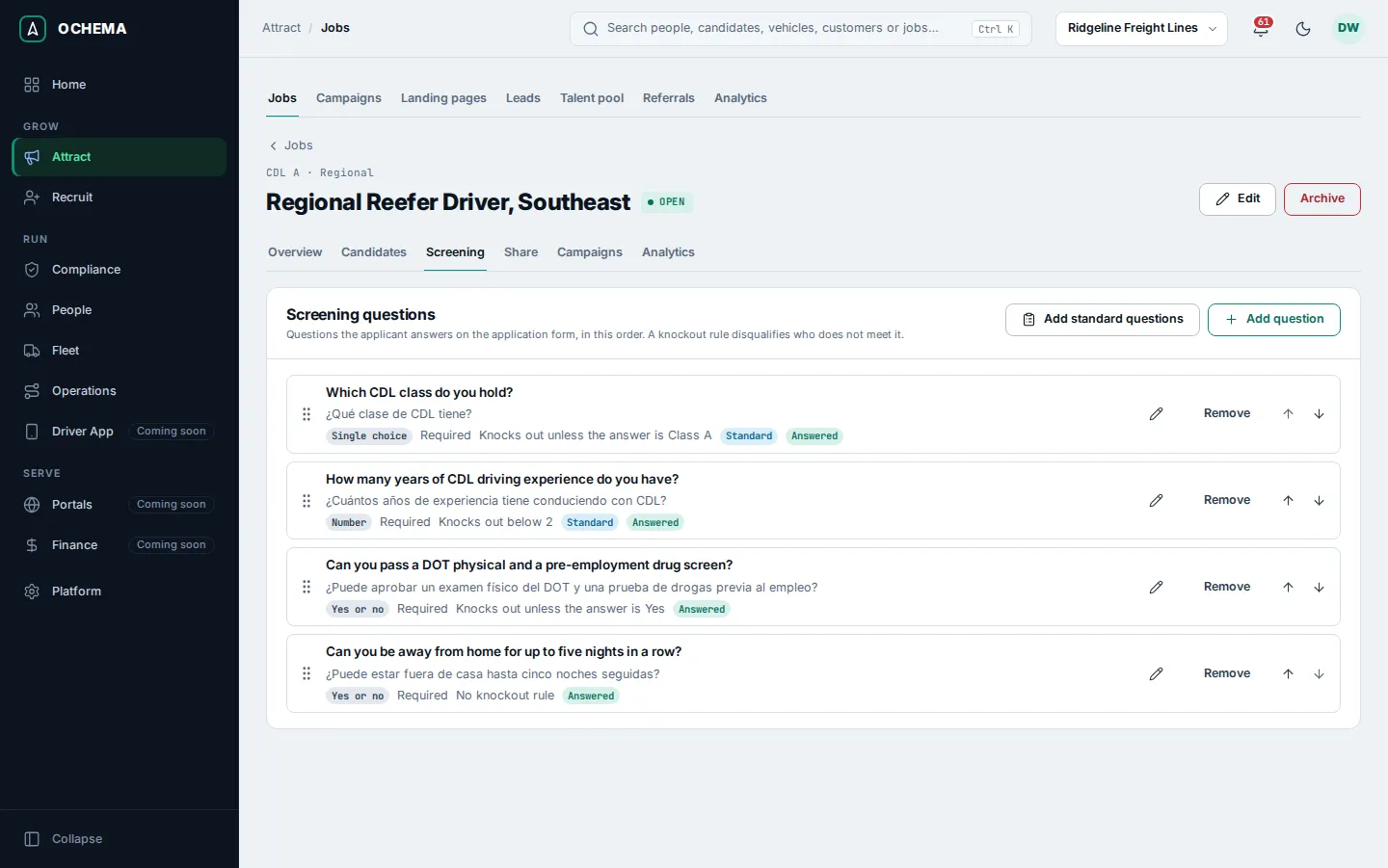
Open the screenshot at full size in a new tab: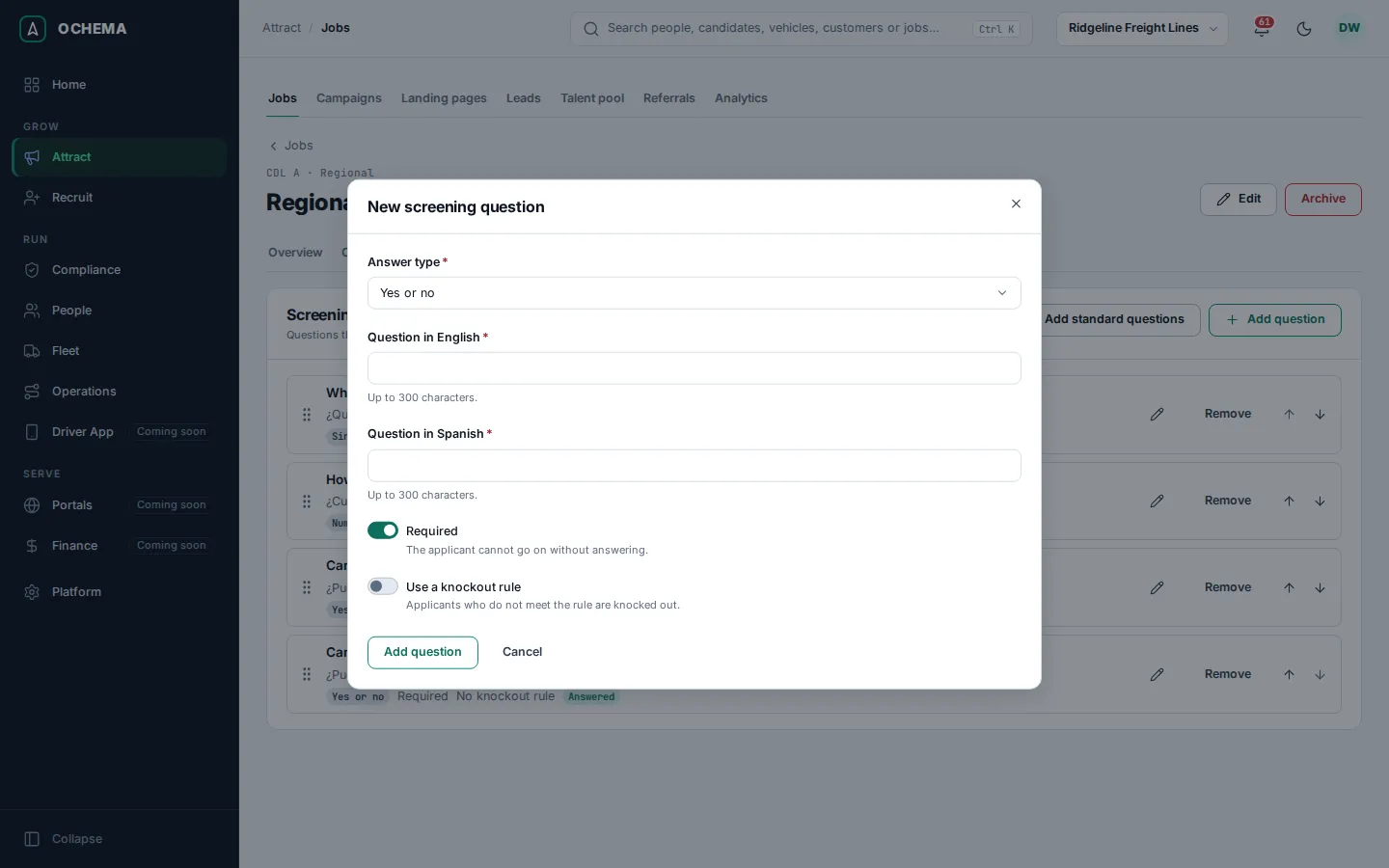
A question marked Answered already has answers. Saving a change keeps those answers on the old version and asks the new version from then on. Removing a question keeps the answers already given.
Share a job
Section titled “Share a job”- On the page of the job, open the Share tab.
- Under Public link, select Copy link to send the link to a driver or post it.
- Under QR code, select Download PNG or Download SVG to print it on a truck, a flyer or a banner. The QR code opens the page of the job, and applications through it are counted with the source QR code.
- Under Campaign links, you see the tracked links of your campaigns that lead to this job, with their Campaign, Channel and Short link. You create them in Attract > Campaigns; see Tracked links and sources.
When the job is not published, the tab says This job is not published. When your careers page has no address, it says The careers page is not set up.
Open the screenshot at full size in a new tab: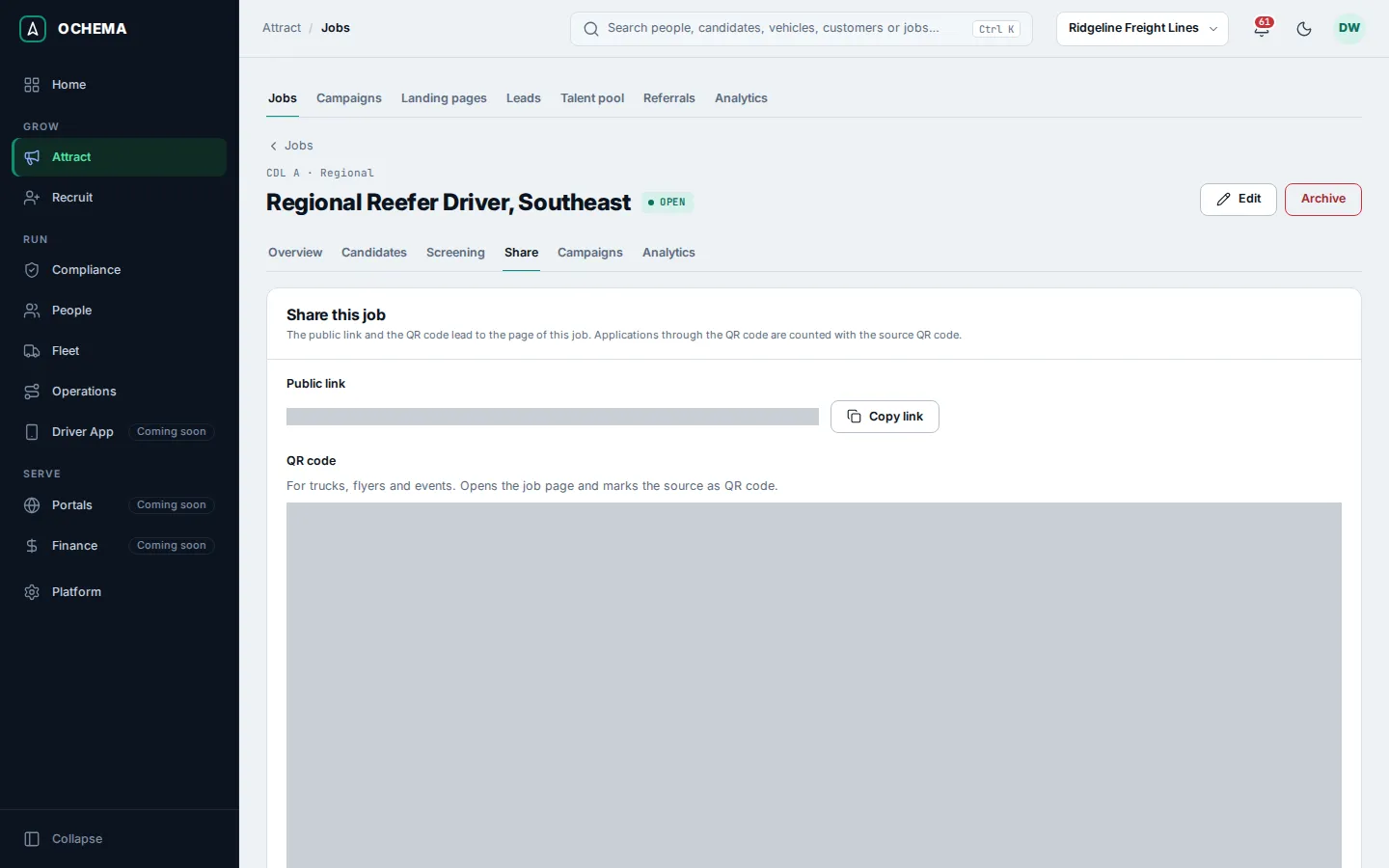
See who applied
Section titled “See who applied”Open the Candidates tab. It lists every candidate of the job with the Stage, the Application status, the Source, the Score, In stage since and Applied on. Select a row to open the candidate in Recruit.
Open the screenshot at full size in a new tab: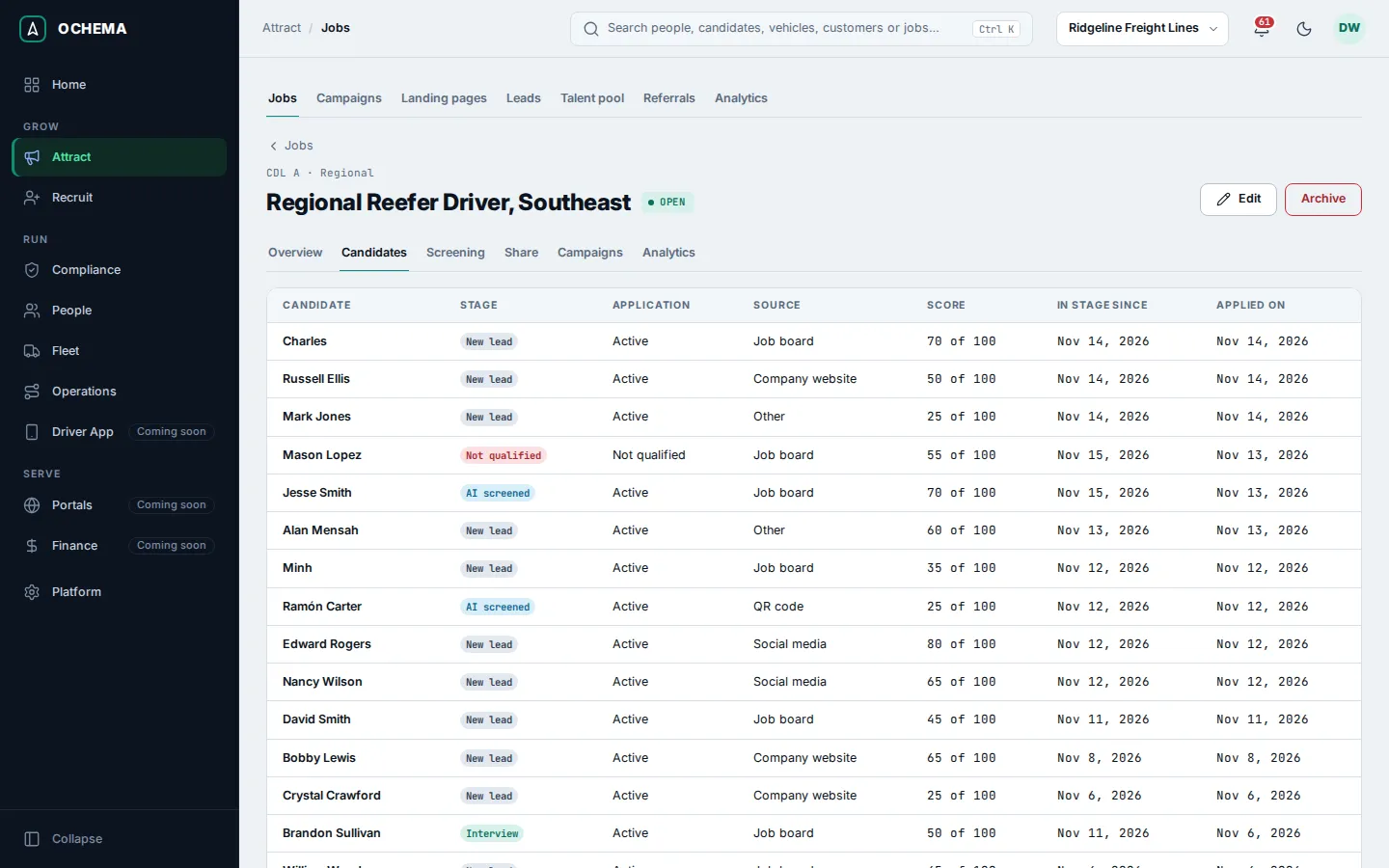
The Campaigns tab opens the campaigns of this job in Attract > Campaigns, and the Analytics tab opens Attract > Analytics filtered by this job.
Archive a job
Section titled “Archive a job”- On the page of the job, select Archive and confirm with Archive.
- The job leaves the lists and pickers. Nothing is deleted: open the Archived view of Jobs, open the job and select Reactivate to bring it back.
What happens next
Section titled “What happens next”Drivers apply from the page of the job, and each application arrives in Attract > Leads and in the pipeline of Recruit with its source. The applications of each job and channel are counted in Attract > Analytics.