
Language and theme
Who this is for
Section titled “Who this is for”Every user. The language and the theme are personal: they need no permission and change nothing for the rest of your company.
Before you start
Section titled “Before you start”Nothing. Both choices take effect at once and can be changed back at any time.
Choose the language
Section titled “Choose the language”- Select your initials at the top right of the screen (Account menu of and your name).
- Under Language, select English or Español. A check mark shows the current one.
The language is saved on your account: it follows you to any browser and any computer you sign in on.
Open the screenshot at full size in a new tab: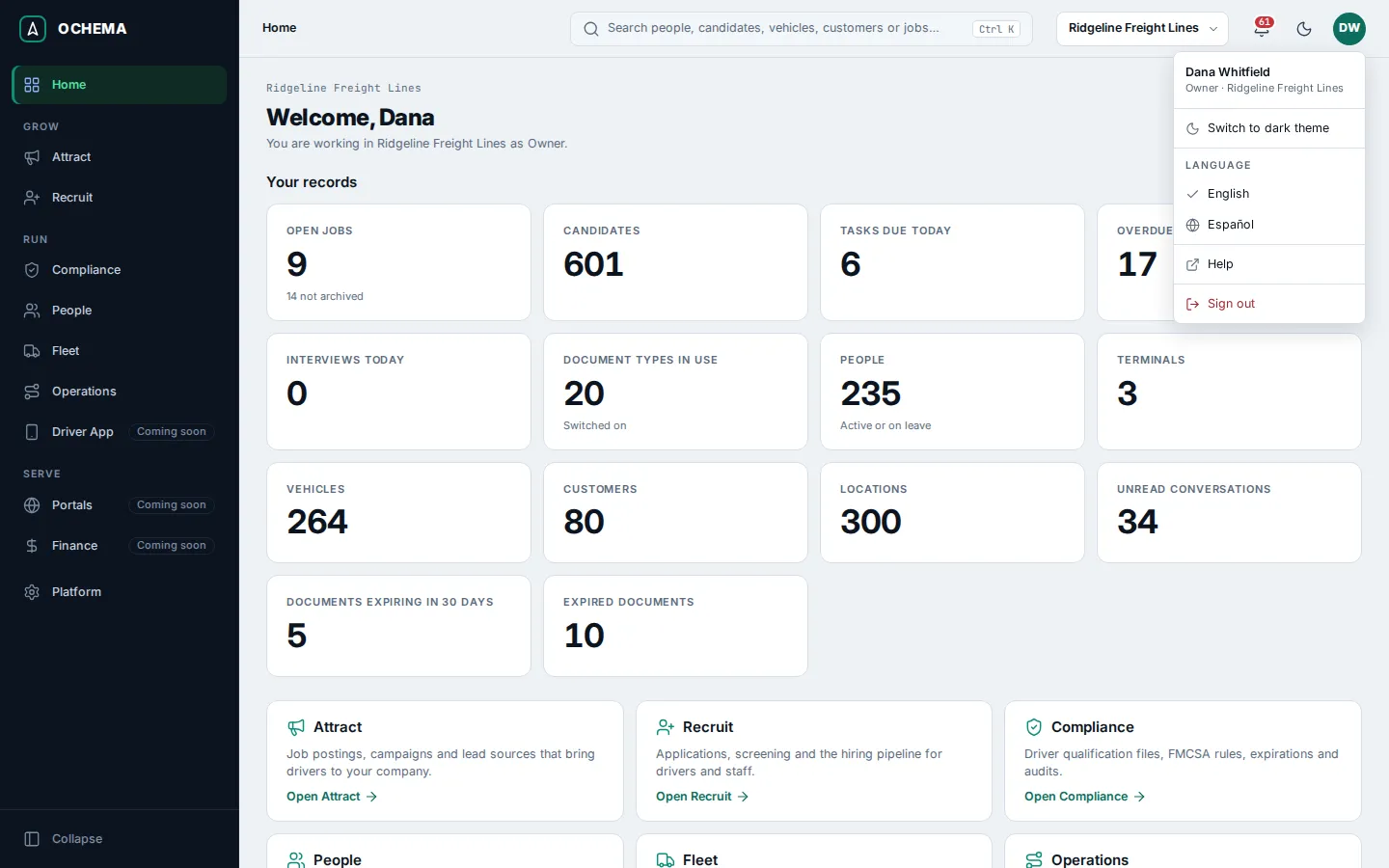
What is in Spanish today
Section titled “What is in Spanish today”Spanish in the office system is partial. Choosing Español shows Spanish where a translation exists and English everywhere else:
- In Spanish, in part: parts of the candidate page of Recruit (the timeline, applications, consents and notes), the status names in the candidate filters, smart lists and call lists, the lead distribution rules, and the Leads tab of Attract.
- Still in English: the menu, Home, Compliance, People, Fleet, Operations and Platform, and most of the other screens of Attract and Recruit.
The public pages your candidates see are complete in both languages: the careers page, the job pages and the application form, scheduling, the full application, signing and the candidate area. Candidates switch the language on the page. See What applicants see.
Texts your company writes, such as job descriptions and message templates, are shown in the language you wrote them in. Message templates have an English and a Spanish text, and a candidate whose language is Spanish gets the Spanish one when it is filled in.
Choose the theme
Section titled “Choose the theme”Either:
- select the moon or sun button at the top right (Switch to dark theme or Switch to light theme), or
- open the account menu and select the same item.
The theme is saved in this browser only. Until you choose one, Ochema follows the light or dark setting of your computer.
What happens next
Section titled “What happens next”Dates and numbers follow the language you choose, and times are shown in your own time zone.
Related
Section titled “Related”- Internationalization, in the system documentation: how much is translated, counted in the code
- Templates
- Search and notifications