
Publish your first job
Who this is for
Section titled “Who this is for”The owner, or a recruiter whose role can create jobs.
Before you start
Section titled “Before you start”- The title of the job, the driver type, the equipment and the route type.
- The pay range, if you publish it.
- To see the job on your careers page, the page needs its address. See Your careers page.
- On Home, in the Getting started card, select Create a job. You can also open Attract in the menu on the left, then Jobs, then New job. The New job page opens.
- Under Job, type the Title, for example
Regional Reefer Driver. - In Status, choose Open. Only open and paused jobs can be chosen on a candidate.
- Leave Publish on the careers page on. Drivers see the job on your careers page and can apply as soon as it is created.
- Choose the Driver type (for example CDL A) and the Equipment (for example Reefer), and select the Route type: Local, Regional, OTR or Dedicated.
- Optional: under Where, choose the Terminal the driver is based at and the States served.
- Under Pay, type the Minimum pay and Maximum pay in dollars and choose the Pay unit, for example per mile. Leave the amounts empty when the pay is not published yet.
- Optional: under Requirements, type the minimum years of Experience and check the Required endorsements. Under Details, type the Benefits and the Description.
- Select Create job. The message Job Regional Reefer Driver created and published on your careers page. appears, with the title of your job.
Open the screenshot at full size in a new tab: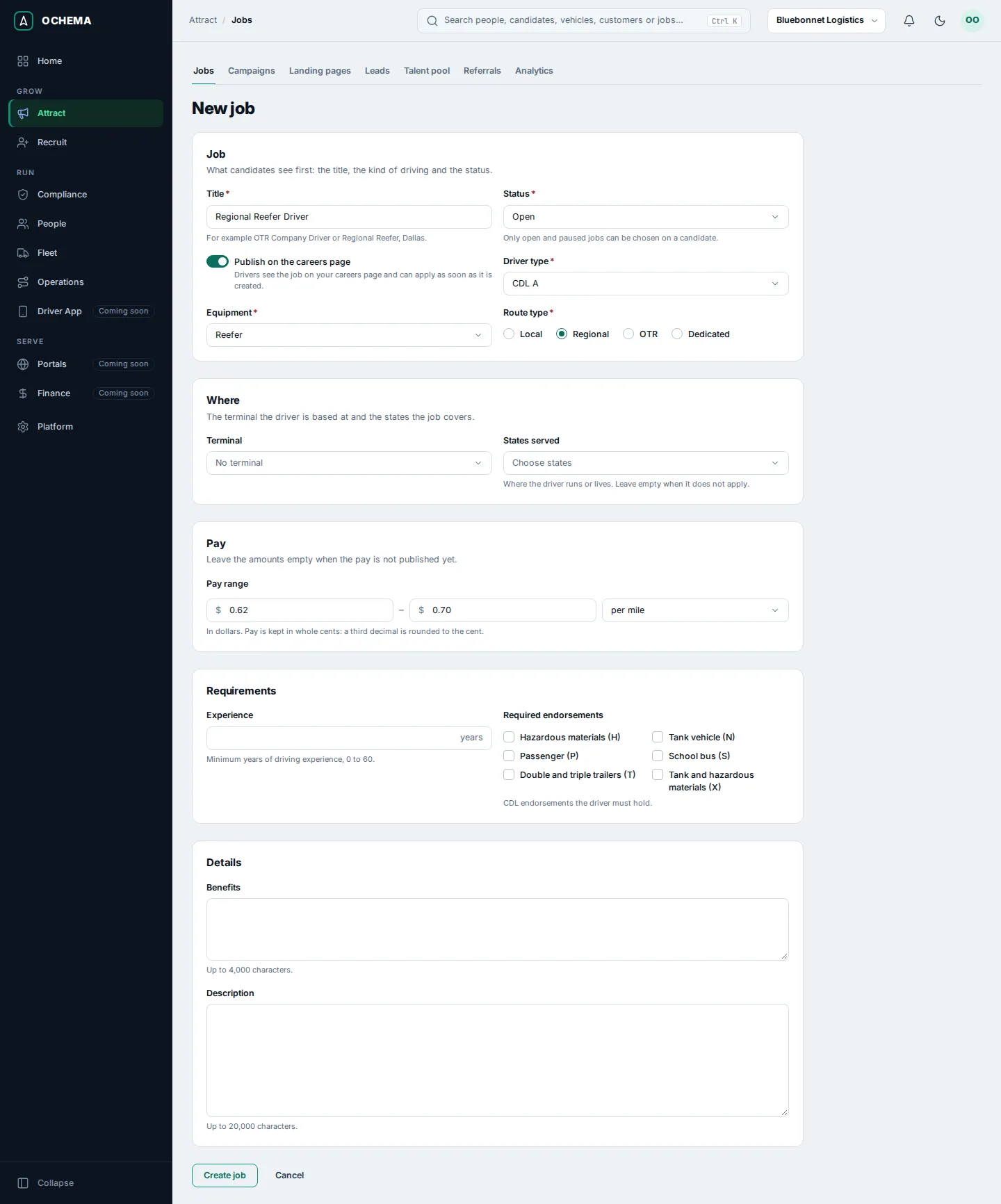
What happens next
Section titled “What happens next”The page of the job opens, with the tabs Overview, Candidates, Screening, Share, Campaigns and Analytics. Under Public listing, Published is on and says since when the job is on the careers site. Address of the job is the last part of its public link; changing it breaks the links already shared. Copy link copies the public link of the job, to send it to a driver or post it.
Open the screenshot at full size in a new tab: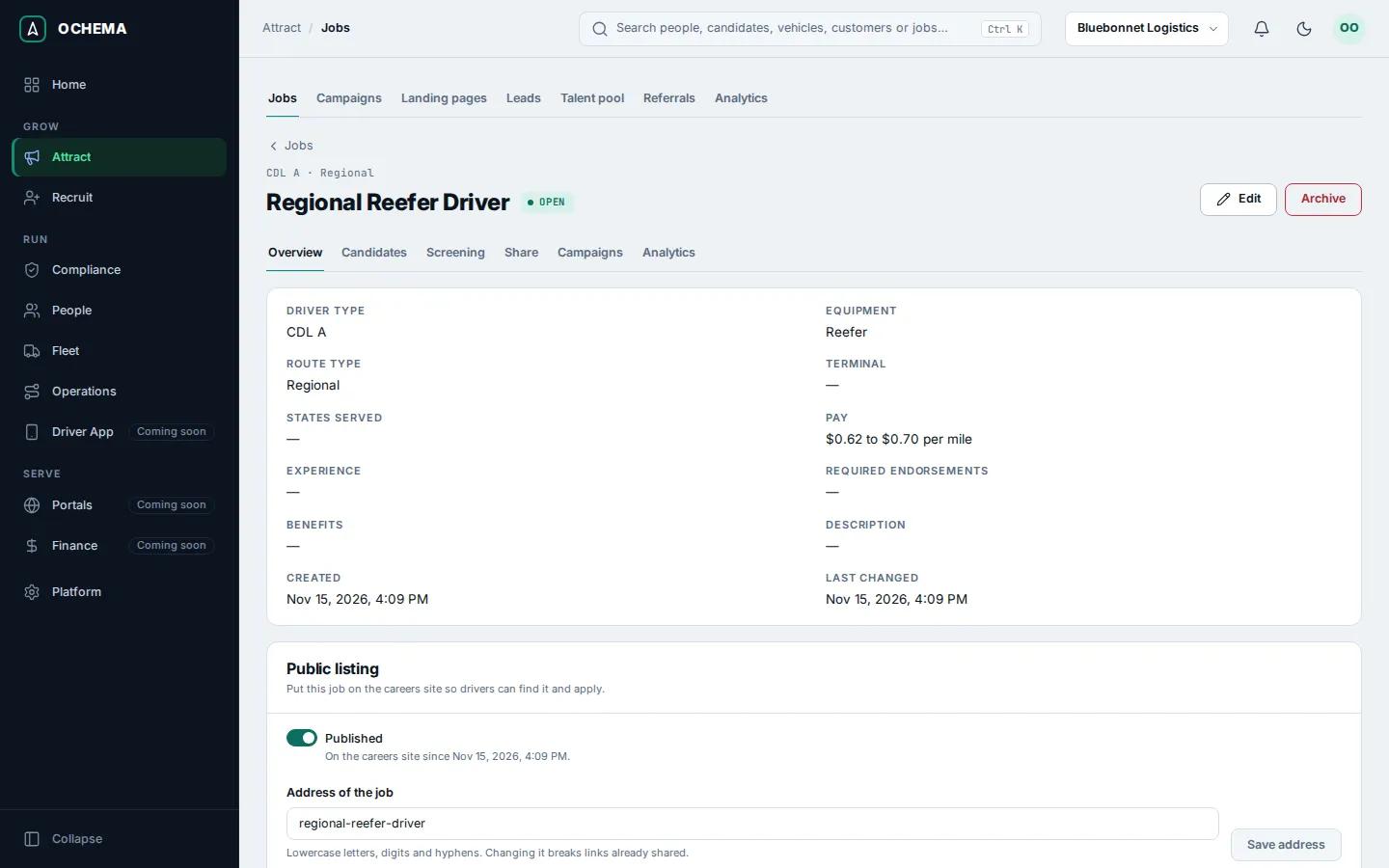
The step Publish your first job shows Done on Home.