
Audit log
The audit log keeps a row for every change made in your company and for a short list of sensitive reads: who did it, when, on which record, and the fields before and after. Nobody can edit or delete a row.
Who this is for
Section titled “Who this is for”Owners, admins and any role with View audit log (platform.audit.read), which covers seeing and exporting the log. Read only does not have it, and without it the Audit log section is not in the menu of Platform. See Roles and permissions.
Before you start
Section titled “Before you start”Know roughly when the change happened. The log opens on the last 30 days, and one search covers at most 366 days.
Find a change
Section titled “Find a change”- Open Platform in the menu on the left, then Audit log. The newest events come first. Times are in your time zone.
- Narrow the list with the filters:
- Date: From and To.
- User: type a name to pick a person. Ochema platform team shows what the Ochema team did in your company, without the name of the person.
- Action: search and pick one or more actions, for example Vehicle updated or Company details updated. Each one shows under the box, with an x to remove it.
- Record: the kind of record, for example Company, Users or Roles.
- Clear filters removes them.
- Each row shows When, User, Action, Record, how many fields changed (Changes) and the IP address the request came from. Load more at the bottom brings the next events.
Open the screenshot at full size in a new tab: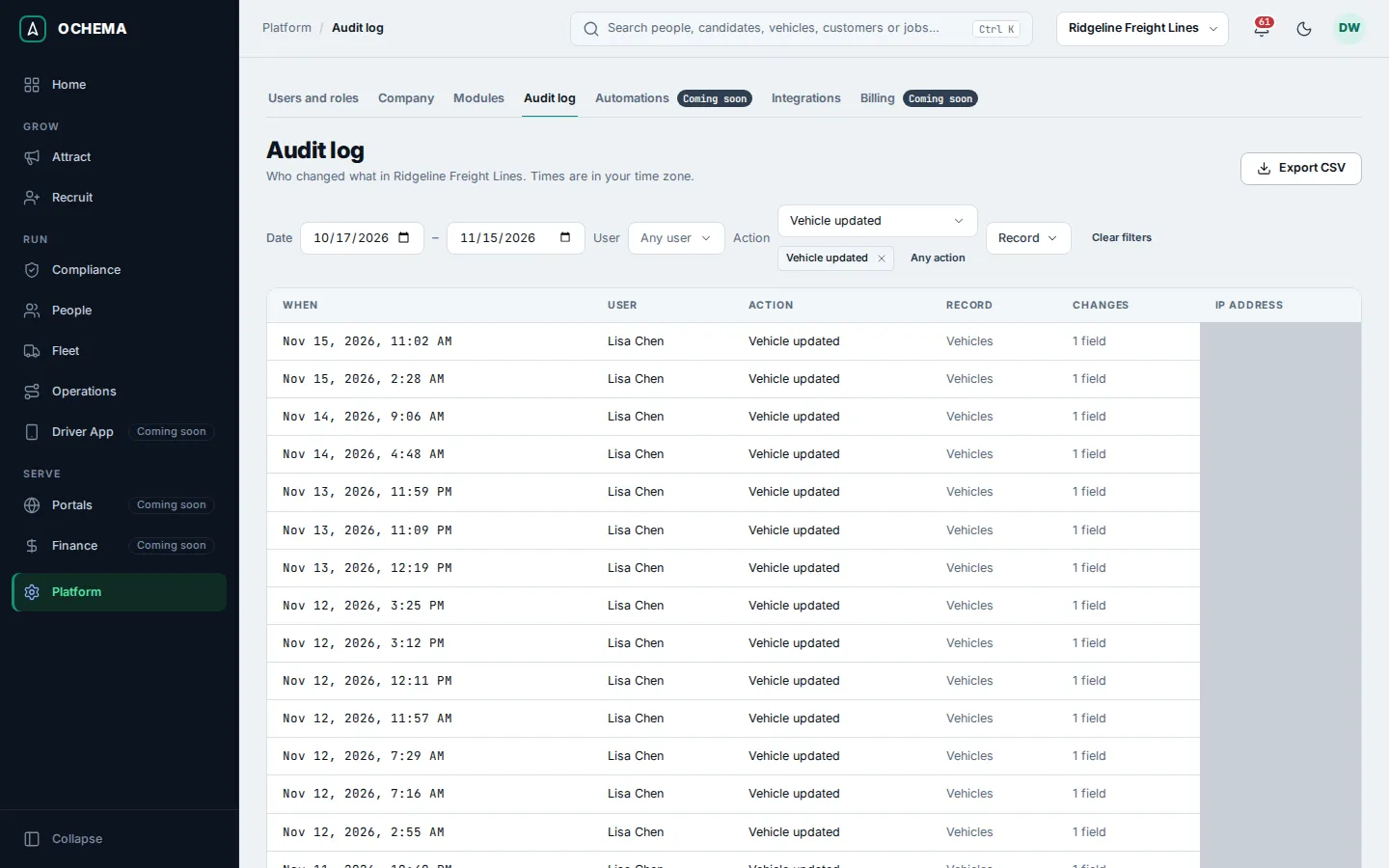
Open an event
Section titled “Open an event”Select a row. Event details shows the When, User, Record, Record ID and IP address, and a table of Changes with each Field, its value Before and After. An event without changes says No field changes were recorded for this event.
Open the screenshot at full size in a new tab: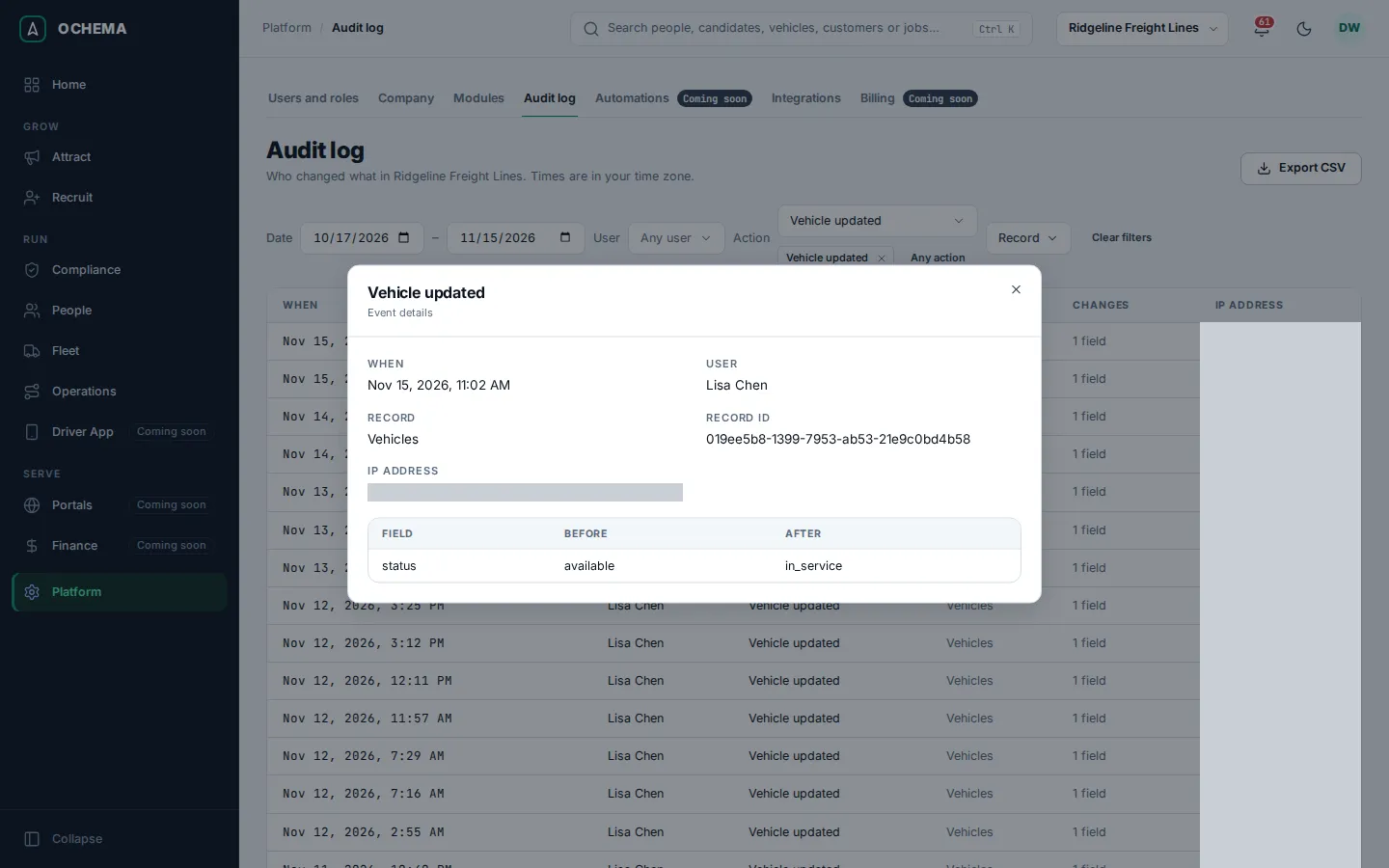
Export the log
Section titled “Export the log”- Set the filters you want.
- Select Export CSV. The browser downloads a CSV file with the filtered events, and the message Audit log exported. appears.
One export holds up to 100,000 rows. With more, the message Too many rows to export. Narrow the period or the filters. appears: export the period in parts.
What is recorded
Section titled “What is recorded”- Creating, changing, archiving and reactivating records, and changes of users, invitations, roles, modules and settings.
- Sign-ins, as Session created.
- Sensitive reads: revealing a masked value, opening the drug and alcohol file, downloading an audit export of the driver files and exporting this log. Opening an ordinary record is not recorded.
- What the Ochema platform team does in your company, as Ochema platform team.
The export is recorded too, with its filters, as Audit log exported. No routine deletes old months: the log is kept.
What happens next
Section titled “What happens next”Use the Record ID to tell two records with the same name apart, and the export to answer an auditor or keep your own copy.
Related
Section titled “Related”- Audit log, in the system documentation: how the log is written and kept
- Users, roles and permissions
- Audit export of the driver files, which is a different export
- Drug and alcohol file