
Company and modules
Who this is for
Section titled “Who this is for”- Anyone with access to Platform sees the Company and Modules pages.
- Edit details shows only for a role with Edit company (
platform.company.update). Without it, the page says Your role can view the company details but not change them. - Turning modules on and off needs Manage modules (
platform.modules.manage). Without it, the switches are read only. - Owner and Admin have both permissions; Read only has neither. See Roles and permissions.
Before you start
Section titled “Before you start”The first time, Company details walks you through the same form from the Getting started list. This page is for what you check and change afterwards.
See the details of your company
Section titled “See the details of your company”- Open Platform in the menu on the left, then Company.
- The page shows three cards: Company (the Company name, the Time zone, the Address and when it was Last changed), Operating authority (the USDOT number and the MC number) and Type of operation (Where you operate and Your drivers).
When something is missing, the page says Some details are missing. Fill in the address, the DOT and MC numbers and the type of operation.
Open the screenshot at full size in a new tab: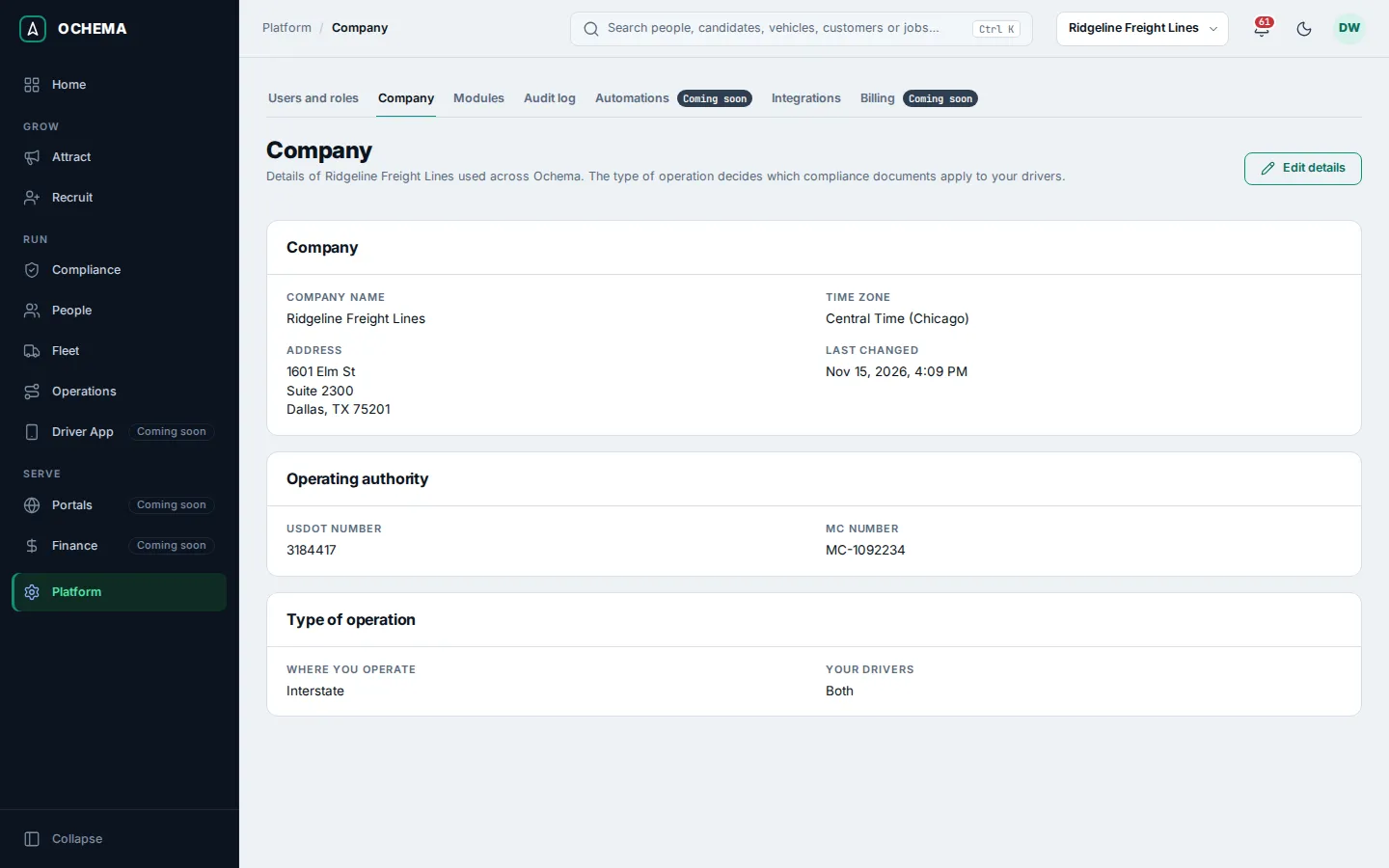
Change the details
Section titled “Change the details”- On the Company page, select Edit details. The Edit company details page opens.
- Change what you need:
- Company name and Time zone. The time zone is the default one of the company.
- Address: Street address, Suite, unit or building (optional), City, State and ZIP code (5 digits, or ZIP+4). Leave every address field empty, or fill in street, city, state and ZIP code.
- Operating authority: USDOT number (up to 8 digits) and MC number (up to 8 digits, without the MC- prefix). Digits only.
- Type of operation: Where you operate (Interstate or Intrastate) and Your drivers (With a CDL, Without a CDL or Both).
- Select Save changes. The message Company details saved. appears. Cancel goes back without saving; if you changed something, Ochema asks Leave without saving? first.
Open the screenshot at full size in a new tab: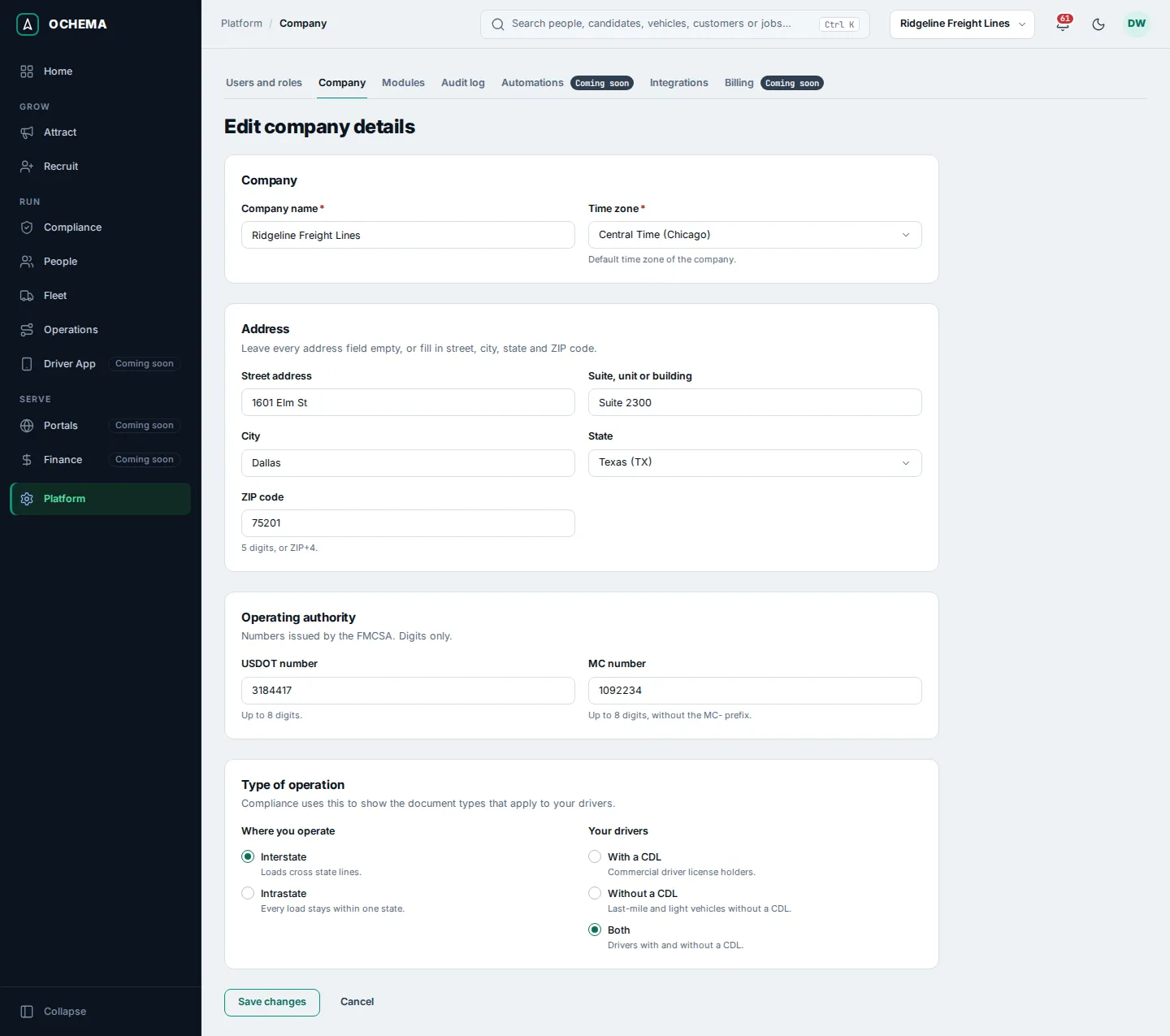
Type of operation decides which document types Compliance asks for in the file of each driver. See Document types and rules.
Turn a module on or off
Section titled “Turn a module on or off”- Open Platform, then Modules. Each module of Ochema is listed with what it does and a switch.
- To turn a module off, select its switch and confirm with Turn off. The module leaves the menu of every user of your company on their next action. No data is deleted, and turning it on again brings everything back.
- To turn it on again, select the switch. The message says the module was turned on.
Platform is Always on: it holds these settings.
Open the screenshot at full size in a new tab: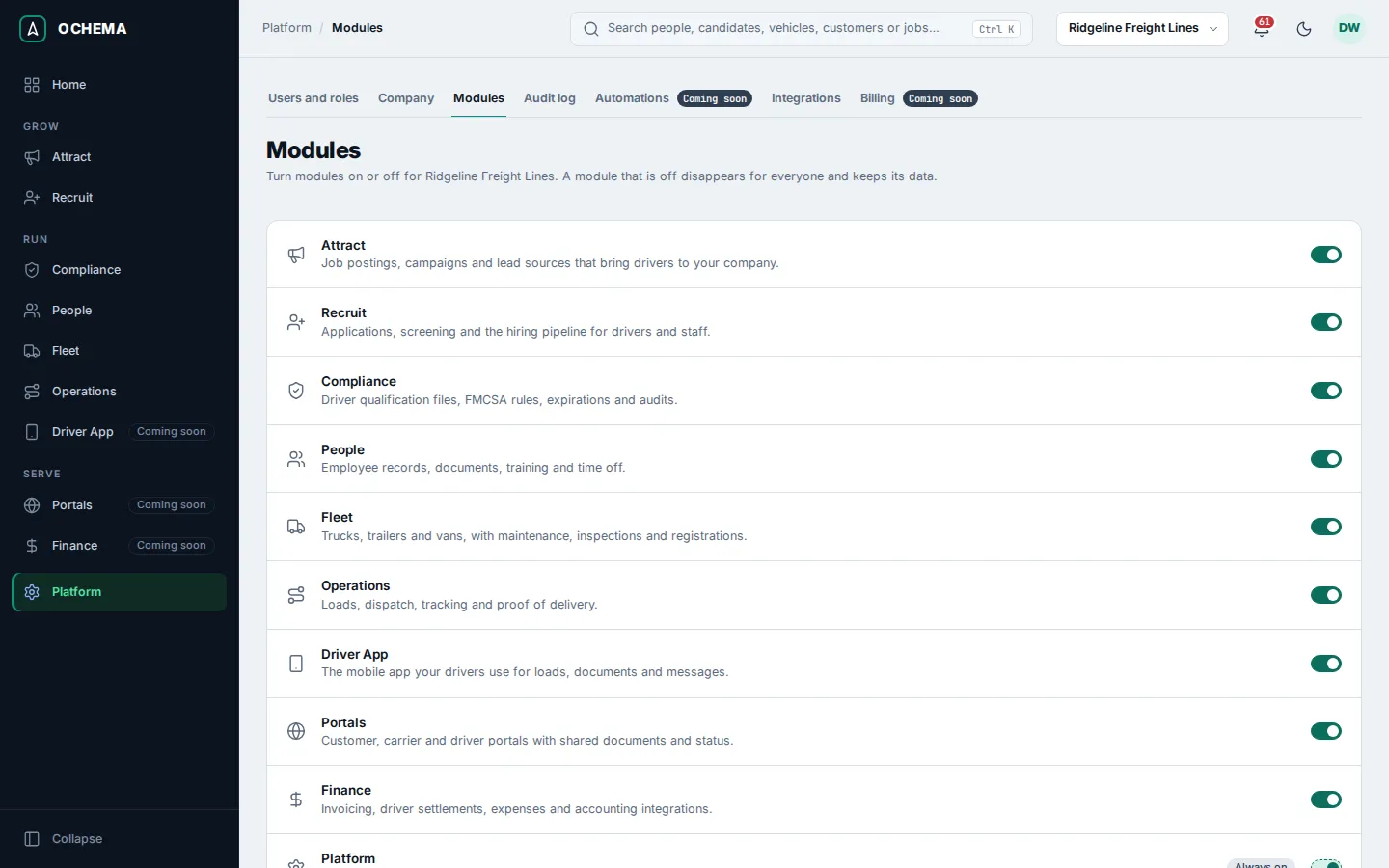
Work in another company
Section titled “Work in another company”If your account belongs to more than one company, the box next to the search at the top of the screen (Switch company) shows the company you are working in. Choose another one: Ochema opens its Home and says You are now working in and its name. Each company keeps its own users, roles, records and settings.
What happens next
Section titled “What happens next”- Every change of the company details, and each module turned on or off, is recorded in the Audit log.
- The company name appears in the top bar and in the texts Ochema sends to candidates, for example the stop and help replies.
Related
Section titled “Related”- Company details, the first time
- Users, roles and permissions
- Document types and rules
- Audit log