
Screenings and exams
Compliance > Screenings tracks each check of a driver: what to request, what came back and who reviewed it. You request each one on the site of the agency or vendor; Ochema keeps the request, the file received and the review, and fills the item of the driver file.
Who this is for
Section titled “Who this is for”Compliance managers and owners. To see the screenings: View screenings (compliance.screenings.read; roles Owner, Admin and Read only). To start screenings and record requests, results and reviews: Manage screenings (compliance.screenings.manage; roles Owner and Admin).
Before you start
Section titled “Before you start”- To start the pre-hire screening, the candidate has a driver file: send the full application from the candidate page in Recruit. See Candidates.
- The MVR requests come from the licenses the candidate gave in the full application.
The list
Section titled “The list”Open Compliance, then Screenings. Each row is one request, with the Driver or candidate, the Type, the Status, the Date and who it is Assigned to. Search by name in Search screenings, or filter by Type and Status.
The types are Pre-employment MVR (one per state), Annual MVR review, PSP report, Medical exam, Road test, Pre-employment drug test, Clearinghouse full query and Clearinghouse annual query. The status is one of To request, Requested, Overdue, Received, Reviewed, Canceled or Result on file.
Open the screenshot at full size in a new tab: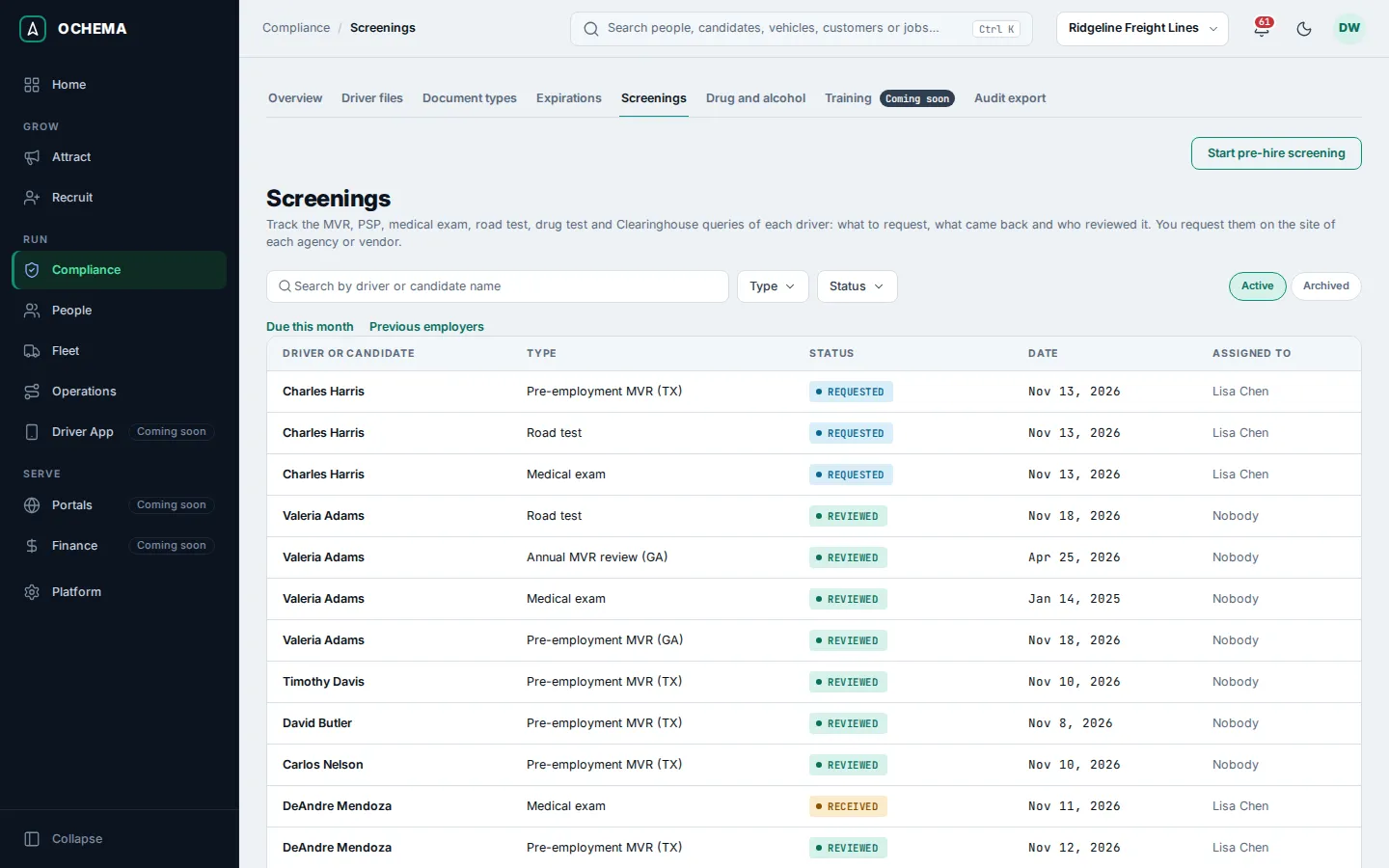
Requests are never archived. To find canceled ones, filter by the status Canceled.
Start the pre-hire screening
Section titled “Start the pre-hire screening”- Select Start pre-hire screening.
- Choose the Candidate and select Create requests.
Ochema creates the requests the driver type requires: one MVR per state where the candidate held a license in the last 3 years, from the full application, plus the PSP report (when it is turned on), the medical exam and the road test. For a CDL driver, the list also has the Clearinghouse full query and the Pre-employment drug test. If every request already exists, the message says nothing new was created.
The tutorial shows this dialog: see Start the pre-hire screening and hire.
Work a request
Section titled “Work a request”Select a row to open the request. The page shows the facts of the request and three parts, in order.
- Mark as requested: type Requested on and Requested via (the site, the vendor or the clinic), choose who it is Assigned to, and select Mark as requested.
- Attach result: choose the File received (PDF, JPEG, PNG, WebP or DOCX, up to 25 MB), type Received on and select Attach.
- Review: choose the Result, Meets the requirements or Does not meet the requirements, type the Review note and select Save review. The review needs the file received first.
Open the screenshot at full size in a new tab: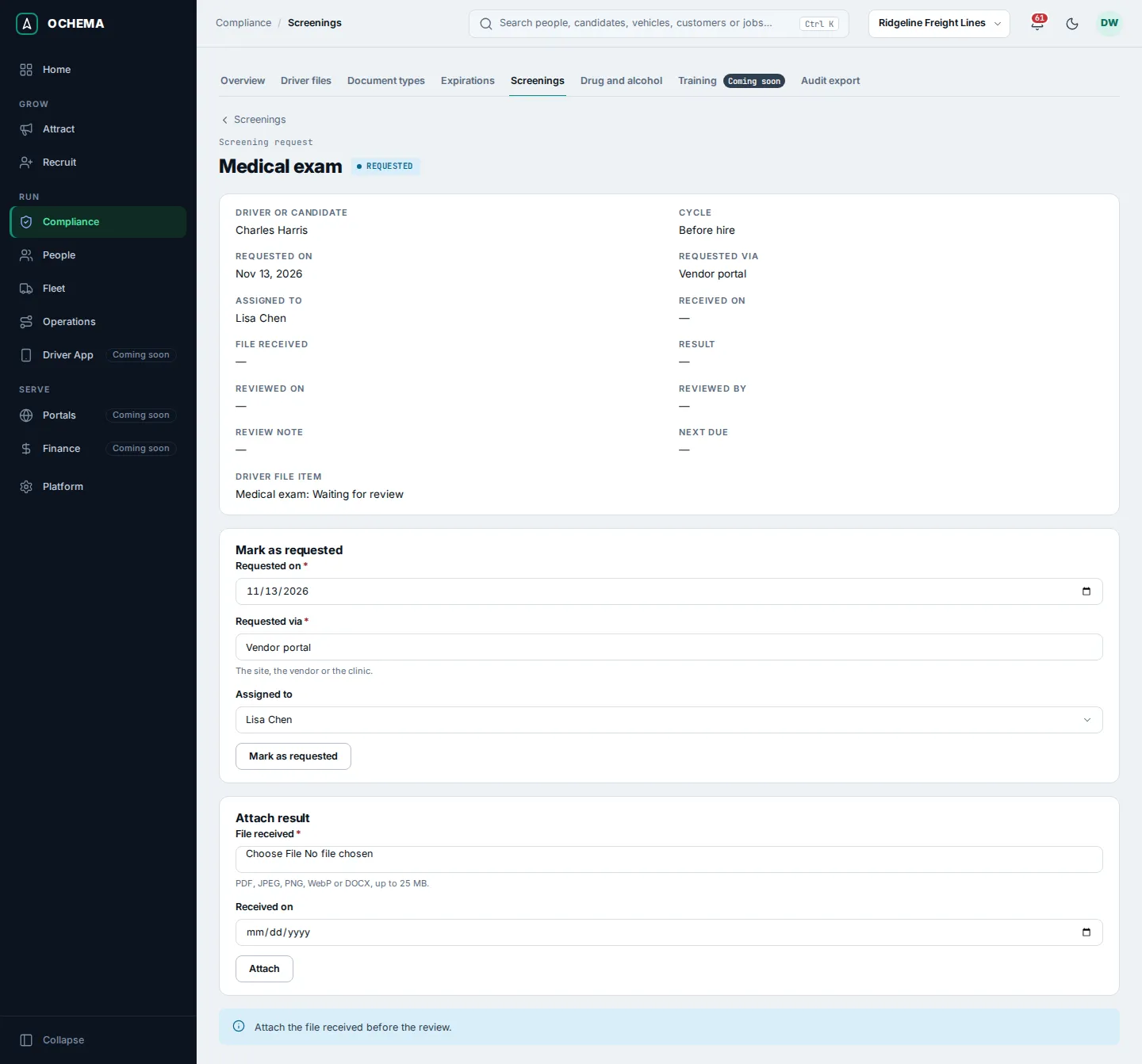
After the review, Driver file item shows the item it filled and its status, for example Pre-employment MVR (TX): Valid. With Does not meet the requirements, the item of the driver file is sent back, with the review note as the reason.
The tutorial shows a request after its review: see Work each screening request.
Medical exam
Section titled “Medical exam”The review of a medical exam also asks for the Exam date, Certificate expires on (at most 24 months after the exam), the Medical examiner, the National Registry number and Examiner checked on the National Registry, with the date it was Checked on. For a CDL driver, the page says: “For a CDL driver, the proof of the medical certification is the CDLIS MVR of the current state.”
Road test
Section titled “Road test”A road test can be done in Ochema or replaced by an accepted equivalent.
- Road test form: type the Road test date and the Type of power unit and trailers, choose the Examiner, a user of your company, and select Send to the examiner. The examiner signs the certificate inside Ochema, and the item is approved when the examiner signs. Until then the request shows Waiting for the examiner’s signature.
- Accepted equivalent: attach the copy of the CDL or the certificate of a prior employer first, then choose Valid CDL or Road test certificate of a prior employer. A certificate of a prior employer is accepted when it was issued in the last 3 years.
Drug test and Clearinghouse queries
Section titled “Drug test and Clearinghouse queries”The result of the Pre-employment drug test and of the Clearinghouse queries is recorded and read only in Compliance > Drug and alcohol. On these requests, select Record the result in Drug and alcohol. For the Clearinghouse, the page also says the driver gives consent inside the Clearinghouse portal, and, before a limited query, whether a signed consent is on file. See Drug and alcohol file.
Due this month
Section titled “Due this month”Select Due this month on the list. It shows the annual MVR reviews that expire this month, with the Driver, the Review and the date it is Due on.
- On a row without a request, select Create request, choose the State of the MVR and confirm. On a row with one, select Open request.
- Work the request as above. For the annual review, the Review note is required: what you found in the MVR and why the driver meets, or does not meet, the minimum requirements.
Open the screenshot at full size in a new tab: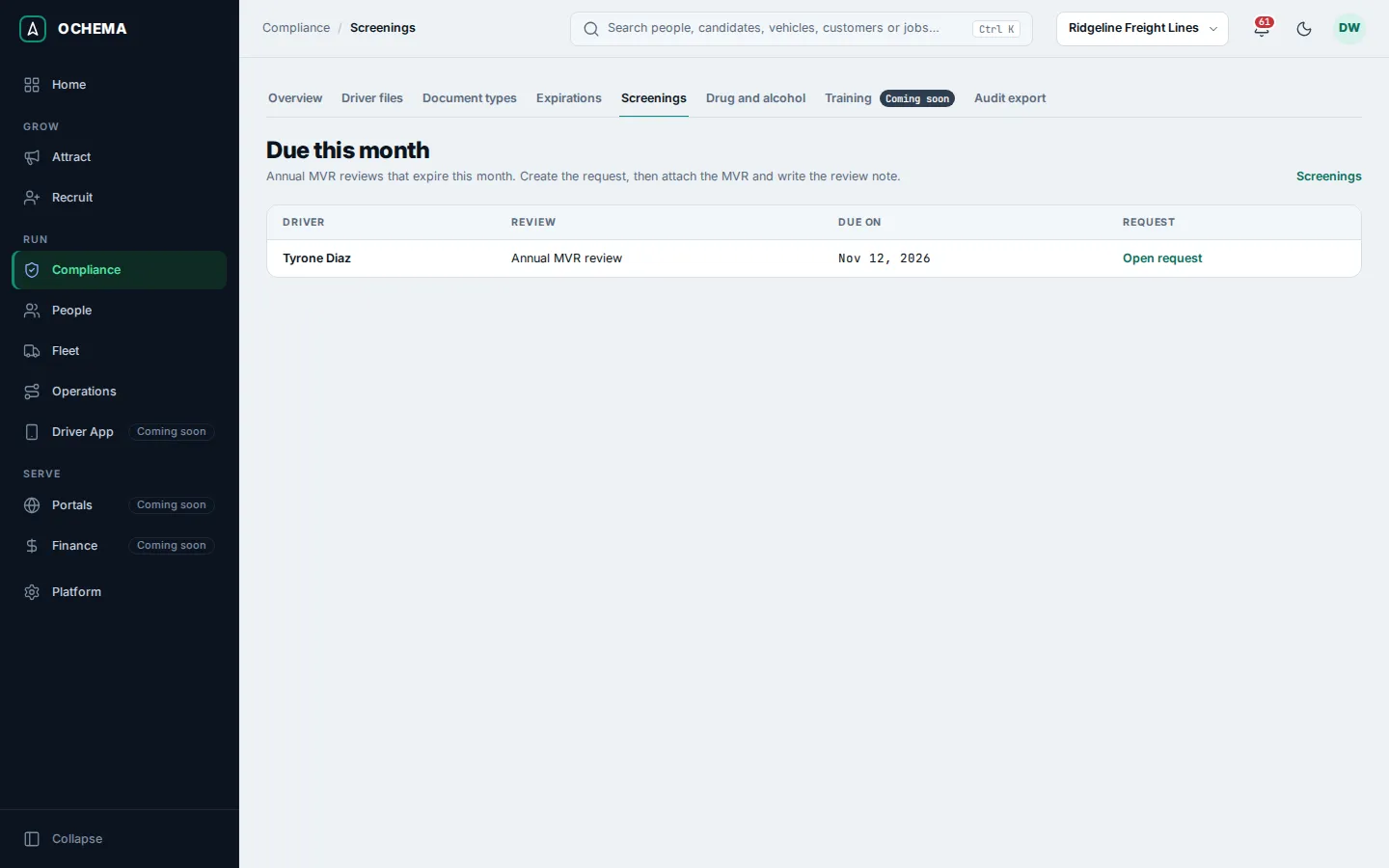
What happens next
Section titled “What happens next”Each reviewed request fills its item in the driver file, and the eligibility of the driver is computed again. Requests to previous employers are in Safety history.