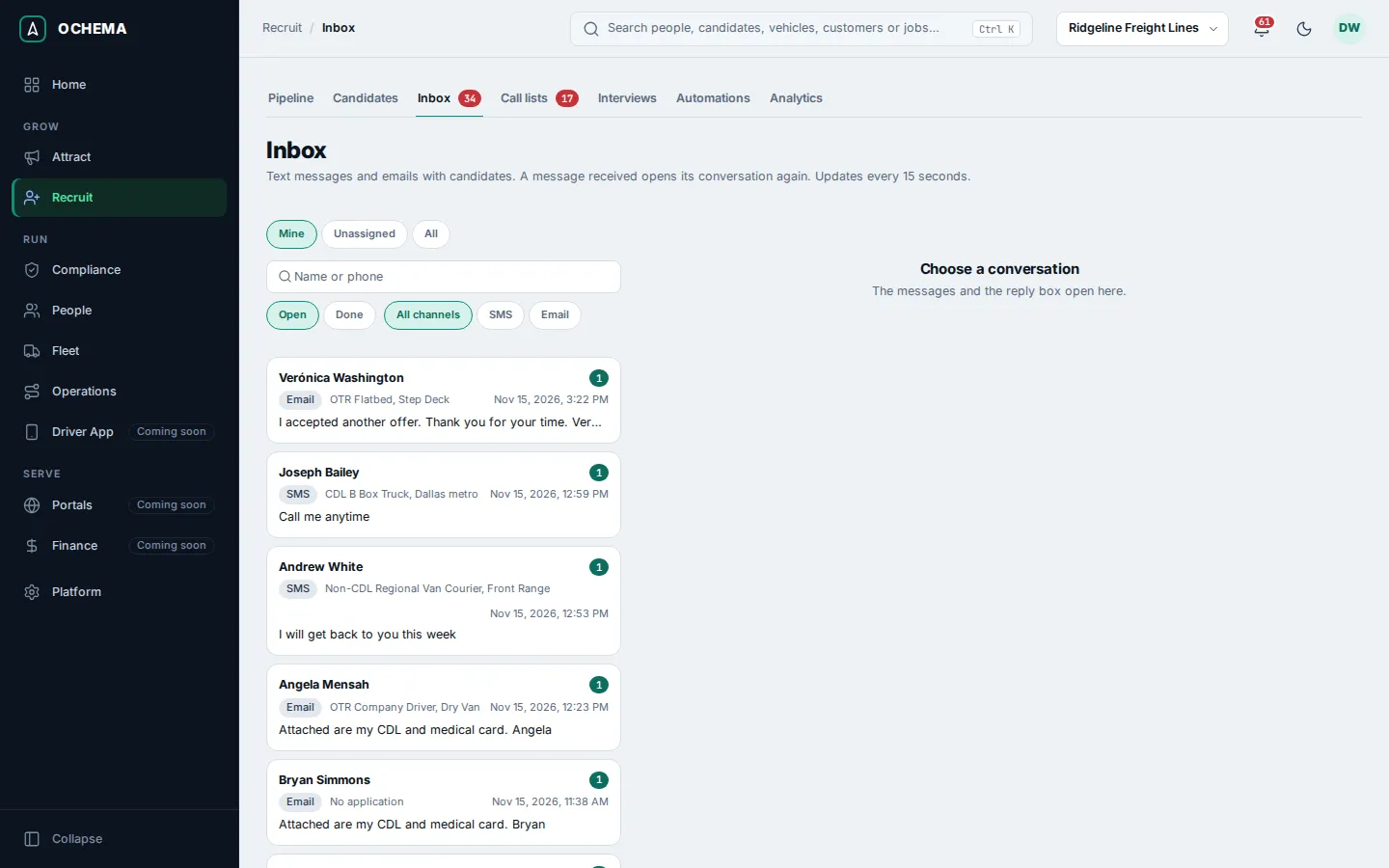
Inbox
Recruit > Inbox holds the text message (SMS) and email conversations with your candidates. Each candidate has one SMS conversation and one email conversation. A message received opens its conversation again, and the list updates every 15 seconds.
Who this is for
Section titled “Who this is for”- Reading the Inbox needs View messages. With it you see the conversations assigned to you and the ones without an assignee, and you can mark them done, reopen them and assign them to yourself.
- Writing needs Send messages.
- Seeing every conversation (All), assigning a conversation to someone else, and linking or dismissing an unknown sender need Manage conversations.
- The Owner and Admin roles have all of these; Read only can read. See Roles and permissions.
Before you start
Section titled “Before you start”- Whether a text message or an email really reaches the candidate depends on the messaging setup of your company: the SMS number and its carrier registration, and the email reply address. See Messaging settings. Until that is done, messages go to a simulator: they follow the same rules and show in the conversation, but nothing reaches a phone or a mailbox.
- A text message needs the candidate’s SMS consent. An email needs an email address that has not unsubscribed, bounced or marked your email as spam.
Answer a candidate
Section titled “Answer a candidate”- Open Recruit in the menu on the left, then Inbox. The number next to Inbox in the menu is how many of your conversations have unread messages.
- Choose whose conversations to see in Conversations of: Mine, Unassigned or All. Use Status (Open or Done), Channel (All channels, SMS or Email) and the search by name or phone to narrow the list. Unread conversations come first, then the most recent.
- Select a conversation. The header shows the stage and job of the candidate, the consent label (SMS consent, No SMS consent or Opted out of SMS), who it is assigned to, and Open candidate record.
- In Send by, choose the channel. The box says To and the address the message goes to. When a channel is off, a line says why, for example SMS is off: the candidate has not agreed to receive text messages.
- Optional: choose a Template. It is filled in for this candidate when it is sent, in English or Spanish as the candidate prefers. See Message templates.
- For an email, type the Subject. Type the Message, or keep the template text.
- Select Send SMS or Send email. The message Message sent appears and the message shows in the conversation with its status.
Open the screenshot at full size in a new tab: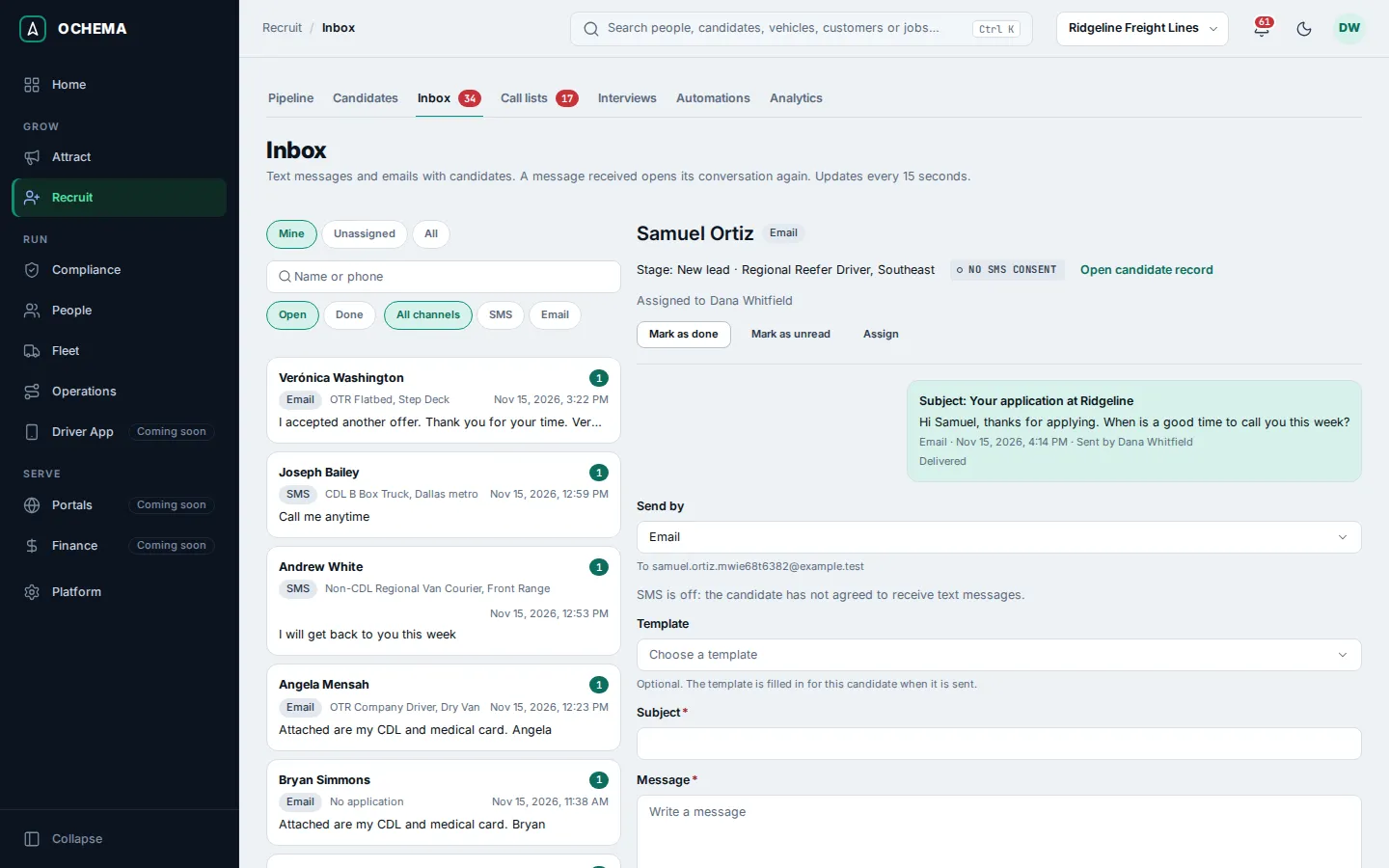
You can also write from the candidate page: Send message opens the Messages tab with the same reply box, and Open in Inbox opens the conversation here.
Open the screenshot at full size in a new tab: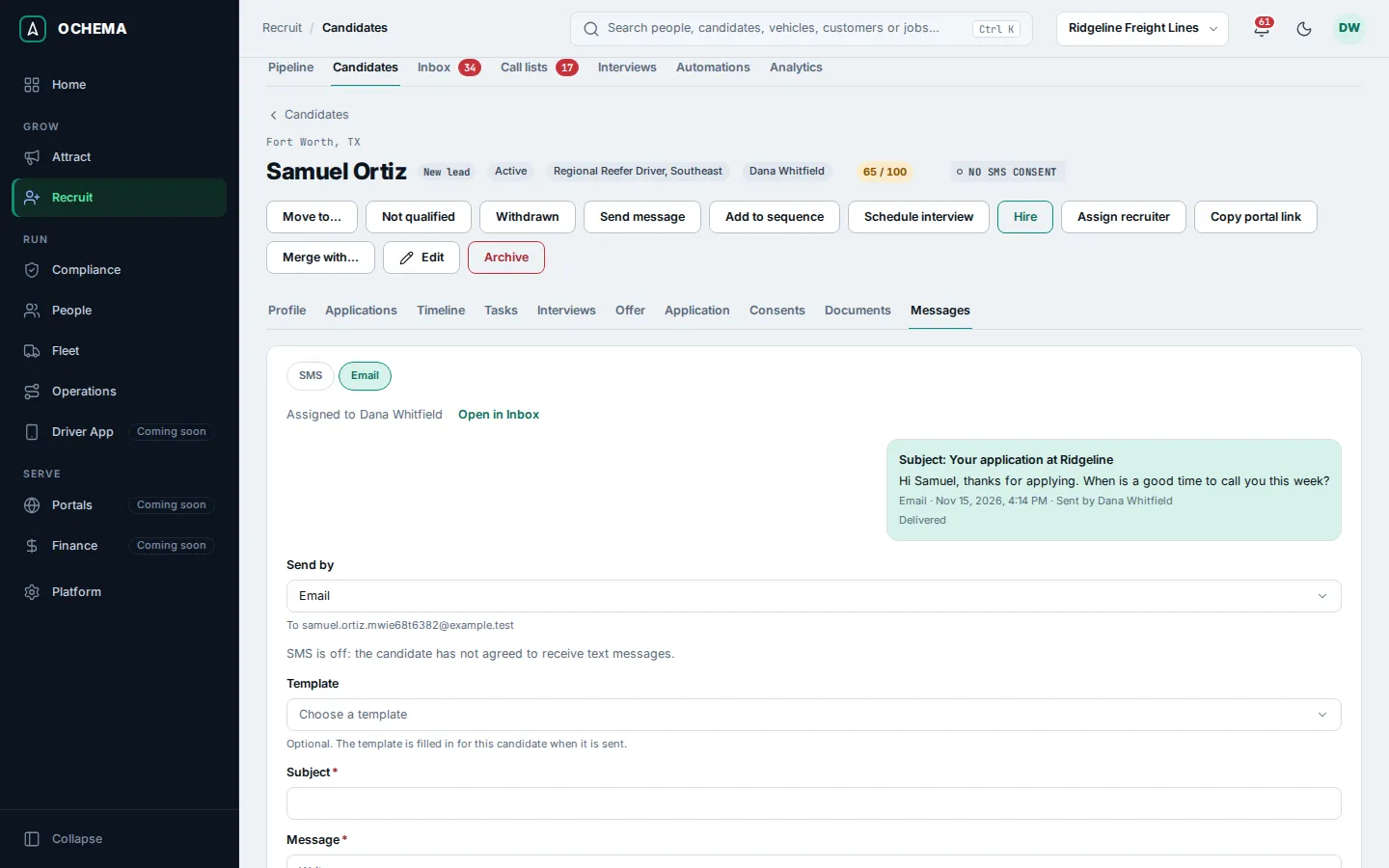
Other actions on a conversation: Mark as done, Reopen, Mark as unread, Assign to me and Assign. A conversation assigned by hand stops following the recruiter of the candidate.
What the product checks before a message leaves
Section titled “What the product checks before a message leaves”Every message, typed by hand or sent by an automation, a sequence or a broadcast, goes through the same checks. The first one that fails refuses the message: it shows in the conversation as Not sent: and the reason, and nothing is sent.
- Archived candidate: messages to an archived candidate are refused.
- Contact: the record needs a phone for SMS and an email for email.
- SMS consent: a text message needs the SMS consent of the candidate. If the last record says the candidate opted out, the reason is the candidate asked to stop text messages.
- Email blocked: an address that unsubscribed, bounced or marked your email as spam gets no email, including emails typed by hand.
- Sender: SMS needs an approved SMS number for your company, and email needs a reply address when the email provider asks for one.
- Daily limit of automatic SMS: messages from automations, sequences and broadcasts count; past the limit a message is not sent (it does not wait for the next day). Messages typed by hand, interview reminders and automatic replies do not count. The limit is set in Messaging settings, from 1 to 5 per candidate per day; the default is 3.
- Template values: a template that needs a value this candidate does not have is refused.
- Length: a text message can take at most 20 segments.
Sending hours
Section titled “Sending hours”A message typed by hand leaves at once, at any hour. If it is outside the allowed hours for the candidate, the reply box warns Outside the allowed hours before you send.
Messages from automations, sequences, broadcasts and interview reminders leave only inside the allowed window, in the time zone of the candidate, and wait for it to open: they show as Scheduled for and the time. The window is set by your company in Messaging settings and always stays between 8:00 AM and 9:00 PM; the default is 8:00 AM to 9:00 PM. The time zone comes from the state of the candidate, then from the area code of the phone, then from the time zone of your company. When the state spans two time zones, the message leaves only when both are inside the window. The option Send the first message at any hour lets the first text to a new applicant leave right away.
STOP, START and HELP
Section titled “STOP, START and HELP”When a candidate answers a text message with only one of these words, it is a request, not a message:
- STOP, STOPALL, UNSUBSCRIBE, CANCEL, END, QUIT, REVOKE or OPT OUT: the SMS consent is withdrawn, the messages waiting to leave in that conversation are canceled, the candidate receives one confirmation, and no other text message is sent until they opt in again.
- START: the SMS consent comes back, and the candidate receives a confirmation.
- HELP: the candidate receives a reply with your company and its contact.
The words are compared with the whole message, without case or punctuation: “Stop!” is a request; “please stop calling me” is a message. The words and the replies are in Platform > Integrations, tab Messaging, Stop and help replies, read only.
Automatic emails (from automations, sequences and broadcasts) carry an unsubscribe link under the address of your careers page. Without a careers page address they are refused.
Unknown senders
Section titled “Unknown senders”A text message from a number that is not the main phone of any candidate opens an Unknown sender conversation. Select Link to a candidate to move its messages to the conversation of a candidate (the number does not become a phone of the candidate), or Dismiss to take it out of the Inbox. A new message from the number brings it back.
What happens next
Section titled “What happens next”- Messages sent and received go on the candidate timeline.
- A reply of the candidate can end a sequence and start an automation rule with the trigger Message received.
- A message that fails at the provider shows Failed: and the reason, and can start a rule with Message failed.
Open the screenshot at full size in a new tab: