
Drug and alcohol file
The drug and alcohol file keeps the tests, the Clearinghouse queries, the consents and the replies of previous employers on drugs and alcohol of each person and candidate. It is kept apart from the driver qualification file, with its own permissions, and it is never part of an audit export.
Who this is for
Section titled “Who this is for”Only the people your company trusts with this file.
- To see the file (records, results, attached files and retention): View the drug and alcohol file (
compliance.drug_alcohol.read). - To record and void records, mark Not cleared, decide the retention and see who accessed the file: Manage the drug and alcohol file (
compliance.drug_alcohol.manage).
Of the built-in roles, only Owner has them. Admin and Read only do not: for them, Drug and alcohol does not show in the menu of Compliance. To give the file to someone else, create a role with these permissions in Platform > Users and roles, tab Roles. See Users, roles and permissions.
Everyone else only sees the effect: a person on hold shows Compliance hold on the overview and the driver file, without saying why, and a required record that is not on file shows Record missing.
Before you start
Section titled “Before you start”- The person is in People > Directory, or the candidate has an application.
- Have the result at hand, and its file if you have one.
The list
Section titled “The list”Open Compliance, then Drug and alcohol. The screen says Access to this file is logged: each time someone opens this list, the file of a person, a record or an attached file, Ochema records who and when.
The People tab lists everyone with a record, with the number of Records, the date of the Last record and the Mark Not cleared for safety-sensitive work when there is one. Candidates have the tag Candidate. Search by name in Search by name.
Open the screenshot at full size in a new tab: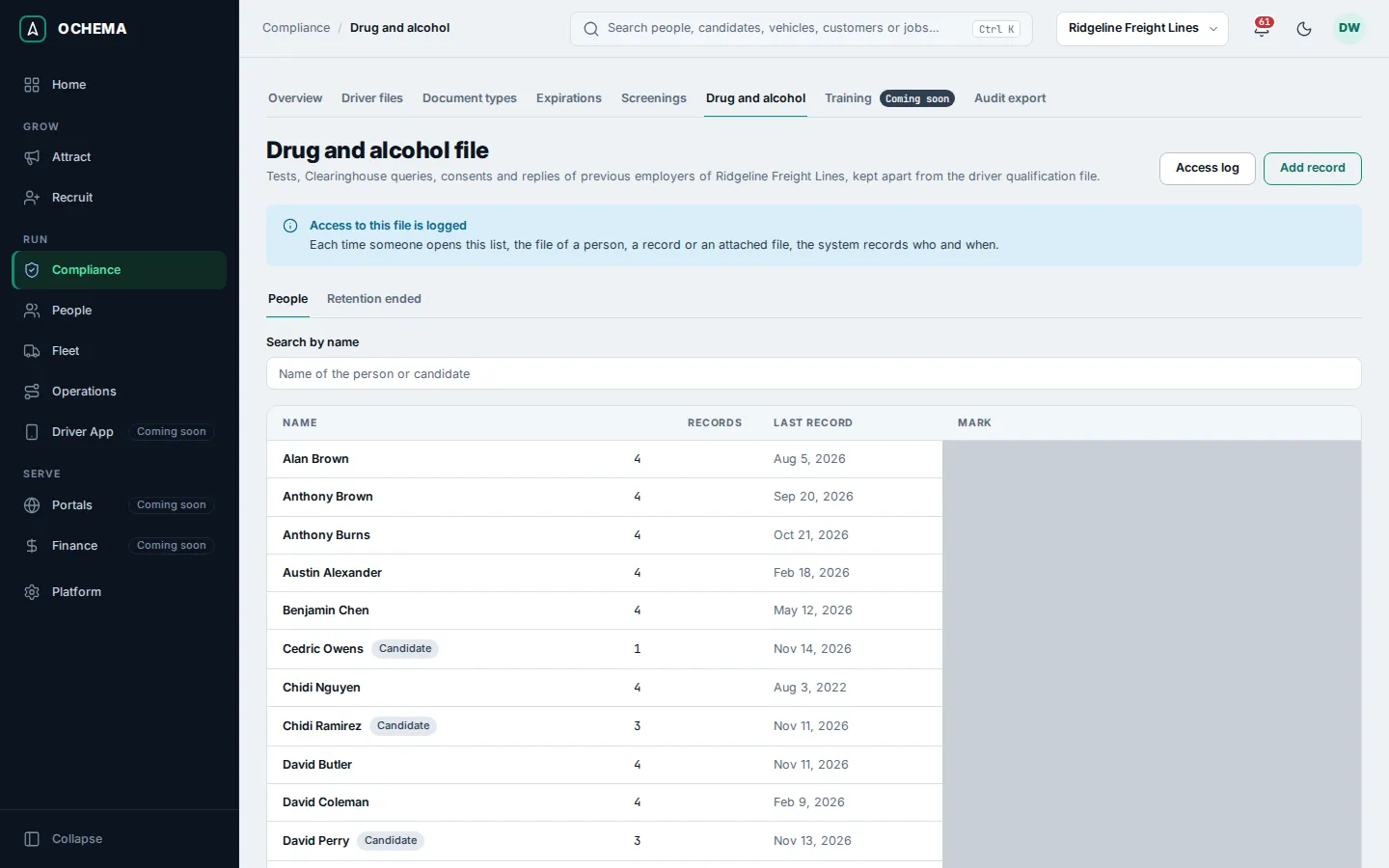
Select a name to open the file of that person: each record with its Date, Result, who it was Recorded by and until when it is Kept until, with the retention term and the mark Regulatory preview.
Open the screenshot at full size in a new tab: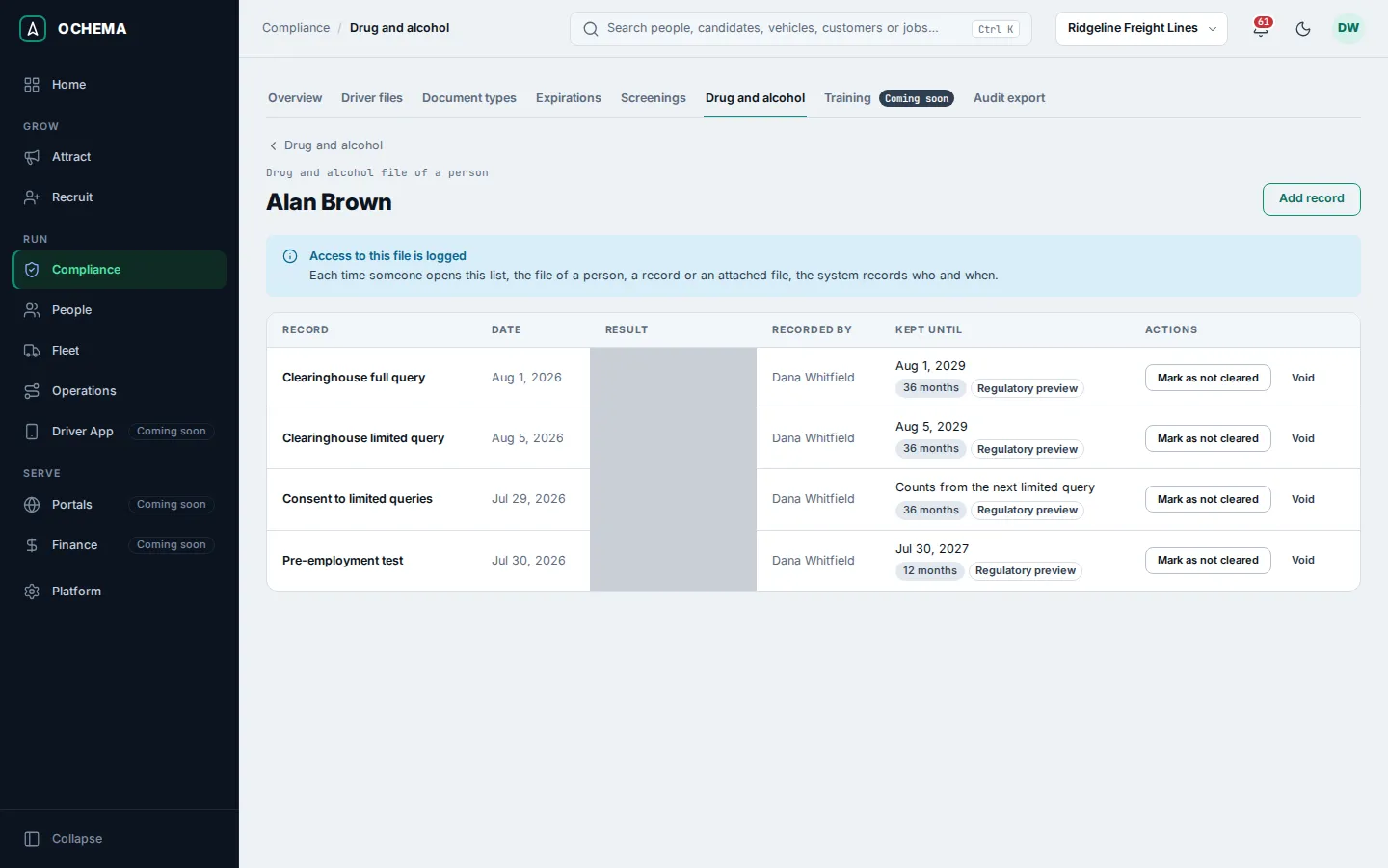
Add a record
Section titled “Add a record”-
Select Add record. From a screening request of the drug test or of a Clearinghouse query, Record the result in Drug and alcohol opens the same page with the person chosen.
-
In Person or candidate, type at least 2 letters of the name in Search by name, then choose. The page says in whose file the record will be saved: check that it is the right one.
-
Choose the Kind of record: Pre-employment test, Clearinghouse full query, Clearinghouse limited query, Consent to limited queries or Other. The Previous employer reply on drugs and alcohol is not typed here: it arrives by the link of the safety history request.
-
Choose the Result. The results depend on the kind:
Kind of record Results Pre-employment test Negative, Positive, Refusal to test, Canceled Clearinghouse full query Not prohibited, Prohibited Clearinghouse limited query No information found, Information found Consent to limited queries Consent given Other Recorded -
Type the Date. Optional: a Note and a File (JPEG, PNG, WebP, PDF or Word, at most 25 MB; it cannot be replaced later).
-
Select Save record. The message Record saved appears.
With the results Positive, Refusal to test and Prohibited, Not cleared for safety-sensitive work comes checked and the page says the person is put on hold as soon as the record is saved. If you uncheck it, Ochema asks you to confirm.
The tutorial shows this page: see Record the drug and alcohol results.
Mark, remove the mark and void
Section titled “Mark, remove the mark and void”On the file of a person, each record has its actions:
- Mark as not cleared: the person stops being eligible at once. Every other screen shows only Compliance hold, without saying why.
- Remove the mark: the hold ends if no other record of this person keeps it.
- Void: type the Reason and select Void record. A voided record stays in the file with Voided and its reason, and stops counting. If it was a mistake, record the right one again.
A Previous employer reply on drugs and alcohol that came through the safety history link has See answers, with the answers of the previous employer. See Safety history.
Who accessed the file
Section titled “Who accessed the file”Select Access log. It shows the last 200 times someone opened the file: When, the User, What was opened (List of people, File of a person, A record, An attached file, List “Retention ended” or Access log) and the Person. Opening this page is recorded too.
Open the screenshot at full size in a new tab: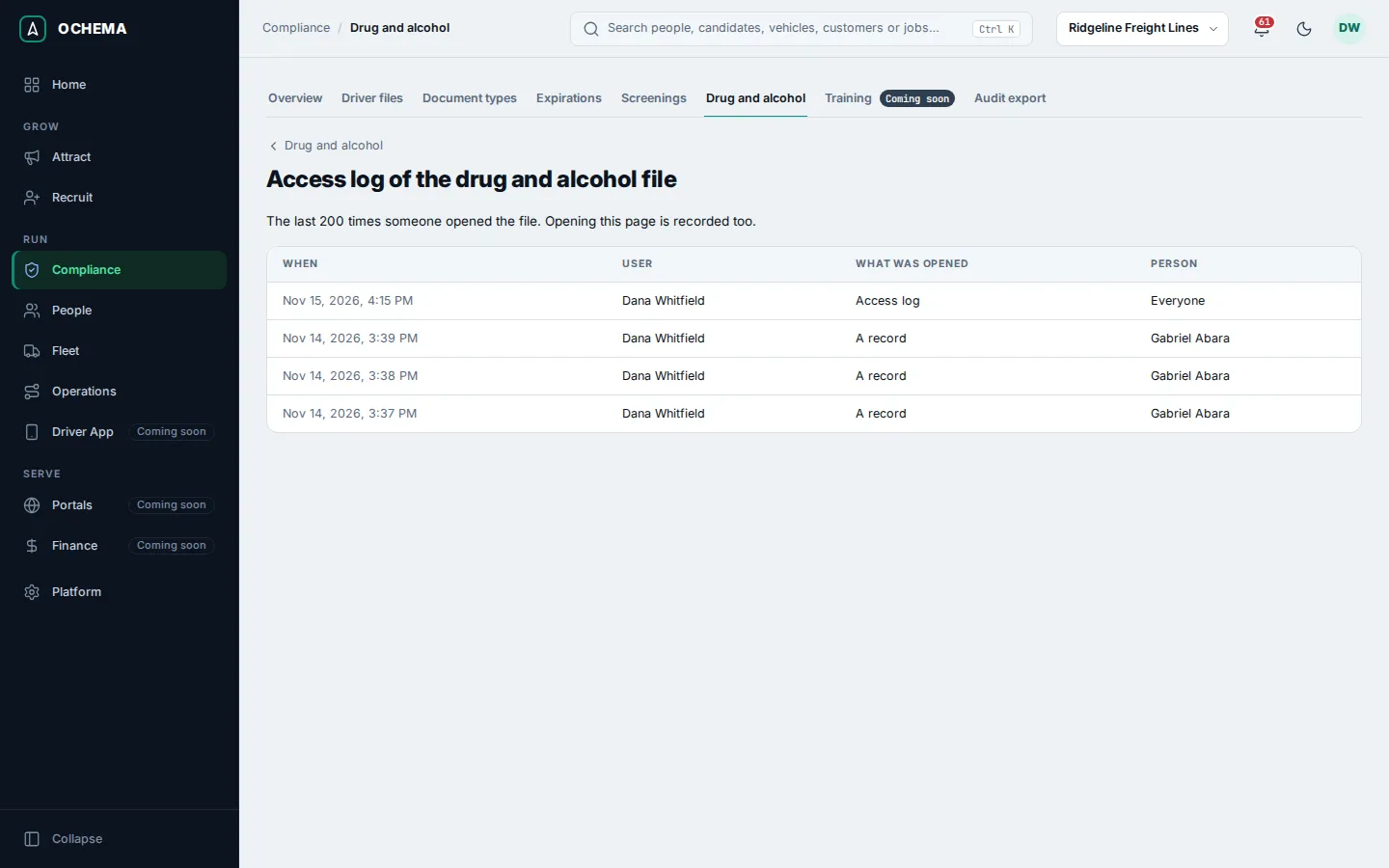
Retention
Section titled “Retention”Each record shows until when it is kept, with its term, for example 12 months or 36 months, and Regulatory preview: the retention terms are a regulatory preview until the platform team validates them. Some terms count from an event, such as Counts from the next limited query or Counts from the termination of the person.
The Retention ended tab lists the records past the end of their retention. Nothing is deleted automatically: for each one, select Keep or Mark for deletion, with an optional Reason of up to 500 characters. A record marked for deletion leaves this list.
Open the screenshot at full size in a new tab: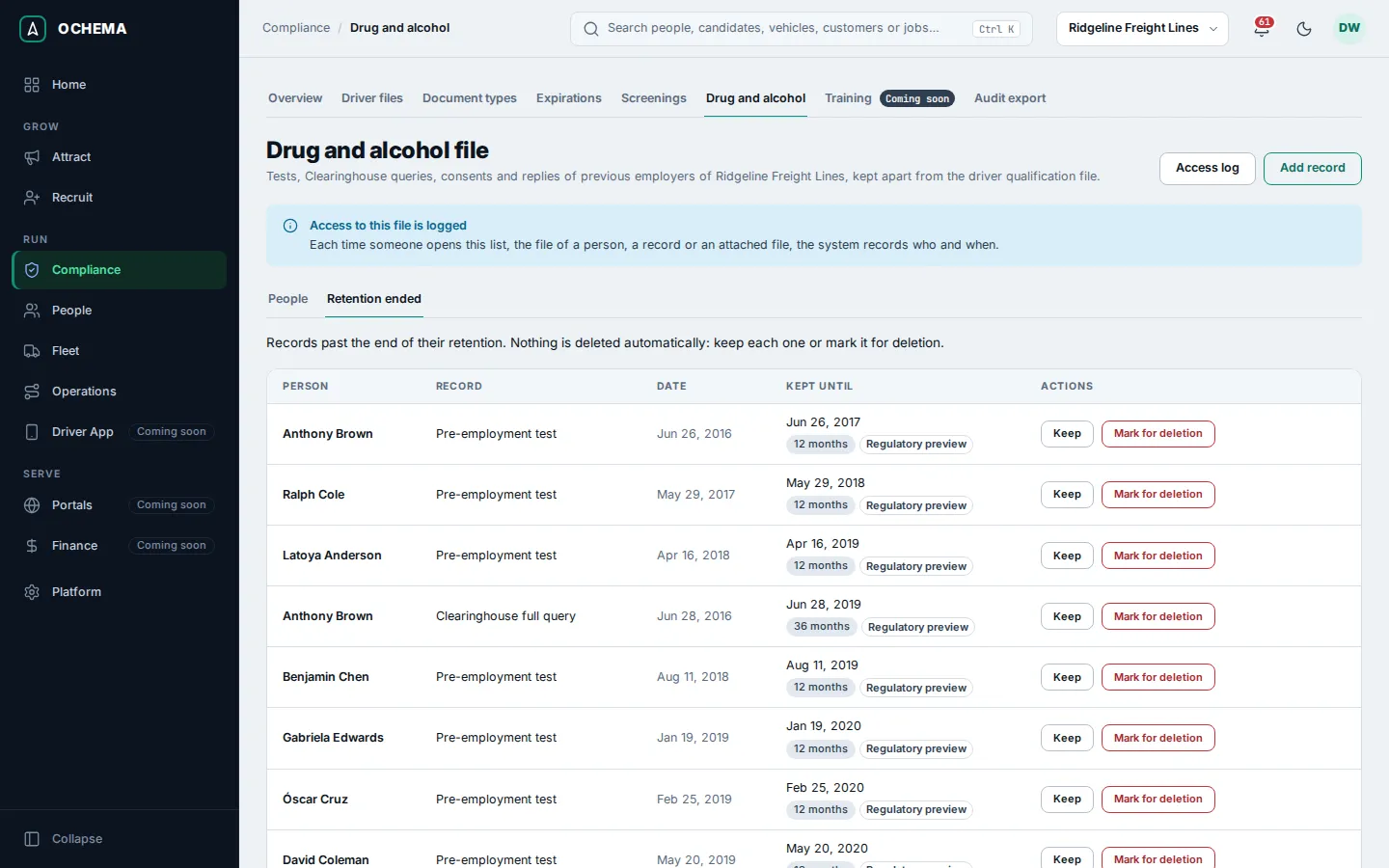
What happens next
Section titled “What happens next”A record that is required by a rule of the Drug and alcohol file section (see Document types and rules) stops showing Record missing on the driver file once it is saved. A mark Not cleared puts the person on Compliance hold until it is removed.