
Call lists and tasks
Recruit > Call lists has two tabs. Today’s call list shows one candidate at a time, so you can call from your phone and record the outcome. Tasks lists your open tasks by due date.
Ochema does not dial or record calls: the phone link opens your own phone app.
Who this is for
Section titled “Who this is for”- Seeing the call list and the tasks needs View candidates. Recording an outcome and adding or changing a task need Manage candidates.
- Seeing and reassigning the tasks of other users needs View team tasks.
- The Owner and Admin roles have all of these. See Roles and permissions.
Before you start
Section titled “Before you start”- The default list is My active candidates, longest without contact first: your candidates with a phone number and an active application.
- To call another group, save it as a smart list first in Candidates. The call list takes the candidates of the smart list that have a phone.
Work today’s call list
Section titled “Work today’s call list”- Open Recruit in the menu on the left, then Call lists. The Today’s call list tab opens. The number next to Call lists in the menu is how many of your tasks are overdue.
- Optional: in Build the list from, choose one of your smart lists instead of the default list.
- Read the candidate: Phone, Job, Stage, whether they Consented to calls (or No call consent: check before calling) and the Latest activity. Open candidate opens the candidate page.
- Select the phone number to call from your phone. Text instead opens the Messages tab of the candidate with the SMS reply box; it is turned off when the candidate has no SMS consent.
- Optional: type a Note (optional).
- Record the outcome: Reached, No answer, Left voicemail, Wrong number or Call back later. For Call back later, choose Call back on and select Save call back. Skip passes to the next candidate without recording anything.
Open the screenshot at full size in a new tab: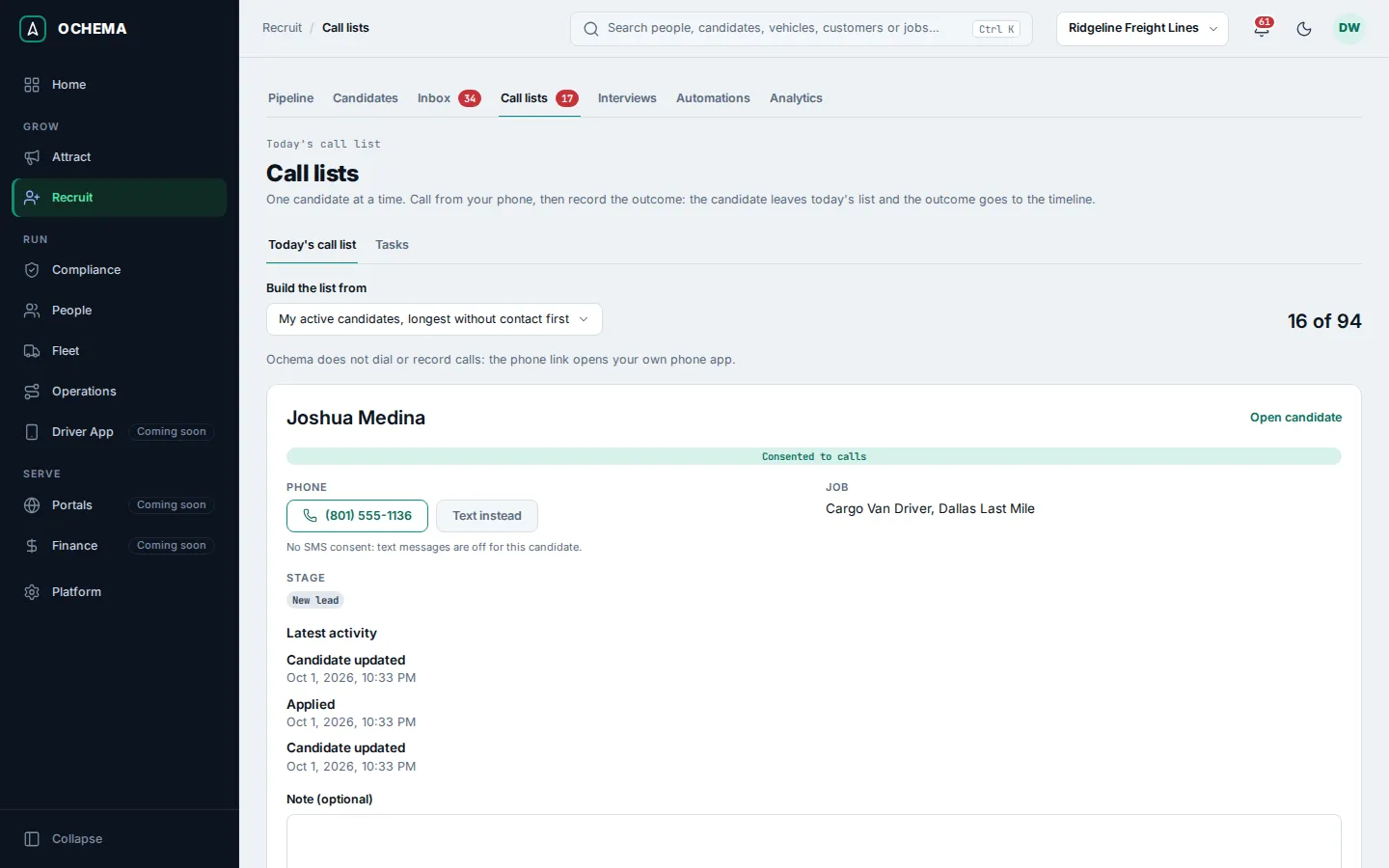
The progress of the day shows how many candidates of the list have an outcome today out of the total. When everyone has one, Nobody left to call today. appears. If you skipped everyone, Start over goes through the skipped ones again.
Work your tasks
Section titled “Work your tasks”- On Recruit > Call lists, open the Tasks tab. Your open tasks are grouped in Overdue, Today, Upcoming and No due date, in your time zone.
- Select Complete on a task when it is done. The task goes on the timeline of the candidate.
- Use More actions on a task to change its due date, assignee or title, or to cancel it.
- With View team tasks, choose another member in Tasks of to see their tasks.
To add a task, open the Tasks tab of a candidate page and select Add task: type the Title, the optional Description (optional), the Due date and time, and the Assignee, then Save task.
Open the screenshot at full size in a new tab: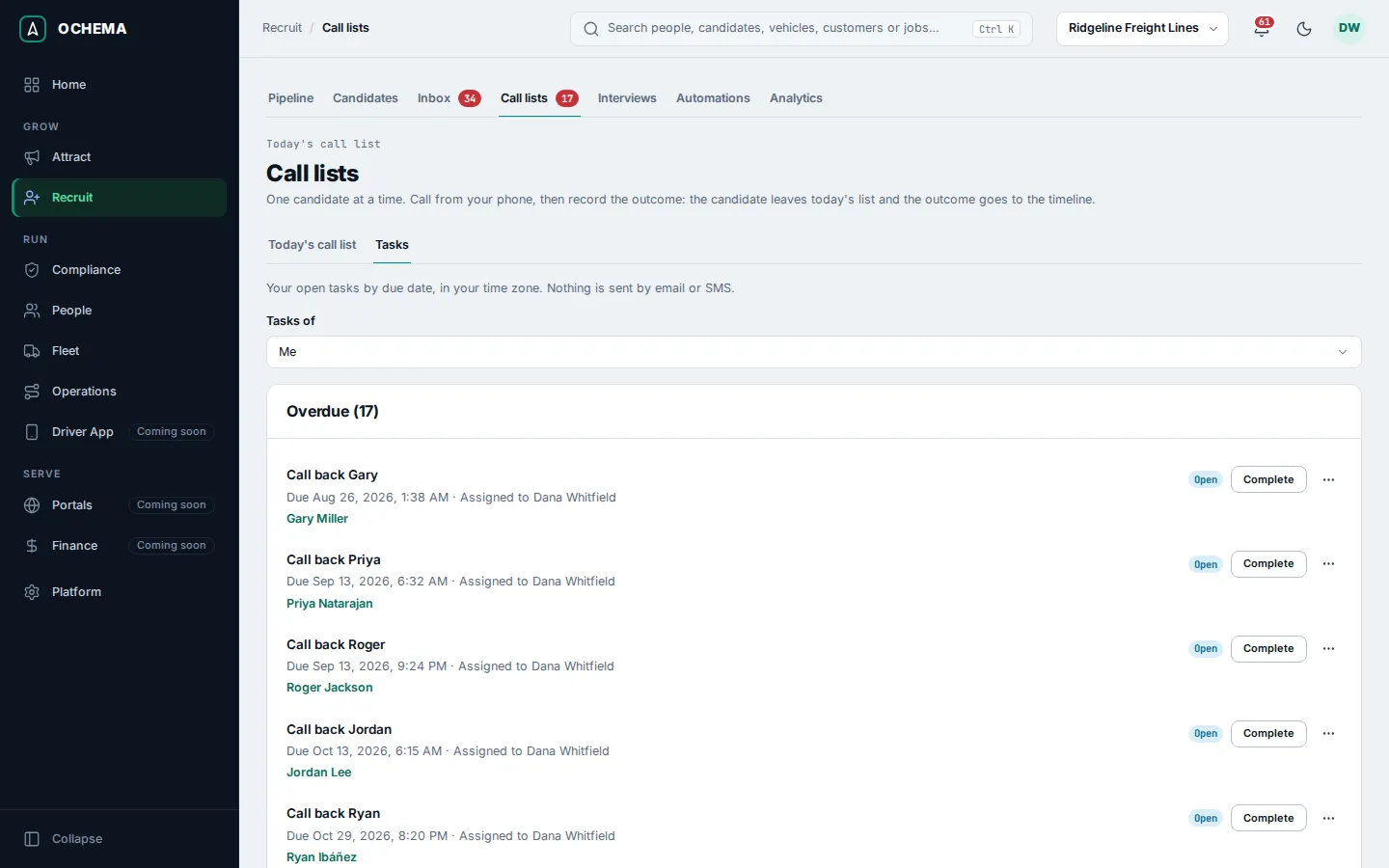
Nothing about a task is sent by email or SMS.
What happens next
Section titled “What happens next”- An outcome takes the candidate off today’s list, for everyone, and goes on the candidate timeline as a call.
- Call back later creates a task for you, Call back and the candidate’s name, due at the time you chose.
- An outcome can start an automation rule with the trigger Call logged, and a task that passes its due date can start one with Task overdue. See Automations.
- Calls, notes and tasks count in the Recruiters panel of Analytics.