
Search and notifications
Who this is for
Section titled “Who this is for”Every user. What you find and what the bell counts follow your role:
| Group of results | Needs | Searched by |
|---|---|---|
| People | People on, and View people | Name, email and phone |
| Candidates | Recruit on, and View candidates | Name, email and phone |
| Vehicles | Fleet on, and View vehicles | Unit number, VIN and plate |
| Customers | Operations on, and View customers | Name, MC number and DOT number |
| Jobs | Attract on, and View jobs | Title |
The box says what you can search, for example Search people, candidates, vehicles, customers or jobs…. A role that can search none of them sees Your role cannot search any records. Ask an owner or admin for access. See Roles and permissions.
Before you start
Section titled “Before you start”Nothing to set up. The search and the bell are at the top of every screen of the office system.
Search for a record
Section titled “Search for a record”- Select the search box at the top of the screen, or press Ctrl K (⌘K on a Mac).
- Type at least 3 letters or digits in a row. Results appear as you type, grouped by kind, at most 5 per group, the best match first. Accents and capital letters do not matter.
- Select a result, or press Enter to open the first one. The page of the record opens.
A shorter term, such as 7 or A-1, finds only a vehicle whose unit number is exactly that.
A candidate found by an alternate email or phone typed in full shows Matched by alternate email or Matched by alternate phone. Archived records are not found: open the Archived view of the list instead.
Open the screenshot at full size in a new tab: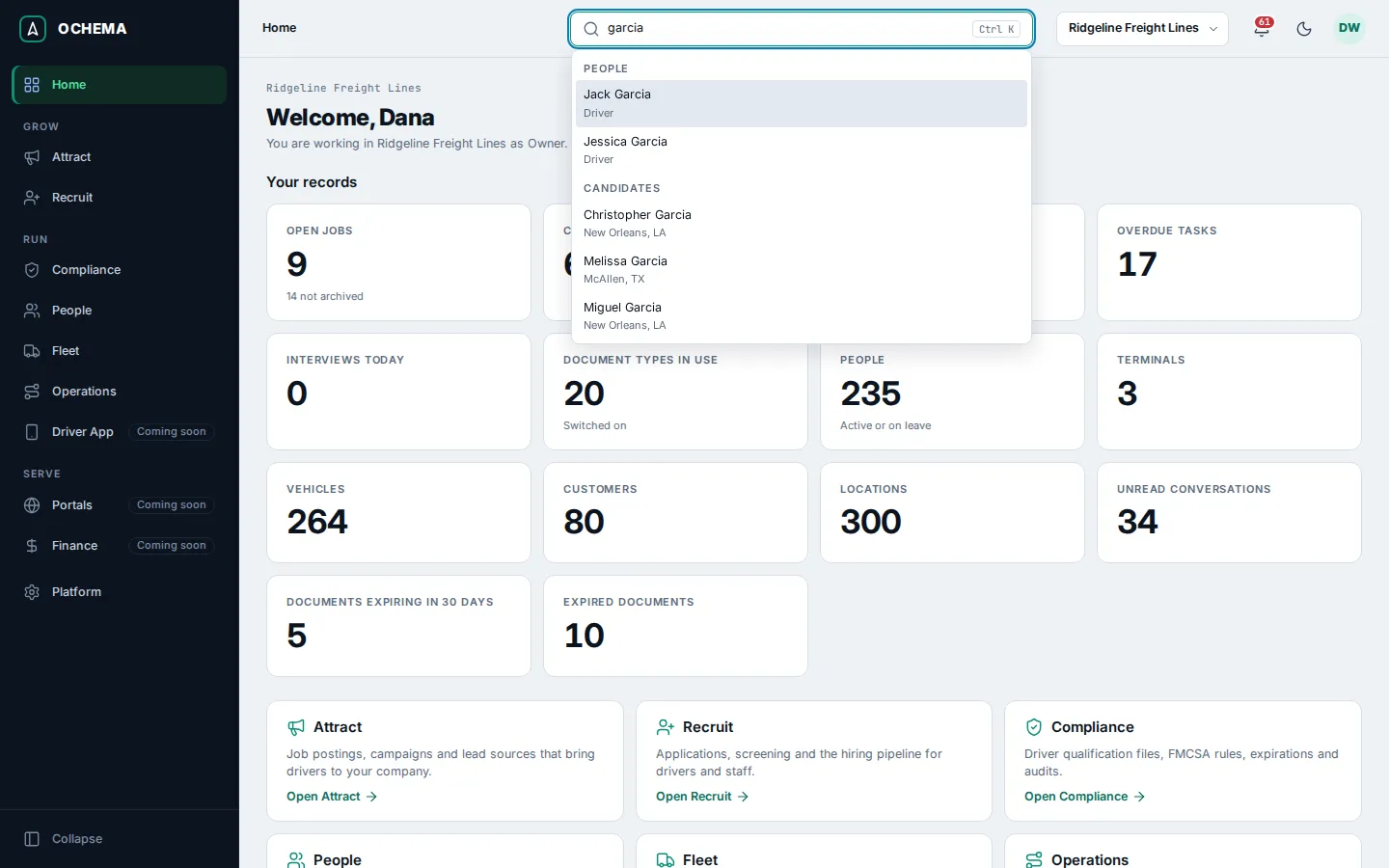
See what is waiting for you
Section titled “See what is waiting for you”The bell at the top right shows a number when something waits for you. Select it to open Notifications, with one line per kind of item and how many there are:
- Overdue tasks opens the Tasks tab of Recruit > Call lists.
- Unread conversations opens the Inbox of Recruit.
- Expired documents opens the Expired tab of Compliance > Expirations.
Each line shows only for a role that can see that list. With nothing waiting, the dialog says You are all caught up.
Open the screenshot at full size in a new tab: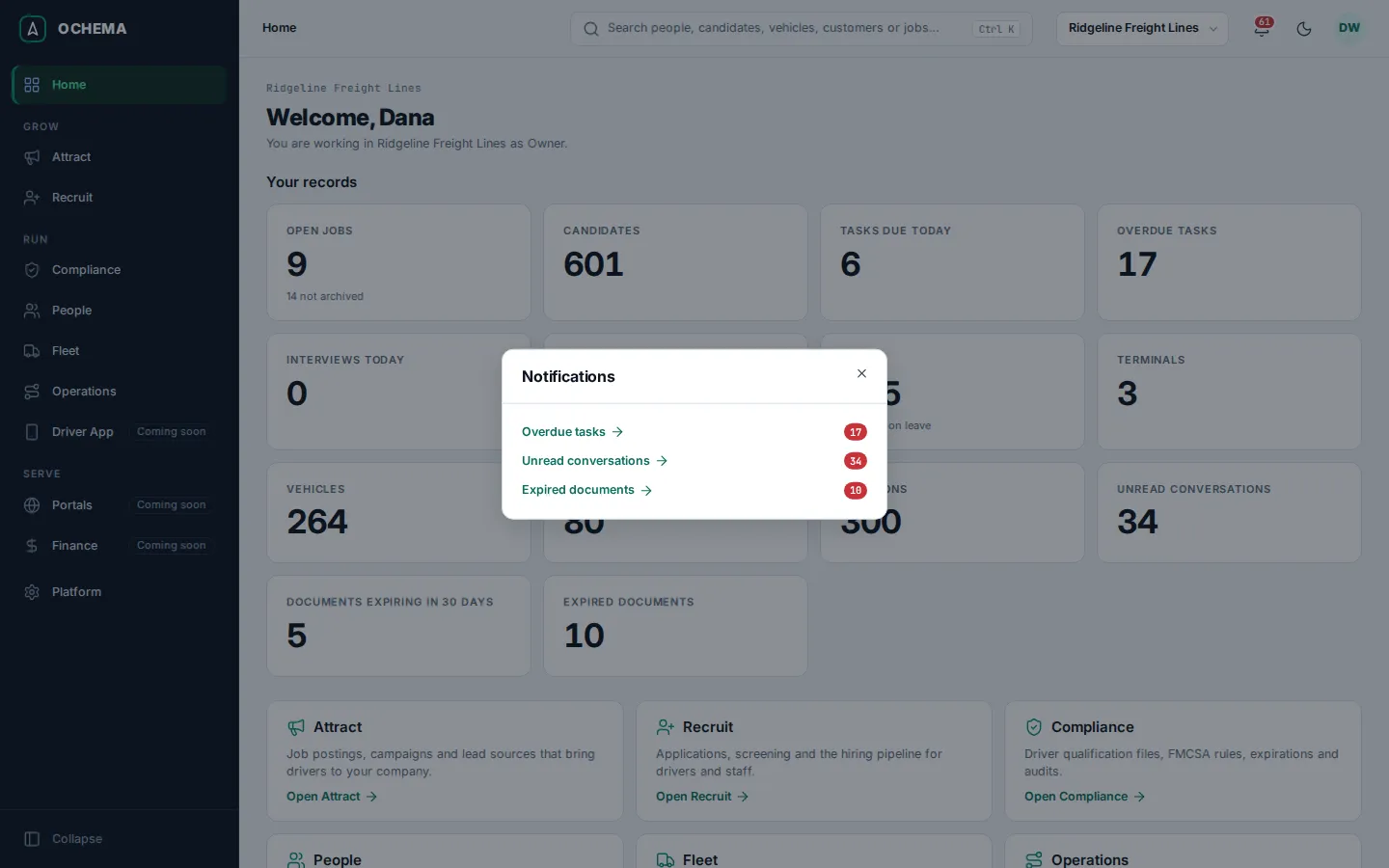
The bell counts what is pending now, the same numbers as the cards of Home. It is not a list of past alerts: an item leaves the bell when you deal with it, for example when you read the conversation or replace the expired document.
What happens next
Section titled “What happens next”Alerts of expiring documents also go out by email, as set in Expirations and alerts.