
Audit export
Who this is for
Section titled “Who this is for”Compliance managers and owners.
- To see and download exports and the retention list: View audit exports (
compliance.audit_export.read; roles Owner, Admin and Read only). - To generate exports and decide the retention of a driver file: Manage audit exports (
compliance.audit_export.manage; roles Owner and Admin). - To export with full identifiers, and to download such an export: Reveal sensitive data (
compliance.sensitive_data.reveal; role Owner only).
Before you start
Section titled “Before you start”- The driver files to export exist in Compliance > Driver files.
Export driver files
Section titled “Export driver files”- Open Compliance, then Audit export. The Export tab opens.
- Under New export, choose What to export:
- One driver, then the Driver;
- A selection of drivers, then the Drivers;
- Drivers by filter: the Terminal, the Driver type and Drivers (Active and terminated, Active, or Terminated in the period, with Terminated from and Terminated to).
- Optional: check Include previous versions to add the documents that were replaced, after the one in force.
- Optional: check Show full identifiers to show the Social Security number, date of birth and license number in full instead of masked. Each value shown is recorded in the audit log. Without the permission to reveal sensitive data, the export cannot be made with this option.
- Select Generate export. The message Export started. It is generated in the background. appears.
- Under Exports, the row shows Waiting, then Generating with the count done, then Ready. Reload the page to see the change. Select Download to save the file.
Open the screenshot at full size in a new tab: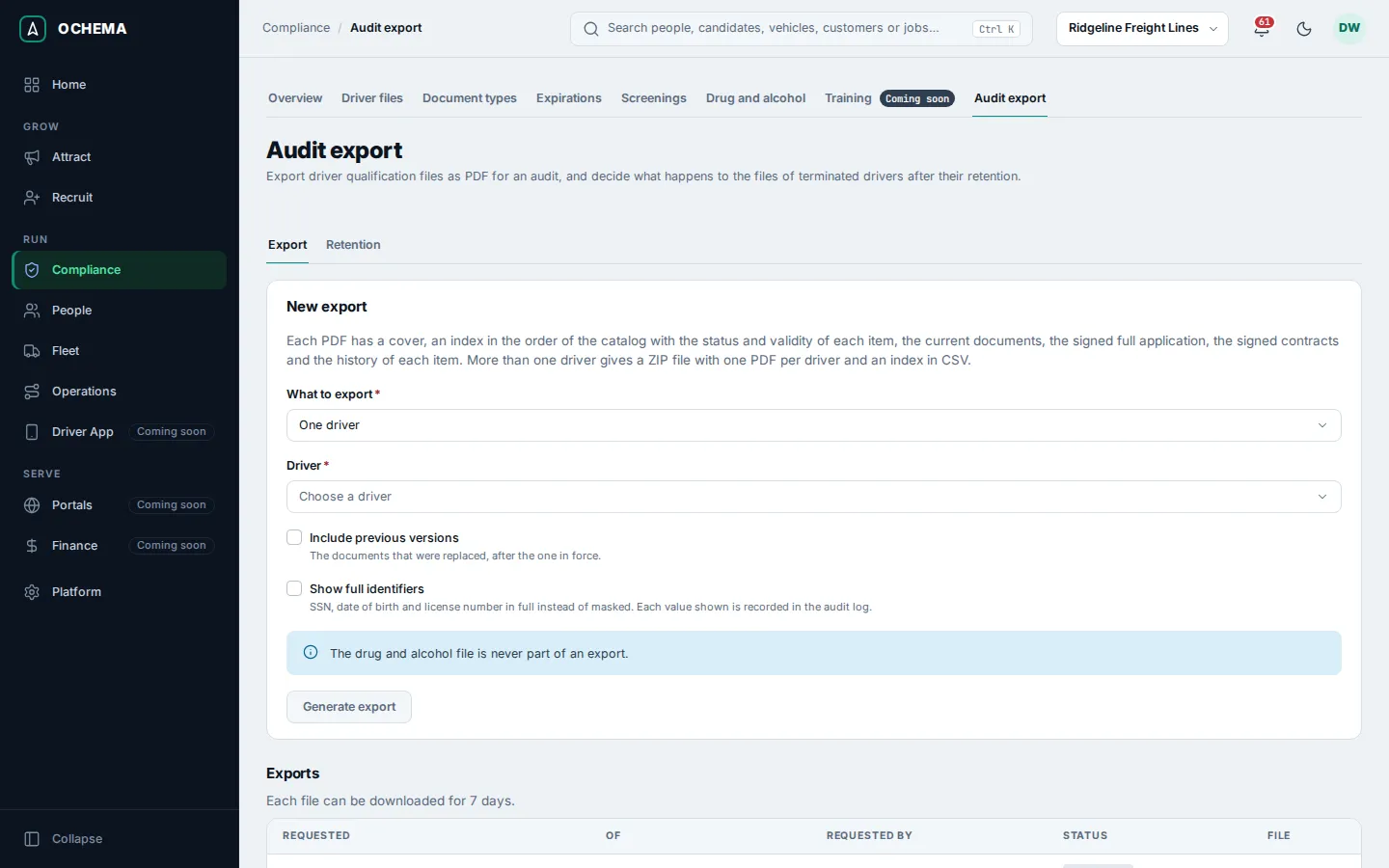
The tutorial shows an export of one driver that is ready: see Export the driver file for an audit.
What the export has
Section titled “What the export has”- Each PDF has a cover, an index in the order of the catalog with the status and validity of each item, the current documents, the signed full application, the signed contracts and the history of each item.
- More than one driver gives a ZIP file with one PDF per driver and an index in CSV.
- The drug and alcohol file is never part of an export.
- Each file can be downloaded for 7 days; after that the row shows Expired. Each download is written in the audit log.
- An export made with Show full identifiers says so in its row, and downloading it needs the permission to reveal sensitive data.
Decide the retention of terminated drivers
Section titled “Decide the retention of terminated drivers”The driver file of a terminated driver is read only and kept until the end of its retention. Nothing is deleted automatically: after that date the file waits for a decision here.
- Select the Retention tab.
- In Which drivers, choose All terminated or Retention ended. Each row shows the Driver, Terminated on, Retention ends on and the Decision. Estimated date marks a termination date that came from the first fill of the driver files: correct it if you know the real date.
- Choose an action on the row:
- Correct date: type the Date of termination and select Save date. The end of the retention is counted again from the new date.
- Keep: type the Reason and Keep until, and select Keep. The driver file and its documents are kept until the new date.
- Mark for deletion (only when the retention ended): type the name of the person to confirm and select Mark for deletion. The driver file is only marked: nothing is deleted now, and the message says the files are still stored.
Open the screenshot at full size in a new tab: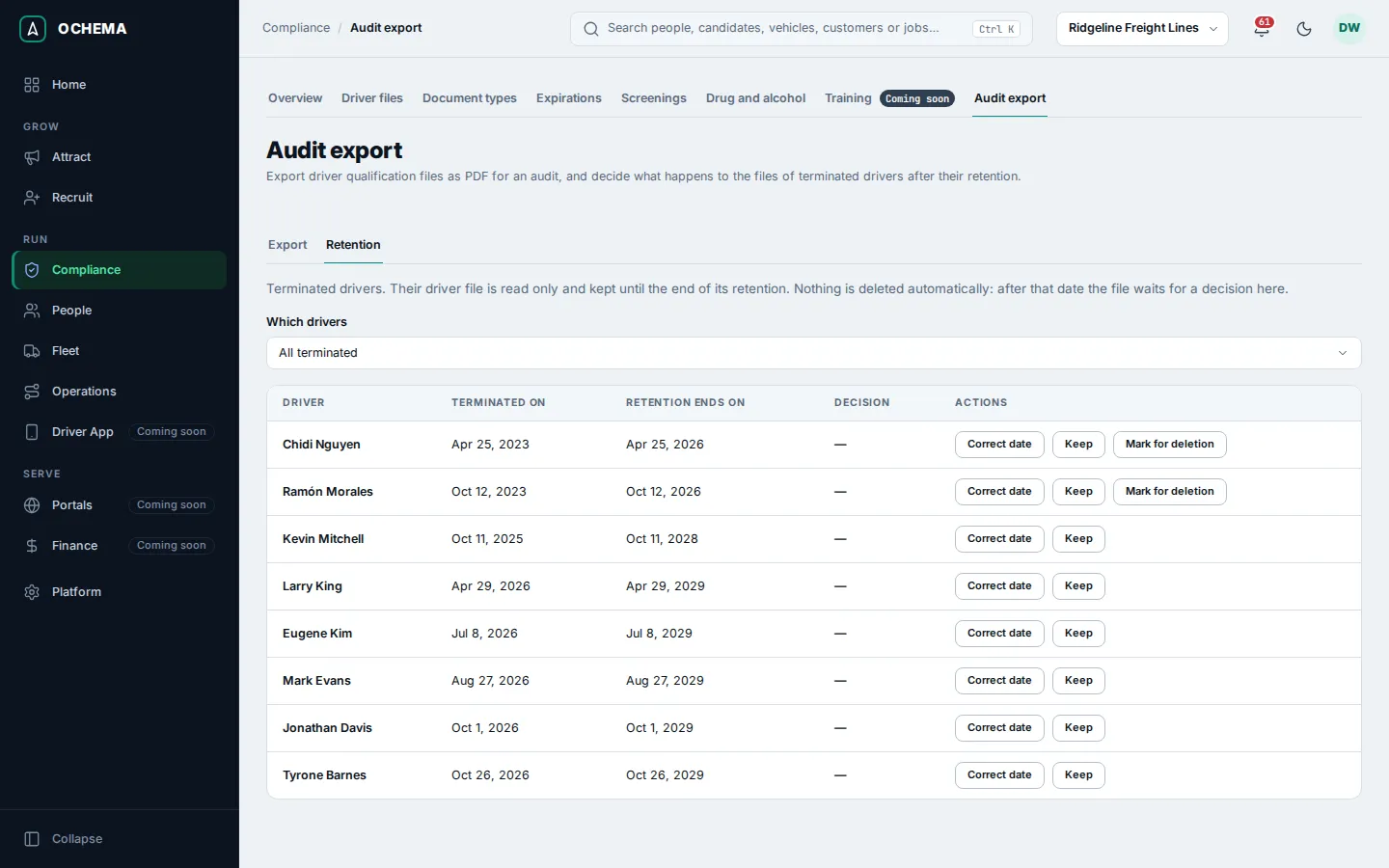
What happens next
Section titled “What happens next”The export is made in the background, so you can leave the page and come back. A driver file that is marked for deletion shows Marked for deletion in Decision. The retention of the drug and alcohol file is decided apart, in Drug and alcohol file.