The Getting started list
Who this is for
Section titled “Who this is for”The owner of a new company, or anyone whose role can change the company details. Other roles do not see the list.
Before you start
Section titled “Before you start”- You created your company. See Create your account.
-
Select Home in the menu on the left. The Getting started card shows how many steps are done, for example 0 of 4 done.
-
Do the steps in any order. Each one has a link on its right that opens the screen where you do it:
Step Link Done when Complete the company details Open company details The address, the USDOT number, where you operate and your kind of drivers are saved. See Company details. Publish your first job Create a job A job that is not archived is published on your careers page. See Publish your first job. Set up your careers page Open careers page The careers page was saved once, with its address. See Your careers page. Invite your team Invite people One more person joined the company, or an invitation was sent and not revoked. See Invite your team. -
Come back to Home after each step. A step that is done shows Done with a check mark; the others show To do.
Open the screenshot at full size in a new tab: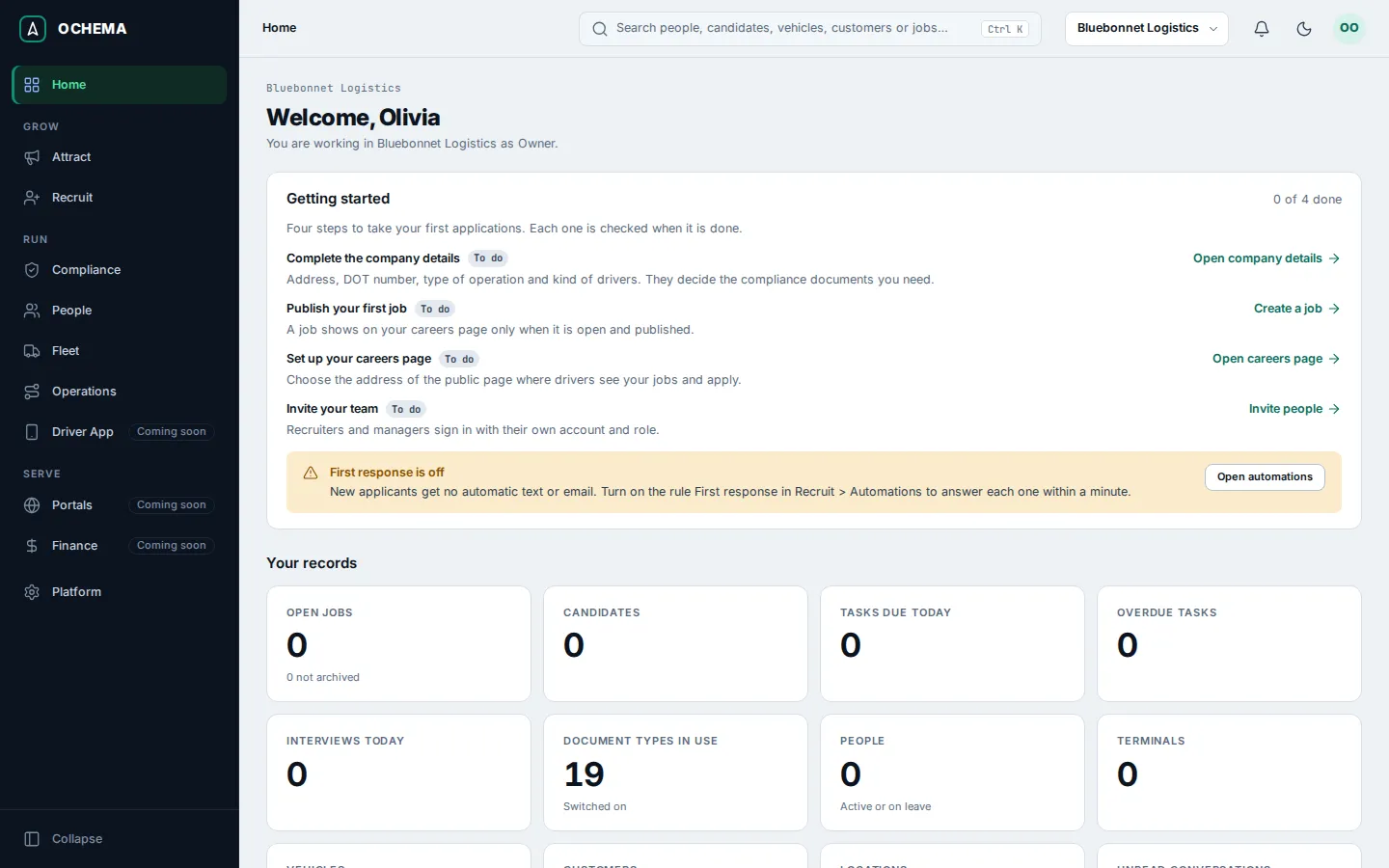
The First response notice
Section titled “The First response notice”Inside the card, the notice First response is off says that new applicants get no automatic text or email. First response is a rule of Recruit > Automations, and a new company has it turned off. Select Open automations, open First response and select Turn on. The notice is not one of the four steps: it does not count in 0 of 4 done. The tutorial shows the rule.
What happens next
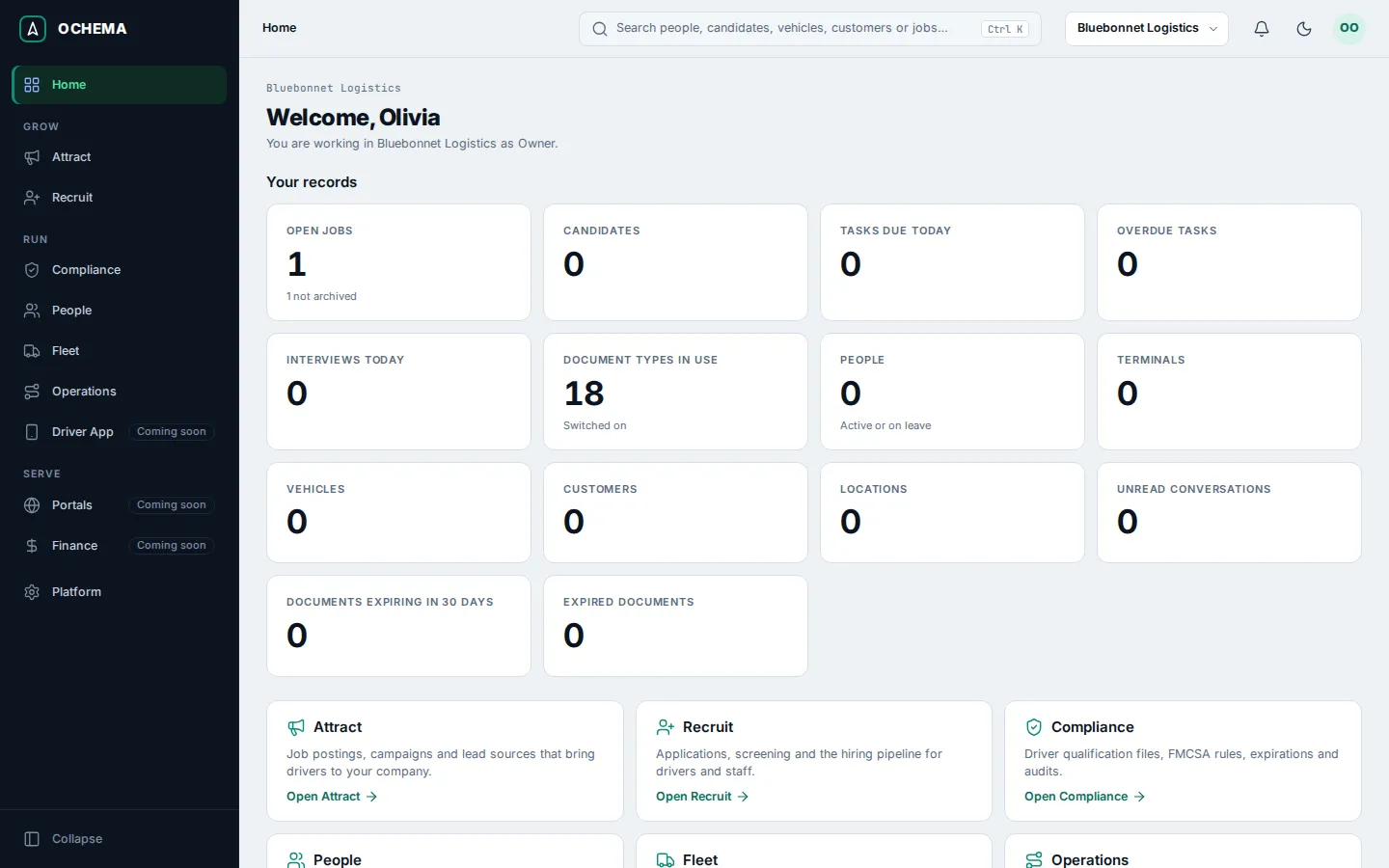
Section titled “What happens next”When the four steps are done, the Getting started card leaves Home. Home then shows Welcome, your role, and the counters under Your records (open jobs, candidates, tasks, interviews, document types in use and more).
Open the screenshot at full size in a new tab: