
Messaging settings
The Messaging tab of Platform > Integrations gathers what decides how Ochema texts and emails your candidates: the SMS number, the email provider and reply address, the hours automatic messages may go out, the stop and help replies, the options of automatic messages and the usage of the month.
Who this is for
Section titled “Who this is for”- Anyone whose role has View messaging settings (
platform.messaging_settings.read) sees the tab. Without it, the Integrations page shows only the Lead intake API tab. - Changing the reply address, the sending hours, Send the first message at any hour, Remind people who did not finish applying and the daily limit, and sending a test email, need Manage messaging settings (
platform.messaging_settings.manage). Without it the same tab is read only. - Owner and Admin have both; Read only has only the first. See Roles and permissions.
- The SMS number and the carrier registration are not set by anyone in your company: the Ochema platform team sets them.
Before you start
Section titled “Before you start”- Have a real mailbox of your company for replies, for example
recruiting@yourcompany.com. - Decide the hours your candidates may receive automatic messages, between 8:00 AM and 9:00 PM.
- For automatic emails (automations, sequences, broadcasts), your careers page needs an address: each automatic email carries an unsubscribe link that opens there.
Open the tab
Section titled “Open the tab”- Open Platform in the menu on the left, then Integrations.
- Select the Messaging tab. It opens at the address
/platform/integrations/messaging, so you can bookmark it.
Open the screenshot at full size in a new tab: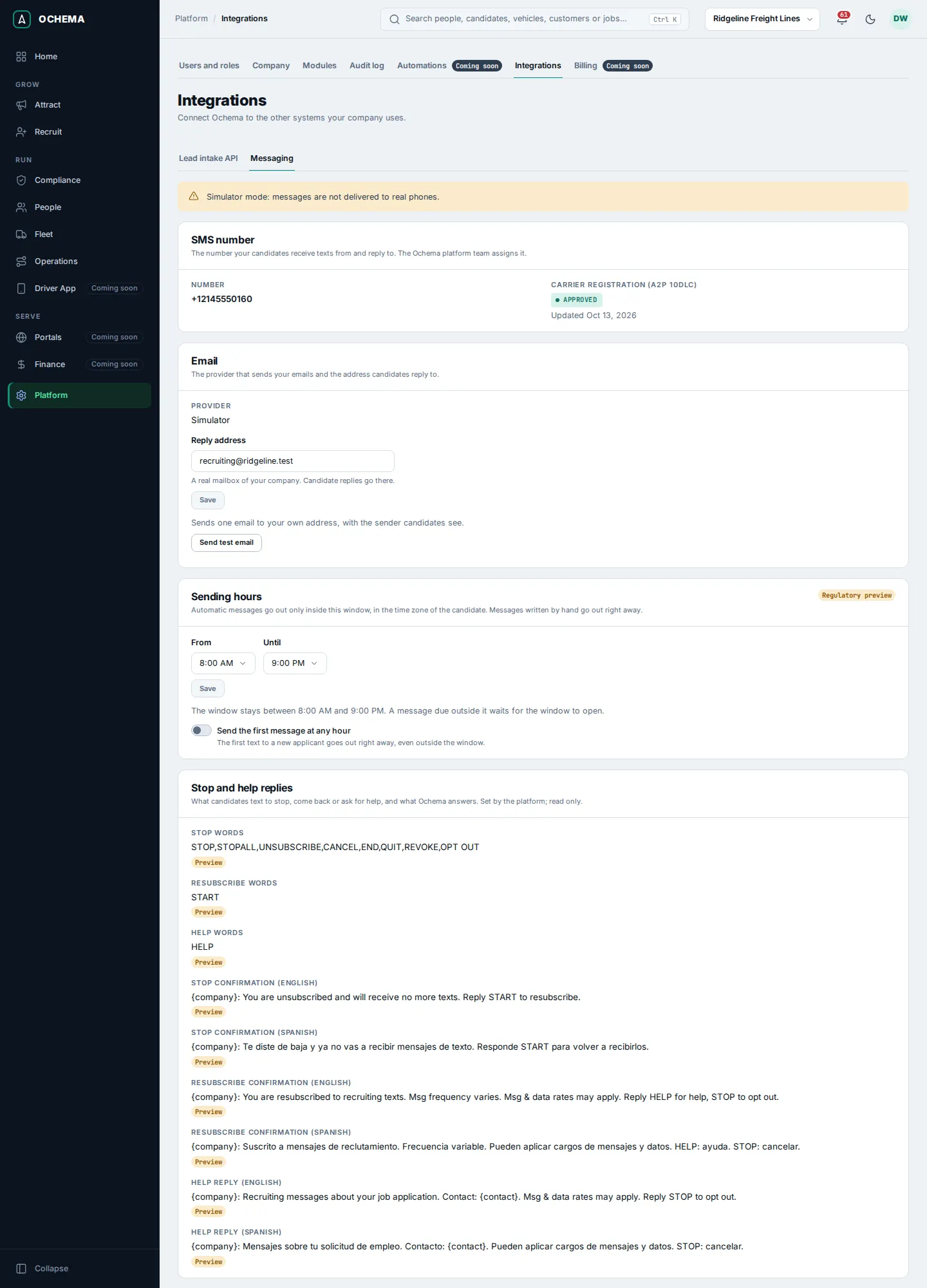
Check your SMS number
Section titled “Check your SMS number”The SMS number card shows the Number your candidates receive texts from and reply to, and its Carrier registration (A2P 10DLC): Not started, In review, Approved or Rejected, with the date it last changed. The card is read only.
The card warns you when SMS cannot go out:
- No SMS number yet: SMS is not sent until your company has a number. Contact support to get one.
- SMS will be sent after the carrier registration is approved. With a real SMS provider, a number whose registration is not Approved sends nothing. Contact support to start the registration.
- This number belongs to …, but messages are sent with …: the number was set up for another provider than the one in use. SMS is not sent until support fixes the number.
Set the email reply address
Section titled “Set the email reply address”The Email card shows the Provider that sends your emails: Simulator, SMTP or Amazon SES. The provider is chosen by the Ochema platform team for the whole service.
- In Reply address, type a real mailbox of your company. Candidate replies go there.
- Select Save. The message Messaging settings saved. appears.
- To see what candidates receive, select Send test email. One email goes to your own address, with the sender candidates see, and the result shows under the button. You can send 5 test emails in 10 minutes.
With SMTP, the card adds two notices: emails are not sent without a reply address, and replies and bounces are not tracked, so replies go to the reply address and not to the Inbox.
Choose the sending hours
Section titled “Choose the sending hours”- In Sending hours, choose From and Until. The choices go in half hours, from 8:00 AM to 9:00 PM.
- Select Save. The end must be after the start.
What the window does:
- Automatic messages (automations, sequences, broadcasts and reminders) go out only inside this window, in the time zone of the candidate. The time zone comes from the state of the candidate; without a state, from the area code of the phone; without both, from the time zone of your company. For a state with two time zones, the message waits until both are inside the window.
- A message due outside the window is not lost: it waits for the window to open.
- Messages written by hand in the Inbox or on the candidate page, and system notices, go out right away, at any hour.
- Send the first message at any hour: when on, the first text to a new applicant goes out right away, even outside the window. The switch saves as soon as you change it.
The card is marked Regulatory preview: the limits follow the rules as the product team read them, and are not legal advice.
Set the options of automatic messages
Section titled “Set the options of automatic messages”In Automatic messages, each change saves at once:
- Remind people who did not finish applying: emails a link to finish the application to people who left it halfway. One address gets at most 2 of these reminders in 7 days.
- Most automatic SMS per candidate per day: from 1 text to 5 texts; 3 by default. The limit counts the SMS of automations, sequences and broadcasts sent to one candidate in the local day of the candidate. An SMS past the limit is not sent, and it is not moved to the next day: it shows as canceled on the candidate timeline. Messages written by hand, reminders and system notices do not count against it.
Read the stop and help replies
Section titled “Read the stop and help replies”Stop and help replies lists the words candidates text to stop (STOP, UNSUBSCRIBE, CANCEL and others), to come back (START) or to ask for help (HELP), and what Ochema answers in English and Spanish. They are set by the platform and read only. Each one shows Preview until the platform team validates it.
A candidate who texts a stop word stops receiving SMS at once, and the messages waiting for them are canceled. Only the whole text counts: “please stop calling me” stops nothing.
Read the usage
Section titled “Read the usage”Usage this month counts the SMS sent, SMS segments, SMS received, Emails sent and Emails received of this month and the last one, and a second table splits this month by origin: Written by hand, Automations, Sequences, Broadcasts, Reminders, System messages and Received. Months are counted in UTC, when a message leaves or arrives.
What real sending needs
Section titled “What real sending needs”Ochema sends every SMS and email through one path, and none of the rules below can be skipped by a role or a setting.
| For | What must be true | Without it |
|---|---|---|
| Any SMS | Your company has an SMS number, set for the provider in use. | The message is stored as canceled, with the reason that the sender is not ready. |
| Any SMS with a real provider | The carrier registration of the number is Approved. | The same. |
| Any SMS | The candidate gave SMS consent, has a phone on record and did not text a stop word. | The message is canceled, with the reason on the candidate timeline. |
| Any email with SMTP | A reply address is saved. | The email is canceled. |
| Any email | The address did not unsubscribe, bounce or complain. | The email is canceled. |
| Automatic email | Your careers page has an address, for the unsubscribe link. | The email is canceled. |
Simulator mode
Section titled “Simulator mode”When the platform runs with the SMS simulator, the tab opens with Simulator mode: messages are not delivered to real phones. In this mode:
- SMS go nowhere: the simulator accepts each message and marks it delivered shortly after. Consent, the sending hours and the daily limit apply exactly as with a real provider, so you can try automations safely.
- SMS go out without the carrier registration. The SMS number card says so.
- Send test email says Simulator mode: no email was sent. when the email provider is the simulator too.
Simulator mode is a choice of the platform, not of your company. Ask Ochema support when you are ready to send for real.
What happens next
Section titled “What happens next”- Automatic messages start to follow the new hours and limit at once. Messages already waiting keep the time they were given. When each one leaves, the consent, the phone and the email suppressions of the candidate are checked again.
- Every change on this tab is recorded in the Audit log as Messaging settings updated, with the values before and after.
Related
Section titled “Related”- Messaging, in the system documentation: the single path, the order of the checks and how the simulator works.
- Limits
- Inbox
- Automations, Sequences and Broadcasts
- Careers page