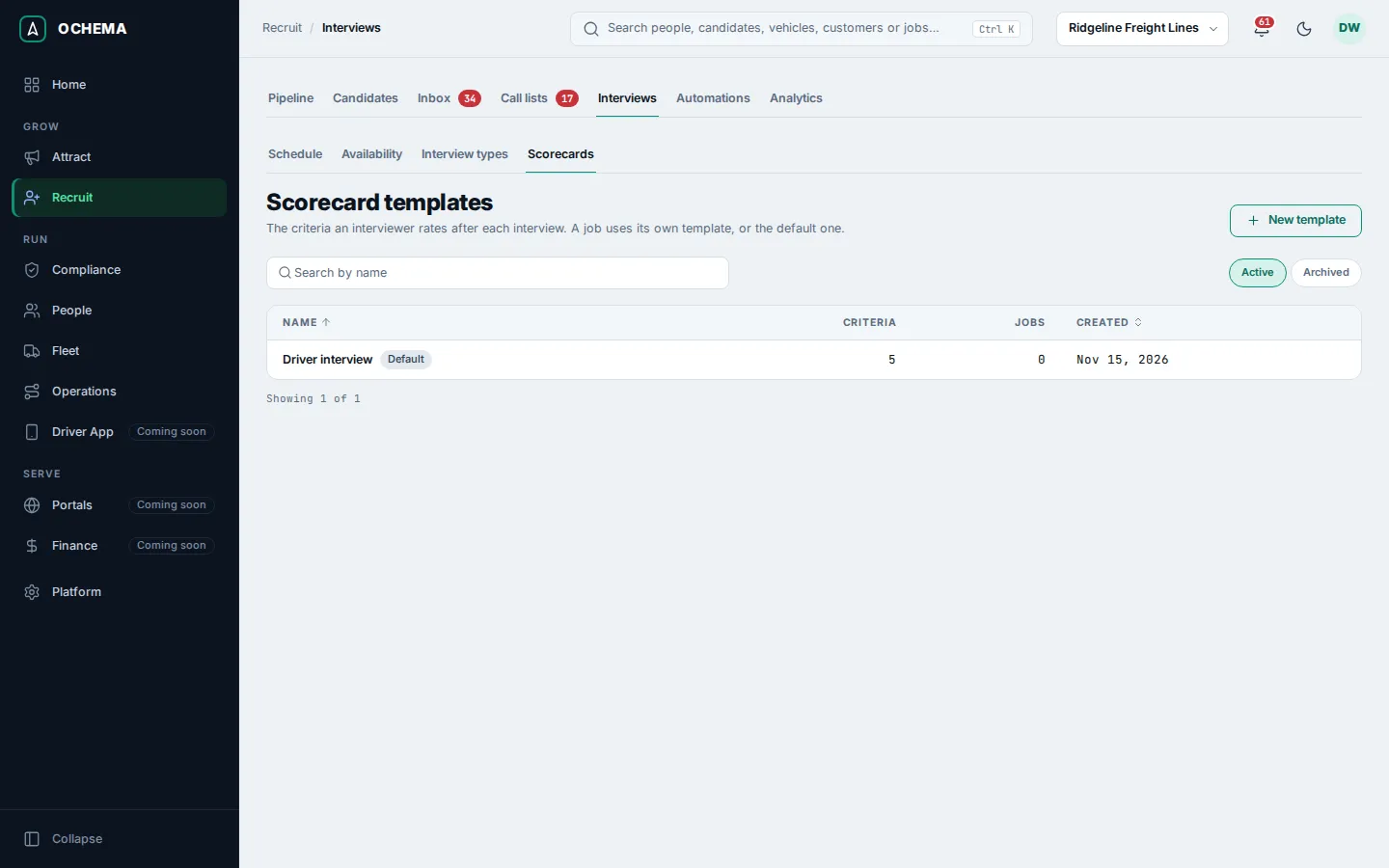
Scorecards
A scorecard is what the interviewer fills after an interview: a rating from 1 (Poor) to 5 (Excellent) on each criterion, an overall recommendation and comments. The criteria come from a scorecard template, set up in Recruit > Interviews, tab Scorecards.
Who this is for
Section titled “Who this is for”- Seeing scorecards needs View scorecards. Filling them and editing the templates needs Manage scorecards. A submitted scorecard can only be changed by someone with Manage scorecards.
- The Owner and Admin roles have both; Read only can see them. See Roles and permissions.
Before you start
Section titled “Before you start”- Your company starts with the default template Driver interview, with five criteria. Every interview whose job has no template of its own uses the default one.
- A scorecard belongs to an interview. A canceled interview or a no-show has no scorecard. See Interviews and scheduling.
Fill a scorecard
Section titled “Fill a scorecard”- Open the interview from Recruit > Interviews, tab Schedule, or from the Interviews tab of the candidate page.
- Select Fill scorecard. The window Scorecard: and the candidate’s name opens, with the template it uses.
- Rate each criterion from 1 Poor to 5 Excellent, and add a Comment where useful.
- Choose the Overall recommendation: Strong yes, Yes, No or Strong no. Add an Overall comment.
- Select Submit, or Save draft to finish later. The message Scorecard submitted appears.
Open the screenshot at full size in a new tab: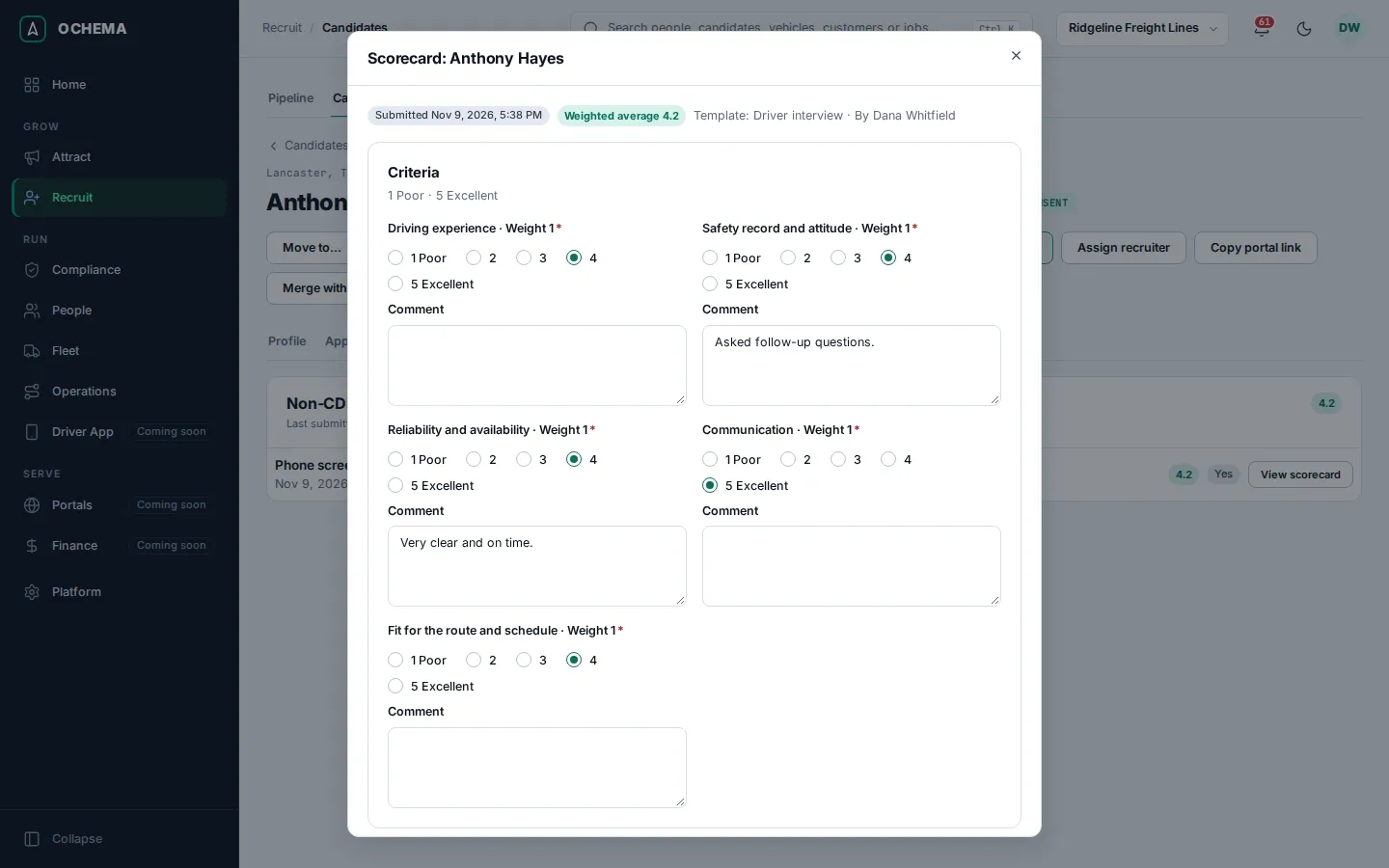
The tutorial fills one in Complete the interview and fill the scorecard.
Set up a scorecard template
Section titled “Set up a scorecard template”- Open Recruit > Interviews, then the Scorecards tab, and select New template.
- Type the Name the interviewers see, for example
Yard test. - Optional: turn on Default template to make it the one every job without its own template uses. The current default stops being it.
- Under Criteria, select Add criterion for each one (at most 30). Type the Name, an optional What to look at shown under the name, and the Weight: 1 Normal, 2 Double or 3 Triple. The scorecard shows the criteria in the order of the list.
- Under Jobs, choose the jobs whose interviews use this template.
- Select Create template.
Open the screenshot at full size in a new tab: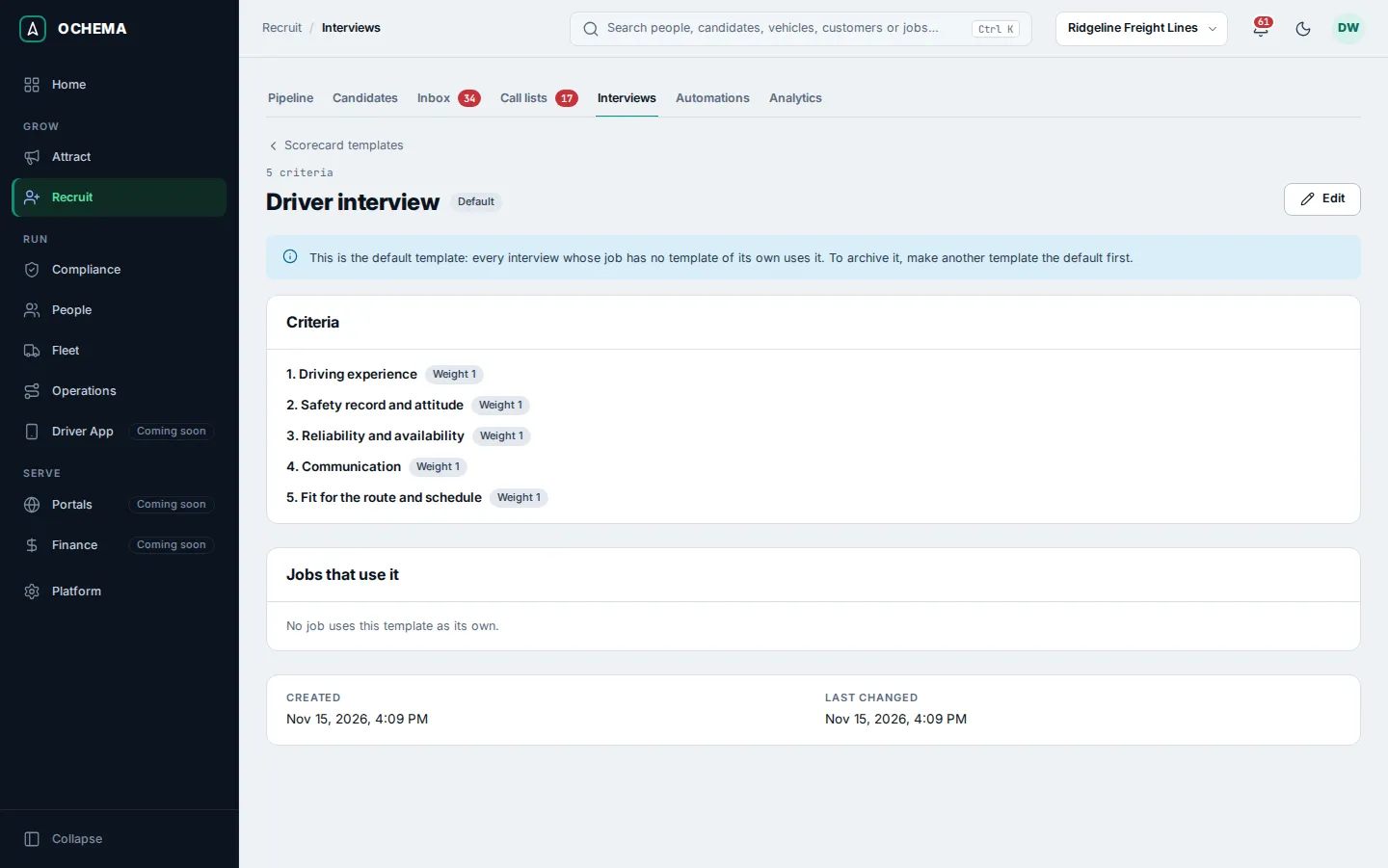
Changing the criteria does not change scorecards already started: they keep the criteria they had. Archive stops new scorecards from starting from a template; the default template cannot be archived until another one is the default.
What happens next
Section titled “What happens next”- The candidate’s Interviews tab lists each interview with its scorecard and the last submitted average and recommendation.
Open the screenshot at full size in a new tab: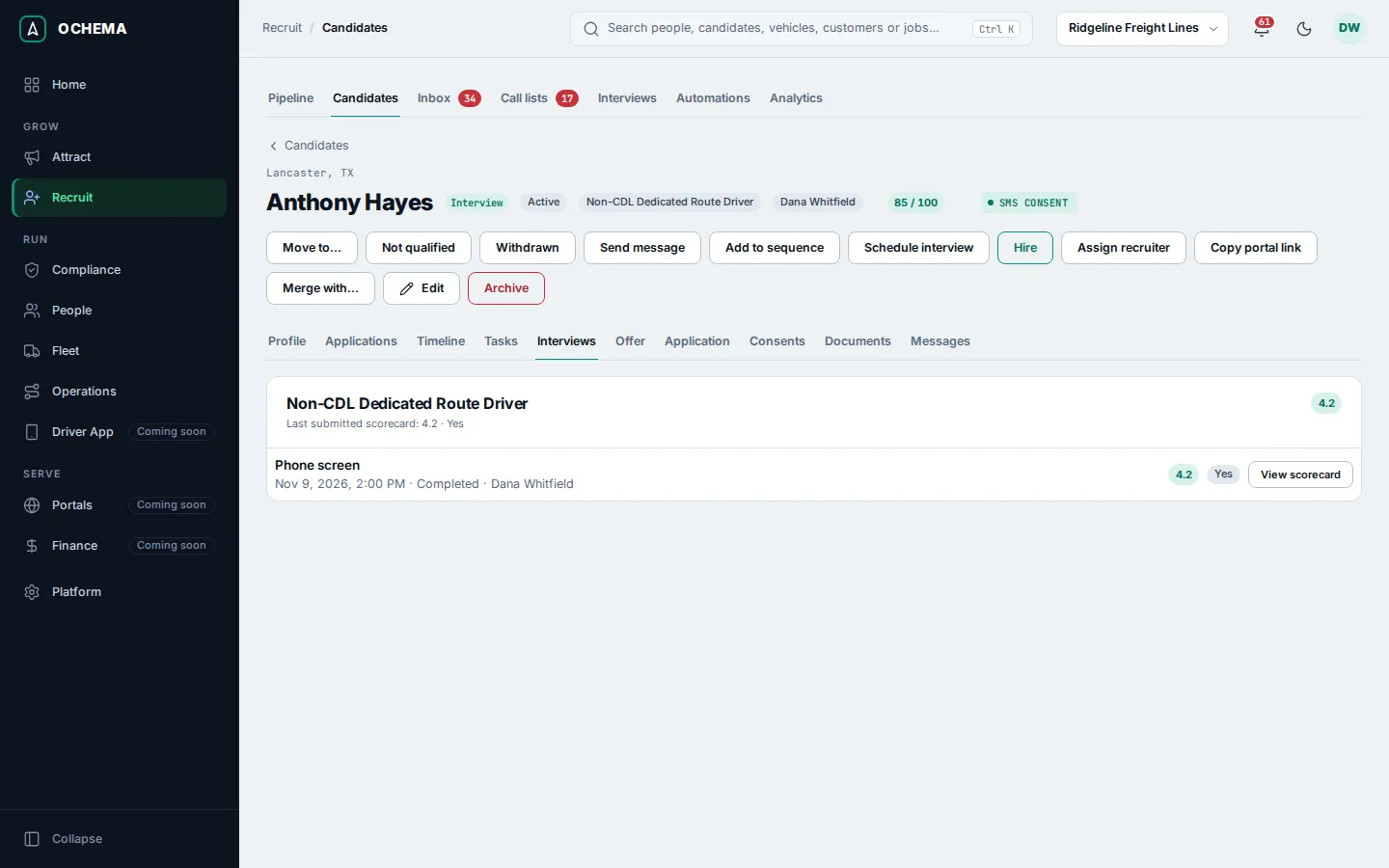
- The Scorecard column of Recruit > Candidates shows the average and the recommendation.
- The By recruiter panel of Analytics, tab Communication, counts the scorecards submitted by each recruiter.
Open the screenshot at full size in a new tab: